How to upload multiple videos and generate content in bulk
This article shows you how to upload multiple videos from your computer at the same time to generate several articles at once. This bulk-processing feature is a great way to save time when creating documentation for multiple topics. You will need your video files saved locally on your computer. You can bulk-upload up to 10 videos at a time.
-
From your project dashboard, click the Upload video button.
-
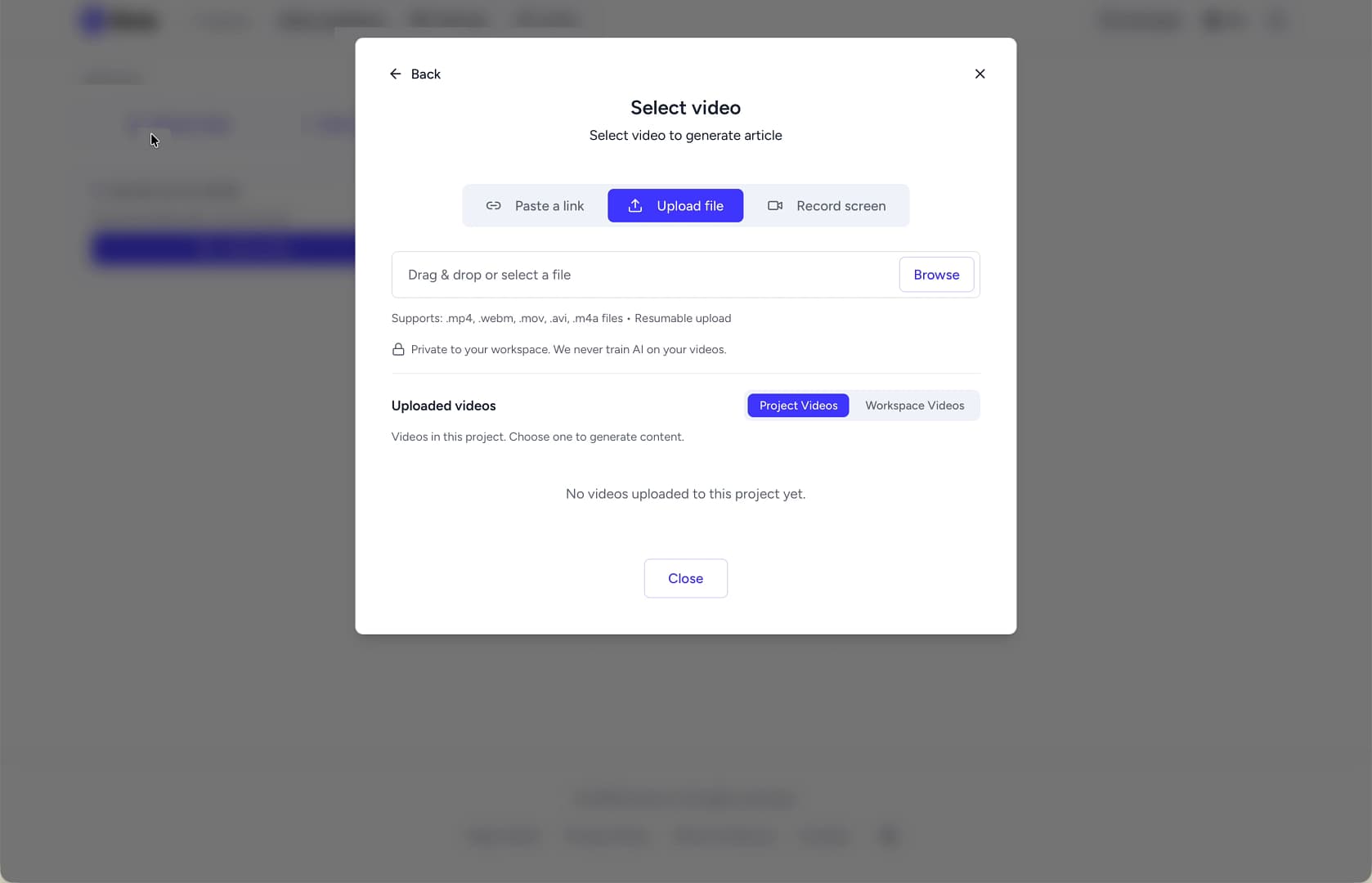
In the Select video window, make sure the Upload file tab is selected.
-
Click the Browse button to open your computer's file browser.
-
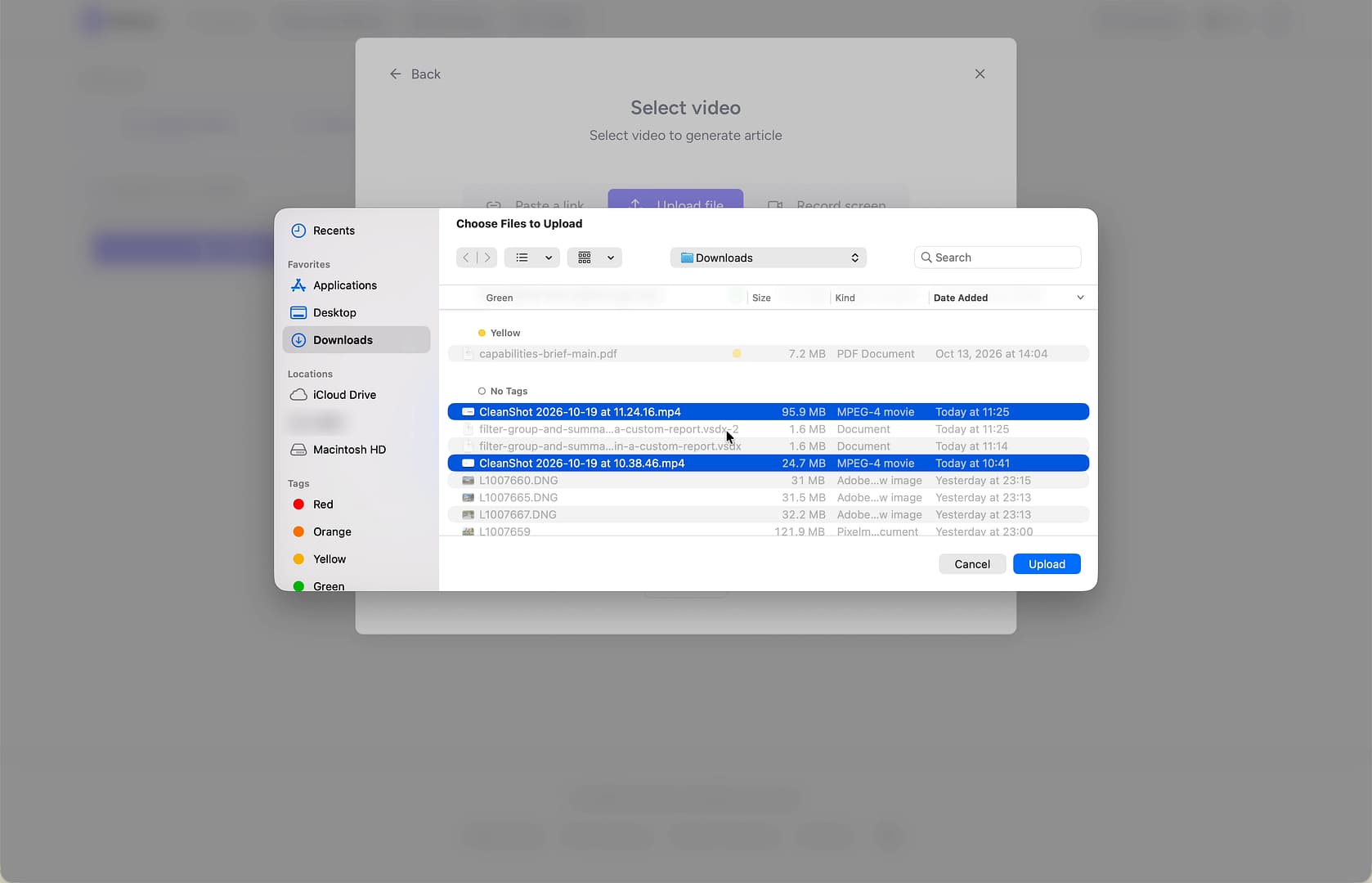
Locate and select all the video files you want to upload. You can typically select multiple files by holding the Ctrl key (on Windows) or Command key (on Mac) while clicking each file.
-
Click the Upload button in the file browser to begin.
-
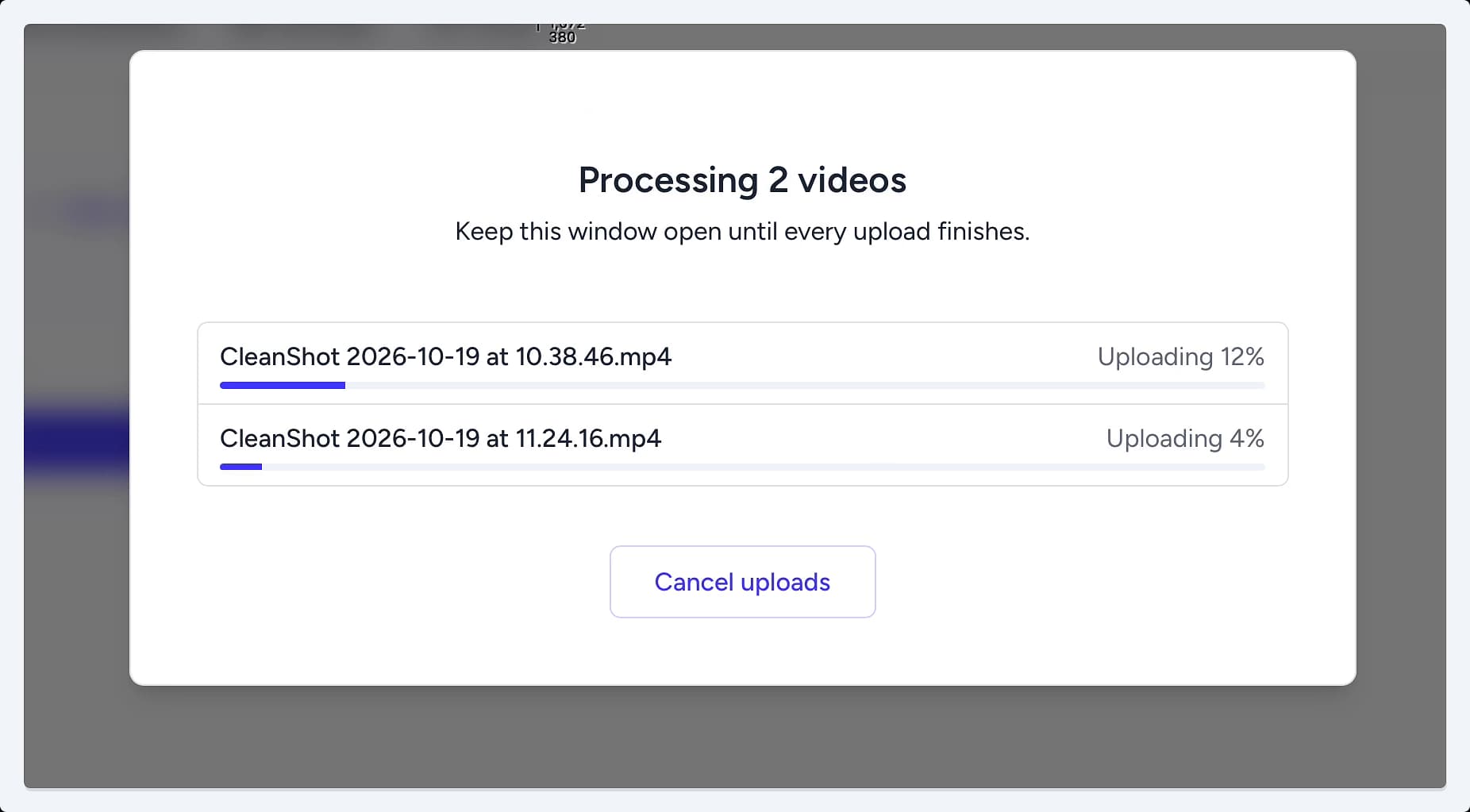
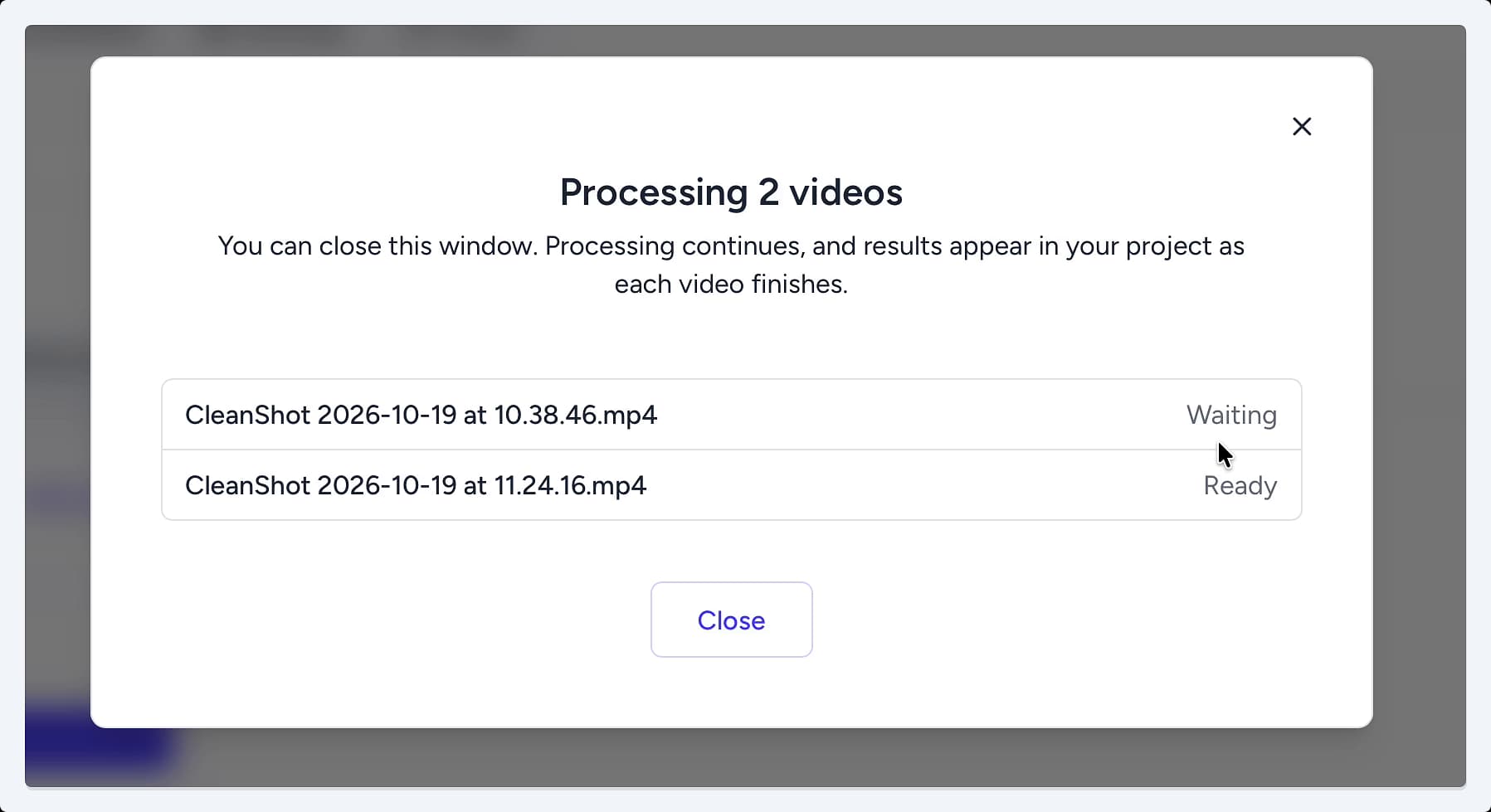
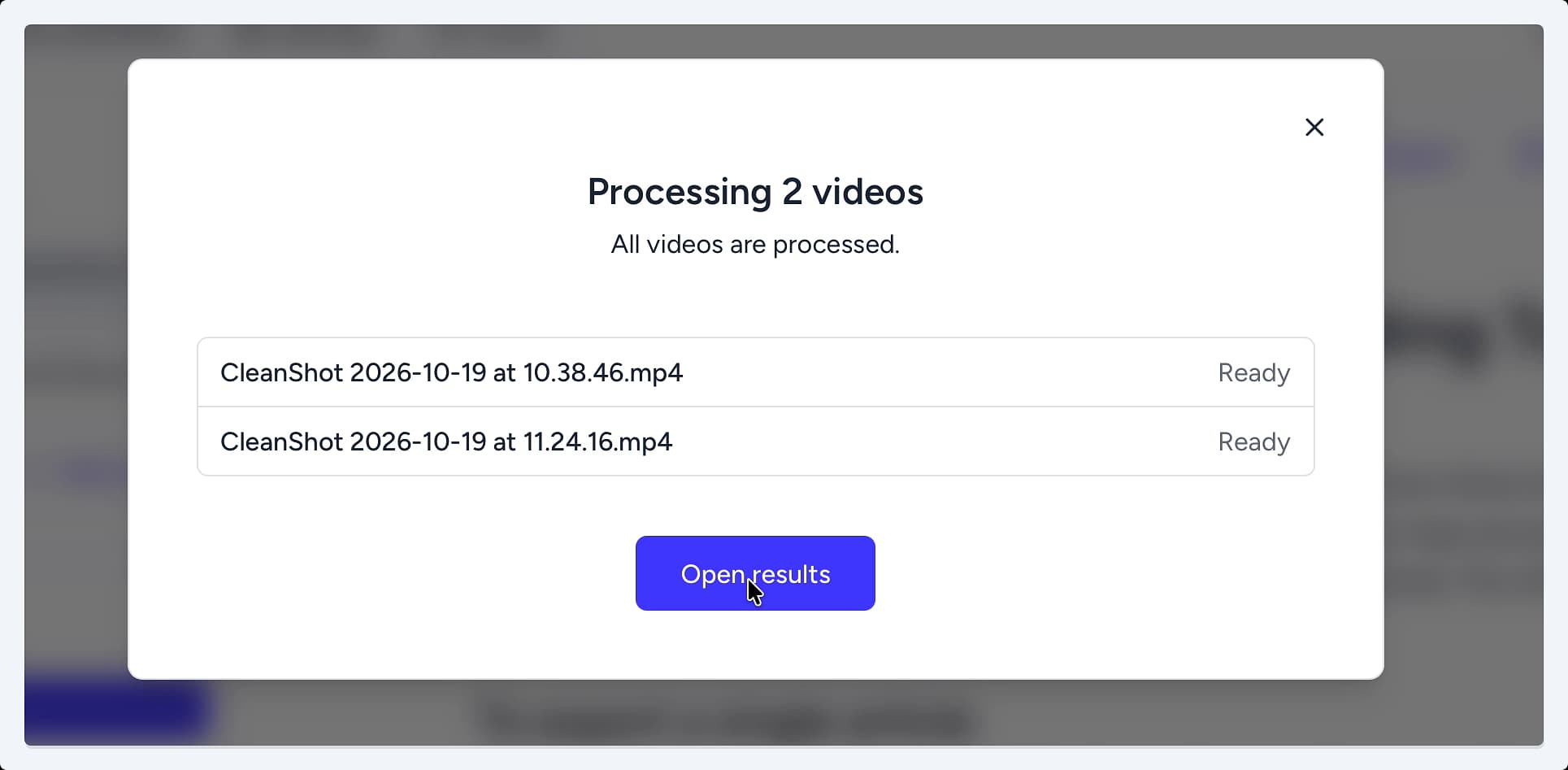
A new window will appear showing the real-time status for each video. The status will change from Uploading to Analyzing and then Ready as Hinto processes each file.
-
Once all videos show a Ready status, click the Open results button.
-
The new articles generated from your videos will now appear in the articles list on the left side of your project.
Tips
You can safely close the processing window after the uploads are complete. Hinto will continue to process the videos in the background, and the new articles will appear in your project as they are finished.
Summary
Efficiently create multiple pieces of documentation at once by using the bulk upload feature in Hinto AI. This guide explains how to select and upload several video files from your computer in a single batch. You can monitor the progress of each video as it is processed and instantly access all the newly generated articles right within your project, streamlining your content creation workflow.