How to Refine an Article with New Instructions
After generating an article, you may want to make significant changes to its structure, add new information, or apply a different format. This guide shows you how to use the Refine feature to regenerate an article with specific, high-level instructions, a different source video, or a new template.
-
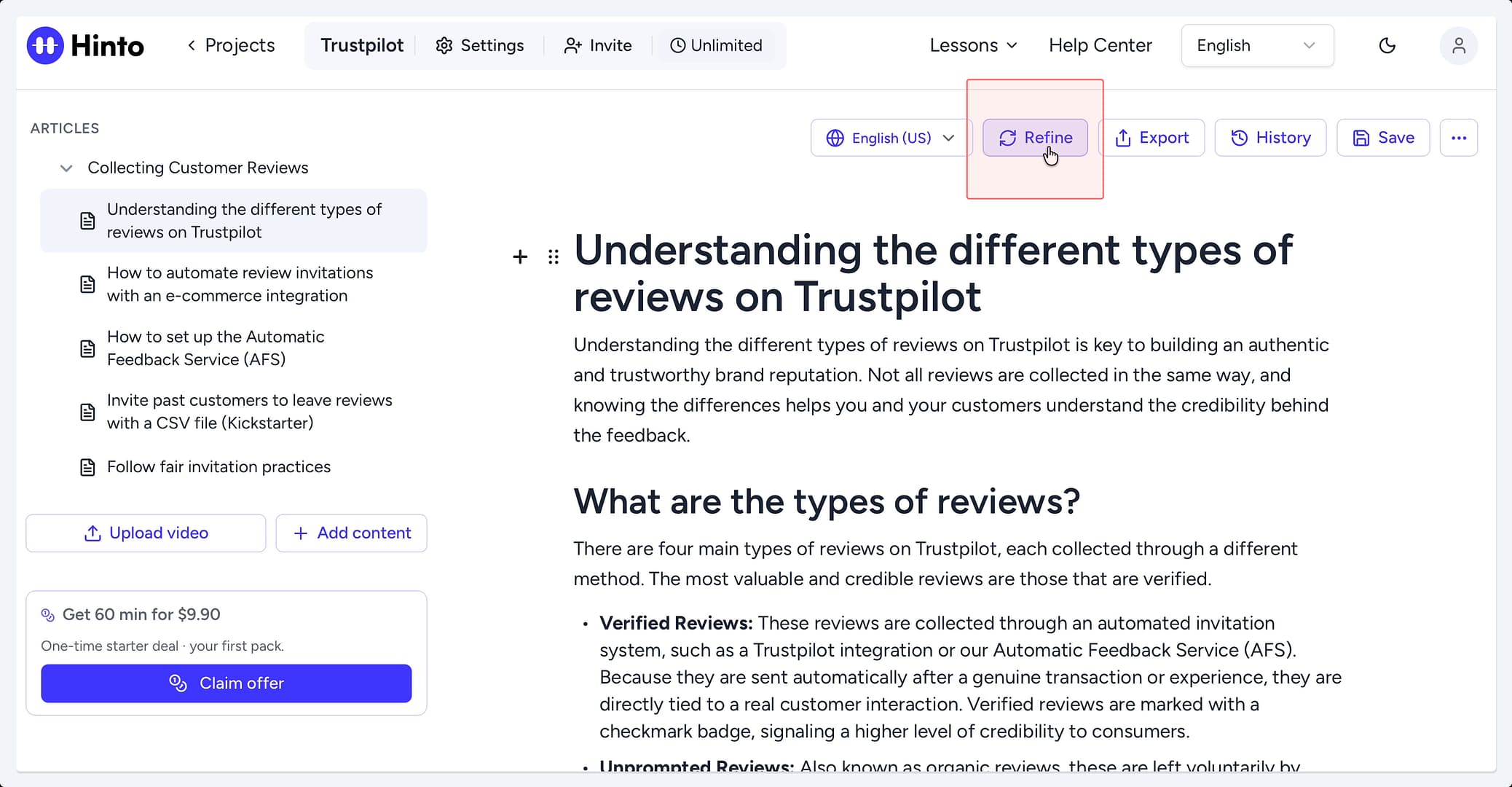
From the article editor, click the Refine button in the top toolbar.
-
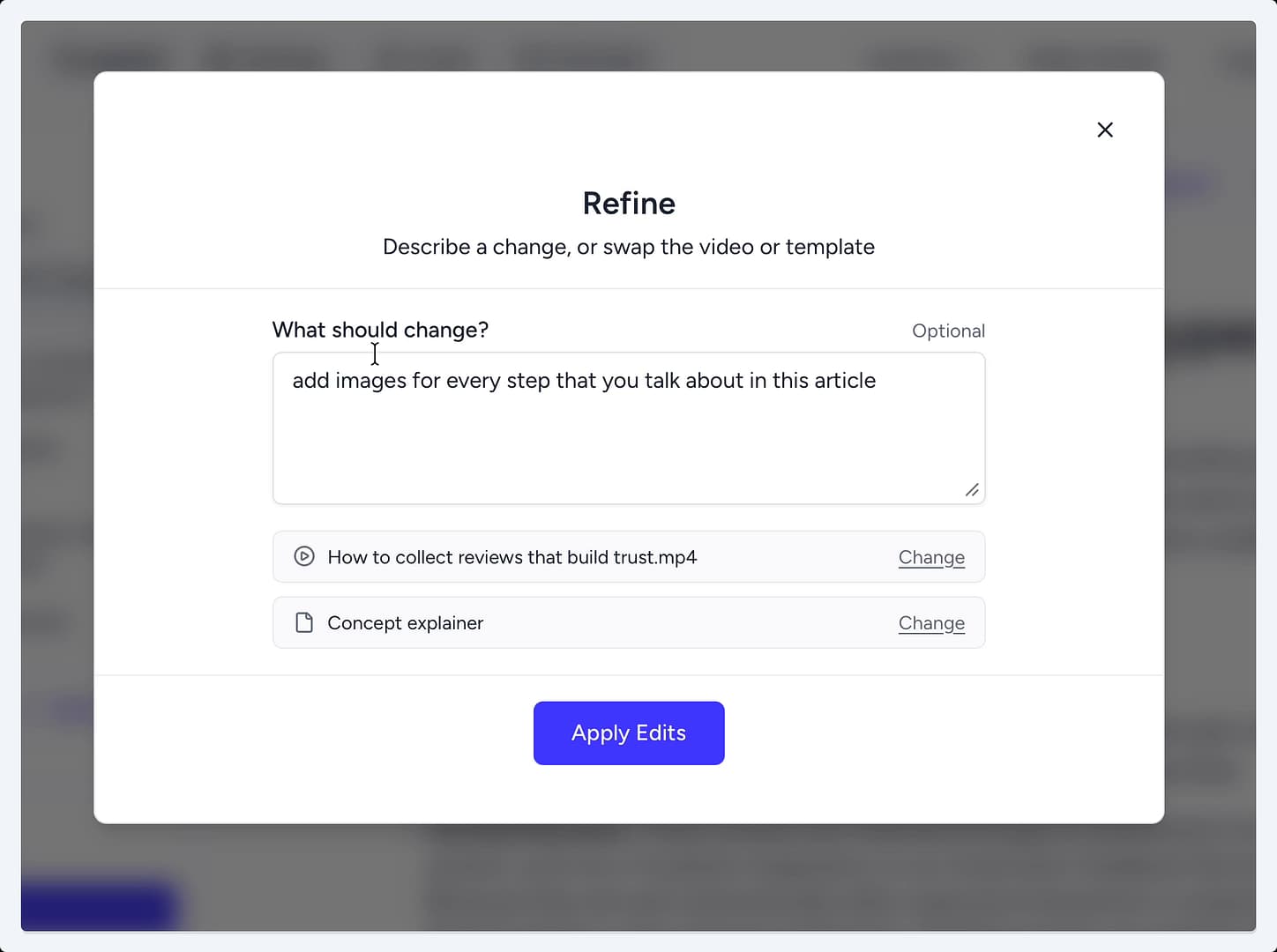
In the Refine window, describe the edits you want in the What should change? text box. You can provide detailed instructions, such as adding a troubleshooting section or including images for each step.
-
(Optional) To regenerate the article from a different video, click the Change button next to the current video name and select a new source video.
-
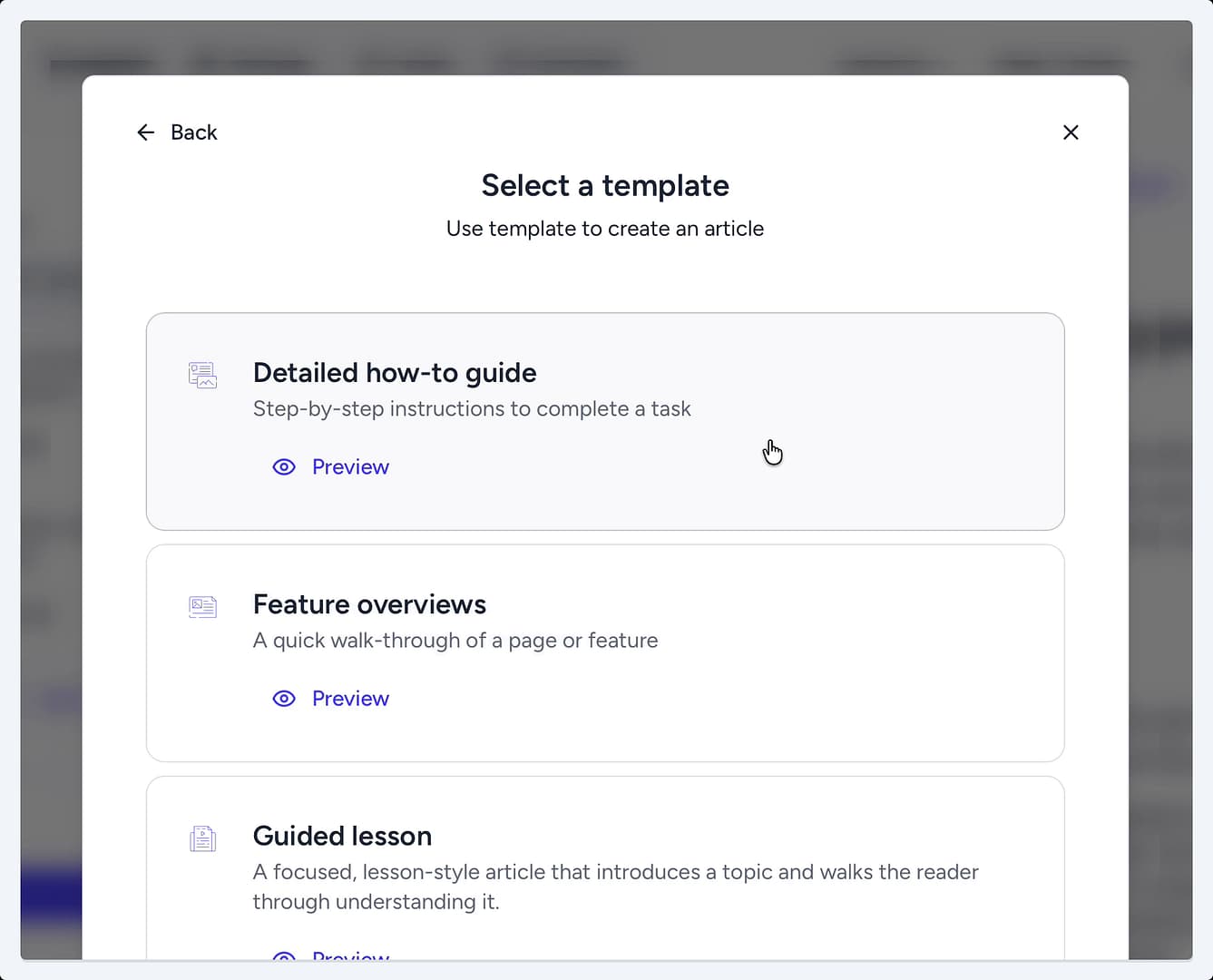
(Optional) To change the article's layout and structure, click the Change button next to the current template name and select a new template.
-
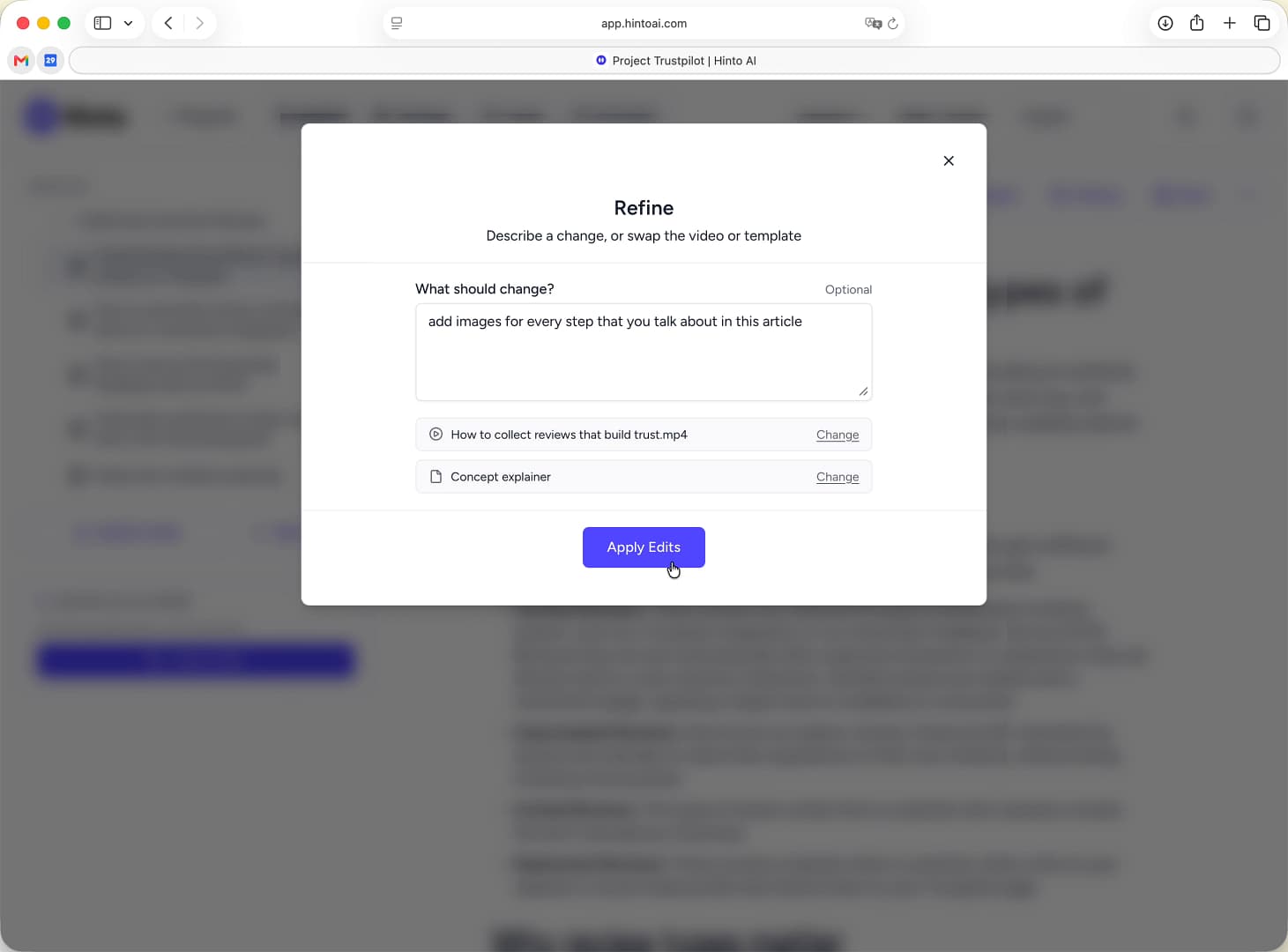
Once you have provided your instructions and selected a video or template, click Apply Edit. Hinto AI will regenerate the article based on your new input.
Summary
The Refine feature provides a powerful way to regenerate your articles with specific instructions, a new source video, or a different template. This allows you to make substantial edits and structural changes efficiently, ensuring the final output perfectly matches your content goals.