Generate and Edit Image Alt Text
Hinto automatically generates descriptive alt text for every image created from your videos. This is crucial for improving accessibility for users with screen readers and boosting your content's SEO. This guide will show you how to find, manually edit, and regenerate the alt text for your images to ensure they are accurate and effective.
-
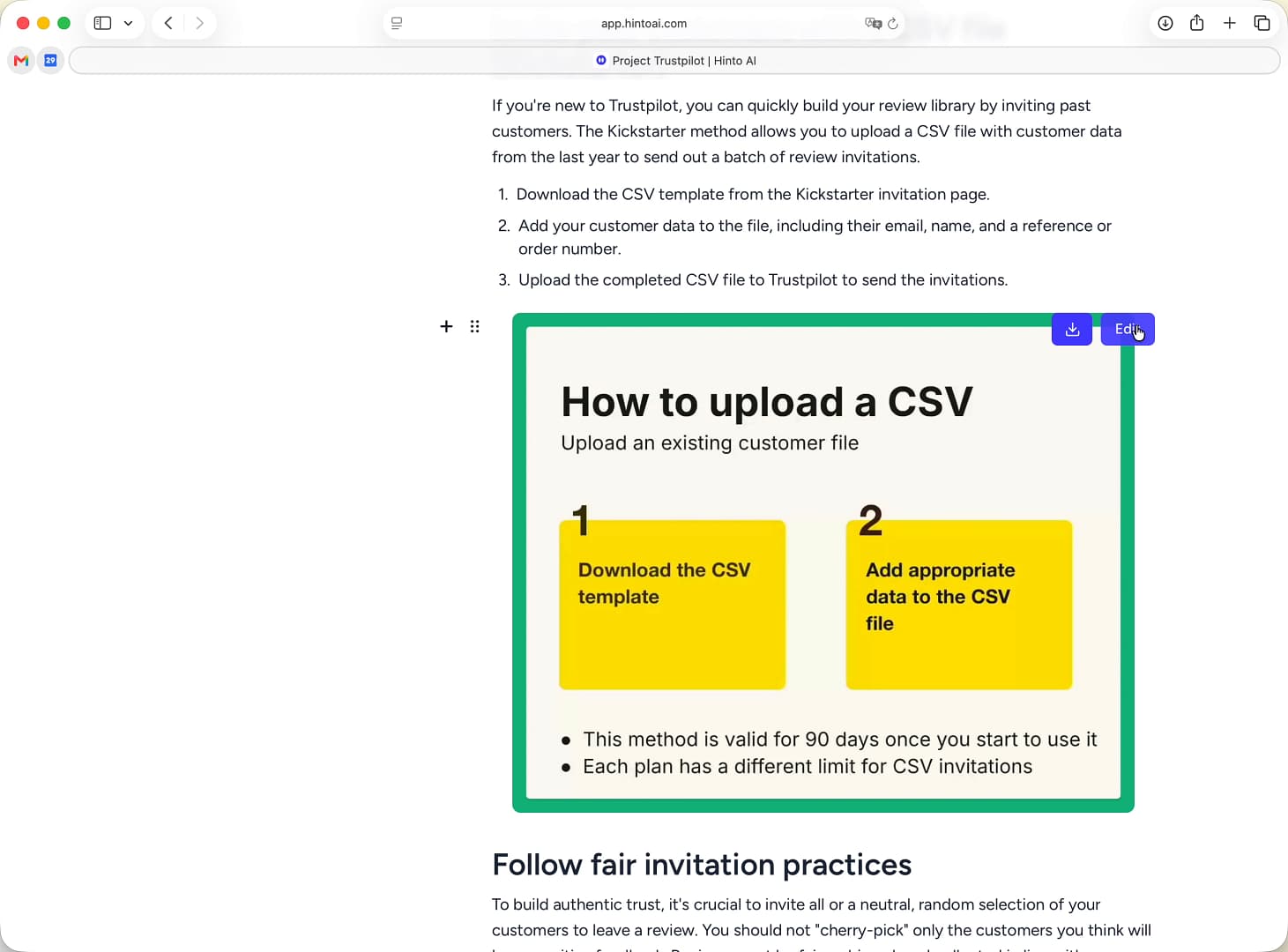
Hover over the image you want to modify and click the purple Edit icon.
-
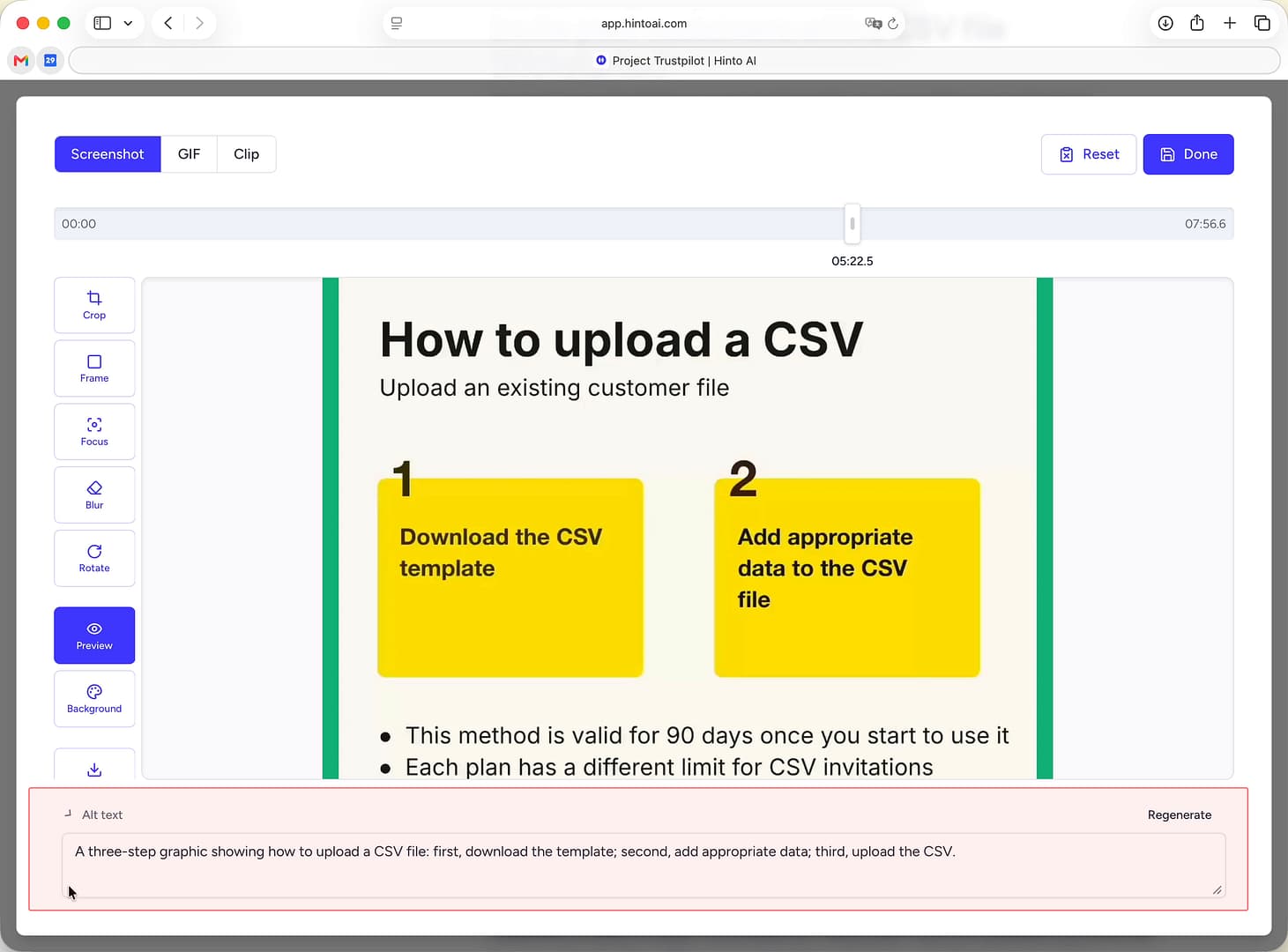
The image editor will open. At the bottom of the screen, locate the Alt text field. Click the expand icon to open a larger text box for editing.
-
You can now edit the description by typing directly in the text box.
-
To have Hinto create a new description, click the Regenerate button. The AI will re-analyze the image and provide new alt text.

-
When you're finished, click the Done button in the top-right corner to save your changes.
Summary
Hinto enhances your content's accessibility and SEO by automatically generating alt text for all images. This feature allows you to easily review and refine these descriptions. You have the flexibility to either manually edit the text for precise control or use the regenerate function to get a new AI-powered suggestion, ensuring your images are perfectly described.