How to Restore a Previous Version of an Article
This guide shows you how to restore an article to a previous version in Hinto. If you've made a mistake or want to revert to an earlier draft, you can easily access the article's version history and restore any saved version.
-
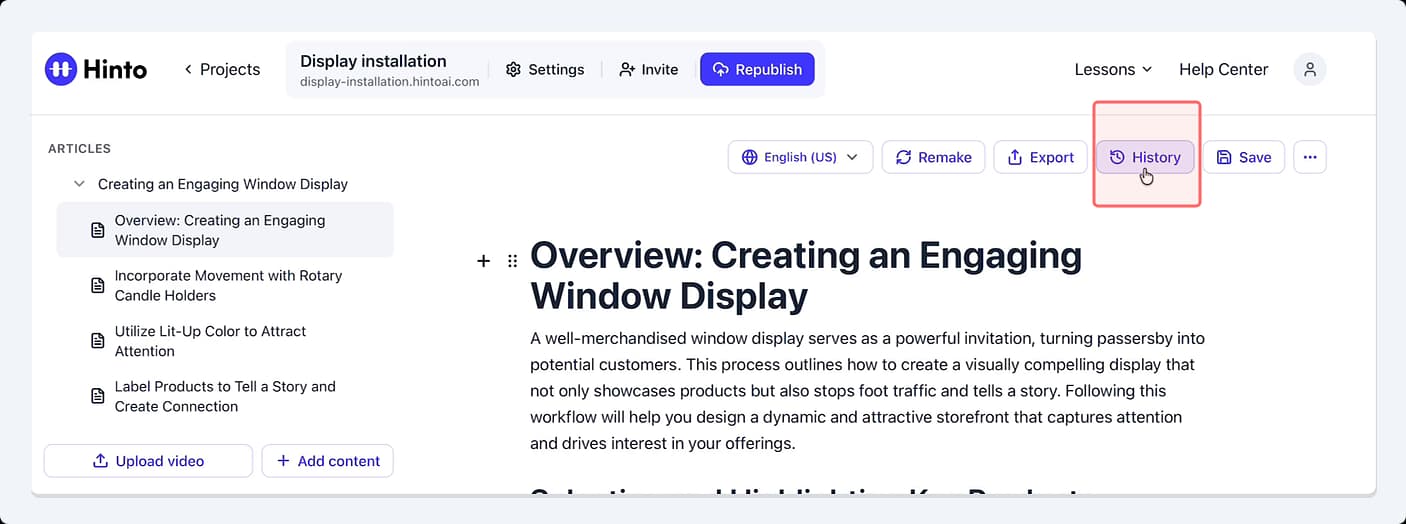
From the article editor, click the History button in the top-right toolbar.
-
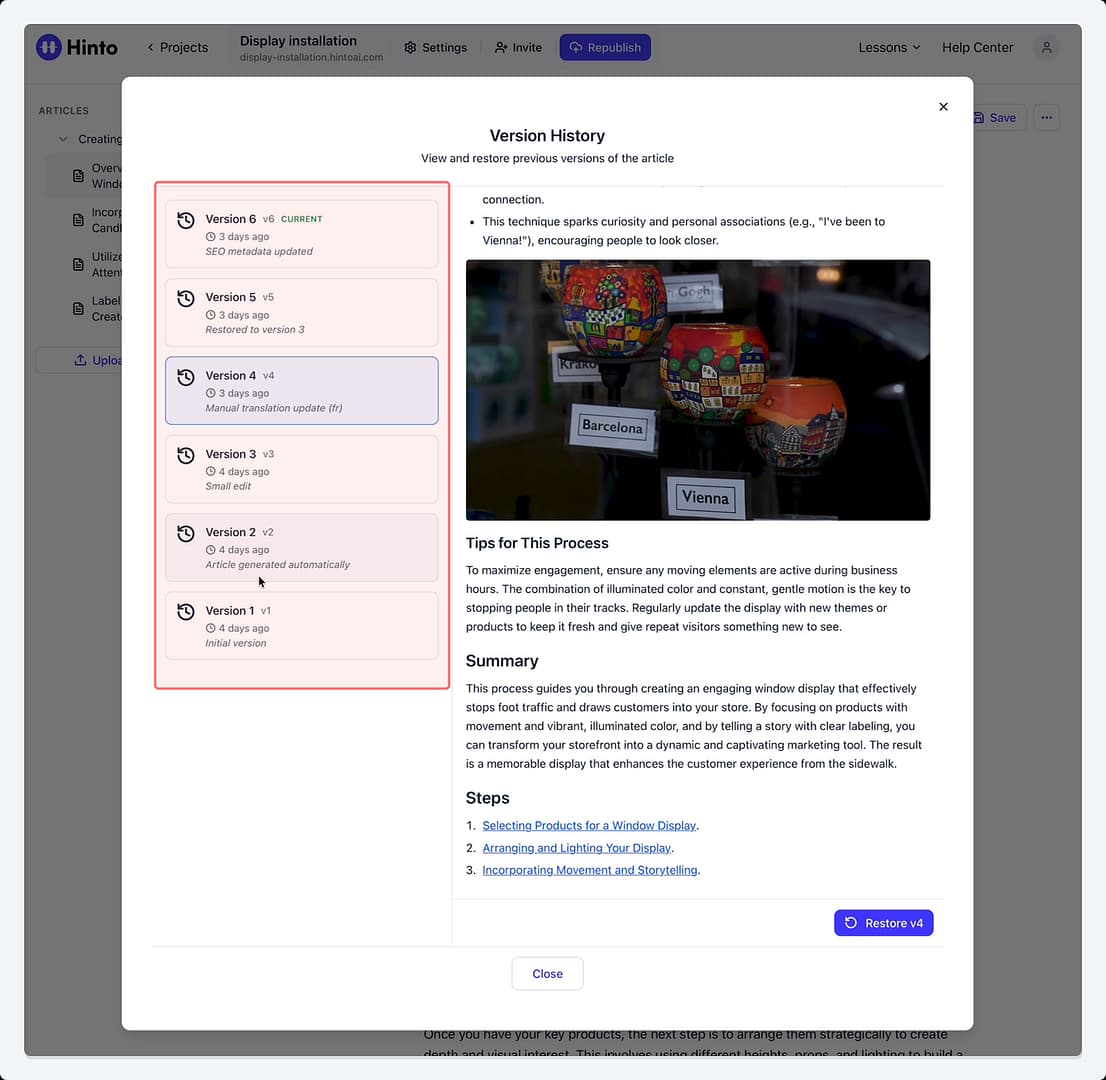
The Version History window will open. In the left panel, you will see a list of all saved versions of the article.
-
Click on a version from the list to view a full preview of it in the right panel.
-
Scroll through the preview to review the content and confirm it's the version you want to restore.
-
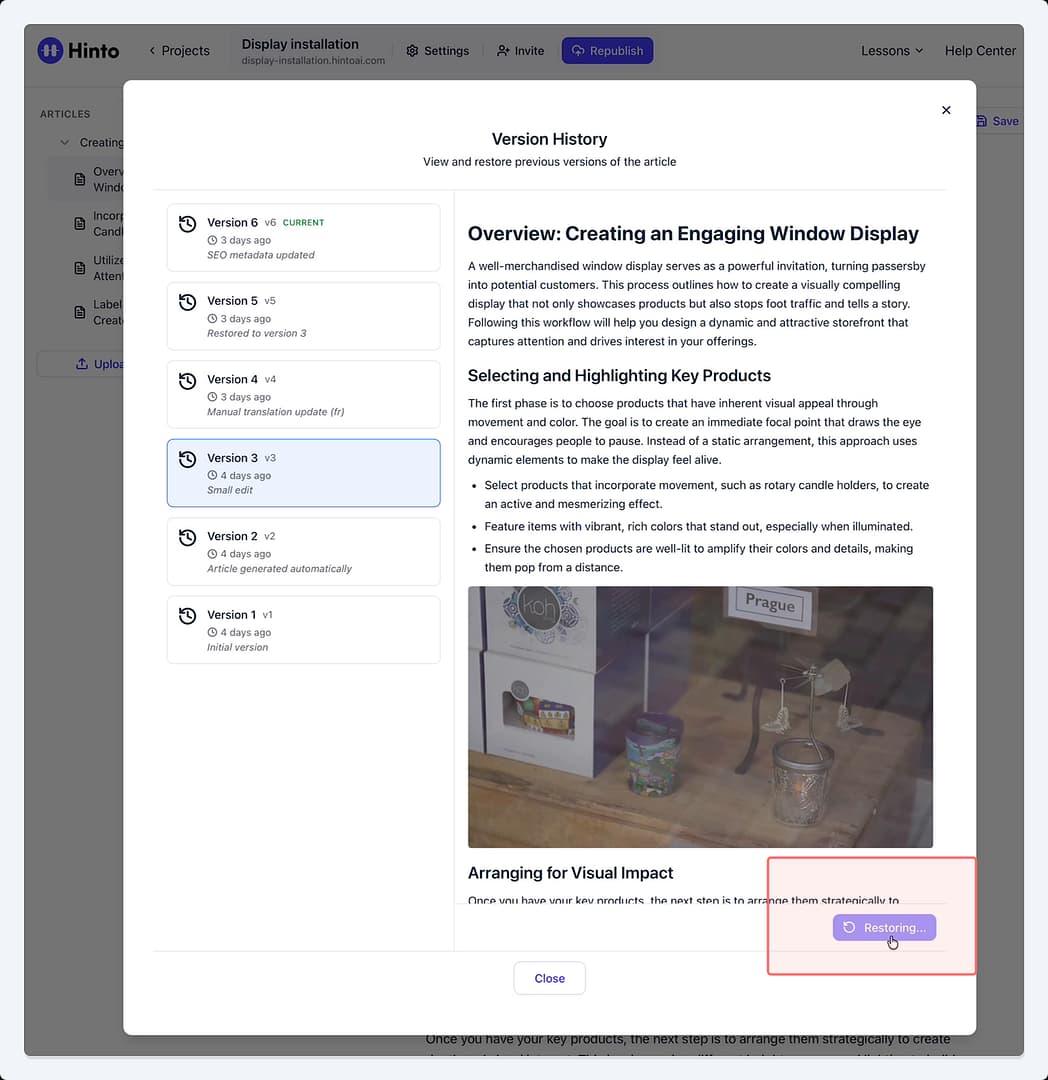
Once you have selected the correct version, click the Restore button at the bottom of the preview panel. The button will be labeled with the selected version number (e.g., Restore v3).
-
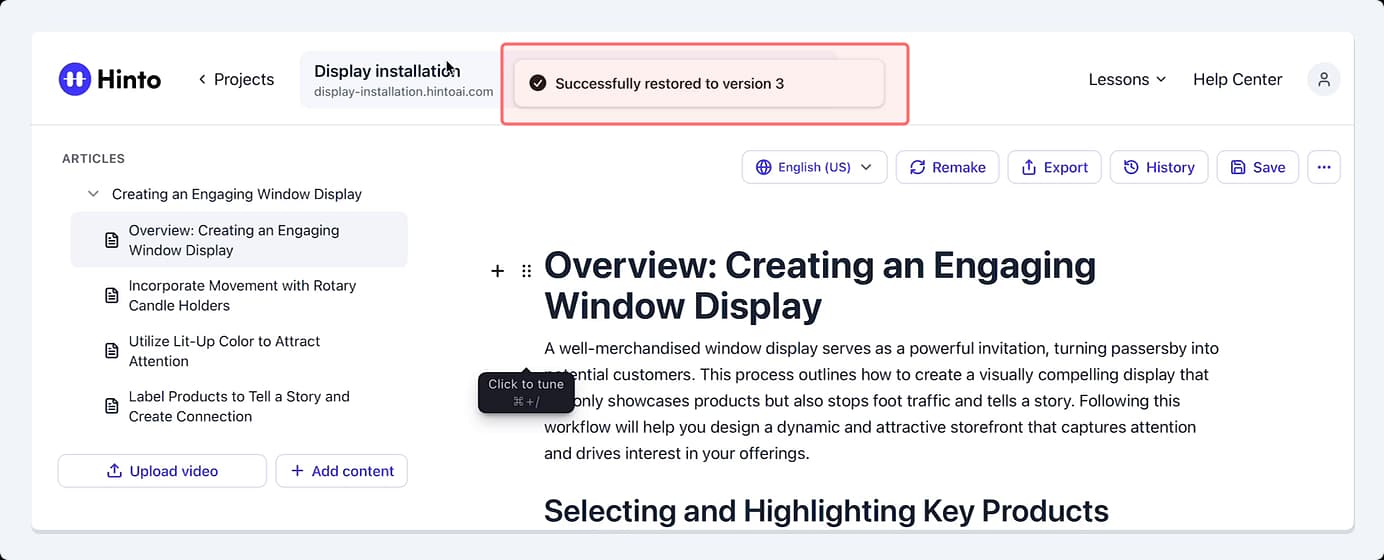
The article will automatically revert to the selected version, and a confirmation message will appear at the top of the editor.
Tip
Restoring a previous version does not delete your more recent changes. Instead, it creates a new version entry in the history log, ensuring no work is ever lost. You can always restore the version you had before the change if needed.
Summary
This article explains how to use the version history feature to restore an article to a previous state. This functionality acts as a safety net, allowing you to track all changes made to your content and easily undo edits or correct mistakes by reverting to any previously saved version with a single click.