User Manual Examples: 5 Filled-In Guides Worth Copying
These user manual examples are five filled-in product and software guides, each with a PDF you can download. Study them as user guide examples and user manual samples for a SaaS app, a Wi-Fi router, a coffee machine, an HR portal and a banking app.
Jump straight to the examples.
Key components: product and version, an audience line, prerequisites and safety, numbered steps with results, figures, troubleshooting and support.
Examples: the five instruction manual examples below cover software, devices and an HR portal.
Strong vs weak: strong steps start with a verb, do one thing and say what you should see next.
When you need one: first-time setup of a product or app, and software your customers should learn without calling support.
What Makes a Good User Manual Example
Judge each specimen in the gallery against these seven criteria. The diagram maps each criterion onto the PeopleHub guide.
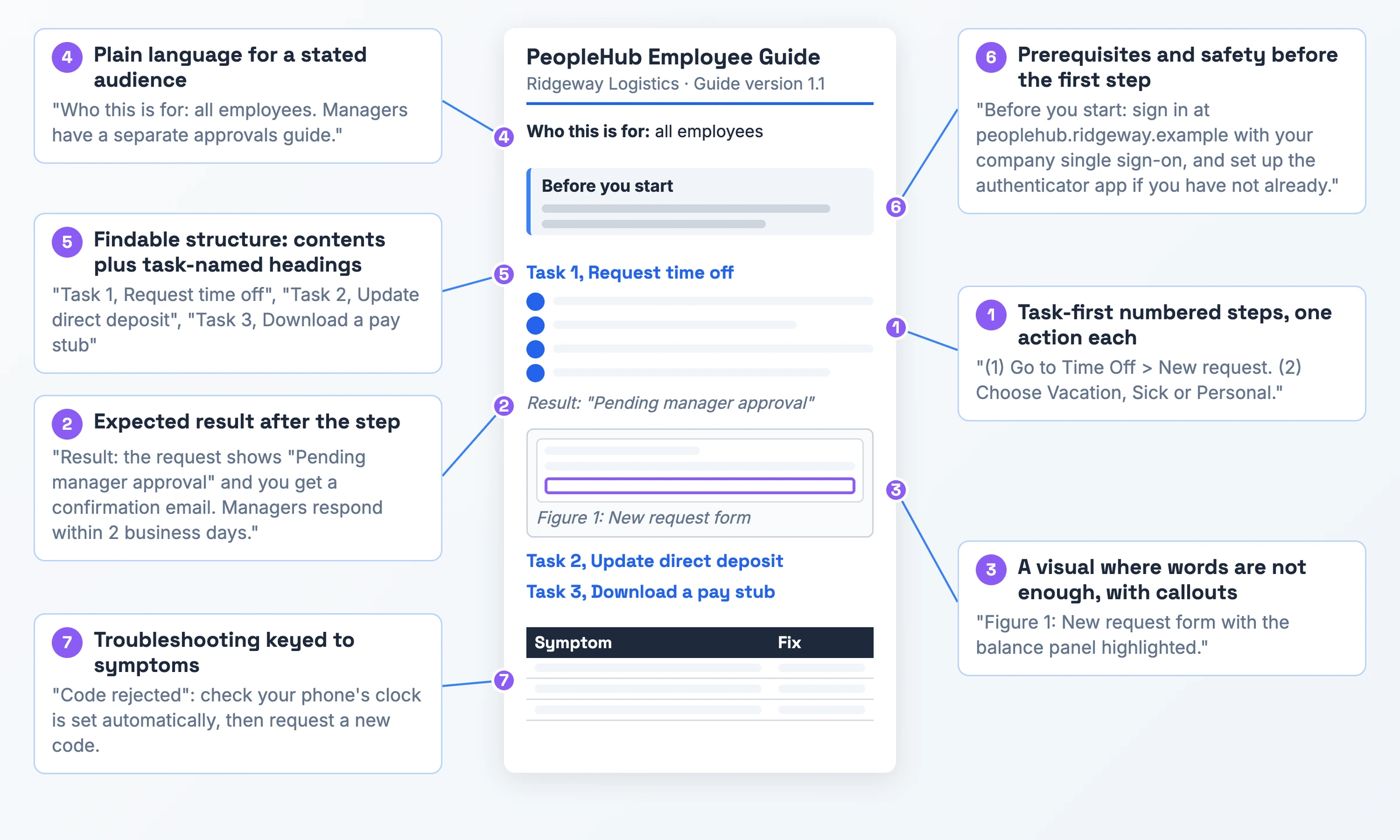
- Task-first numbered steps, one action each. Met: each step starts with a verb and does one thing ("Press Espresso once."). Missing: paragraphs bundling several actions.
- Expected result after the step. Met: the step says what you should see or hear next ("The LED turns solid white"). Missing: steps end with no way to confirm success.
- A visual where words are not enough, with callouts. Met: an annotated screenshot or labelled parts diagram sits beside its step, with the control marked. Missing: text-only UI steps or unmarked screenshots. In a TechSmith study, 67% completed tasks better with annotated screenshots than with text alone.
- Plain language for a stated audience. Met: the first lines name the reader, and any unavoidable term gets a definition. Missing: no audience line, unexplained acronyms, internal jargon.
- Findable structure: contents plus task-named headings. Met: a short contents list and headings like "Request time off". Missing: vague headings such as "Settings" and no contents.
- Prerequisites and safety before the first step. Met: requirements, version and warnings come before step 1, and a step-level warning sits before the step it guards. Missing: requirements discovered mid-task.
- Troubleshooting keyed to symptoms. Met: each row names what you see (an error code, a light, a message) and the fix. Missing: a generic "contact support" line.
5 User Manual Examples Worth Copying
All five products and companies below are fictional. Each specimen follows the same skeleton: title and version, an audience line, prerequisites, numbered steps with results, one figure per task, a troubleshooting table and a support line.
Example 1: SaaS App Getting Started
For the first admin setting up the Tallyboard project tracker for a team of 5 to 50, in about 15 minutes.
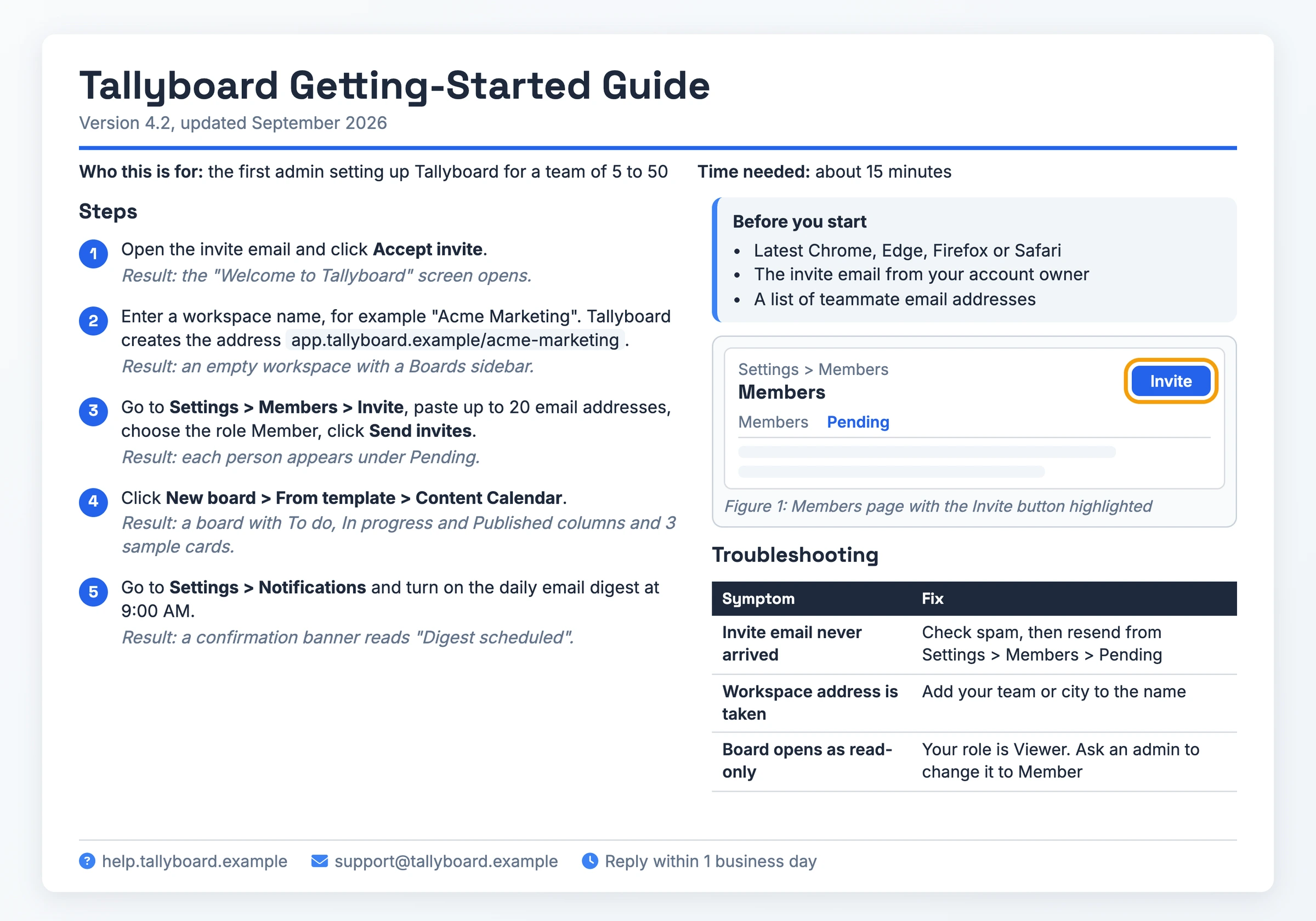
- Product: Tallyboard, version 4.2, updated September 2026
- Before you start: the invite email from your account owner, a list of teammate email addresses and the latest Chrome, Edge, Firefox or Safari
- Step 1: Open the invite email and click Accept invite. Result: the "Welcome to Tallyboard" screen opens.
- Step 5: Go to Settings > Notifications and turn on the daily email digest at 9:00 AM. Result: a confirmation banner reads "Digest scheduled".
- Troubleshooting: "Board opens as read-only" → your role is Viewer. Ask an admin to change it to Member
What makes it work: Expected result after the step: all five steps end with a Result line. Plain language for a stated audience: the guide names its reader, the first admin, before anything else.
Watch out for: step 3 chains several actions ("paste up to 20 email addresses, choose the role Member, click Send invites") into one numbered step, and all the steps sit under one "Steps:" list with no task-named headings.
Download PDF - Tallyboard Getting-Started Guide
Example 2: Wireless Router Setup
For home users replacing an old router with the Northline AX1800 Wi-Fi 6 Router, no networking knowledge needed. It is the in-the-box "manual book" style.
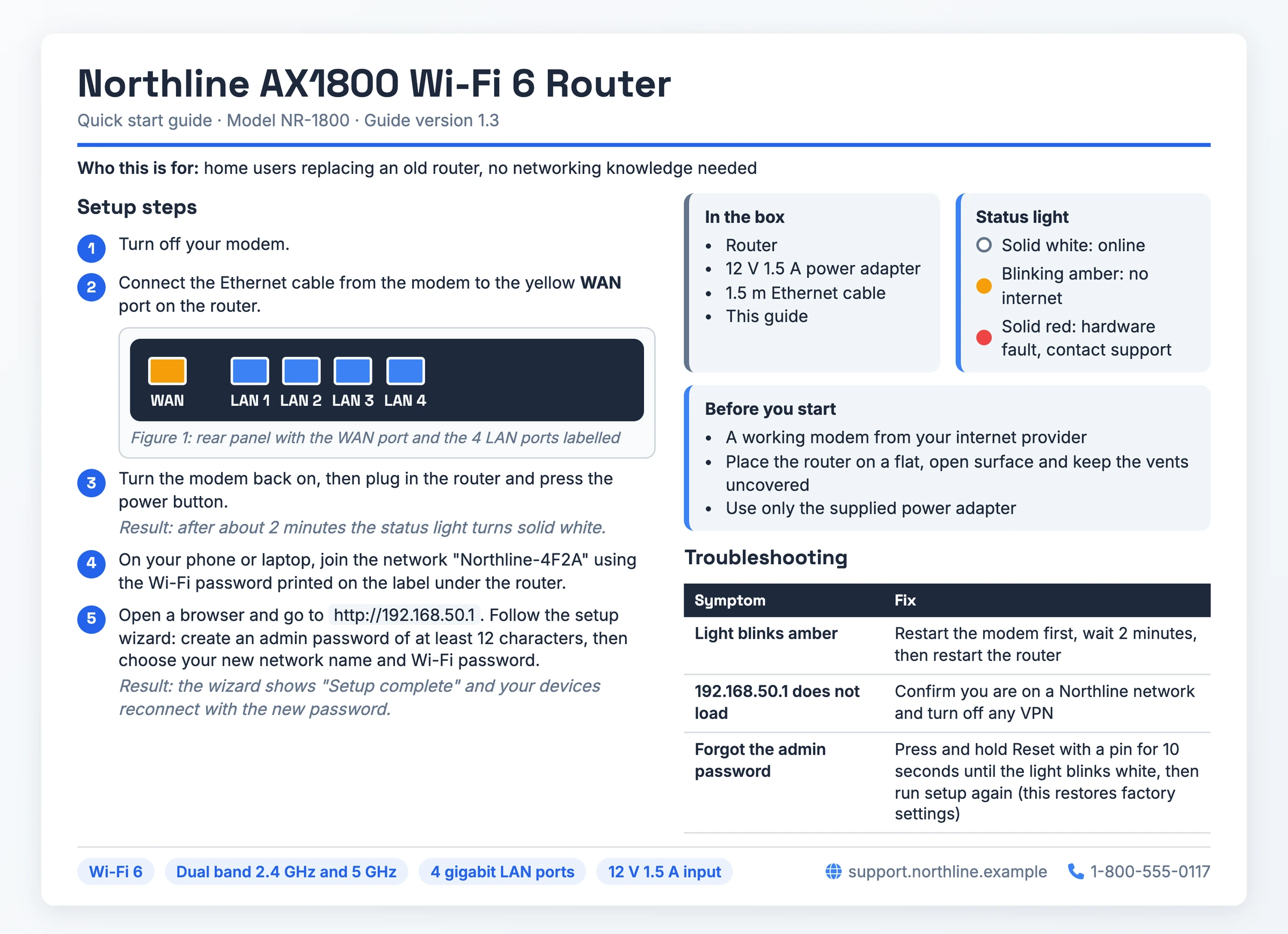
- In the box: router, 12 V 1.5 A power adapter, 1.5 m Ethernet cable, this guide
- Before you start: a working modem from your internet provider, a flat, open surface with the vents uncovered and only the supplied power adapter
- Step 3: Turn the modem back on, then plug in the router and press the power button. Result: after about 2 minutes the status light turns solid white.
- Status light: solid white = online, blinking amber = no internet, solid red = hardware fault (contact support)
- Support: support.northline.example, 1-800-555-0117
What makes it work: Troubleshooting keyed to symptoms: each fix starts from what you see, such as "Light blinks amber", and the legend decodes all three light colors. A visual where words are not enough, with callouts: Figure 1 labels the yellow WAN port and the 4 LAN ports beside step 2.
Watch out for: step 5 bundles the whole wizard (admin password, network name, Wi-Fi password) into one step, and the Reset fix states that it "restores factory settings" only after the action, though a warning belongs before the step it guards.
Download PDF - Northline AX1800 Wi-Fi 6 Router
Example 3: Coffee Machine Operation
For home owners using the Brewline 300 bean-to-cup espresso machine for the first time. It is the second "manual book" style specimen.
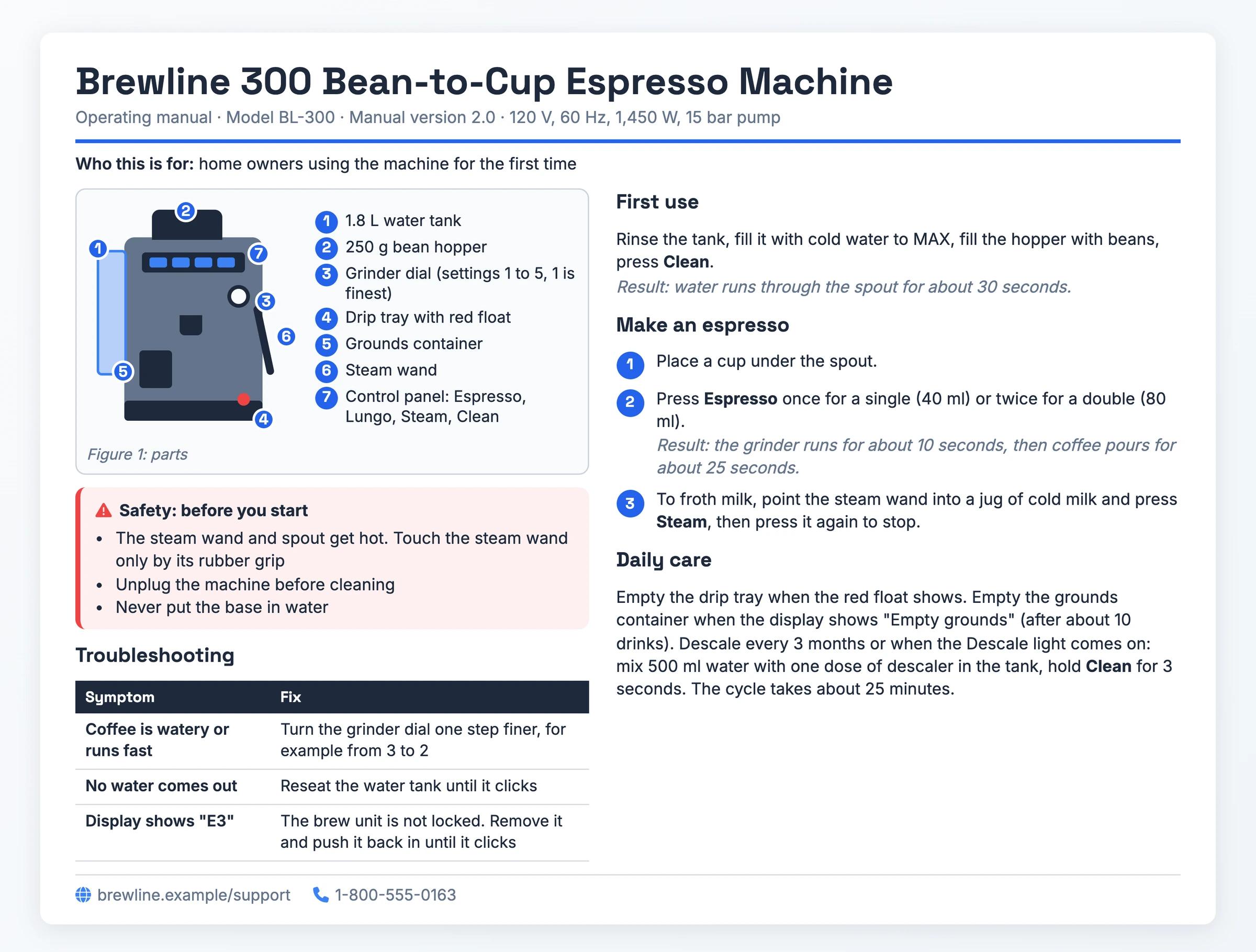
- Model: BL-300, manual version 2.0, rated 120 V, 60 Hz, 1,450 W with a 15 bar pump
- Figure 1 parts: 1.8 L water tank, 250 g bean hopper, grinder dial (settings 1 to 5, 1 is finest), drip tray with red float, grounds container, steam wand, control panel with 4 buttons
- Safety: touch the steam wand only by its rubber grip, unplug the machine before cleaning and never put the base in water
- Step 2: Press Espresso once for a single (40 ml) or twice for a double (80 ml). Result: the grinder runs for about 10 seconds, then coffee pours for about 25 seconds.
- Troubleshooting: display shows "E3" → the brew unit is not locked. Remove it and push it back in until it clicks
What makes it work: Prerequisites and safety before the first step: the three safety lines come before first use. A visual where words are not enough, with callouts: the labelled parts diagram names each part the steps mention.
Watch out for: step 3 (froth milk) has no Result line, and descaling sits inside Daily care as a sentence instead of numbered steps.
Download PDF - Brewline 300 Bean-to-Cup Espresso Machine
Example 4: Internal HR Portal Guide
For all employees at Ridgeway Logistics using the PeopleHub HR portal. Managers get a separate approvals guide.
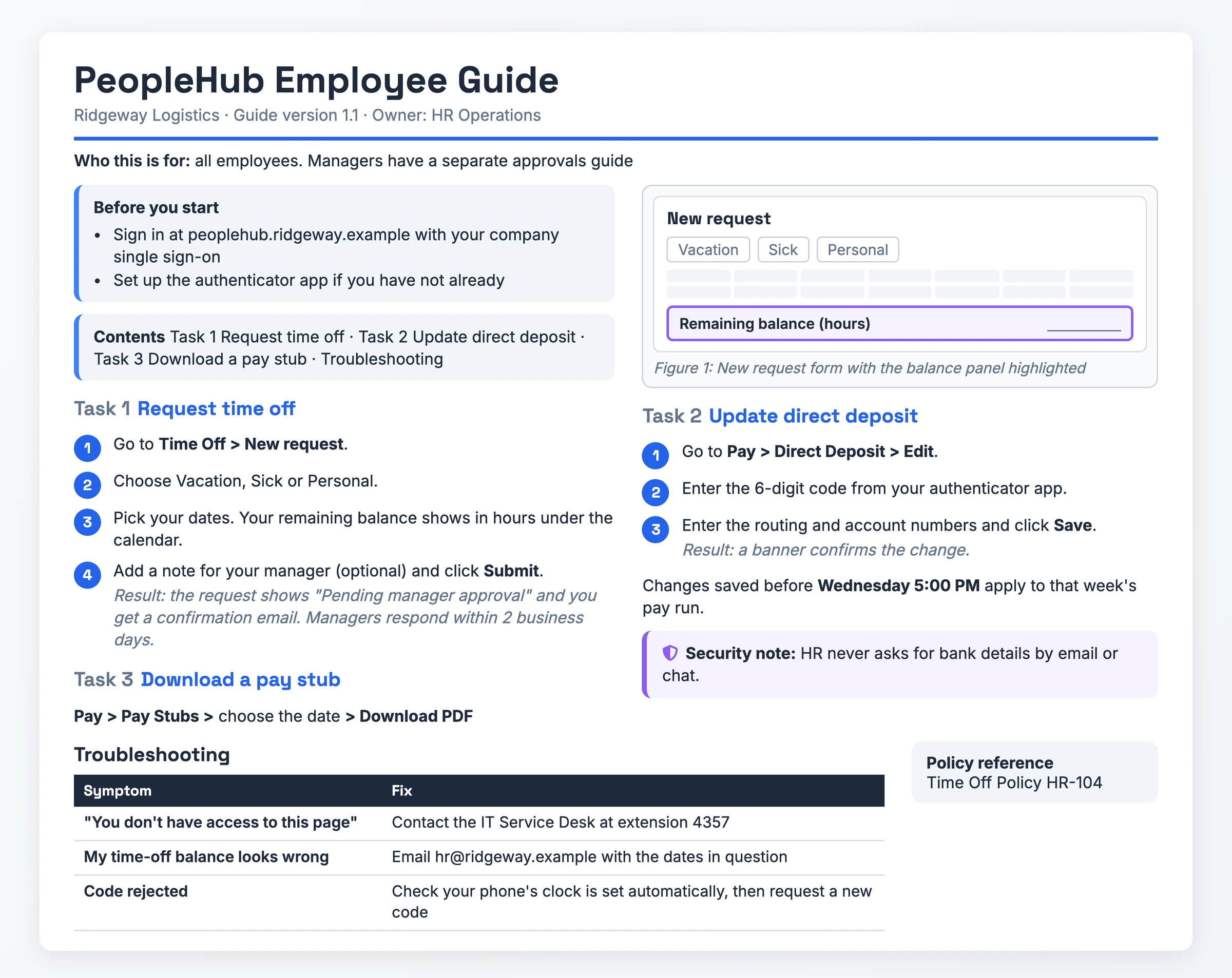
- Before you start: sign in at peoplehub.ridgeway.example with your company single sign-on, and set up the authenticator app if you have not already
- Task 1, Request time off: four steps ending in Submit. Result: the request shows "Pending manager approval" and you get a confirmation email.
- Task 2, Update direct deposit: changes saved before Wednesday 5:00 PM apply to that week's pay run
- Security note: HR never asks for bank details by email or chat
- Troubleshooting: "Code rejected" → check your phone's clock is set automatically, then request a new code
What makes it work: it shows all seven criteria, which is why the anatomy diagram uses it. Findable structure: contents plus task-named headings: each task carries the name an employee would look for, such as "Request time off".
Watch out for: Task 3 is a single path line ("Pay > Pay Stubs > choose the date > Download PDF") with no Result line and no figure.
Download PDF - PeopleHub Employee Guide
Example 5: Mobile Banking App
For Harbor Credit Union members opening the version 7.0 app for the first time, on iOS 16 or later and Android 10 or later.
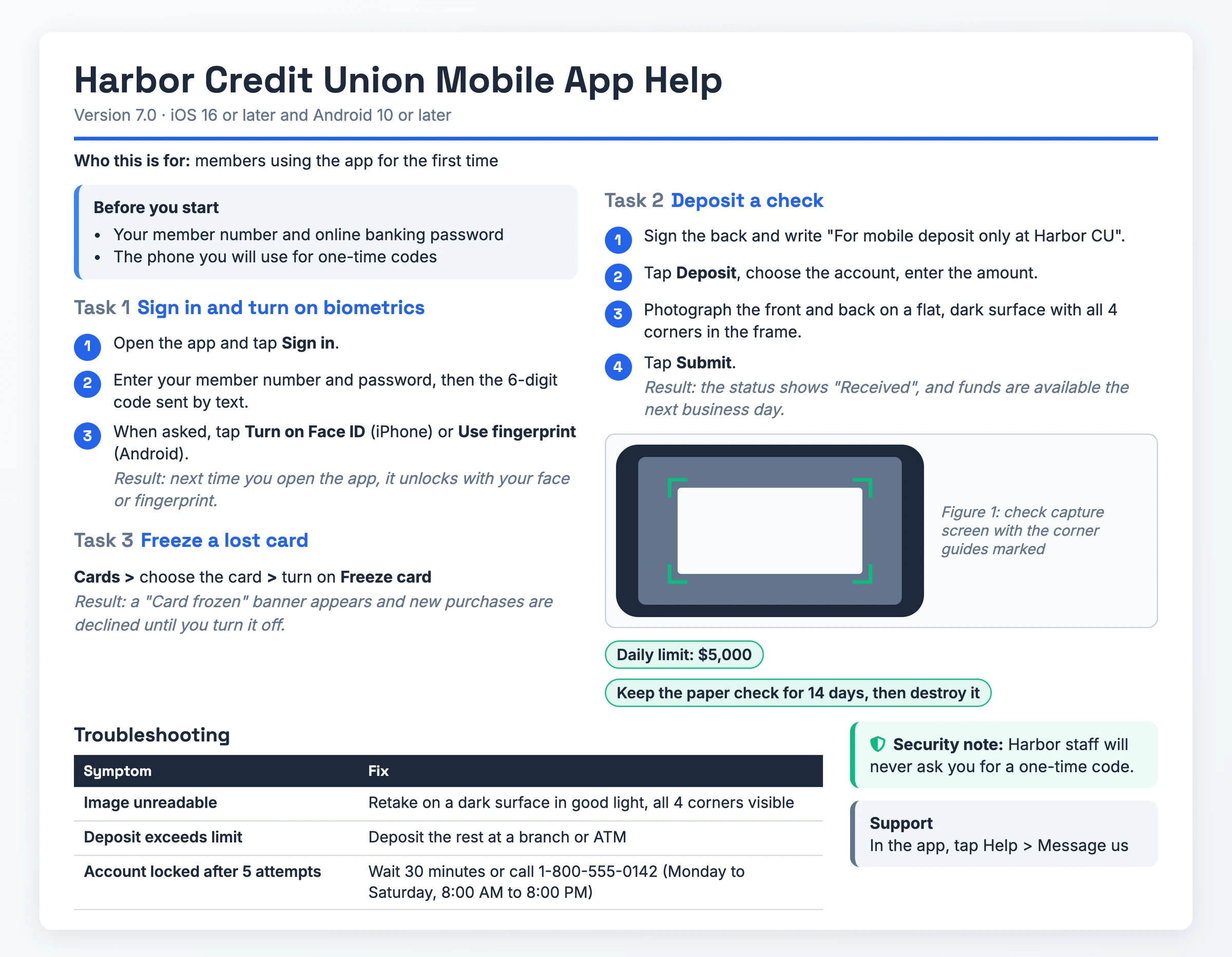
- Before you start: your member number, your online banking password and the phone you will use for one-time codes
- Task 2, Deposit a check: photograph the front and back on a flat, dark surface with all 4 corners in the frame. Result: the status shows "Received", and funds are available the next business day.
- Limits: daily limit $5,000. Keep the paper check for 14 days, then destroy it
- Security note: Harbor staff will never ask you for a one-time code
- Troubleshooting: "Account locked after 5 attempts" → wait 30 minutes or call 1-800-555-0142
What makes it work: Expected result after the step: each task ends with the screen state, down to the "Card frozen" banner. Troubleshooting keyed to symptoms: rows start from the exact message ("Image unreadable").
Watch out for: three tasks share one figure (the check capture screen), and Task 3 is a single path line, so the guide falls short of one figure per task.
Download PDF - Harbor Credit Union Mobile App Help
How to Adapt a User Manual Example
- Pick the closest specimen. Start from whichever of the user manual samples above sits nearest your product, or from the blank User Manual Template if none fits.
- Name your audience. Rewrite the "Who this is for" line for your reader, and define any term that reader would not know.
- Swap in your product and version. Replace the product name, version, dates and prerequisites with your own, and keep any safety note above step 1.
- Rewrite each step as one action plus a Result line. Open each step with a verb and say what the user should see next.
- Add one figure per task. Mark the control to click or the part to touch on each screenshot or diagram.
- Rebuild the troubleshooting table from real symptoms. Take each row from support tickets or the error messages your users see, and pair it with its fix.
- Test it with a new user, then publish. TechSmith recommends testing instructions alongside the product with naive users. Fix each step they stumble on before you publish, and update the manual after product changes.
When You Need a User Manual
Write one the moment a product or app reaches a first-time user. The same need covers operating a home appliance or installing a network device. The Northline router and Brewline 300 instruction manual examples fit here.
Software and web apps need one too, above all when you want customers to help themselves instead of contacting support. The Tallyboard and Harbor Credit Union user guide examples show this shape.
Your internal systems need the same treatment. Training manuals help new hires and staff learning a new procedure, and the PeopleHub guide shows an employee-facing version for an HR portal.
Common User Manual Mistakes
- Walls of text and overlong manuals. HeroThemes flags Oracle's "walls of text", and Scribe calls long manuals "lengthy and difficult to read". Readers skim past the step they need.
- Jargon, or writing for the developer instead of the user. HeroThemes calls SAP's documentation "too formal" and notes that Ubuntu's command-line examples would lose a layperson. Laypeople cannot follow the steps.
- Letting the manual go stale after a product change. Static PDFs need re-sending, and Scribe calls static manuals "hard to update". The steps stop matching the screen the user sees.
- A huge PDF with no quick route in. HeroThemes points to SAP's "Two-hundred-page PDFs with basic bookmarks". The user cannot find their task.
- Placing a warning after the step it should precede. Instrktiv quotes "Cut the power cable ... WARNING! Make sure you turn off the main power switch first!" The user acts before reading the warning. Its fix puts the switch first: "Turn off the main power switch. Cut the power cable to the correct length."
Skip the Blank Page: Record It Instead
Writing a software guide by hand starts from a blank page. Hinto AI skips that page: record the task once, and Hinto turns the recording into a structured guide.
Record. Use the built-in screen recorder in the Hinto web app or Chrome Extension, or bring a video you already have: Loom, Zoom, YouTube or a local upload (MP4, MOV, WebM).
Generate. AI Action Detection finds the UI state changes and button clicks in the video and extracts screenshots and written steps, which suits guides like Tallyboard, PeopleHub and Harbor Credit Union. The image editor can blur sensitive info on screenshots, such as pay or account details. One long video can become a full table of contents with multiple articles.
Publish. Host the result as a help center on a public URL with a custom domain, SSL included. On the All-Inclusive plan, you can generate it in 50+ languages.
User Manual FAQ
How do you write a user manual?
Name your reader, then list prerequisites and safety before step 1. Write verb-first steps that each do one thing and end with a Result line, add a Symptom | Fix troubleshooting table, and test it with new users before you publish.
What is the best format for a user guide?
Pick it by use case: web docs, a PDF, a quick reference card or a video walkthrough. Web docs and PDFs need contents, task-named headings and search. Because a static PDF must be re-sent after each product change, web docs are easier to keep current.
What are the different types of user manuals?
The common types are quick start guides, software manuals, appliance operating manuals, assembly and installation manuals, and employee training manuals. Manualise also lists video, 3D animation and augmented reality manuals. The gallery above covers quick start, software, appliance and training guides.
How to create a user manual in Word?
Give each task its own heading, add an automatic table of contents so readers can jump to any section, and keep the chapters logical, with an index for long manuals. For a faster start, download the blank User Manual Template.
Where can I find user manuals?
Check the manufacturer's support site: software makers such as Slack, WordPress, Apple and Microsoft publish help pages, and hardware makers like IKEA and Jura post PDFs. For filled-in samples you can adapt and reuse, download the five PDFs on this page.
Related Examples
SOP Examples, Knowledge Base Examples, Process Documentation Examples