How to Set Up URL Redirects for SEO
This guide explains how to set up URL redirects for your published Hinto project. Creating redirects is essential for preserving your search engine rankings (SEO) and ensuring a smooth user experience by forwarding visitors from old or outdated URLs to new ones. You will need to have a published project to access these settings.
-
From your project dashboard, click the Settings button in the top navigation bar.
-
In the Project Settings window, select Publishing from the left-hand menu.
-
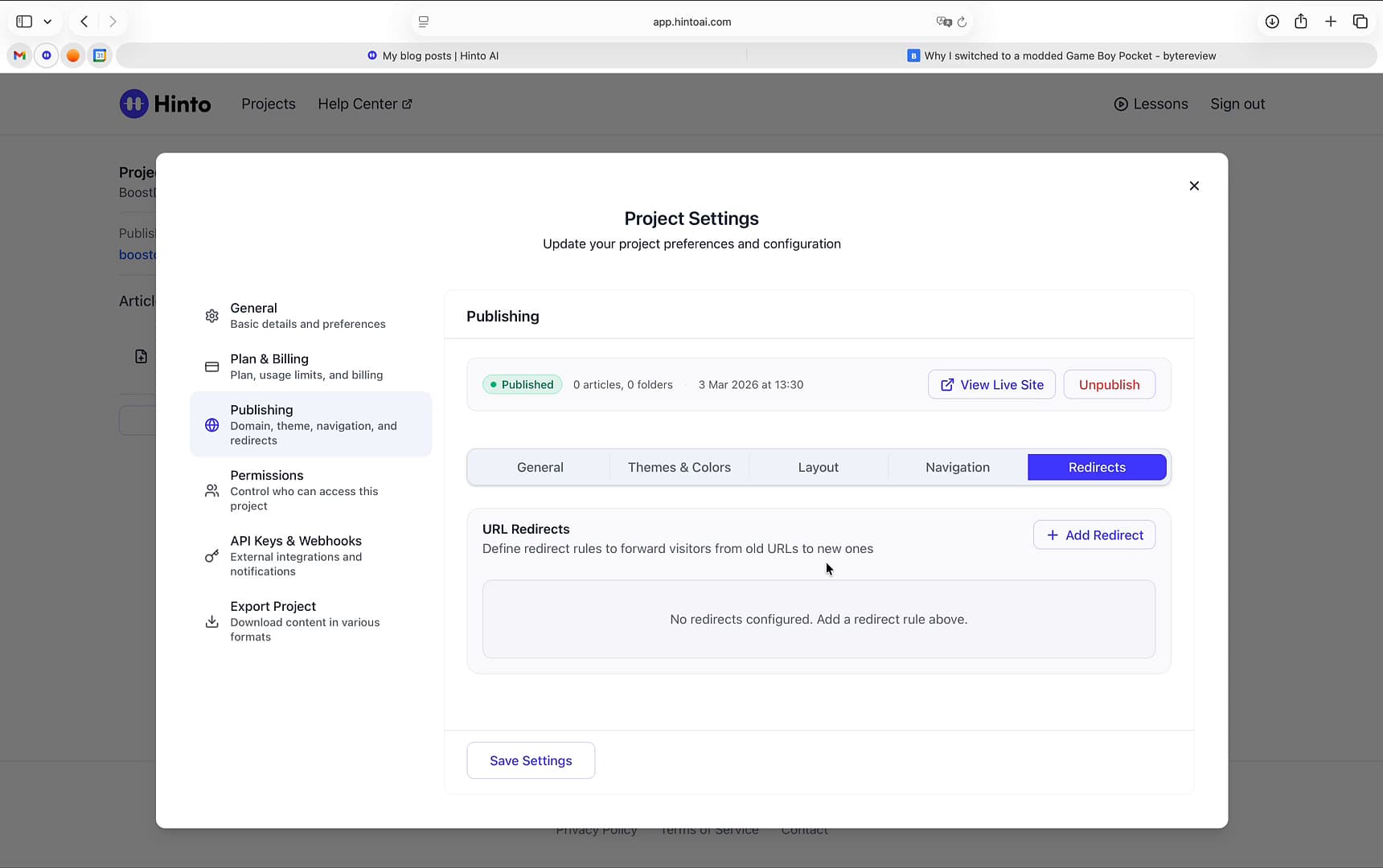
Navigate to the Redirects tab to access the URL redirect settings.
-
Click the + Add Redirect button to create a new redirect rule.
-
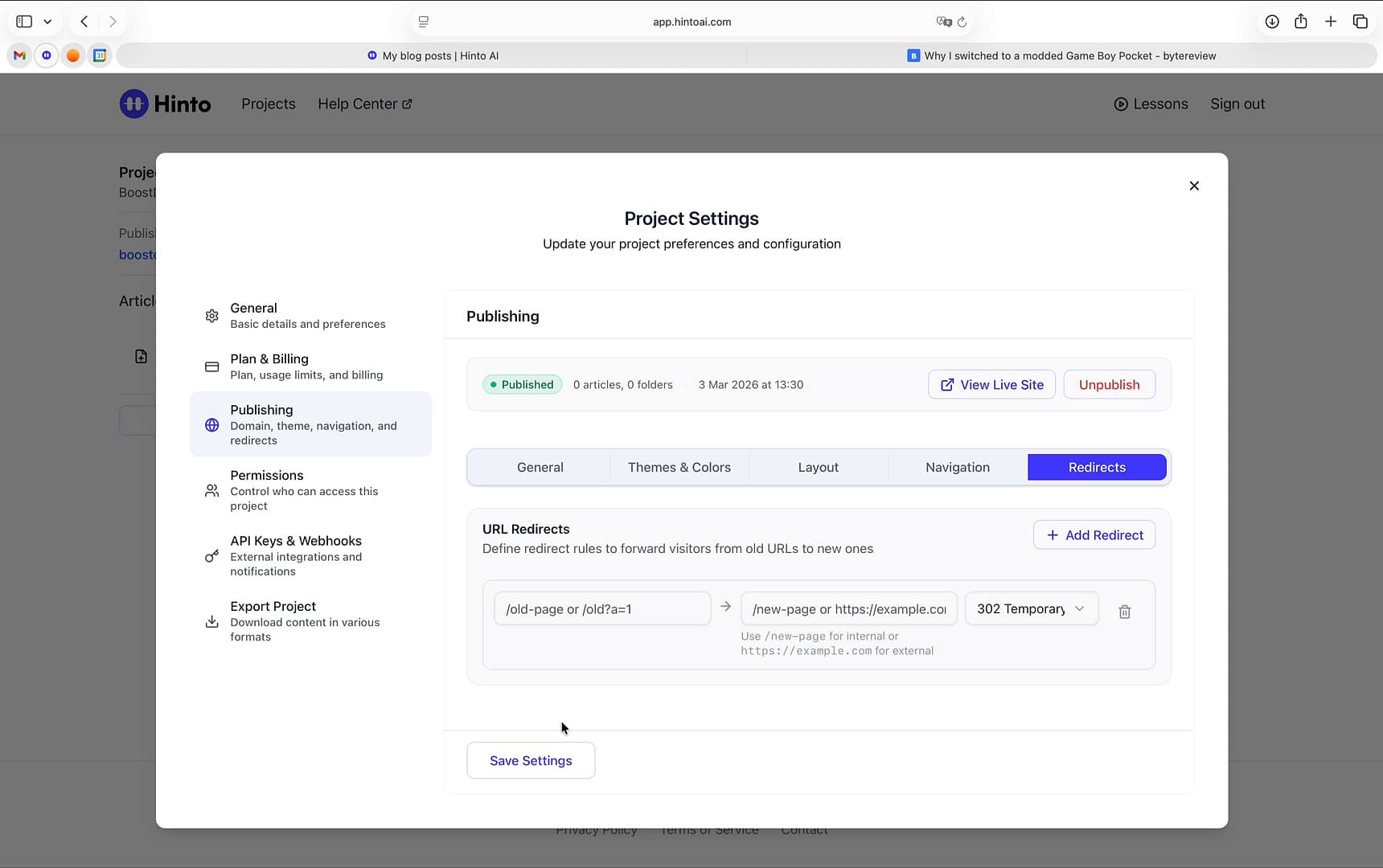
In the first input field, enter the old URL path you want to redirect from (e.g., /old-page).
-
In the second input field, enter the new destination path or a full external URL.
-
Click the dropdown menu to select the type of redirect. Choose 301 Permanent for URLs that have moved permanently or 302 Temporary for short-term redirects.
-
Click the Save Settings button to apply your new rule. You may need to republish your site for the changes to take effect.
-
Make sure to save and republish your site for the changes to take effect.
Tips
To remove a redirect rule you no longer need, simply click the trash can icon next to the rule and then click Save Settings.
Summary
This article provides a step-by-step guide on how to configure URL redirects within your project's publishing settings. By setting up 301 (Permanent) or 302 (Temporary) redirects, you can seamlessly guide visitors and search engines from old URLs to new ones, which is crucial for maintaining SEO authority and preventing broken links.