Configure Workspace Security Settings (2FA, Export, and Publishing)
This guide shows you how to configure security settings for your entire workspace. Following these steps allows you to enforce two-factor authentication (2FA), control data exports, and manage public publishing permissions for all members. You will need to be a workspace owner to access these settings.
-
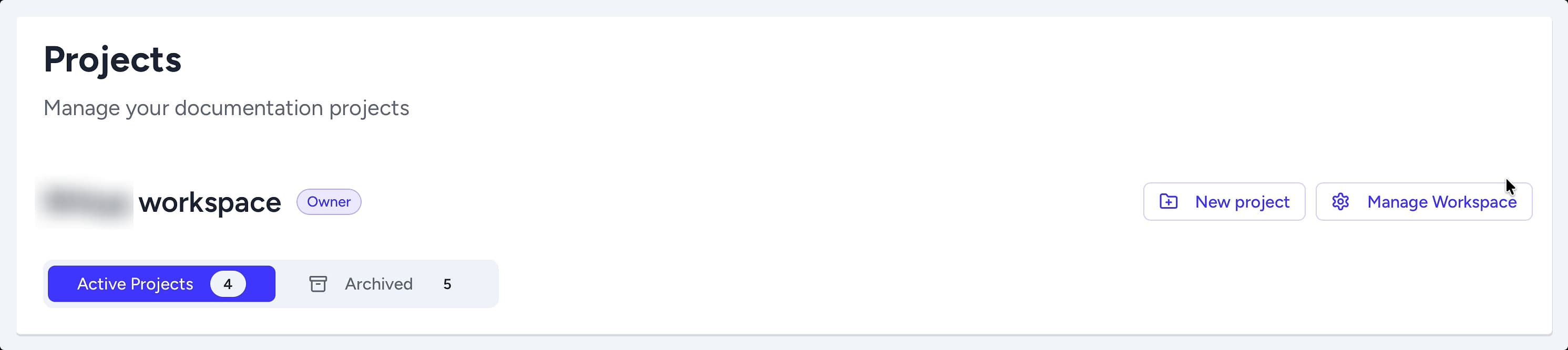
From your Projects dashboard, navigate to the top-right corner of a workspace section and click Manage Workspace.
-
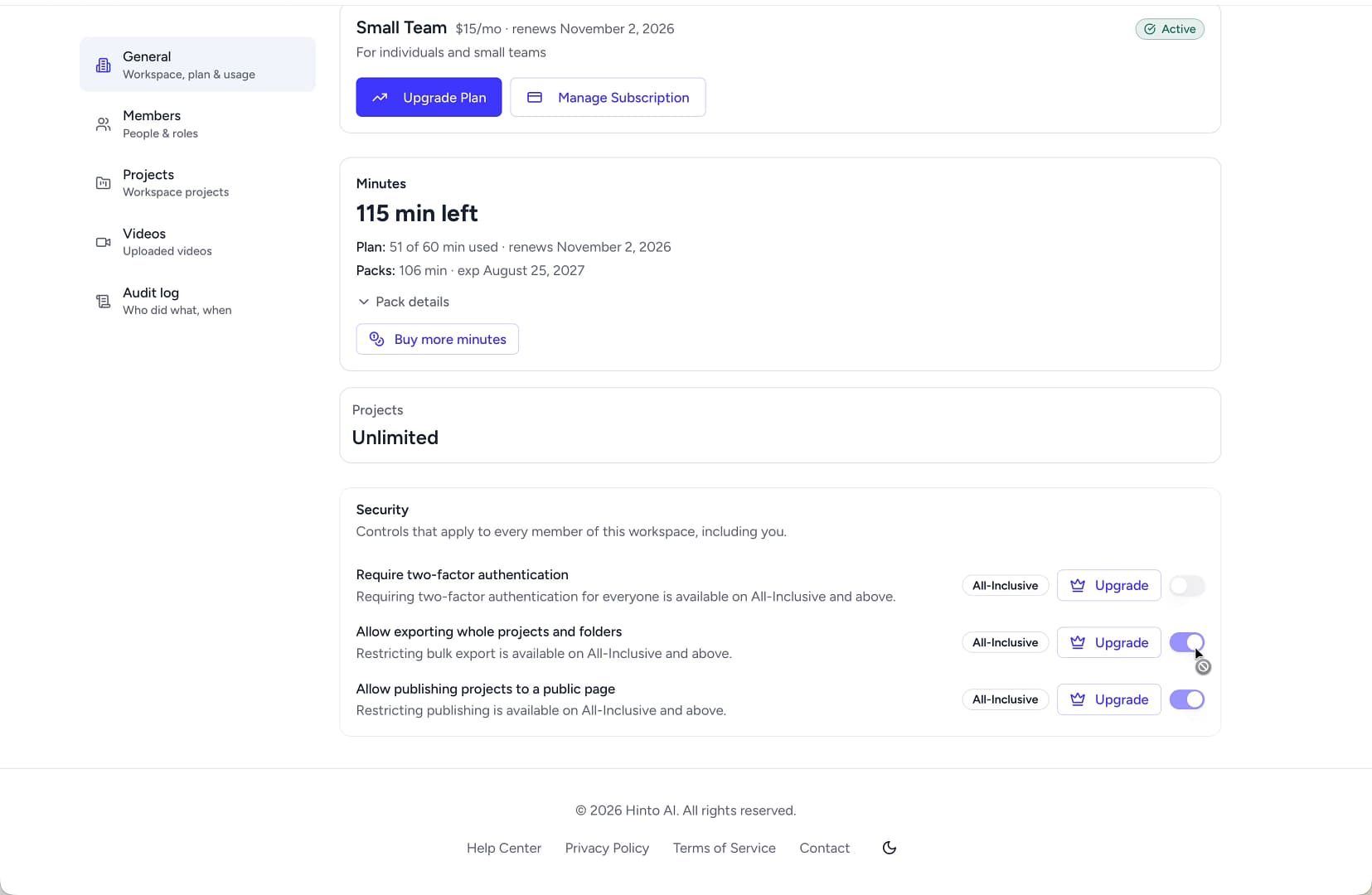
On the Manage Workspace page, ensure you are on the General tab and scroll down to the Security section.
-
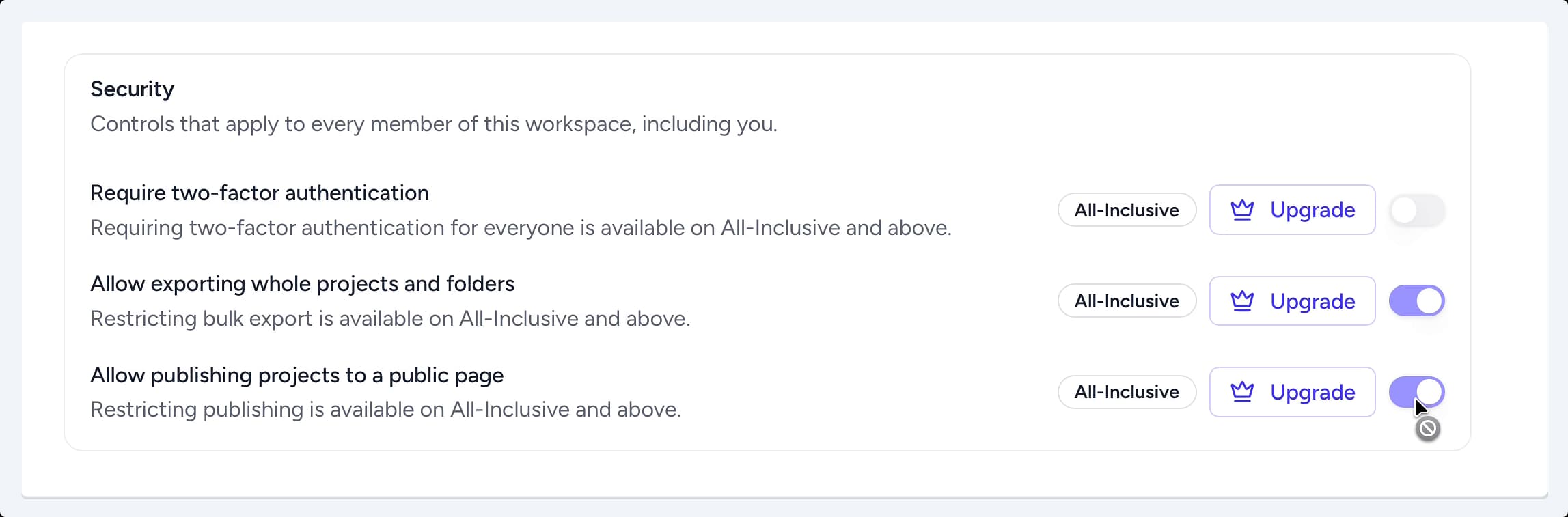
To require all workspace members to use two-factor authentication, click the toggle next to Require two-factor authentication. This adds an extra layer of security to every member's account.
-
To control whether members can export entire projects or folders, click the toggle next to Allow exporting whole projects and folders. Disabling this prevents bulk downloads of your documentation.
-
To control whether members can publish projects to a public web page, click the toggle next to Allow publishing projects to a public page. Disabling this ensures that all projects remain private to your workspace.
Summary
Configuring your workspace security settings provides owners with powerful, centralized control over how members access the workspace and interact with its content. By enforcing two-factor authentication, restricting bulk exports, and managing publishing rights, you can significantly enhance data security, maintain compliance, and prevent unauthorized sharing of your documentation.