How to Translate Your Knowledge Base into Multiple Languages
This article explains how to automatically translate your articles into different languages. Following these steps will help you create a multilingual knowledge base to support a global audience. You will need administrator or editor access to the project.
Add and Manage Translation Languages
-
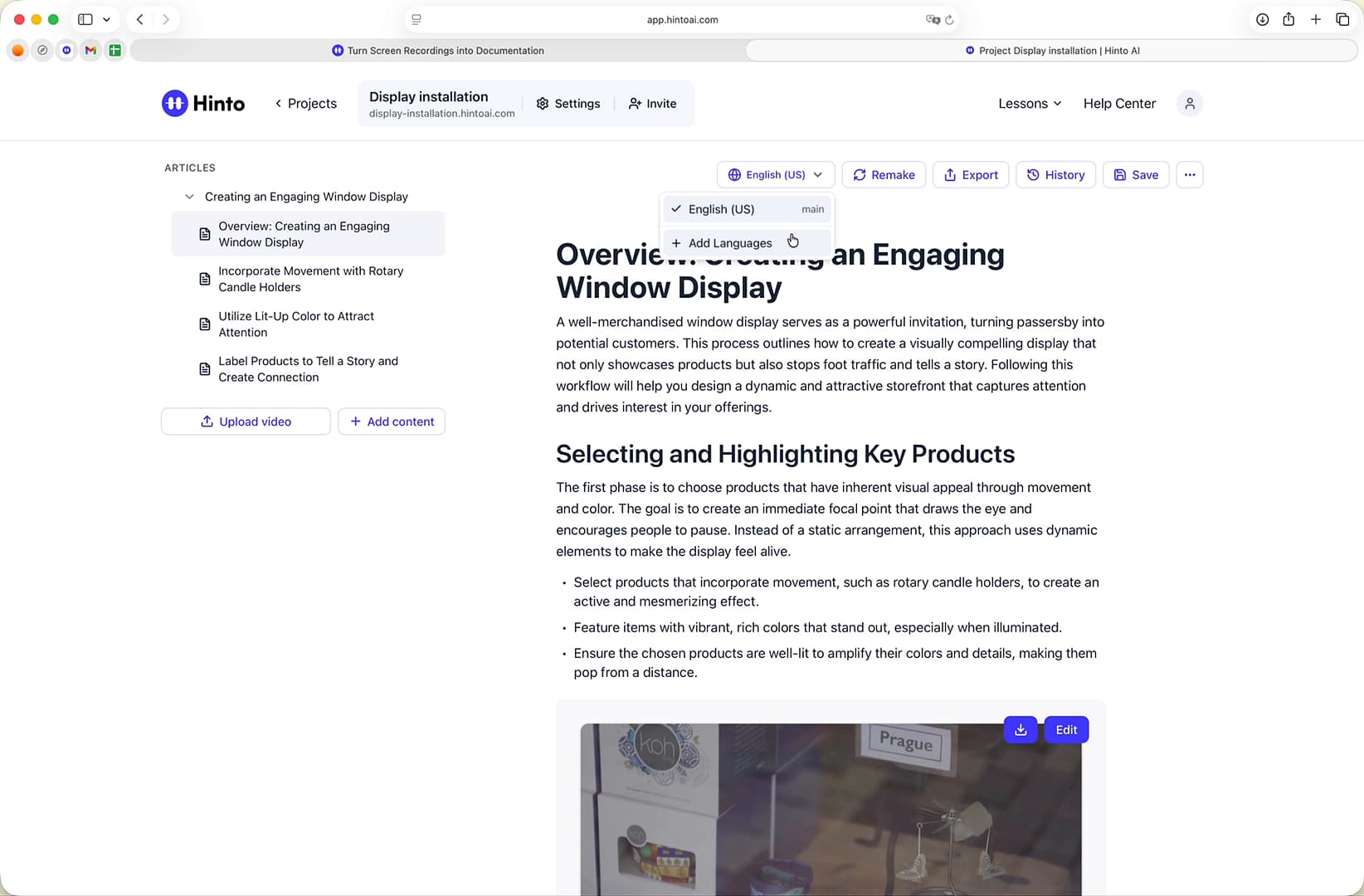
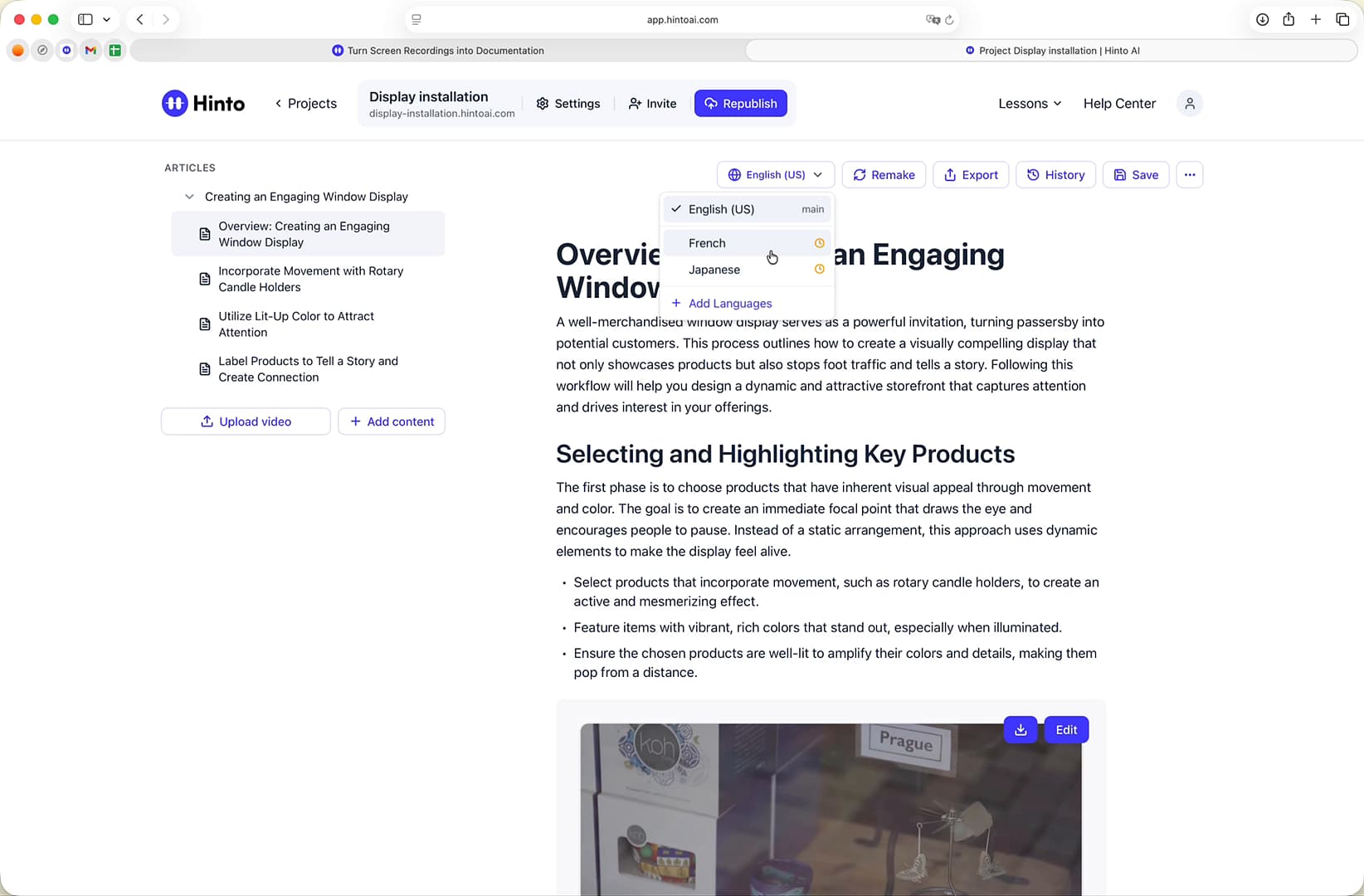
From the article editor, click the language dropdown at the top of the page.
-
Select Add Languages from the menu. This will open the Project Settings modal.
-
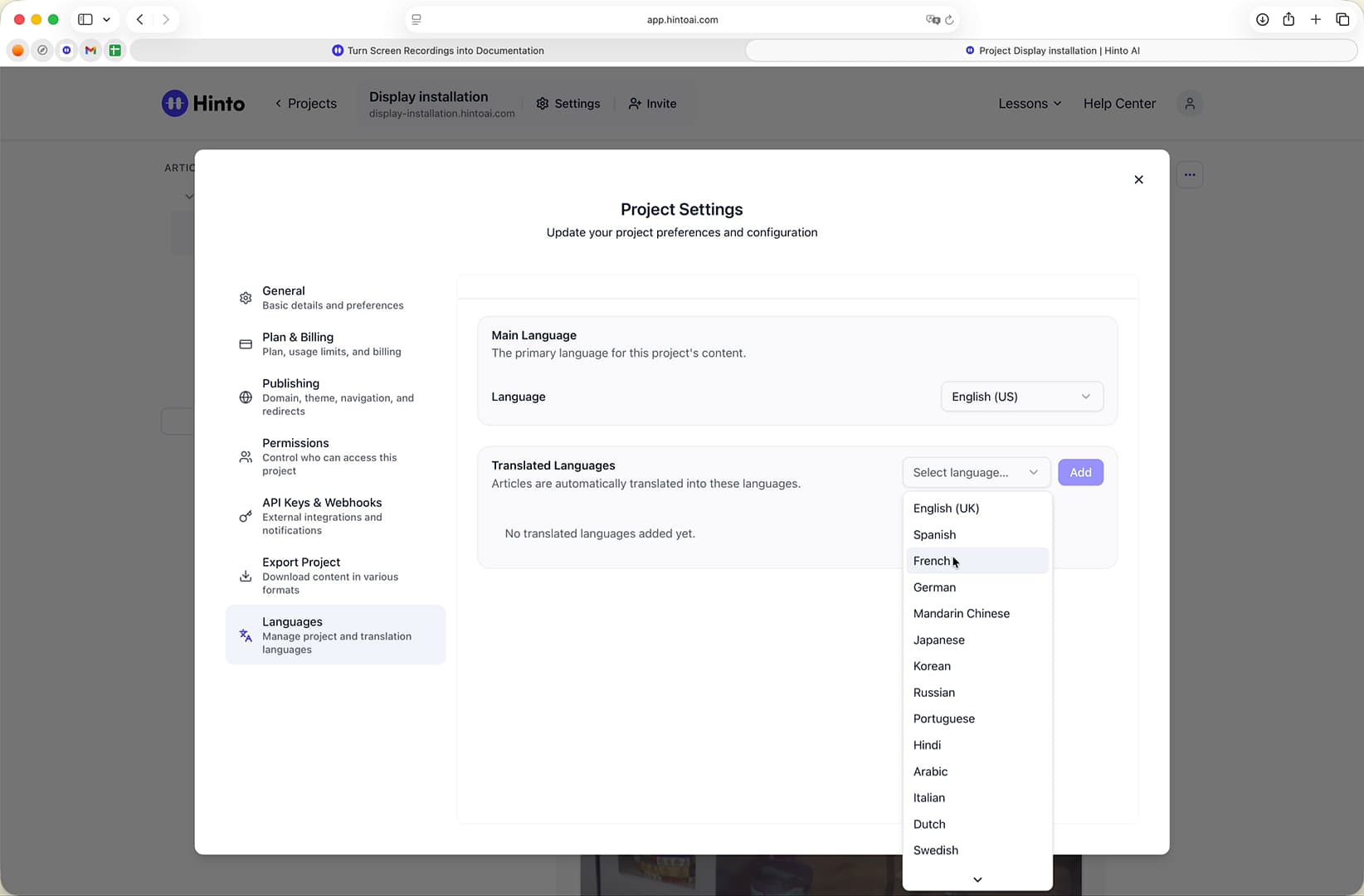
Under the Translated Languages section, use the Select language... dropdown to choose your target language.
-
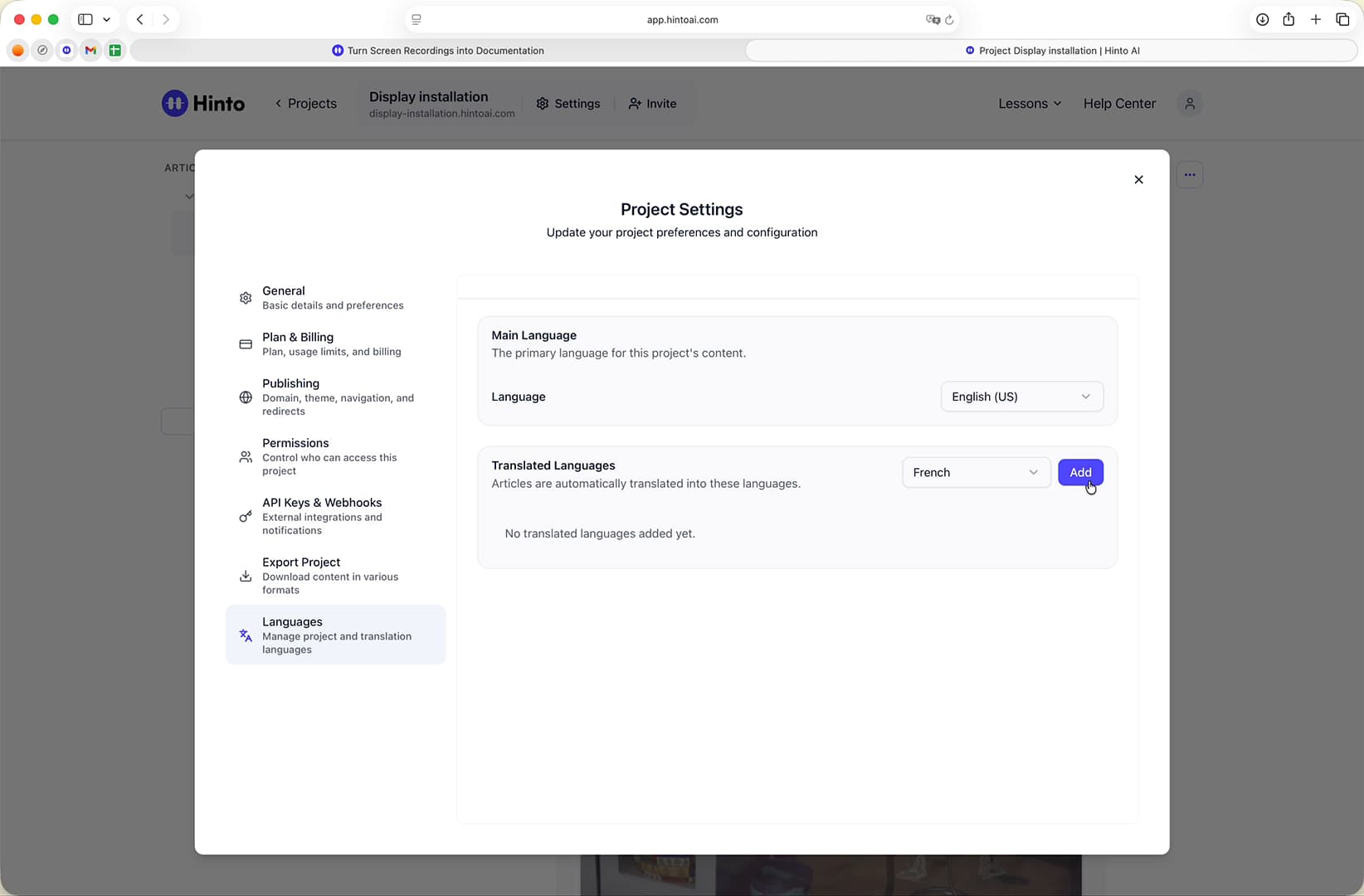
Click the Add button. The system will automatically begin translating all articles in your project into the selected language. A progress indicator will appear.
-
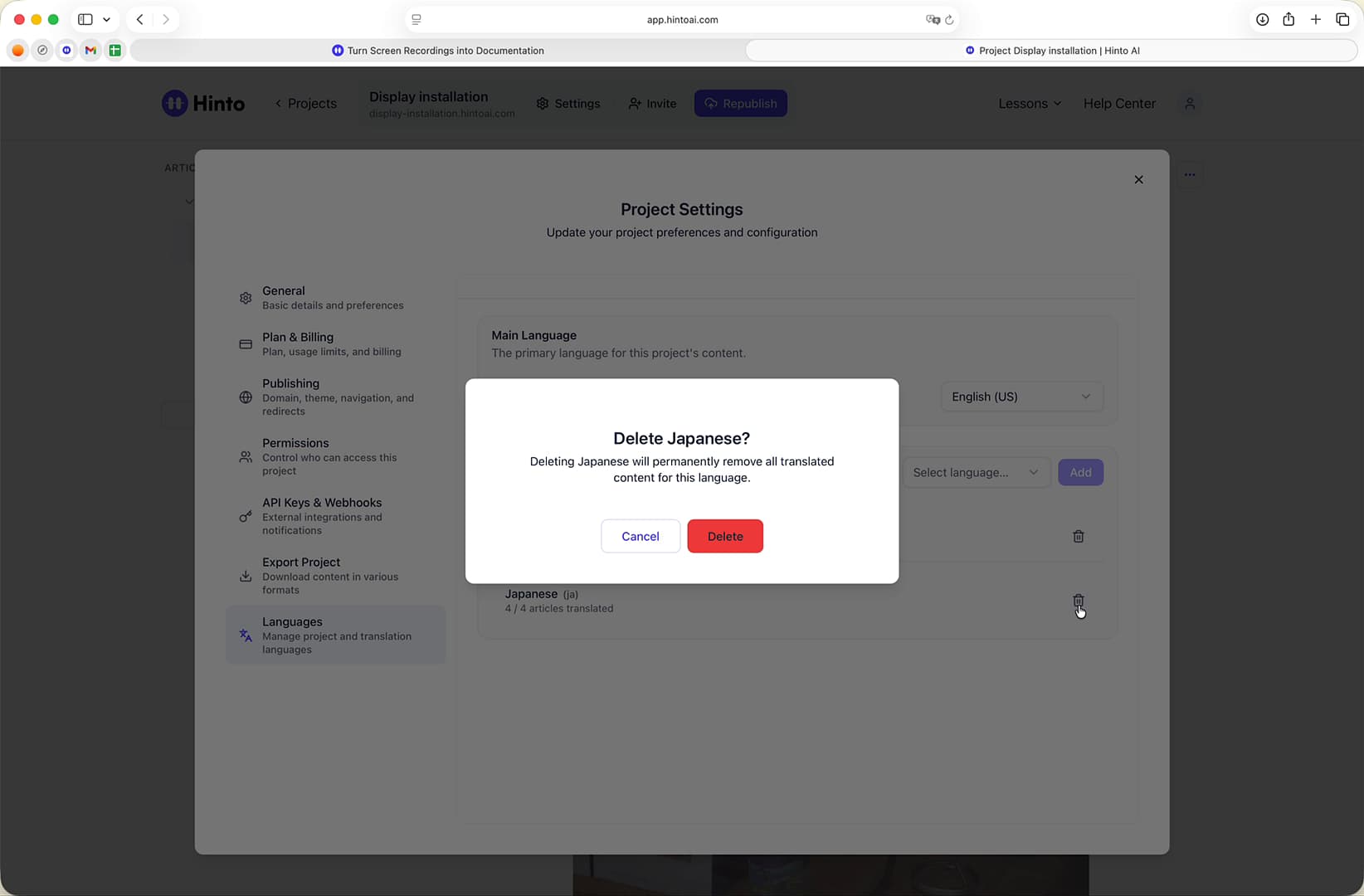
To remove a language at any time, click the trash can icon next to it and confirm the deletion.
Viewing and Publishing Translations
-
Once the translation is complete, close the Project Settings modal.
-
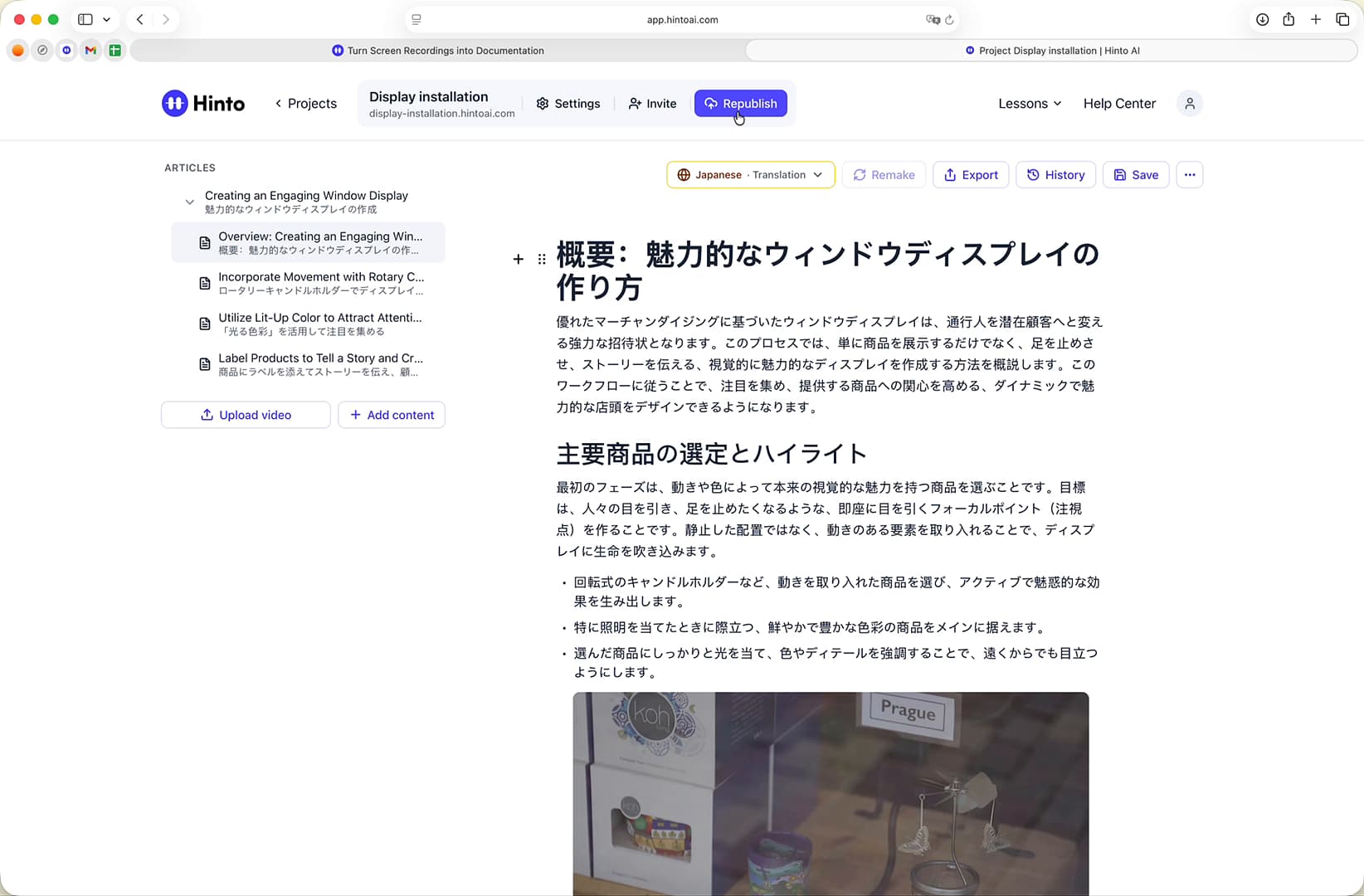
Use the language dropdown in the editor to switch between the original and translated versions of your article.
-
When you are ready to make the new language(s) available to your users, click the Republish button in the top-right corner.
-
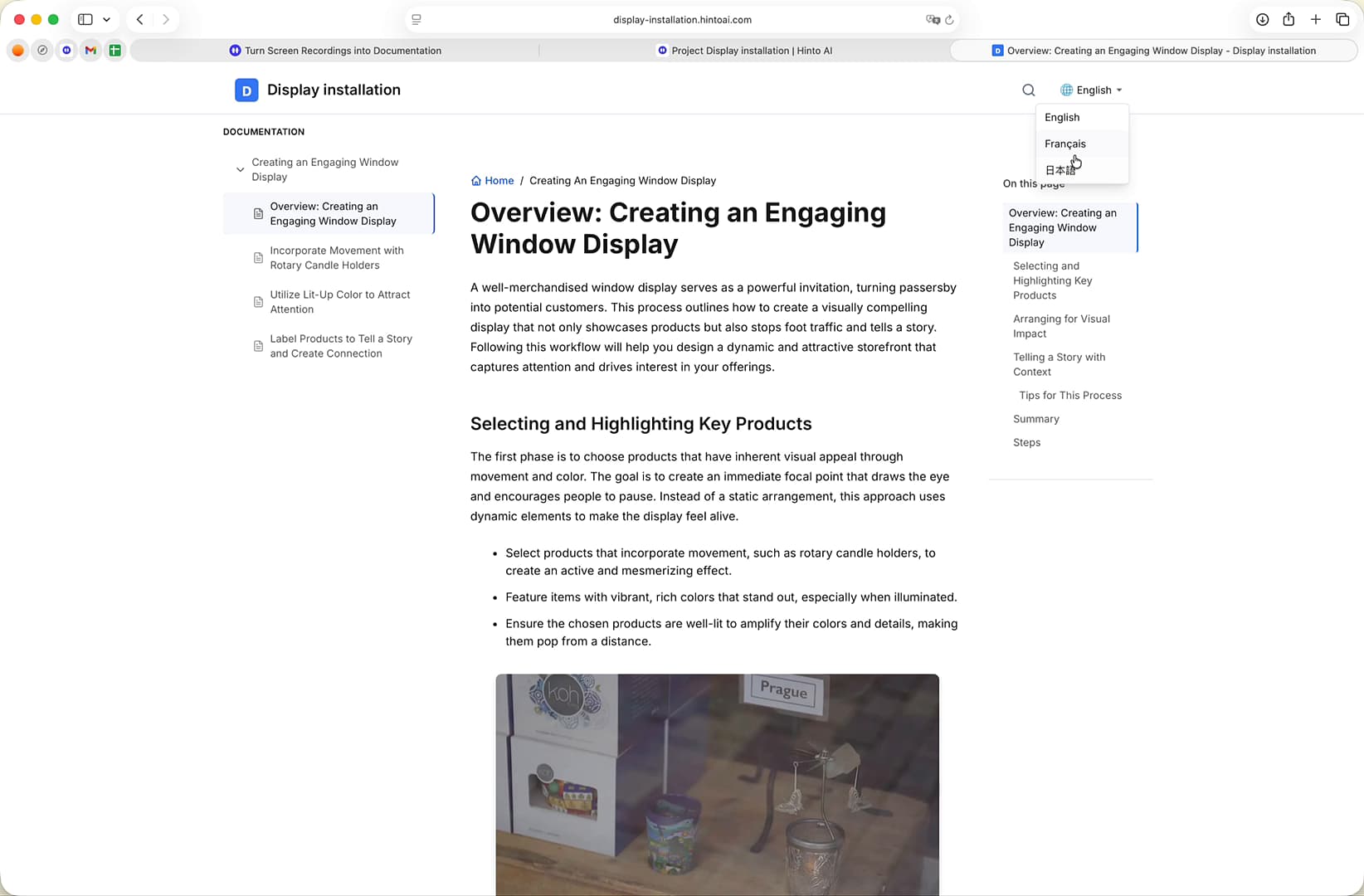
After publishing, a language selector will appear on your public knowledge base, allowing users to switch between the available languages.
Manually Editing a Translation
While translations are automatic, you can override them with your own manual edits.
- Select the translated language you wish to edit from the language dropdown.
- Make your changes directly in the editor.
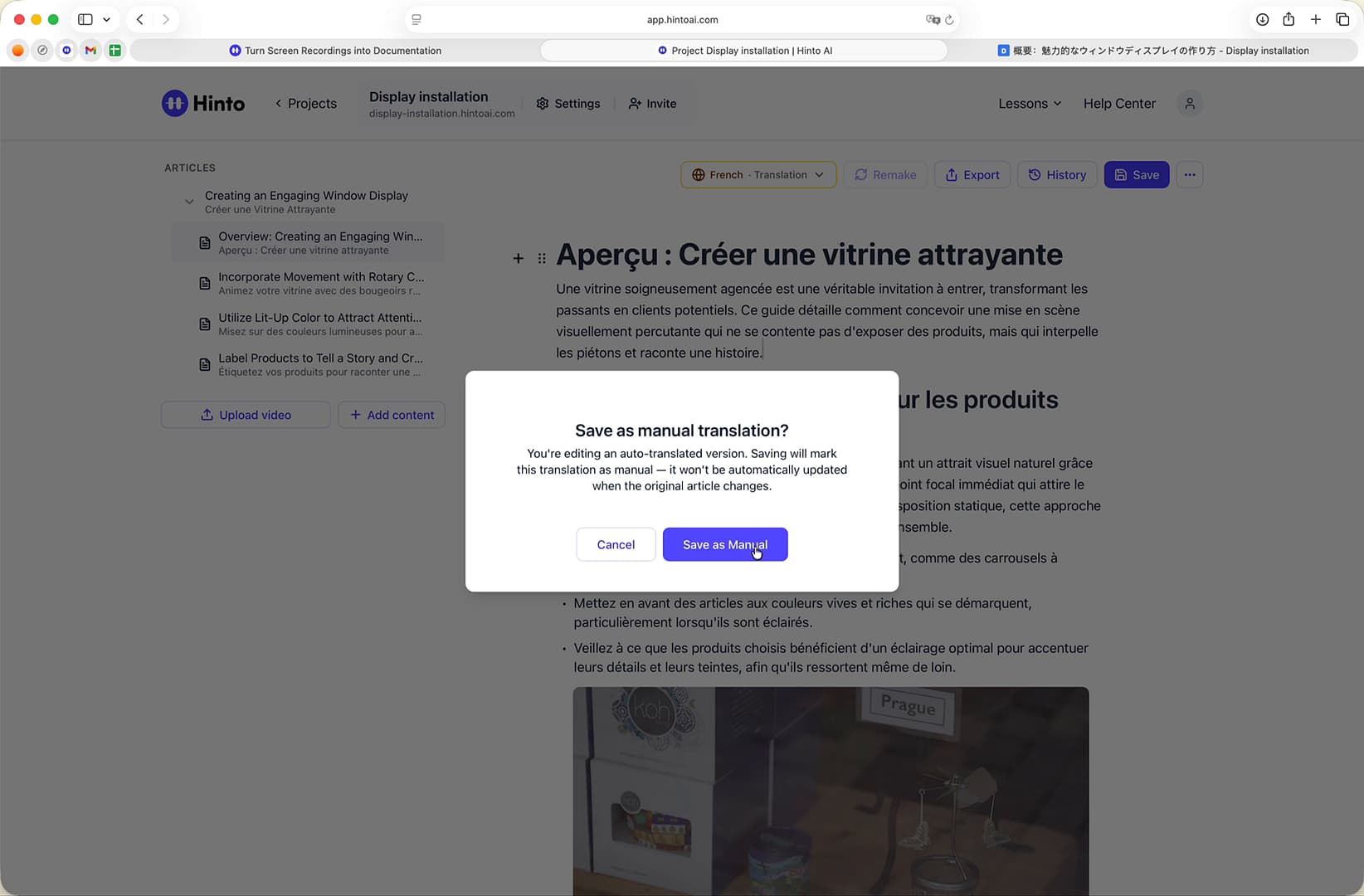
- Click the Save button.
- A confirmation pop-up will appear. Click Save as Manual. This action marks the translation as manual and prevents it from being automatically overwritten when the original article changes.
Tips
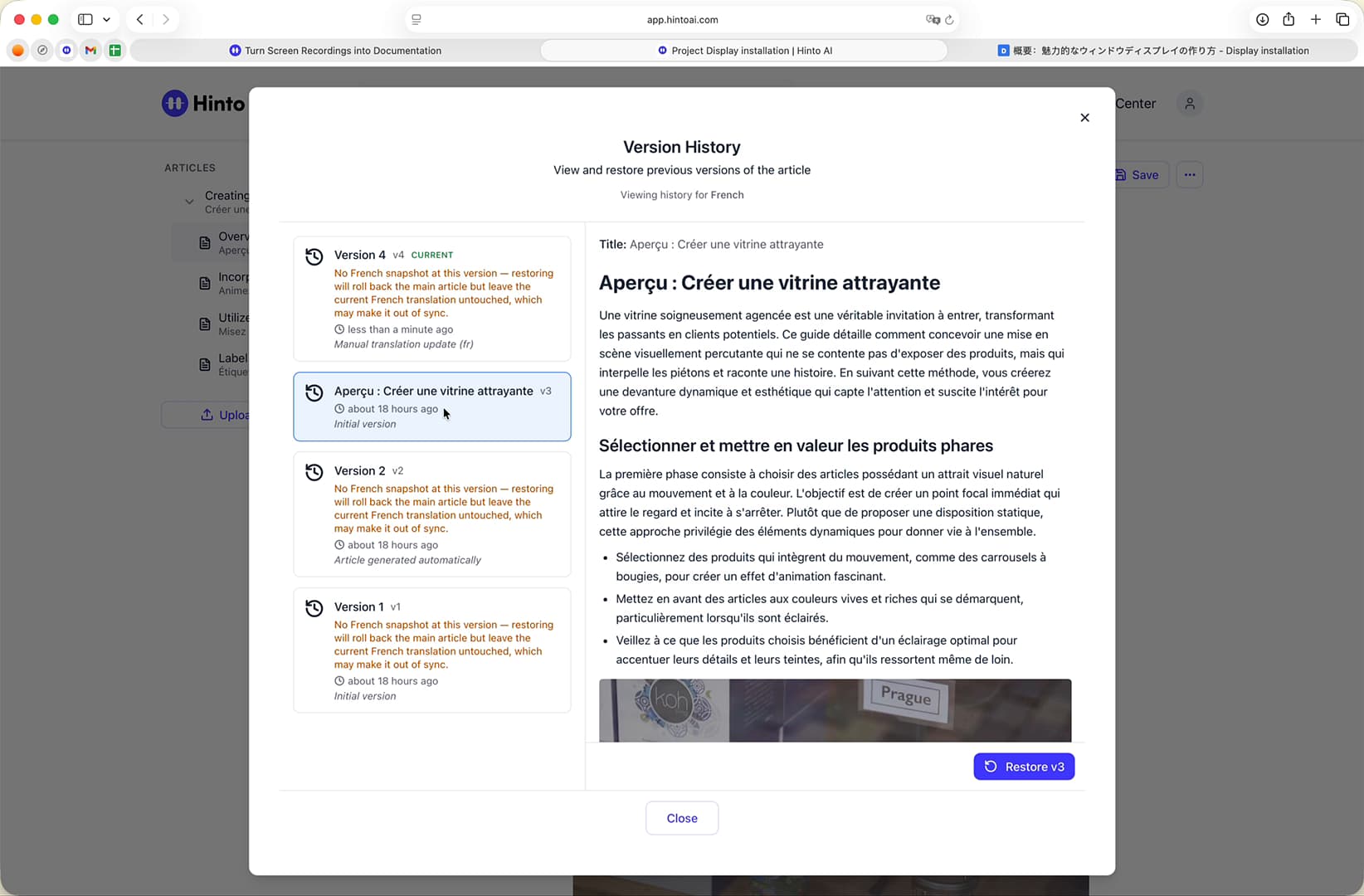
If you need to revert a manual translation back to the auto-translated version, you can use History to restore a previous, automatically generated version of the article. This will re-enable automatic updates for that article.
Summary
This article teaches you how to add new languages to your knowledge base for automatic translation. The process involves selecting target languages in your project settings, allowing the system to translate the content, and then republishing to make the multilingual site live. This feature enables you to effortlessly support a global user base by providing documentation in their native language.