How to Manually Edit and Manage Translated Articles
This guide shows you how to make manual edits to an automatically translated article. Following these steps allows you to refine translations for clarity, context, or specific terminology, ensuring your content is perfect for every audience. You will need to have at least one translated language set up in your project.
-
Navigate to the article you wish to edit.
-
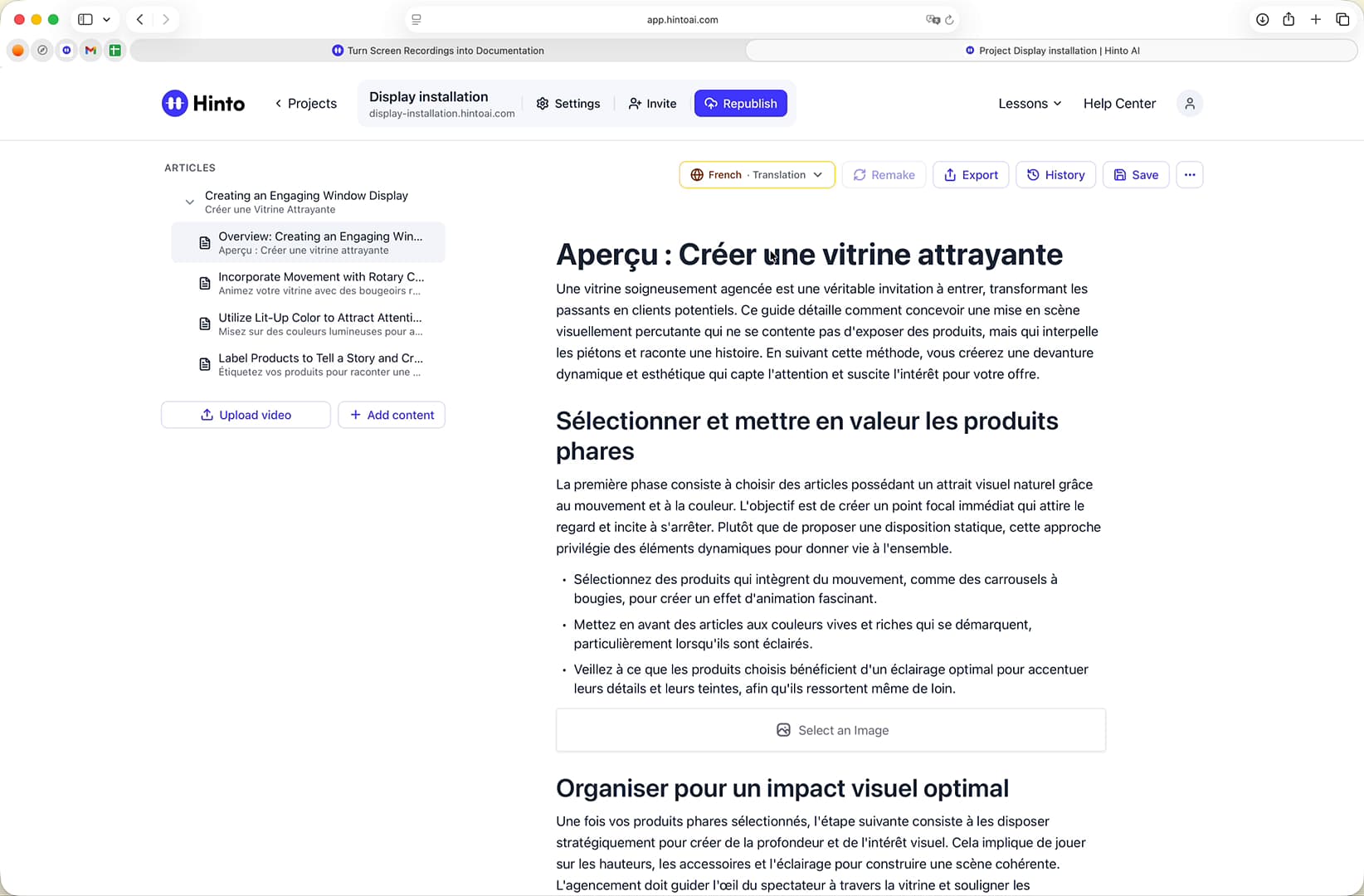
Click the language selector dropdown menu at the top of the editor.
-
Select the translated language you want to modify (e.g., French, Japanese). The page will reload to show the translated version of the article.
-
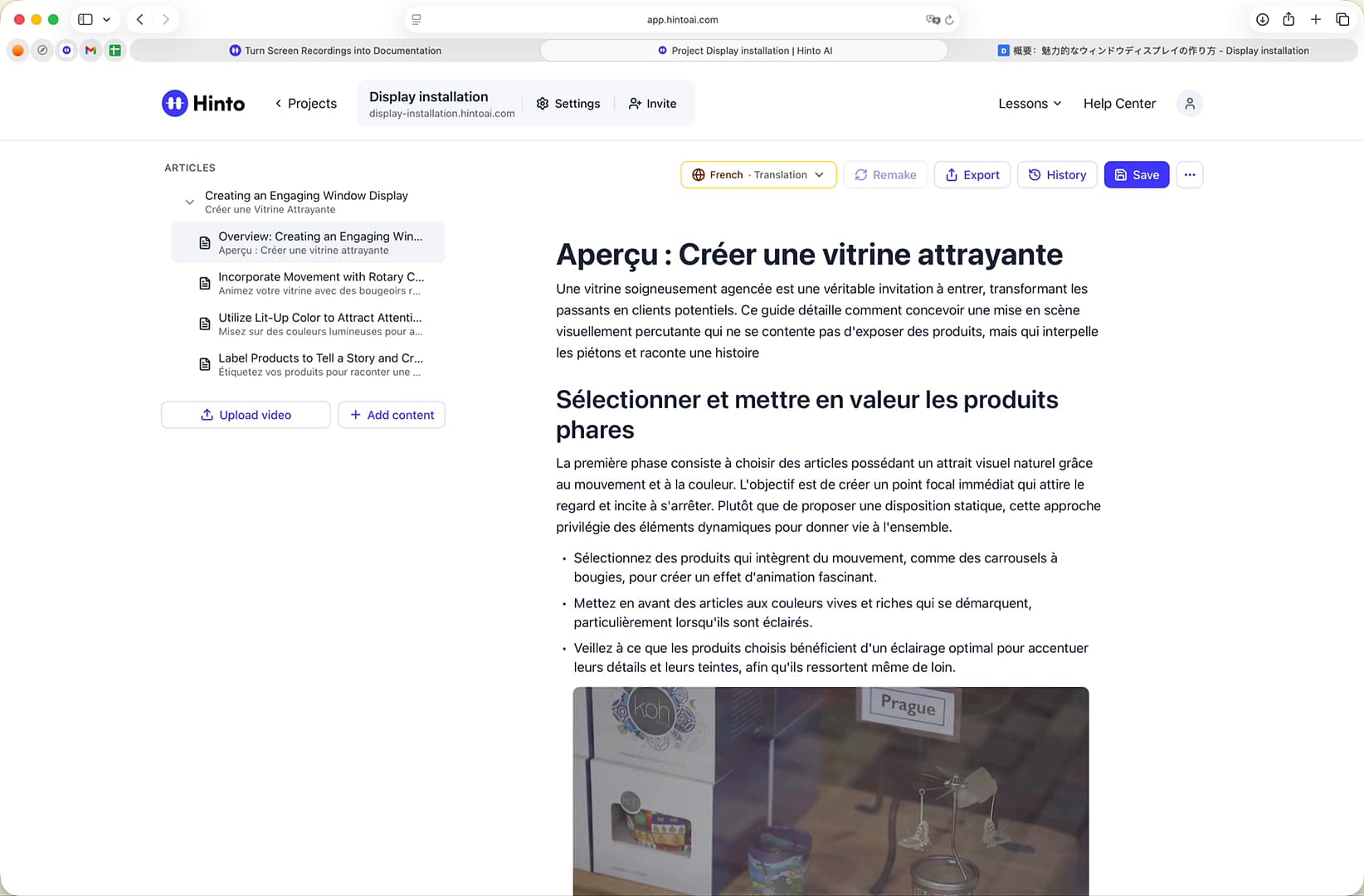
Click directly on the text in the editor to make your desired changes. You can edit the title, headings, and body content.
-
Once you have finished editing, click the Save button.
-
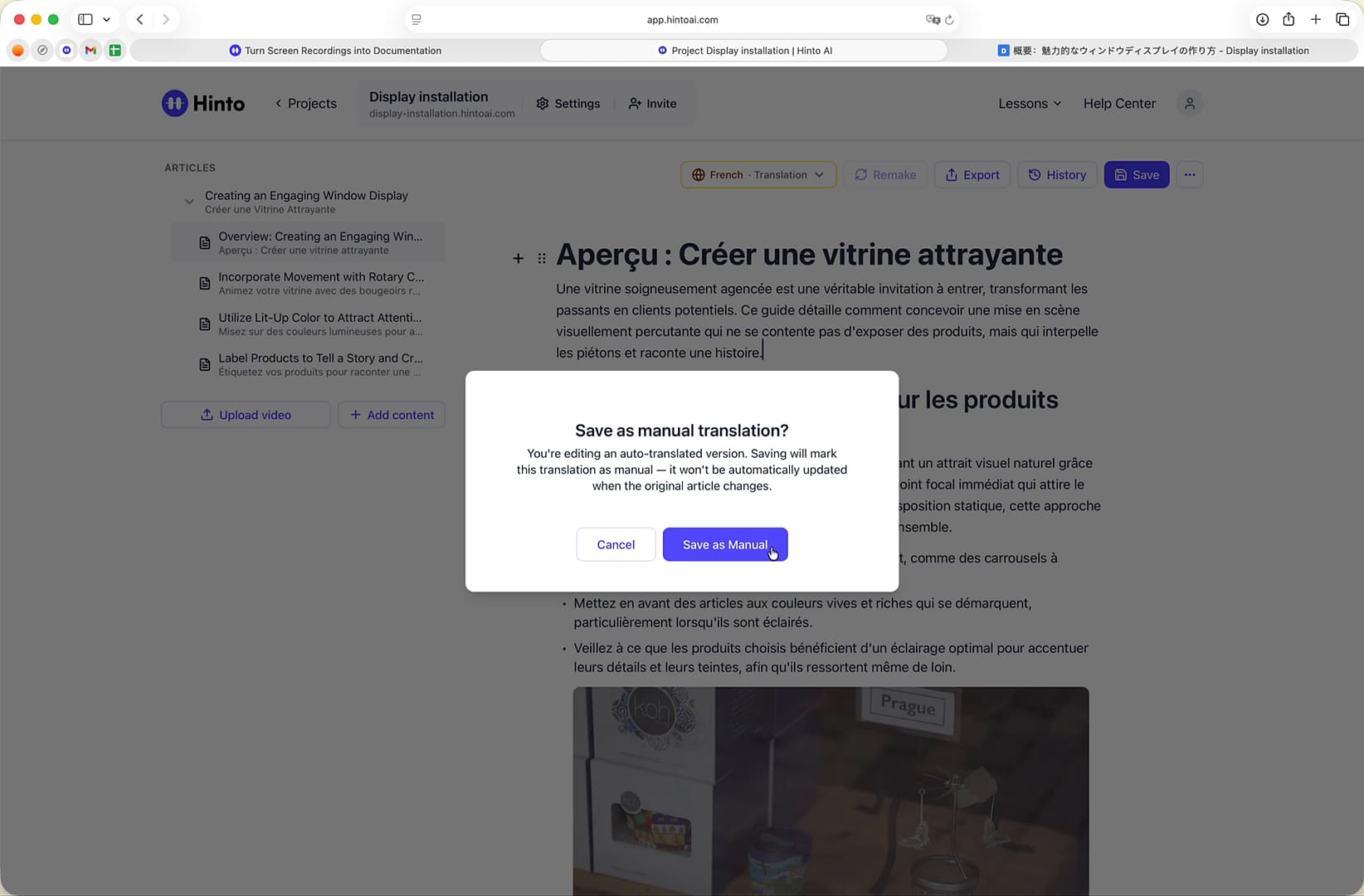
A "Save as manual translation?" pop-up will appear. This explains that saving a manual edit will prevent this specific article from being automatically updated in the future. Click Save as Manual to confirm.
-
The editor will now label this article as a "Manual" translation instead of "Translation."
Reverting to an Automatic Translation
If you want to discard your manual edits and return to the automatically translated version, you can use the version history.
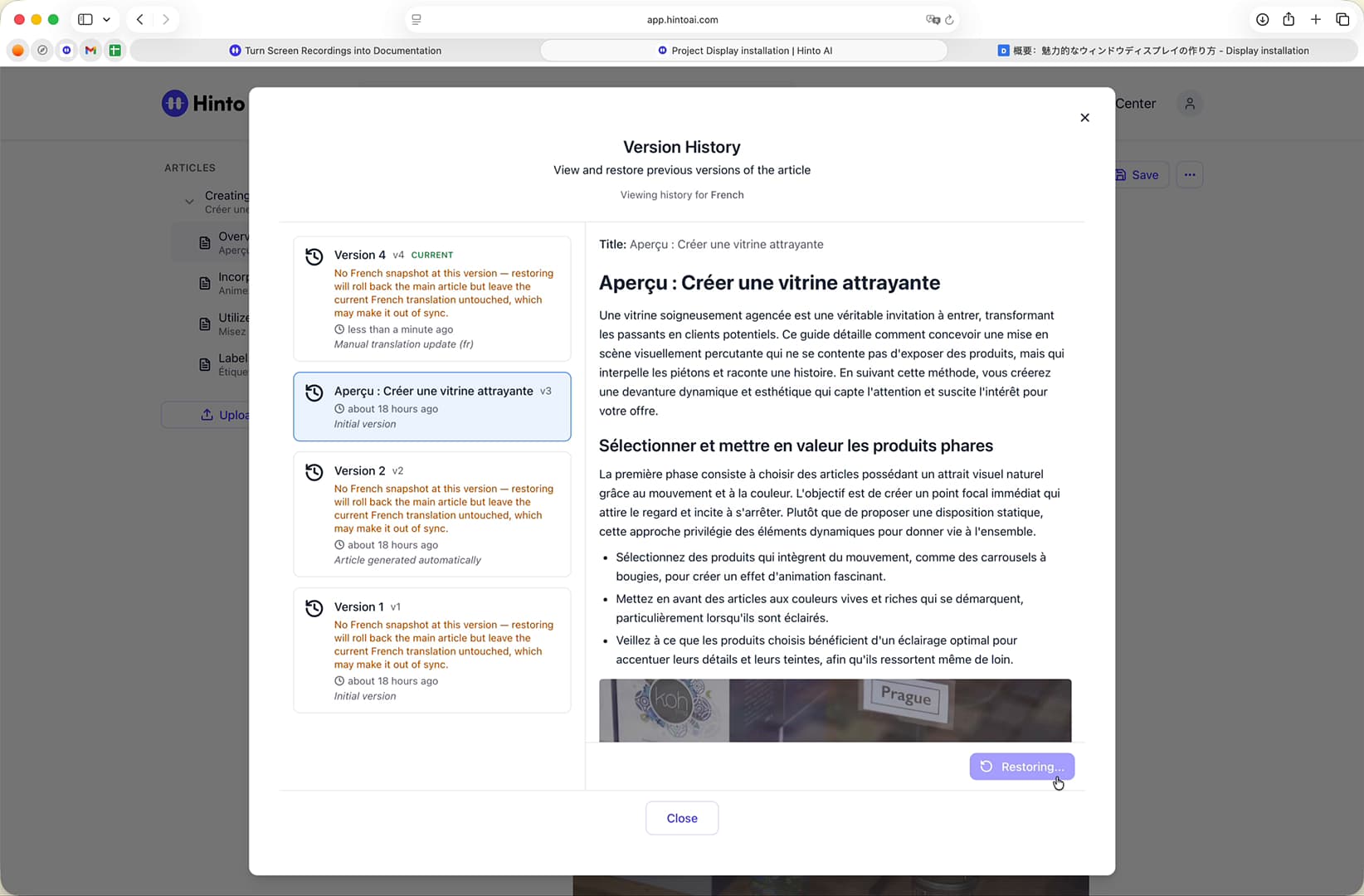
- With the manually edited article open, click the History button.
- In the Version History panel, find and select a version that was created before your manual edit.
- Click the Restore vX button at the bottom of the panel to revert the article. This will restore the auto-translated content and re-enable automatic updates.
Summary
This article explains how to take control of your multilingual documentation by manually editing auto-translated articles. The process involves selecting the target language, making direct text edits, and saving the changes, which converts the article to a manual version. This feature provides the flexibility to refine machine translations for greater accuracy while also offering a simple way to revert to the automated version using the article's history.