How to Remove a Language from a Project
This guide explains how to remove a translated language from your Hinto project. Following these steps will permanently delete a language and all of its associated translated articles. You will need access to your project's settings to complete this action.
-
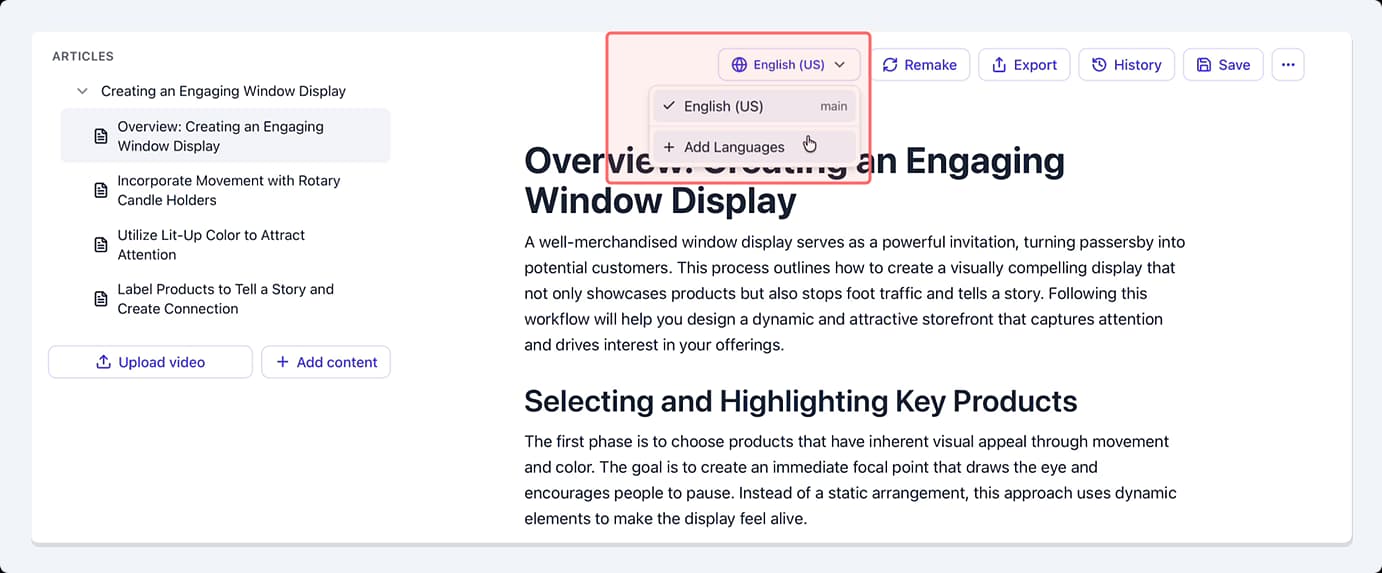
From the article editor, click the language dropdown menu located in the top action bar.
-
Select + Add Languages from the dropdown list to open the settings menu.
-
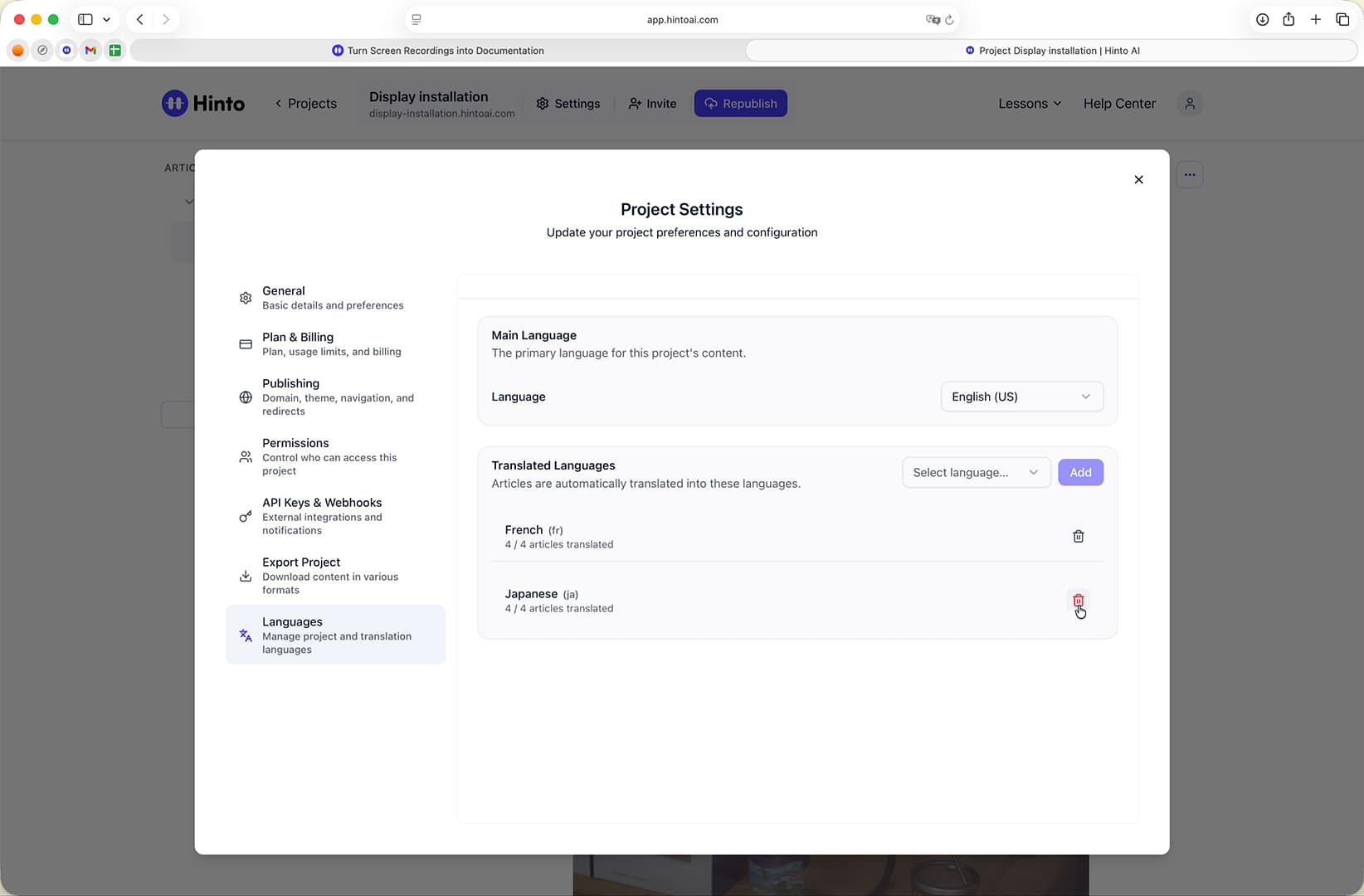
In the Project Settings window, ensure you are on the Languages tab.
-
Under the Translated Languages heading, find the language you want to remove.
-
Click the trash can icon to the right of the language name.
-
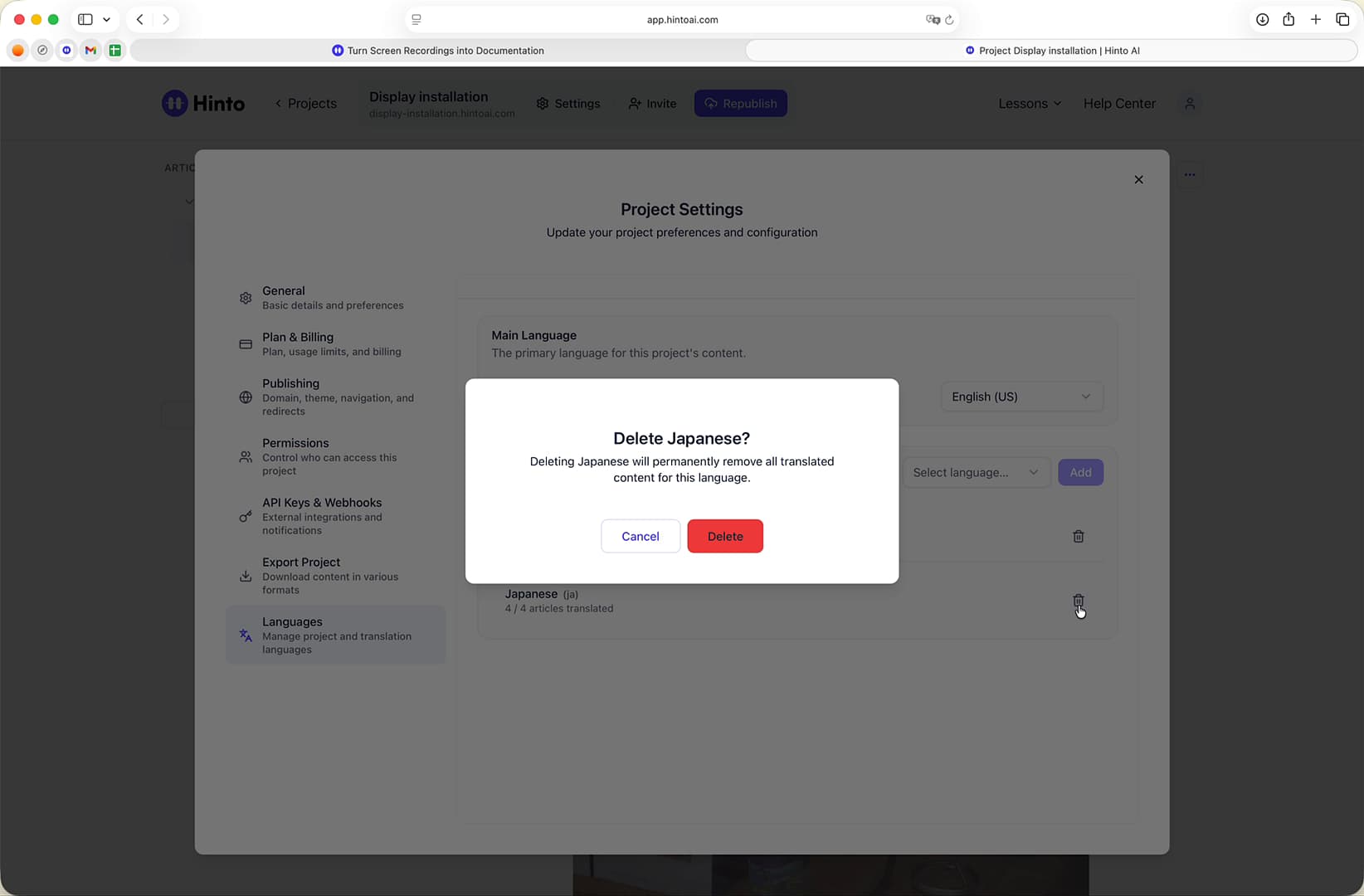
A confirmation window will appear to prevent accidental deletion. Click the Delete button to permanently remove the language.
Important Considerations
Please note that deleting a language is a permanent action and cannot be undone. All translated content for that specific language will be removed from your project. If you need to add the language again in the future, you will have to repeat the translation process.
Summary
This article provides a step-by-step guide on how to remove a translated language from a project. By accessing the Languages tab within Project Settings, you can select and permanently delete any translated language, which removes all of its content. This helps you manage which languages are available in your published documentation.