Export Content to Visio for Whiteboard Tools
This guide explains how to export your Hinto AI articles and folders to a Visio file. This format is ideal for importing your documentation into collaborative whiteboard tools like Miro, allowing you to use your content for brainstorming, workflow mapping, and team reviews.
You can export a single article or an entire folder of articles.
Export a Single Article
-
Navigate to the article you wish to export.
-
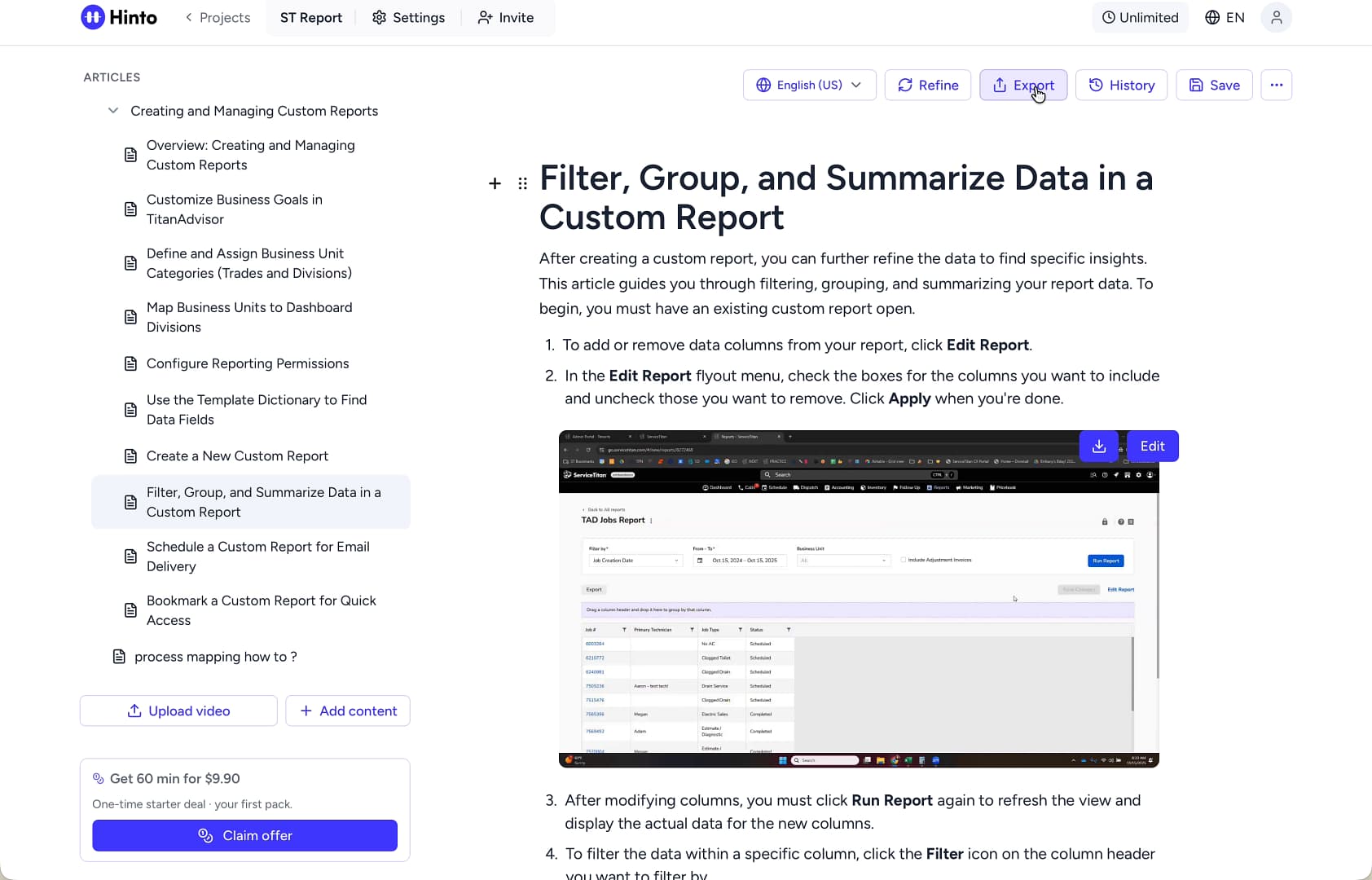
In the top menu bar, click the Export button.
-
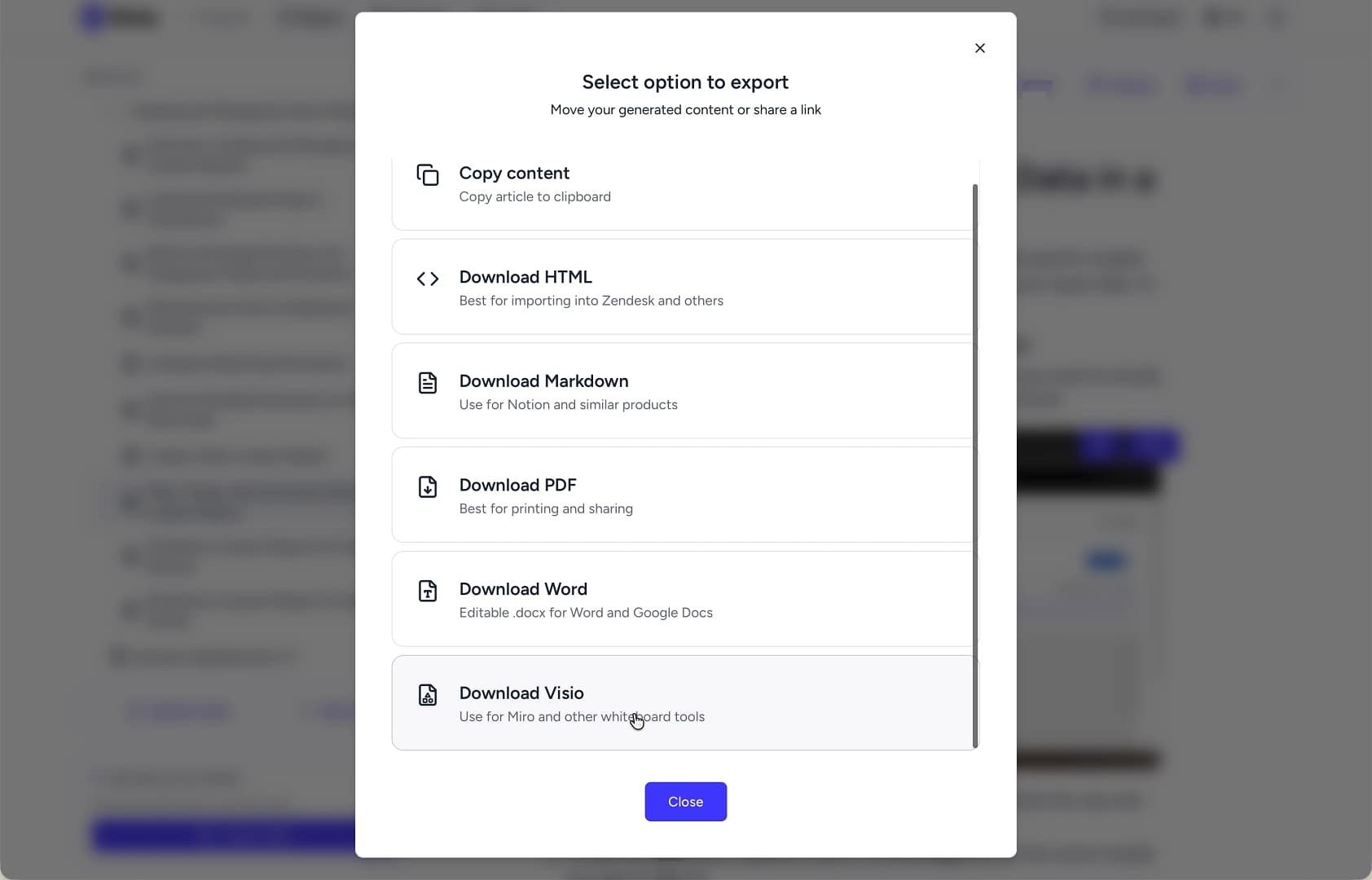
From the "Select option to export" window, choose Download Visio.
-
The Visio file will download to your device. A confirmation message will appear at the top of the screen.
Export a Folder
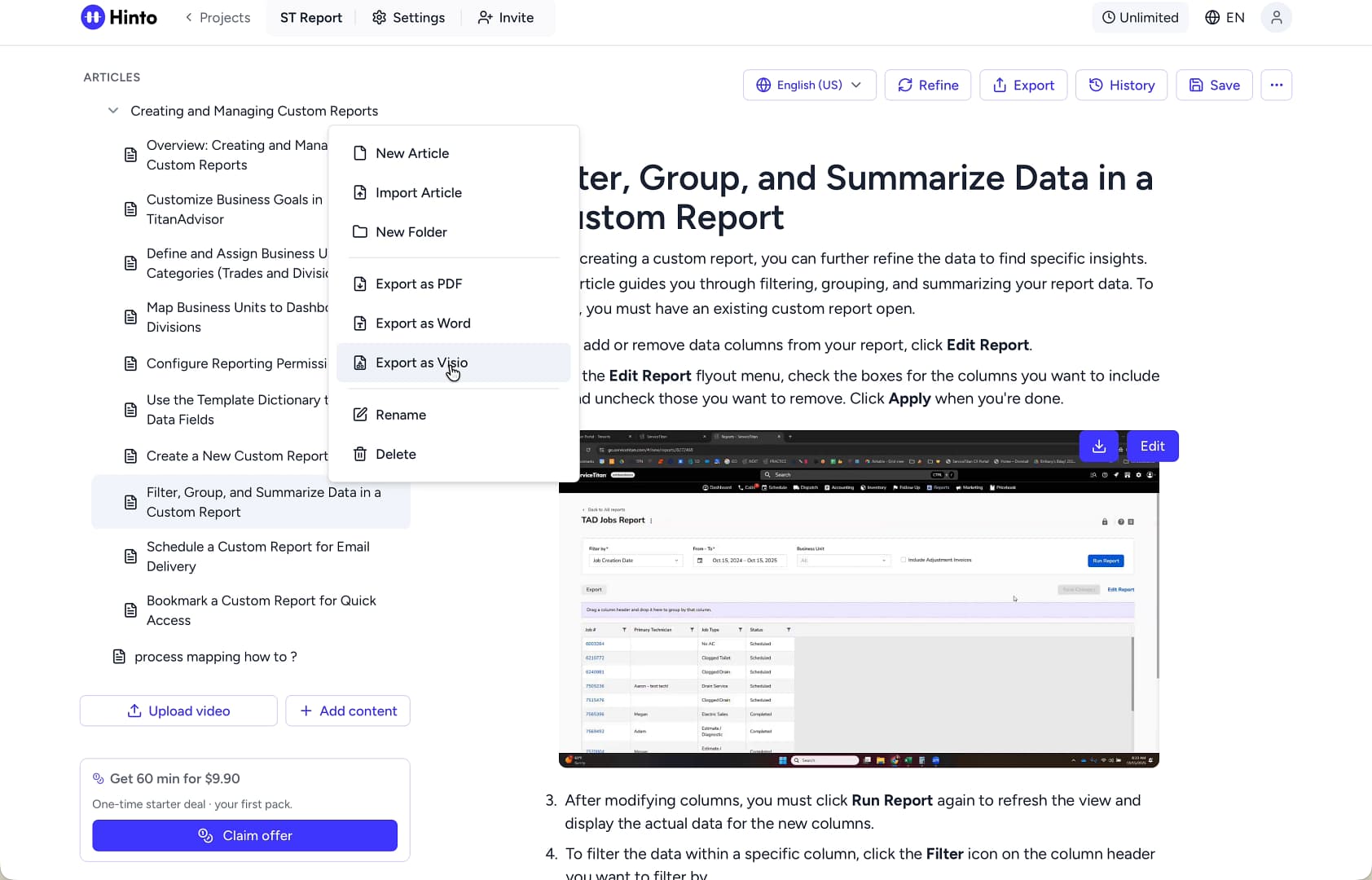
- In the left-hand navigation pane, hover your cursor over the folder you want to export.
- Click the three-dot menu that appears to the right of the folder name.
- From the context menu, select Export as Visio. A Visio file containing all articles within that folder will download to your device.
Import to a Whiteboard Tool
Once you have downloaded the Visio file, you can easily add it to most whiteboard applications.
- Open your preferred whiteboard tool, such as Miro.
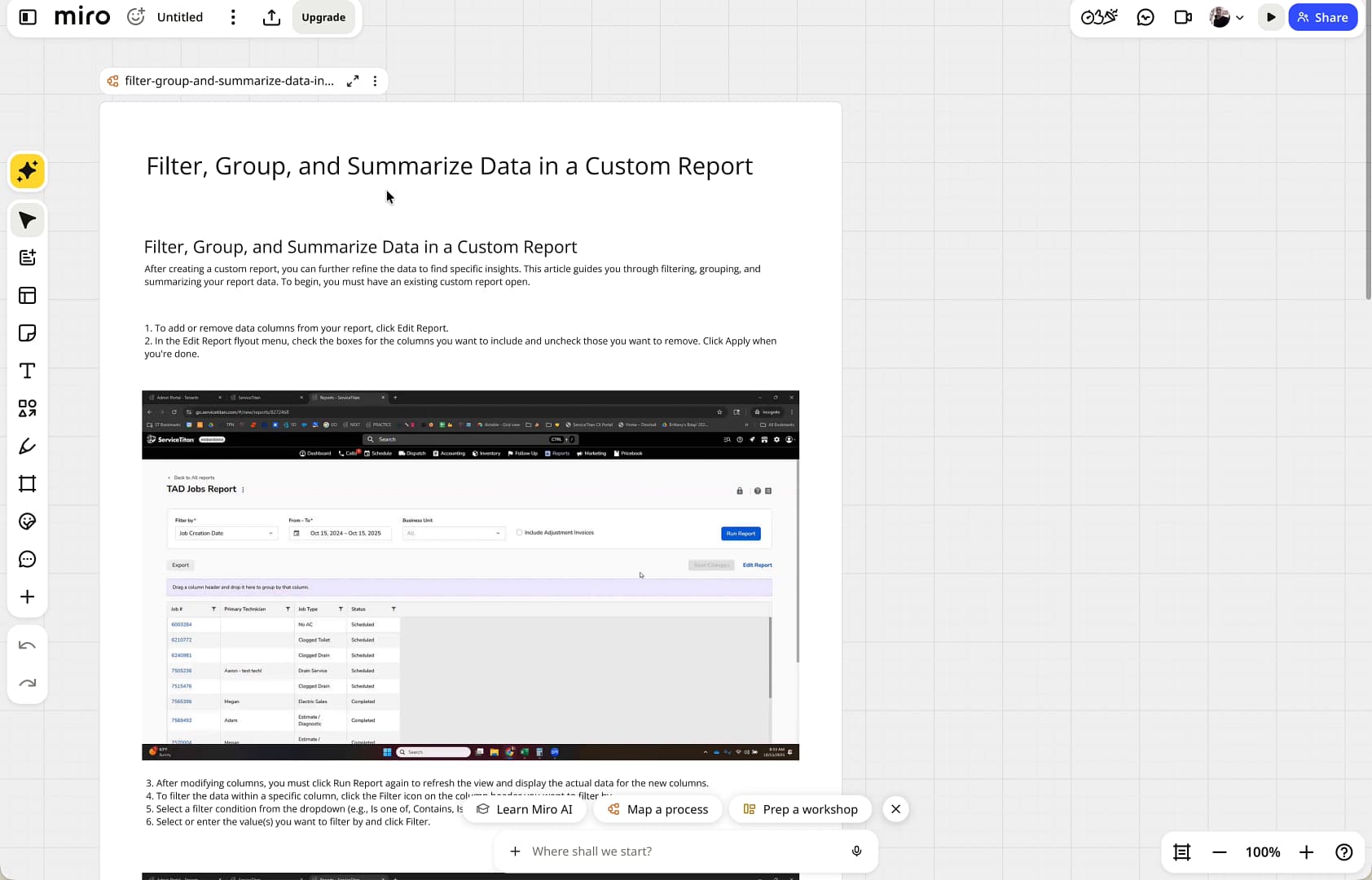
- Drag the downloaded Visio file from your computer and drop it directly onto the whiteboard canvas.
- The article's content, including text blocks and images, will be imported as separate, editable objects that you can rearrange and work with.
Summary
Exporting content to Visio bridges the gap between structured documentation and dynamic, collaborative environments. This feature allows you to transfer entire articles or folders into whiteboard tools like Miro, preserving the text and image components as individual, editable elements. It is perfect for turning your knowledge base content into assets for strategic planning, process mapping, and interactive team sessions.