How to Export Content to a Word Document
Hinto AI allows you to export your content as an editable Word document (.docx), which is ideal for offline editing, sharing with colleagues, or using in other applications like Google Docs or Apple Pages. This guide shows you how to export a single article, a specific folder, or an entire project.
Export a Single Article
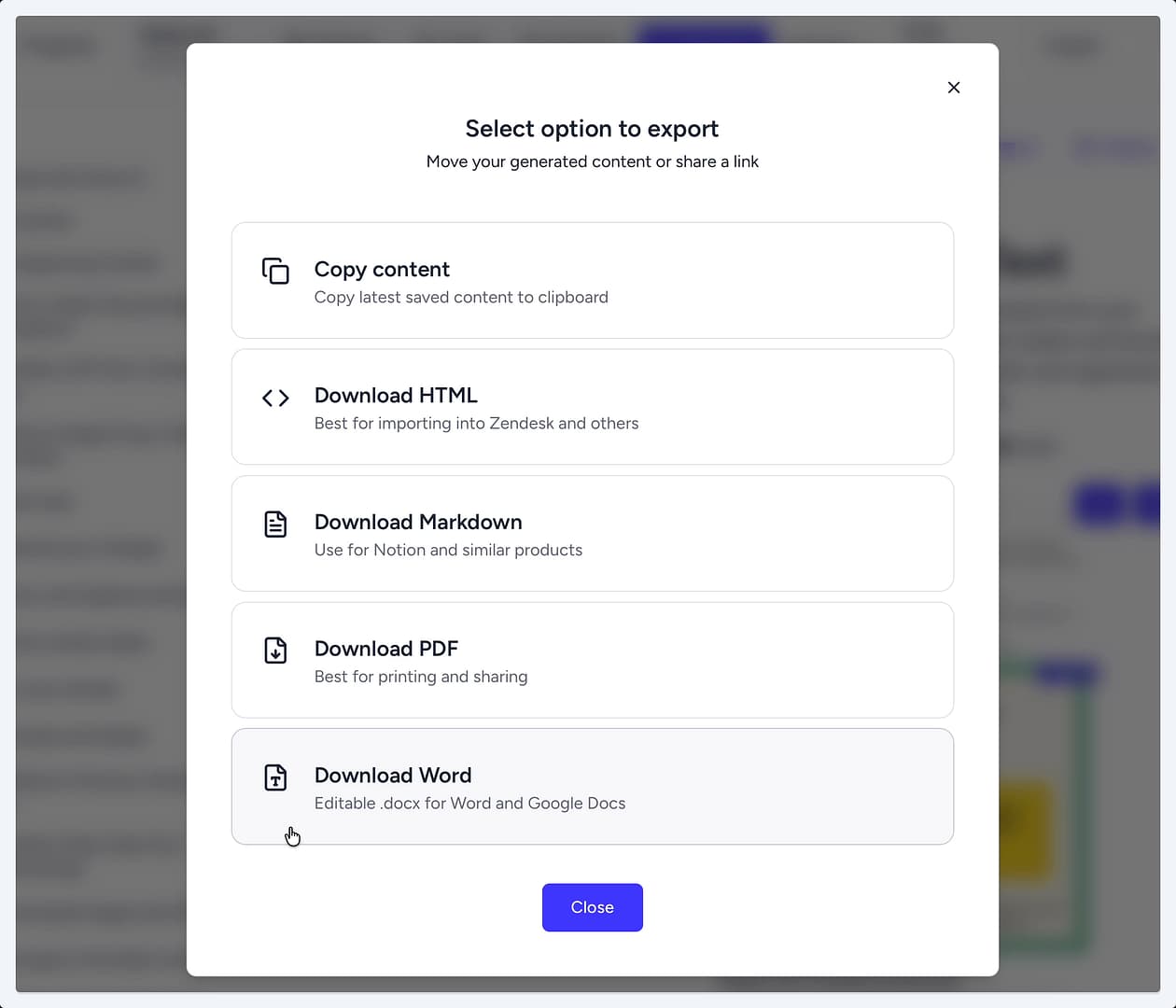
- Navigate to the article you want to export and click the Export button in the top action bar.
- In the "Select option to export" window that appears, choose Download Word. The file will immediately download to your device.
Export a Folder
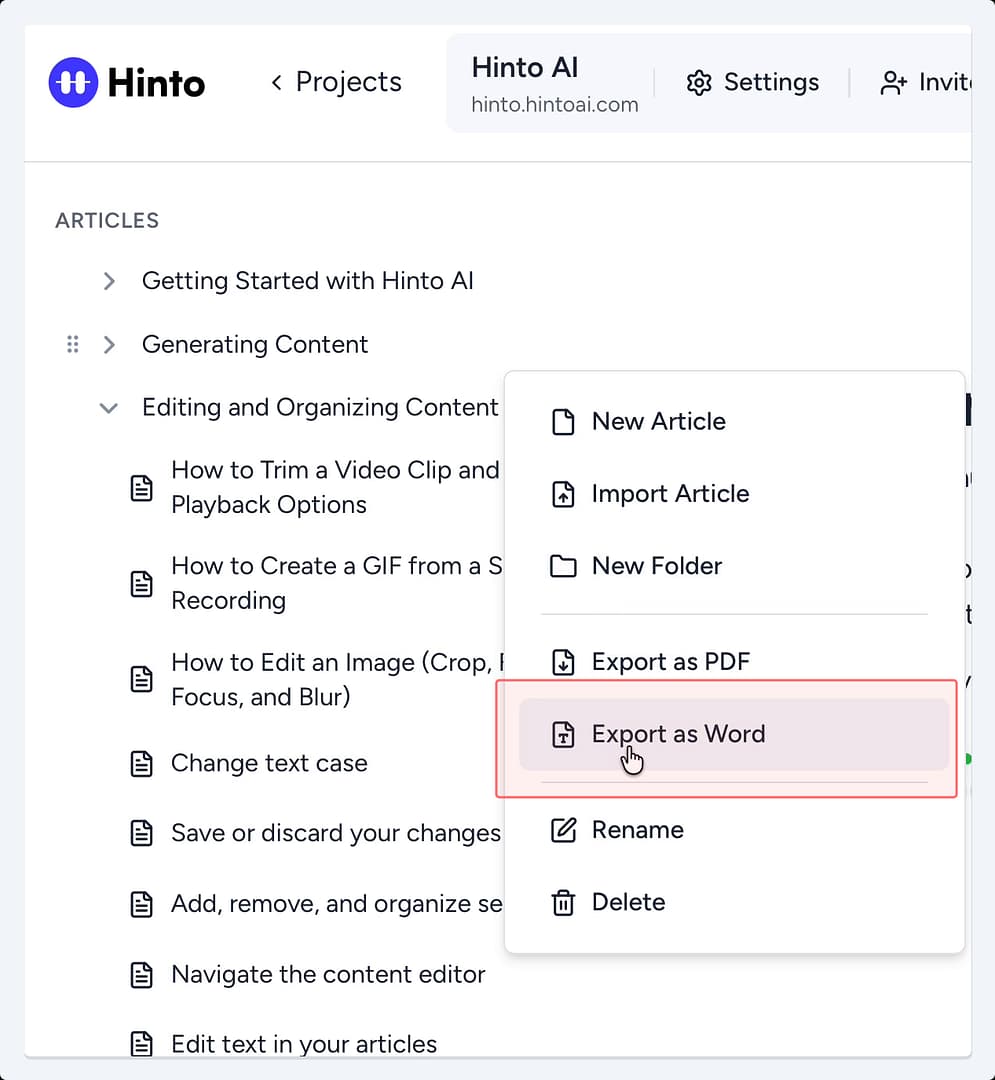
- In the left-hand table of contents, hover your cursor over the folder you wish to export.
- Click the three-dot menu that appears to the right of the folder name.
- Select Export as Word from the dropdown menu. All articles within that folder will be compiled into a single Word document and downloaded.
Export an Entire Project
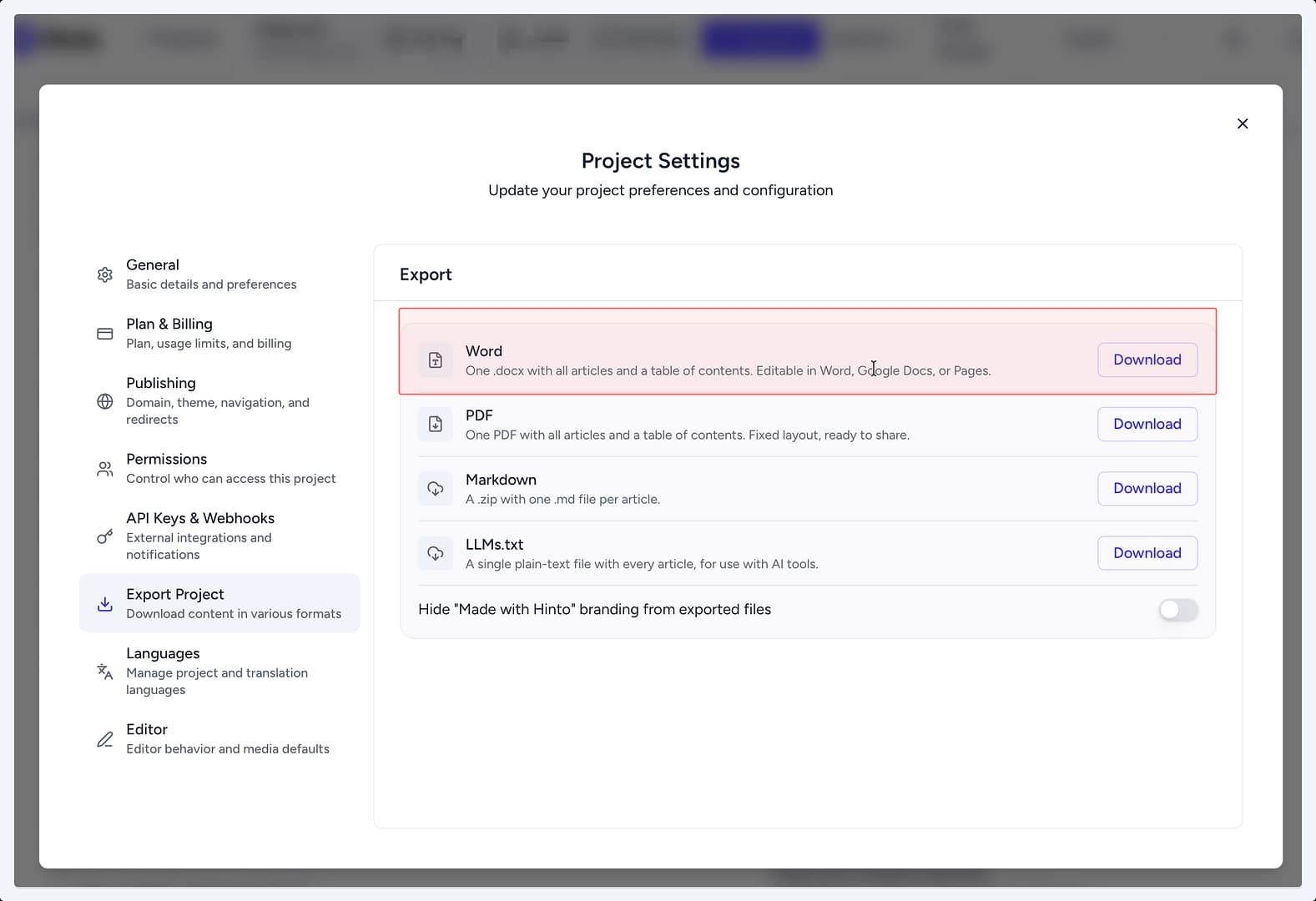
- Click the Settings button in the main navigation bar at the top of the page.
- In the "Project Settings" window, select Export Project from the left-hand menu.
- Find the Word format option and click the corresponding Download button. This will generate and download a single .docx file containing all articles from your project.
Summary
Exporting your content to Word provides a flexible way to work with your documentation outside of Hinto AI. Whether you need a single article, a folder's contents, or the entire project, you can easily generate an editable .docx file that preserves your content and images for offline use, review, or repurposing.