How to Permanently Delete Uploaded Videos
This guide explains how to permanently delete a video from your Hinto AI workspace. You can choose to either delete the video file while keeping the articles generated from it, or permanently delete both the video and its associated articles. This is useful for managing your uploaded files and removing outdated source material.
-
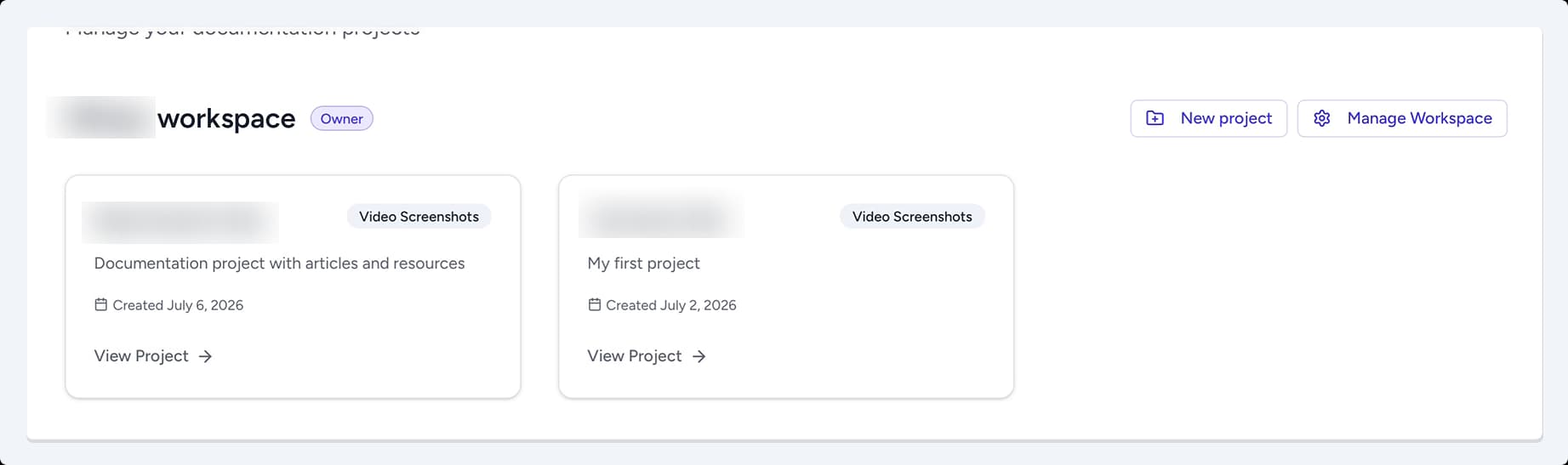
From your projects dashboard, click the Manage Workspace button for the relevant workspace.
-
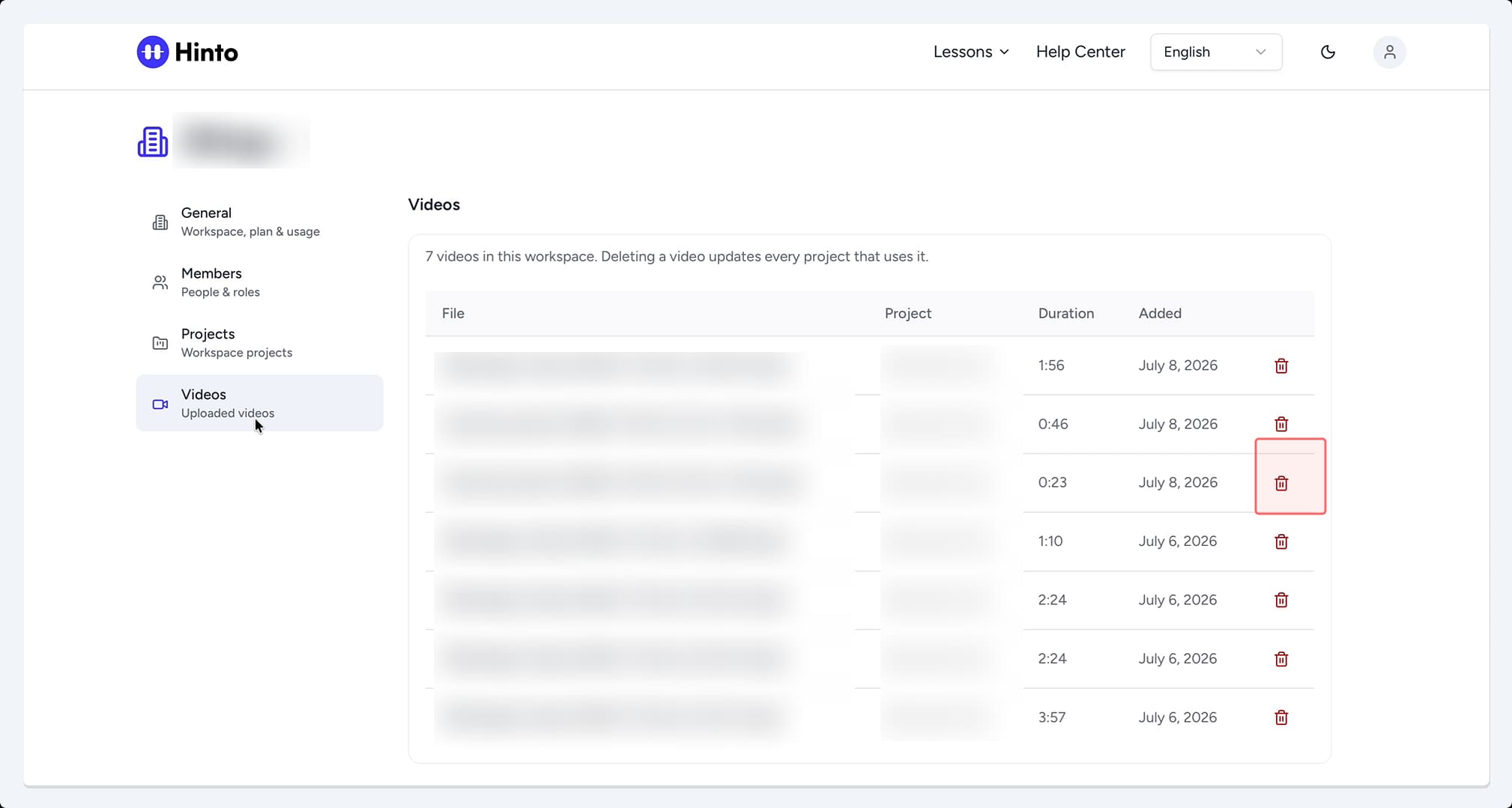
In the left sidebar, click Videos.
-
A list of all videos uploaded to this workspace will appear. Locate the video you want to remove and click the trash can icon on the right.7
-
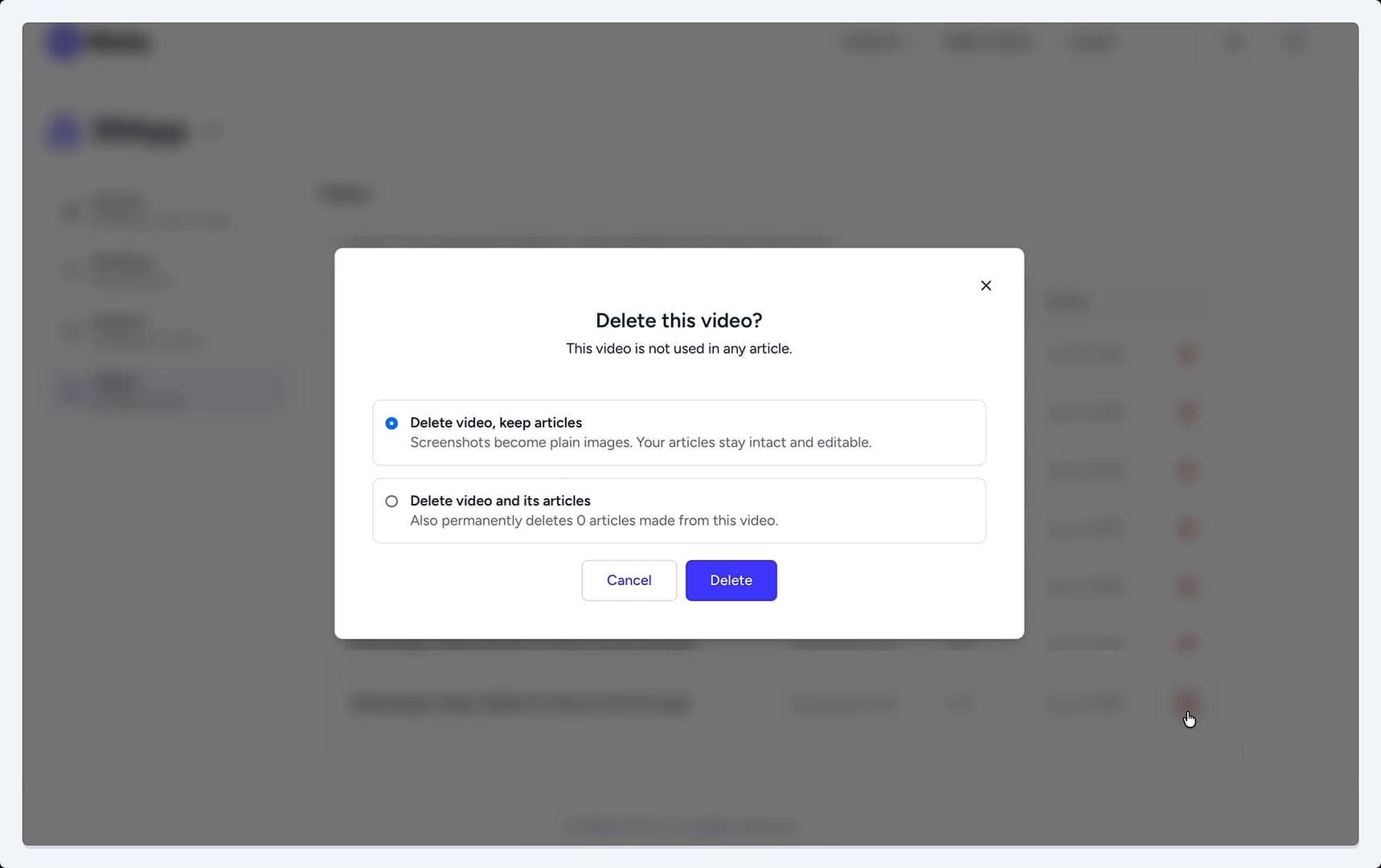
In the "Delete this video?" pop-up, choose one of two options:
-
Click the Delete button to confirm your choice.
Important Considerations
- Permanently deleting a video and its articles is irreversible. If you might need the project again, consider archiving it instead.
- If you choose to keep the articles after deleting a video, the screenshots within them will lose their dynamic functionality. You will no longer be able to create new GIFs or video clips from them.
Summary
This article outlines the process for permanently deleting source videos from a Hinto AI workspace. It details two distinct options: one that removes only the video file while preserving any articles created from it (converting screenshots to static images), and another that permanently deletes both the video and all its associated articles. This feature gives you full control over your content lifecycle and helps you maintain a clean and relevant media library.