
7 Best VEED Alternatives 2026 (Free & Paid Tools)
Free social clips with no watermark: CapCut or Clipchamp (1080p, no badge)
Cut a talking-head or podcast by trimming its transcript: Descript
When the output is a written guide instead of a clip: Hinto AI (recording to docs)
VEED has built its name on quick subtitled video edited entirely in the browser. Auto-captions, one-click aspect-ratio swaps for vertical feeds, and a deep catalog of AI generation models let you ship branded clips with no desktop install. The friction shows up elsewhere: free-tier watermark and export limits that aren't published clearly, slowdowns on longer timelines, and recurring billing and auto-renewal disputes on Trustpilot and Capterra.
This piece weighs the seven best alternatives to VEED by what matters most: what you are trying to produce. Most options here, Descript, CapCut, Kapwing, Clipchamp, Vizard, and Loom, are video tools of one kind or another. One, Hinto AI, is built for readers whose deliverable is written instructions with screenshots. Pick by the output first, then check the free-tier reality and price.
What Pushes Teams to Leave VEED
VEED handles its core job well. Browser editing, auto-subtitles, quick resizing into social aspect ratios, voiceovers, and a wide set of AI generation models all sit in a single tab. G2 reviewers report hours saved and a short learning curve. If subtitled social clips are mostly what you ship and a converted VEED trial already covers you, there's little reason to move.
The triggers for switching are specific. You want clean watermark-free exports, which VEED's free version withholds. You'd rather cut a video by trimming its transcript, which Descript does. You want a single long recording sliced into dozens of post-ready shorts, which Vizard automates. Or your deliverable is a written guide, not a video, which points to Hinto AI.
Two recurring complaints push people toward software like veed alternatives: billing and auto-renewal disputes (Trustpilot and Capterra reviewers describe a "bait-and-switch" and surprise $348 charges) and lag on videos past 10 minutes. The reviews below cover each alternative and where it fits.
Turn a recording into a finished help doc
If the goal was written instructions, not a video, skip the editor and generate the guide directly.
Which VEED Alternative Is Right for You?
Answer the questions below to find your match. Download as PDF to keep it handy.
VEED Alternatives at a Glance
Use the table below for a quick side-by-side look at the veed.io competitors covered here. The "Free Tier (real catch)" column is the one most veed similar tools roundups skip: it names the watermark or export cap, not just whether a free plan exists. Among these veed io alternative options, Clipchamp has the cleanest free tier. VEED, CapCut, and Vizard prices are not publicly verifiable (JS-gated or 404), so they're marked as such rather than guessed. Detailed reviews follow.
| Tool | Free Tier (real catch) | Starting Price | Primary Output | Best For |
|---|---|---|---|---|
| VEED | Free editing; exact watermark/export limits not publicly listed | Not publicly listed (per-seat) | Social/branded video | Fast browser editing of social video |
| Hinto AI | 20 total generations, 1 project, 20-min upload limit | $15/mo (Small Team) | Written docs / SOPs / help center | Turning recordings into written guides |
| Descript | 60 media min/mo; free exports cap at 720p and carry a watermark; AI runs on a one-time pool of 100 credits | $16/mo (Hobbyist, annual) | Talking-head/podcast video | Cutting video by trimming the transcript |
| CapCut | Free plan exists; exact limits not public; watermark on free reported by users | Could not verify | Short-form social video | Free mobile-first social editing |
| Kapwing | 30 min exports/mo, 1-min max video, 720p, watermark, 2GB, 10 credits | $16/mo (Pro, annual) | Subtitled social video | Collaborative browser editing |
| Clipchamp | Unlimited 1080p exports with no watermark (no 4K); the most generous tier in this set | $9.99/mo (in Microsoft 365) | HD social/marketing video | No-cost editor for people already in Microsoft 365 |
| Vizard | 60 credits/mo (60 video min), 720p, watermark, 3-day storage, 1 social account | Could not verify | Vertical shorts pulled from full-length video | AI long-to-short clipping |
| Loom | 25 videos/person, 5-min max recording length | $18/user/mo (Business) | Async screen recordings | Quick async video messages |
Prices as of June 2026. Check each tool's pricing page for current rates.
How We Evaluated These VEED Alternatives
The "free" keyword cluster dominates searches for VEED alternatives, so for each free claim we looked past whether a free plan exists and checked its real catch, the watermark or export cap. From there, output type and price decide the fit.
We evaluated tools on:
- Free tier reality: watermark, export resolution cap, and minutes per month, the top reader priority given how "free"-heavy the searches are.
- Primary output type: social video, captions and transcript, screen recording, or written docs.
- Starting paid price, and whether it's publicly listed at all.
- Editing speed vs export quality: browser convenience against desktop rendering power.
- Best-for use case: the one job each tool clearly owns.
Best VEED Alternative by Use Case
Match your goal to a tool below.
| If you want | Best Pick | Why |
|---|---|---|
| A no-cost editor that skips the watermark | Clipchamp | Unlimited 1080p exports with no badge (no 4K); CapCut is the other free option for mobile-first social. |
| AI baked into the edit | Descript | Transcript editing plus the Underlord AI co-editor; Kapwing has the broadest AI generation catalog. |
| The clearest price comparison | Clipchamp / Descript | $9.99/mo via Microsoft 365 and $16/mo list publicly; VEED, CapCut, and Vizard do not. |
| Many shorts cut from one recording | Vizard | Drop in a full-length recording and get back 30+ captioned vertical clips on its own; CapCut for manual short-form. |
| A written doc, not a video | Hinto AI | Turns the recording into a structured guide or SOP with screenshots. |
The Best VEED Alternatives Reviewed
These reviews run from the closest VEED rival to the documentation outlier. Each covers strengths, pricing, and ideal user.
Descript: Edit video by editing text
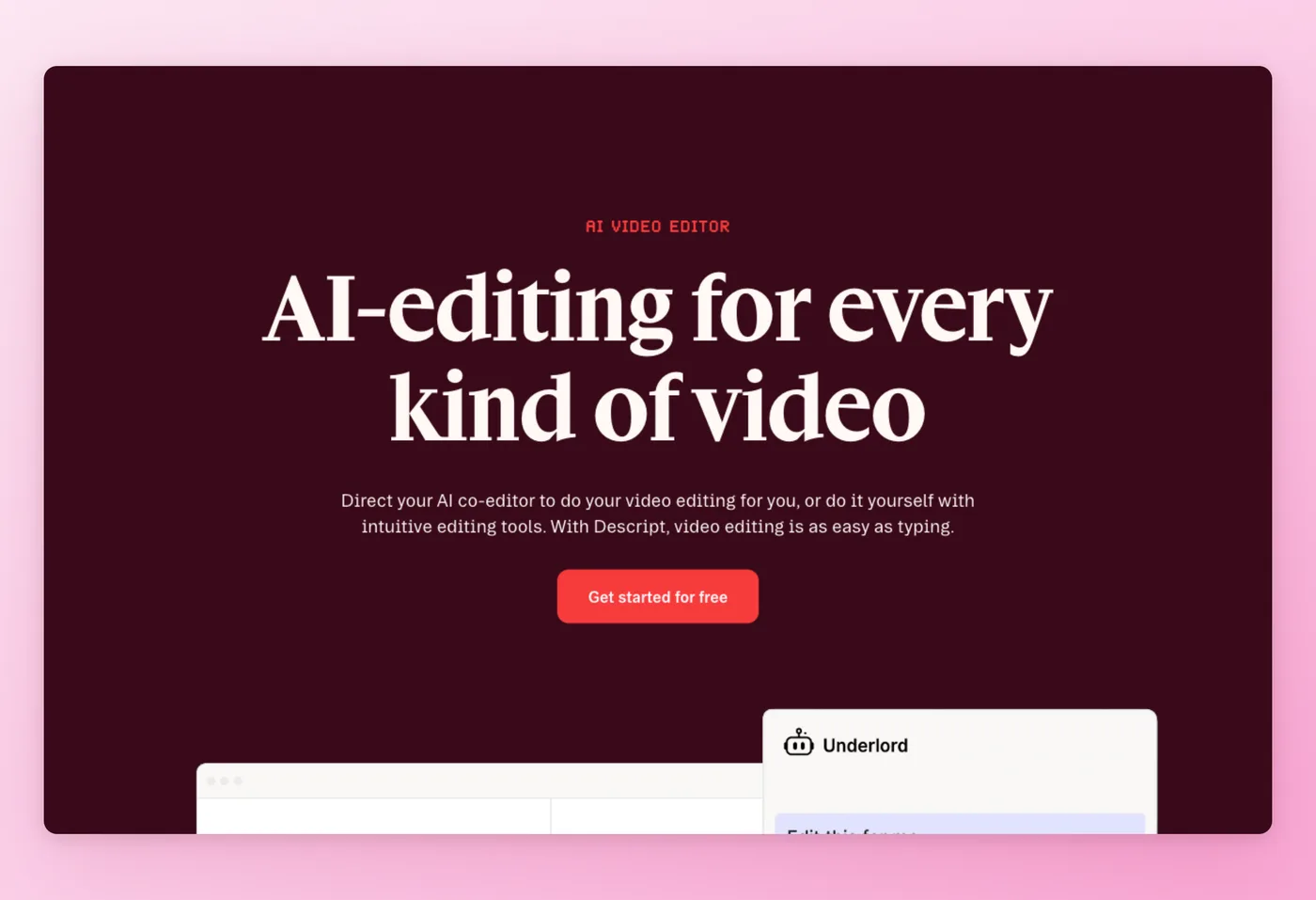
Descript turns a recording into a transcript you edit like a doc: delete a sentence, the video cuts itself. Podcasters, course creators, and demo teams reach for it because the editing model removes the timeline entirely.
Key Features
- Transcript-based editing: delete a sentence in the text and the matching clip disappears from the audio and video.
- Underlord AI co-editor: an agentic assistant that cuts, captions, and cleans up.
- Accurate transcription: ElevenLabs Scribe v2 across 25 languages, plus auto captions.
- Pro export: push timelines to Premiere, Final Cut, DaVinci, Pro Tools, or Logic.
Strengths
- Cutting by transcript shaves real minutes off talking-head and podcast work.
- Fast, accurate transcription and auto captions; reviewers call it intuitive for non-editors.
"What I value most about Descript is how much it reduces the friction in creating and editing technical walkthroughs, presentation recordings, and process-explanation videos. Earlier, even a small correction in a recording meant manually searching timelines and trimming clips in traditional editing software." Source: G2
Limitations
- AI credits run out fast on paid plans; one Trustpilot reviewer says "a month's worth lasts about a day."
- Sluggish and buggy on long or heavy projects; transcription misses technical terms, names, and strong accents.
Pricing
- Free tier: Yes, 1 seat, 60 media min/mo and 5GB; free downloads top out at 720p with a watermark, and AI features pull from a one-time pool of 100 credits.
- Paid plans: From $16/month (Hobbyist, annual); Creator $24/mo; Business $50/mo.
Rated 4.6/5 on G2 (887 reviews) · 4.8/5 on Capterra (173 reviews) · 4.4/5 on Product Hunt (41 reviews) · 3.1/5 on Trustpilot (258 reviews)
Works Best For
Podcasters and demo creators who'd rather edit a transcript than a timeline, and want strong audio cleanup and pro NLE export.
How it compares to VEED
Descript edits by transcript with an AI co-editor; VEED is a timeline editor. Among apps like veed, Descript goes deeper on audio, podcasting, and professional export to Premiere or Final Cut. Free exports cap at 720p with a watermark, and AI is credit-metered, with reviewers reporting credits exhaust quickly. In a VEED vs Descript decision, pick Descript when the edit is talking-head or audio-led; stay on VEED for fast subtitled social clips.
Prices verified June 2026.
CapCut takes the opposite approach: a free, mobile-first editor built for trending social content.
CapCut, Free social editing with no watermark
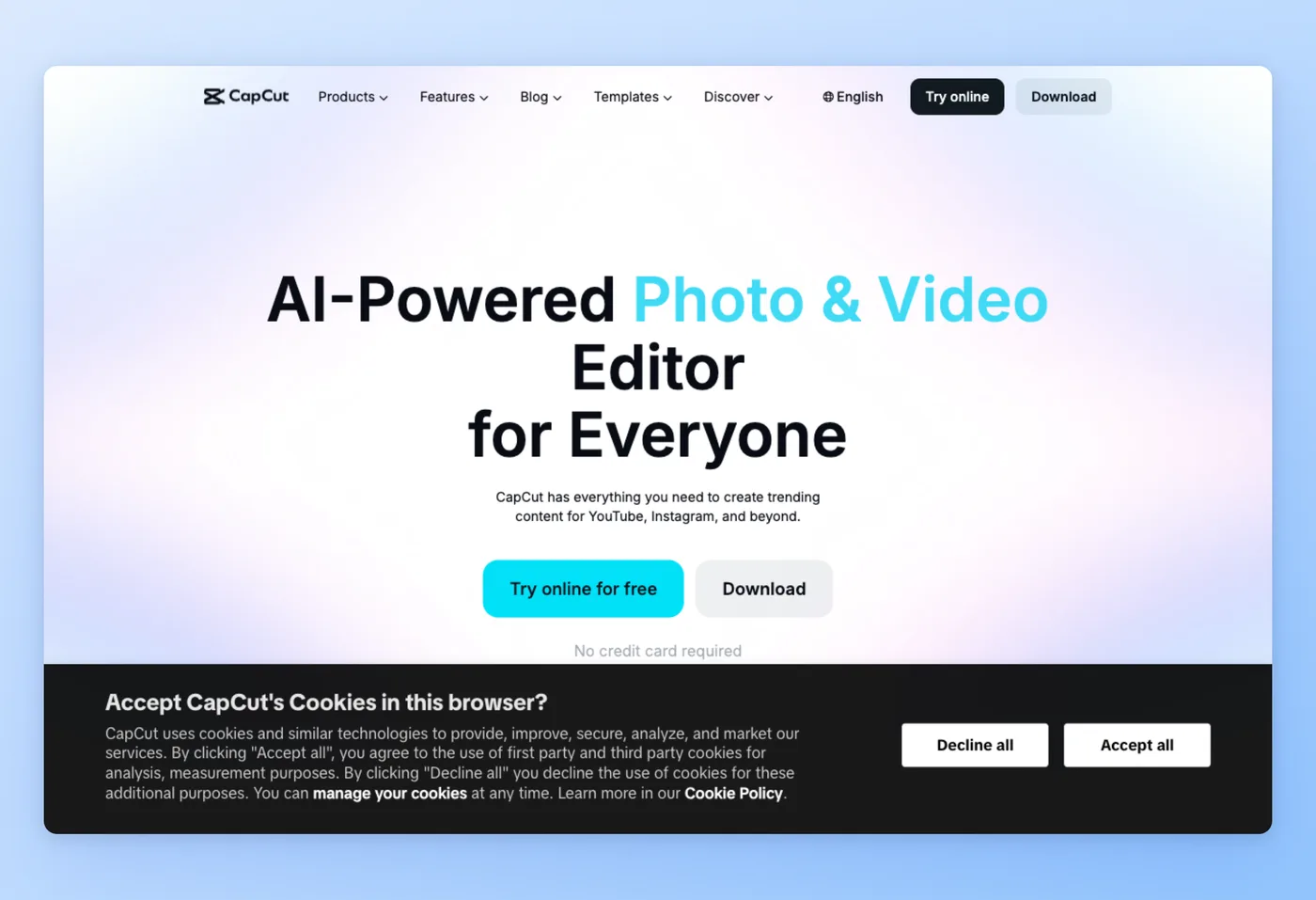
CapCut runs across desktop, web, mobile, and tablet, and it's the go-to for creators chasing trending YouTube and Instagram formats. One-tap templates and auto-captions cover most short-form jobs.
Key Features
- Mobile-first social editing: built for short-form trends, with one-tap templates.
- Auto-captions: quick subtitles for vertical clips, in 20 languages.
- Generative AI: Dreamina and Pippit AI generation baked in.
- Cross-platform: the same project across desktop, web, mobile, and tablet.
Strengths
- Beginner-friendly but still capable on the free plan; the template library and auto-captions cut hours off a project.
- Impressive export speed; one reviewer notes you "no longer need high-performance Macs."
"Compared to our previous use of Premiere, we no longer need high-performance Macs to create quality videos efficiently. The export speed of CapCut is especially impressive!" Product Hunt
Limitations
- More features keep moving behind the Pro paywall.
- Billing and cancellation problems with unresponsive support (Trustpilot 1.3/5 across 1,093 reviews); desktop-mobile sync issues.
Pricing
- Free tier: Yes, but exact limits are not publicly verifiable; the pricing and upgrade pages 404 to crawlers, and users report a watermark on free.
- Paid plans: CapCut Pro price could not be verified.
Rated 4.3/5 on Product Hunt (39 reviews) · 4.5/5 on SourceForge (2 reviews) · 1.3/5 on Trustpilot (1,093 reviews)
Works Best For
Solo creators and social teams making mobile-first short-form clips who want a capable editor for free.
How it compares to VEED
CapCut is mobile-first and trend-driven with bundled generative AI sub-brands; VEED is a browser-first editor among free veed alternatives. CapCut's pricing is opaque (404 pages), and its billing reputation is a real risk: Trustpilot sits at 1.3 over 1,093 reviews, mostly cancellation and lockout complaints, not editor quality. The free editor is excellent and loved for speed. Turn off auto-renewal and treat upgrade prices as unverified.
Prices verified June 2026.
Kapwing keeps the browser-based ease but adds real-time collaboration and a deep AI catalog.
Kapwing, Collaborative browser editor
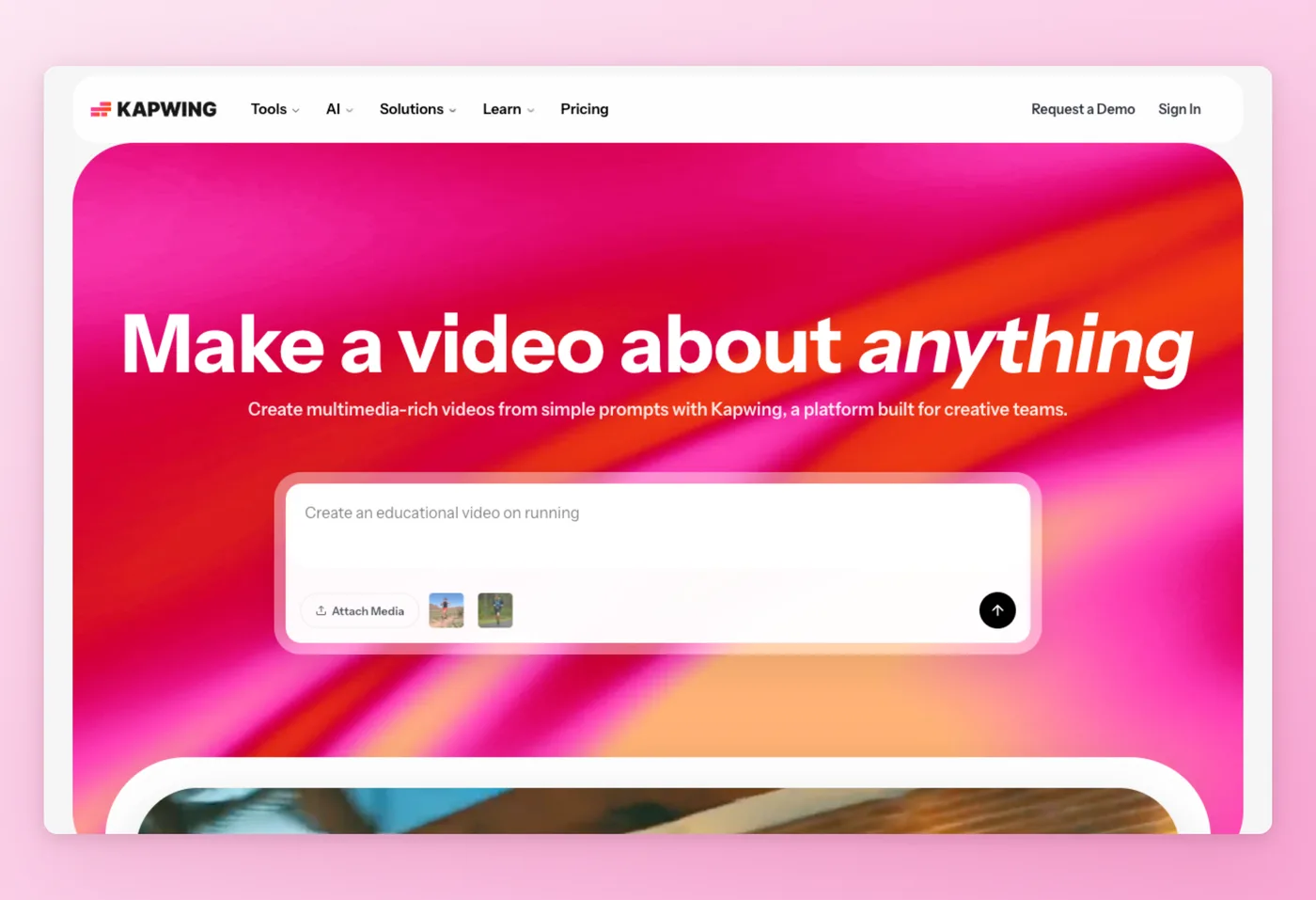
Kapwing looks and feels like VEED, a full browser editor that adds live multi-editor sessions. Teams caption short-form clips together with nothing to install.
Key Features
- Live co-editing: several people working the same browser project at once.
- Huge AI catalog: clip generation from a prompt, AI avatars and actors, and outside models (Sora, Veo, Kling, Wan).
- Repurpose Studio: slices a full recording into post-ready social clips.
- Auto-subtitles: captions in 40+ languages.
Strengths
- Auto-subtitles that run in the browser, nothing to download.
- The starter plan costs nothing, and the generation catalog for social content runs deep.
"Kapwing is one of the best tools for auto subtitles, especially for short-form content. I like that it offers free auto-captioning with good accuracy and clean quality. It's very easy to use and saves a lot of time, which makes it perfect for a reel creator who needs fast and reliable subtitles without complicated editing." G2
Limitations
- Glitchy and slow on longer or complex videos; export failures and 13 "glitchy" mentions on Product Hunt.
- Large watermark and tight project/storage caps; AI-only support and billing or credit disputes (Trustpilot rating suppressed).
Pricing
- Free tier: Yes, 30 min exports/mo, 1-min max video, 720p, watermark, 2GB, 10 credits.
- Paid plans: Pro lifts the cap to 4K with 1,000 monthly credits and drops the watermark at $16/month (annual); Business runs $50/mo.
Rated 4.1/5 on G2 (40 reviews) · 4.4/5 on GetApp (207 reviews) · 4.5/5 on SourceForge (72 reviews) · 3.1/5 on Product Hunt (30 reviews)
Works Best For
Marketing teams collaborating on short captioned social clips who want a browser editor with a deep AI generation library.
How it compares to VEED
Kapwing pairs an AI content-factory catalog with live collaboration, using credit-based pricing instead of VEED's seat tiers. Reliability on longer videos is the recurring complaint, and the free tier hard-caps videos at one minute. Directory ratings sit near 4.4, while consumer channels run harsher. Choose Kapwing over VEED for collaborative, AI-heavy short-form; stay on VEED if you edit alone and need steadier long-video performance.
Prices verified June 2026.
Clipchamp answers the question most of these searches are asking: which free tier has no watermark.
Clipchamp: Free editor inside Microsoft 365
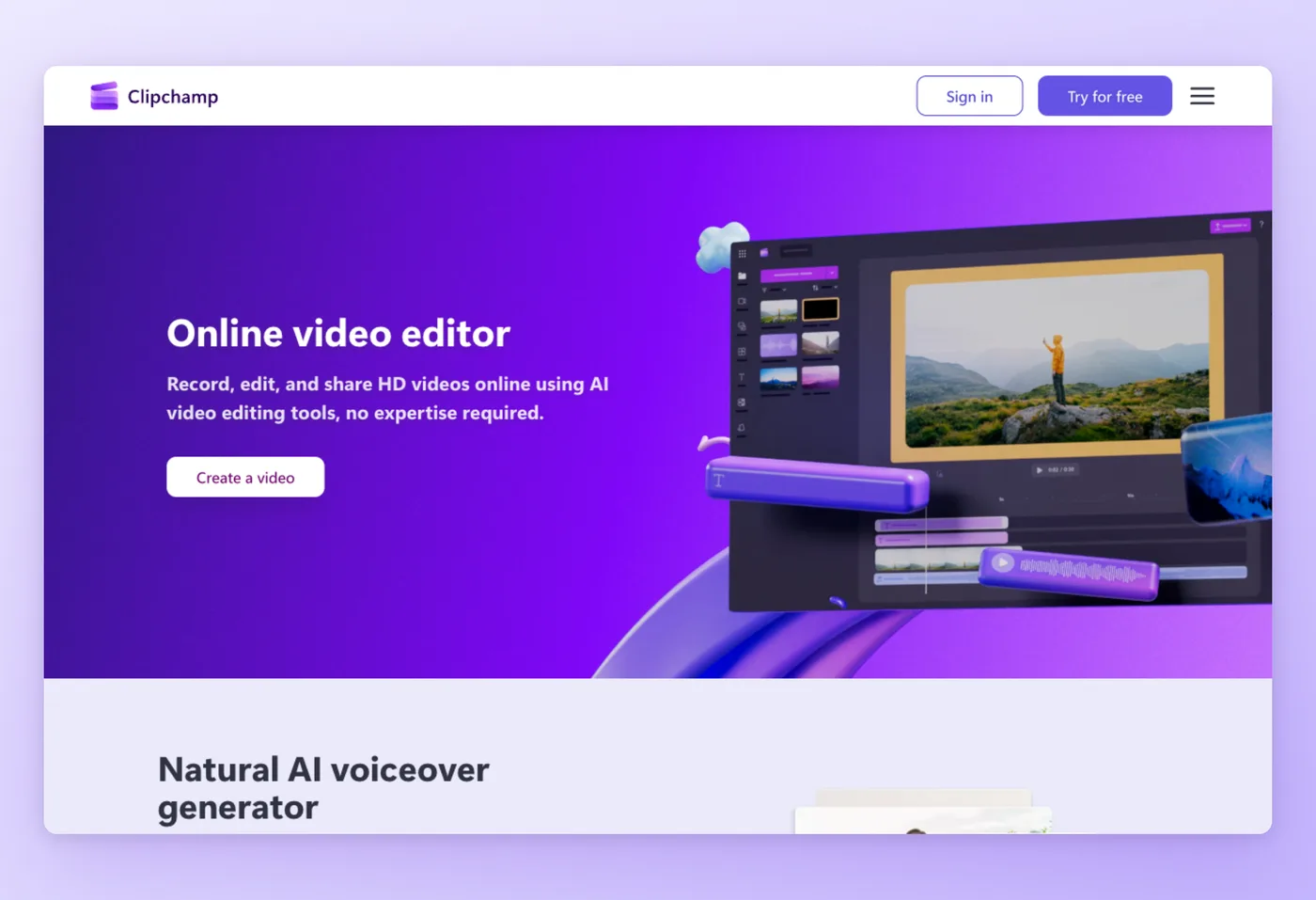
Clipchamp is Microsoft's in-browser editor, with a Windows app alongside it, and its free tier is the most generous in this lineup. New users and anyone on Microsoft 365 get clean 1080p with no badge for free.
Key Features
- Free 1080p with no badge: unlimited HD exports, though 4K stays behind the paywall.
- Screen and webcam recorder: capture straight into the editor.
- AI tools: voiceover across 80+ languages, plus AI captions, a silence trimmer, and background removal.
- Stock and templates: royalty-free library with OneDrive backup.
Strengths
- Free, watermark-free 1080p, the standout free tier here.
- Easy and fast for beginners; built into Windows and Microsoft 365.
"What I appreciate most about Clipchamp is that it is built directly into Windows 11 and integrates seamlessly with Microsoft 365, making it instantly accessible without any installation. The built-in screen and camera recorder is excellent. I can capture my screen with a webcam overlay in one click." G2
Limitations
- Limited for advanced editing: sparse transitions and effects, basic audio.
- Slow rendering on long or large files; the forced OneDrive migration broke or lost some projects; desktop app is Windows-only.
Pricing
- Free tier: Yes, watermark-free, unlimited exports up to 1080p, free stock, OneDrive backup.
- Paid plans: Premium is bundled in Microsoft 365 Personal at $9.99/month or $99.99/yr (adds 4K, brand kit, premium effects). No standalone paid plan.
Rated 4.3/5 on GetApp (100 reviews) · 4.3/5 on Software Advice (100 reviews) · 4.1/5 on Product Hunt (14 reviews) · 4.6/5 on Trustpilot (5,696 reviews)
Works Best For
New users and Microsoft 365 subscribers who want a free veed io style editor that ships clean 1080p with no watermark from day one.
How it compares to VEED
On the free plan, 1080p downloads come with no watermark, while VEED stamps one on free exports, which makes Clipchamp the clearest veed alternative free pick. The trade-offs: it caps at 1080p, stays basic for advanced edits, and the OneDrive migration burned some users. Premium only sells inside Microsoft 365, and team collaboration is weaker than VEED's. Choose Clipchamp for free HD social video on Windows; stay on VEED for richer effects and collaboration.
Prices verified June 2026.
Vizard narrows the focus to one job most editors do slowly: cutting a long video into many clips.
Vizard, AI long-to-short clipping
Feed Vizard a full recording or a YouTube URL and its AI hands back 30+ captioned vertical clips. Podcasters and webinar hosts use it to fill a content calendar in minutes.

Key Features
- Auto clip generation: a single recording yields 30+ captioned vertical clips.
- Intelligent reframing: the AI tracks the speaker so they stay centered in vertical crops.
- Captions and emojis: auto captions with translation to 100+ languages.
- Publishing: scheduling and direct publishing to social accounts.
Strengths
- AI clipping saves hours; one reviewer "pasted a YouTube link, AI cut 3 clips with captions, copy, and hashtags."
- Intuitive and fast even on long recordings, with strong repurposing ROI.
"What I like best about Vizard is how effectively it combines AI-powered video editing with a user-friendly interface. The platform makes it easy to turn long-form content such as webinars, podcasts, interviews, and educational videos into multiple short-form clips without requiring advanced editing skills." G2
Limitations
- AI clip selection misses context on technical or educational content and needs manual refinement.
- Limited advanced editing control; no free trial and no refund on unused credits (Trustpilot negatives).
Pricing
- Free tier: Yes, 60 credits/mo (1 credit = 1 video min), 720p, watermark, 3-day storage, 1 social account.
- Paid plans: Creator and Business use credit packs with 4K and no watermark; exact USD is not publicly verifiable (JS-rendered).
Rated 4.7/5 on G2 (368 reviews) · 4.9/5 on GetApp (446 reviews) · 4.9/5 on Software Advice (446 reviews) · 4.6/5 on Product Hunt (18 reviews) · 4.8/5 on Trustpilot (2,527 reviews)
Works Best For
Podcast and webinar teams that need full recordings sliced into post-ready captioned shorts with no manual trimming.
How it compares to VEED
Vizard is purpose-built for clipping and repurposing rather than general editing, so VEED handles full edits while Vizard slices recordings into clips. Pricing is credit-based (1 credit = 1 minute) versus VEED's seat tiers, and the free tier is metered by minutes with 3-day storage. It's among the highest-rated tools here, but it's narrow, and there's no real free trial or credit refund. Choose Vizard over VEED when your job is volume clip output; stay on VEED when you need to edit one polished video end to end.
Prices verified June 2026.
Loom shifts the output again: from polished edits to fast async recordings you share, not produce.
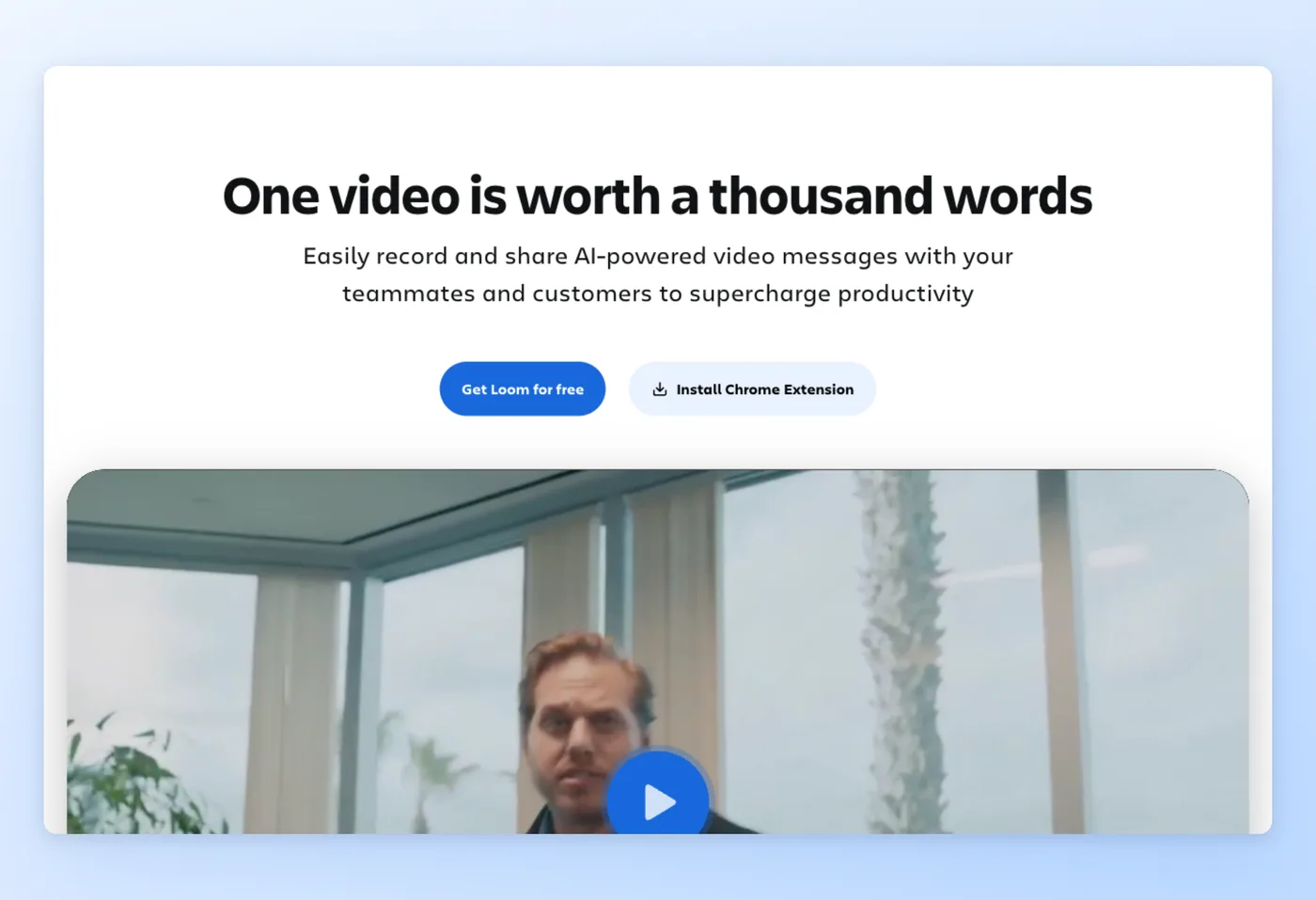
Loom, Fast async screen recording
Loom records your screen and camera and shares the link instantly, no editing required. Teams use it to replace status meetings and walk colleagues through a process async.
Key Features
- Async screen and camera recording: capture and share a link in one step.
- Transcriptions and captions: 50+ languages, with AI meeting notes on Business + AI.
- Workflow tie-ins: Jira ticket generation, 100+ integrations, viewer analytics.
- Atlassian-backed: now part of the Atlassian suite.
Strengths
- Fast async walkthroughs replace meetings; one reviewer "replaced about half my meetings."
- Simple setup, transcription with AI summaries, and effortless cloud sharing.
"Loom replaced about half my meetings. Instead of booking 30 minutes to walk someone through a bug or a design change, I hit record, click through it, and paste the link. They watch on 1.5x when it suits them, drop a comment on the exact frame, and we're done." Product Hunt
Limitations
- Free tier caps at 5-minute recordings and 25 videos.
- Recording reliability issues (camera drops, frame skip, uploads stalling near 5%); rising prices and billing friction post-Atlassian; old recordings hard to find after a profile merge.
Pricing
- Free tier: Yes, Starter, 25 videos/person, 5-min max recording, up to 50 members.
- Paid plans: Business $18/user/month; Business + AI $24/user/mo; Enterprise custom. 14-day trial on paid.
Rated 4.7/5 on G2 (2,405 reviews) · 4.8/5 on Product Hunt (159 reviews) · 4.7/5 on Capterra (489 reviews) · 1.4/5 on Trustpilot (207 reviews)
Works Best For
Distributed teams sending quick async walkthroughs instead of meetings, where speed matters more than polish.
How it compares to VEED
Loom is for internal async messaging, not polished distributable video; editing is minimal and pricing is strictly per-seat. The free tier caps recordings at 5 minutes, and reliability and billing complaints have grown since the Atlassian acquisition (note the gap: directories near 4.7, Trustpilot at 1.4). Its value is sharing and engagement, not production. A Loom recording works as raw input that still needs turning into a finished document, which is where Hinto AI comes in.
Prices verified June 2026.
Hinto AI takes that recording and produces a written guide rather than another video.
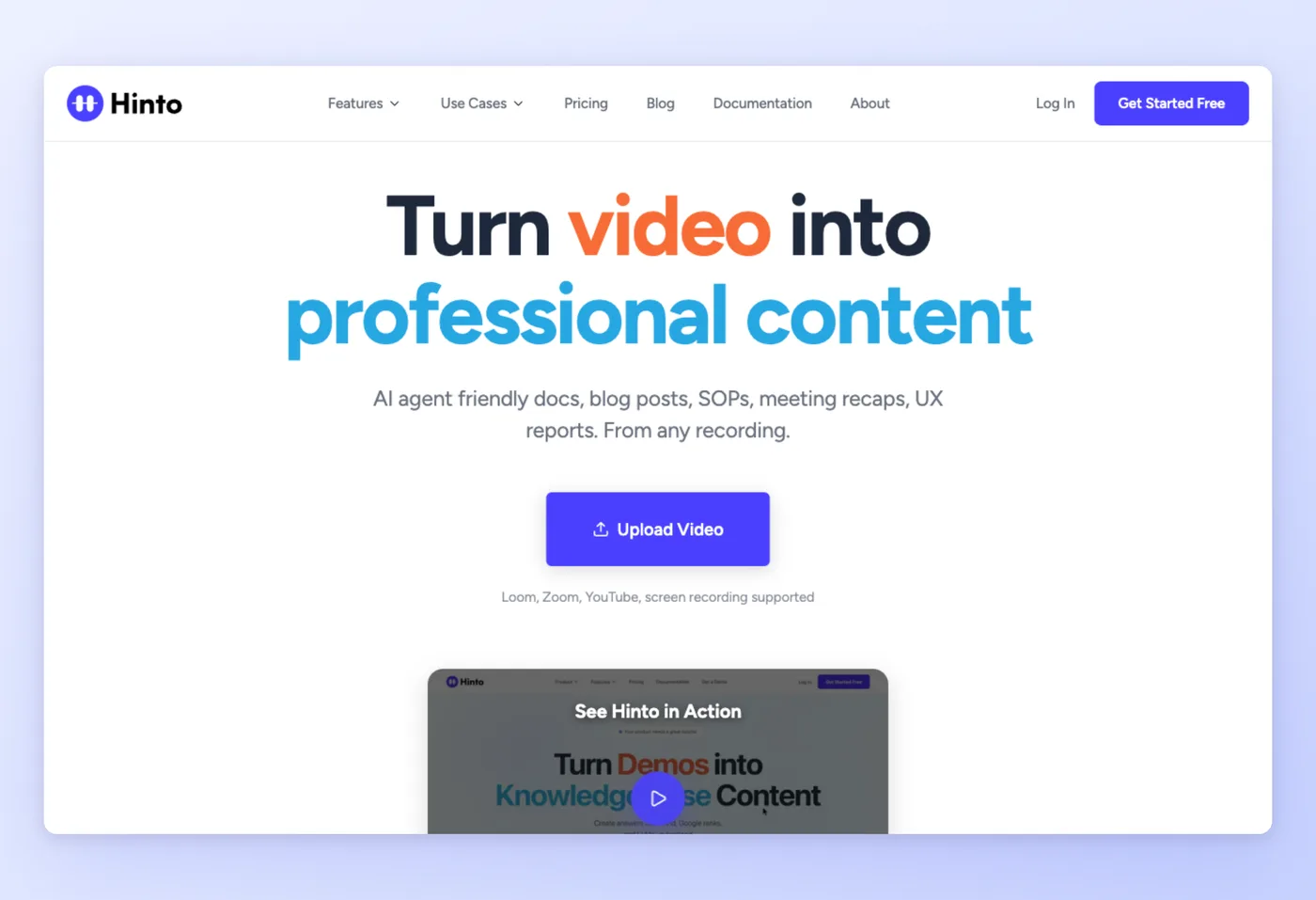
Hinto AI, Turn recordings into written docs
Hinto AI works alongside VEED rather than replacing it. It takes a screen recording or walkthrough and produces structured written documentation, SOPs, and help centers, with screenshots and steps pulled straight from the footage. The end deliverable is a hosted guide rather than a clip.
Key Features
- AI Action Detection: spots UI state changes and clicks in a video to extract screenshots and written steps automatically.
- Knowledge Base generation: a single recording expands into a full table of contents spanning several articles.
- Flexible input: built-in recorder and Chrome extension, plus any Loom, Zoom, YouTube, MP4, MOV, or WebM file.
- One-click hosting: publish to a custom domain with SSL, and auto-generate llms.txt for AI agents.
Strengths
- Templates for help centers, "What's New" release notes, SOPs, user research, and blog posts cover most documentation jobs.
- In-app image editor (crop, frame, focus, blur sensitive info) and generation in 50+ languages.
Limitations
- Monthly generation-credit system, not unlimited per-seat use.
- It does not edit video, and its recorder is basic next to VEED; lower plans cap projects at one and video length at 20 to 30 minutes.
Pricing
- Free tier: Yes, 20 total generations, 1 project, 20-min upload limit, 20 members.
- Paid plans: Small Team $15/month; Growth $99/mo; All-Inclusive $499/mo. Flat monthly, cancel anytime.
Works Best For
Support, product marketing, and ops teams that already work in video and want recordings turned into help centers, release notes, and SOPs without manual writing.
How it compares to VEED
VEED's end product is a polished video; Hinto's end product is a hosted help center, guide, or SOP extracted from a video. Hinto auto-generates llms.txt for AI agents and pulls step-by-step screenshots from a recording, a video-to-step-guide capability VEED has no equivalent for. Keep VEED for video you'll publish, and reach for Hinto when the real goal is written instructions with screenshots.
Prices verified June 2026.
Drop a Loom, Zoom, or YouTube recording in and get a structured help doc with screenshots.
Get started freeHinto AI vs VEED: Where Each Wins
These two serve different deliverables. VEED produces a finished video; Hinto produces a written guide from a video. The dividing line is what lands in front of your audience.
| Category | VEED wins when... | Hinto AI wins when... |
|---|---|---|
| Output type | You need a finished, polished video to publish | You need a written guide, SOP, or help article with screenshots |
| Editing depth | You want timeline editing, effects, and generative models such as Veo 3.1, Sora 2, and Kling | You want the doc written and step screenshots extracted, no video editing |
| Distribution | You export, share, or host a video | You want a one-click hosted help center on a custom domain, plus auto llms.txt |
| Languages | You translate or dub video (80+ languages) | You generate documentation in 50+ languages |
| Reuse of old recordings | You re-edit footage | You turn any existing Loom, Zoom, or YouTube recording into a written guide |
| Price clarity | (per-seat, not publicly listed here) | Flat $15 / $99 / $499 monthly, cancel anytime |
Decide on the deliverable first. For a video, VEED and the editors above are your lane. For written instructions, Hinto skips the editing step entirely and produces the doc.
Stop editing video you'll never publish
When the output is a help doc, generate it from the recording instead of cutting a clip.
Where VEED Is Still the Best Choice
Some teams should stay put. VEED owns a specific job, and if it's yours, the alternatives above are a step sideways.
VEED stays the right tool when:
- You need quick browser subtitling plus one-click reformatting into vertical feeds and wide-screen formats alike; G2 reviewers report hours saved.
- You want one app that bolts a full editor onto generative models including Veo 3.1, Sora 2 and 2 Pro, Kling, LTX, MiniMax, Seedance, Luma, Hailuo, and Wan, alongside VEED Motion.
- You use AI avatars, voice cloning, or translation and dubbing across 80+ languages.
- You record screen, webcam, meetings, presentations, or teleprompter and want that footage feeding straight into the editor.
- You lean on a Brand Kit to hold colors, fonts, and logos steady from one video to the next.
The use case VEED owns: a marketer who needs a branded, subtitled social video out the door fast, in the browser, with no desktop software. If that's you, stay on VEED.
What VEED Users Actually Ask
These questions surface again and again across review platforms: G2, Capterra, Trustpilot, and Product Hunt. The directions below come from that review-site evidence, with ratings and counts attached.
| Concern | Why it matters | Best direction |
|---|---|---|
| Is it really free, or will I hit a watermark or limit? | The dominant search intent is "free," yet most free tiers carry a watermark or export cap. | Clipchamp, watermark-free 1080p with unlimited free exports. |
| Will I get surprise-charged or struggle to cancel? | Billing and auto-renewal complaints recur: VEED ("bait-and-switch," $348 auto-renewal), CapCut (Trustpilot 1.3/5 over 1,093, lockout), Loom post-Atlassian, Vizard and Kapwing credit-refund disputes. | Turn off auto-renewal at signup; favor flat pricing (Clipchamp via M365 $9.99; Hinto $15/$99/$499). |
| Why is it slow on longer videos? | Browser editors (VEED, Kapwing, Clipchamp) lag and buffer on 10+ minute or 1080p-heavy timelines. | For long-form, prefer desktop rendering (Descript) or auto-clipping (Vizard); browser tools are fine for short social. |
| Do the AI features actually work? | VEED AI eye-contact is criticized ("makes you look like a mutant"); Descript AI credits exhaust fast; Vizard clip-picking misses technical context. | Treat AI features as accelerators that need review, not autopilot. |
The billing concern is the one to act on first: every tool here has refund or cancellation complaints somewhere, so turning off auto-renewal at signup saves the most grief. For the documentation use case, Hinto's flat monthly pricing sidesteps the credit-refund disputes that dog the metered editors.
How to Switch from VEED
Switching is straightforward. VEED gives you finished video and caption files, not a portable project timeline, so expect to re-edit in veed competitors.
- Turn off VEED auto-renewal first, before you stop using it, given the recurring billing complaints. Cancelling before renewal is the simplest way to keep your VEED cost from rolling over once you've moved on.
- Export your finished VEED videos as MP4. VEED exports finished video, not editable project files, so plan to re-edit elsewhere rather than import a timeline.
- Download your caption files in SRT, VTT, and ASS. These import cleanly into Descript, Kapwing, Clipchamp, and most editors.
- Pull your colors, fonts, and logos out of VEED's Brand Kit so you can set the brand up again in whatever you move to.
- Choose the landing spot by what you're making: if free social clips are the goal, land on Clipchamp or CapCut; if you cut by transcript, Descript fits; Vizard auto-clips, Loom records, and Hinto AI turns the recording into a written doc.
- If your real goal was documentation, skip re-editing entirely. Drop the existing recording into Hinto AI and generate a written guide with screenshots.
Picking a VEED Replacement: Decide by Output First
The top decision dimension is what you're producing. Most apps like veed make videos; one makes documents. Settle the deliverable, then check the free-tier reality and price.
Decision Framework
- Free, no-watermark social clips: Clipchamp (watermark-free 1080p) or CapCut. Among tools like veed, these are the two strongest free editors.
- Podcasts and talking-head cuts: Descript. Trim the transcript and the footage cuts to match.
- Collaborative, AI-heavy browser editing: Kapwing, where several people edit at once and the generation catalog runs deep.
- One recording turned into a stack of shorts: Vizard, which auto-cuts 30+ captioned vertical clips from a single file.
- Record-and-share async walkthroughs: Loom, for quick internal messages over polish.
- Written instructions, an SOP, or a help doc: Hinto AI, which turns the recording into a document instead of a clip.
- Stay on VEED if fast browser subtitling plus the breadth of AI generation models in one tool is your core need.
Among these programs like veed, the editors differ mainly on free-tier limits and price; the real fork is earlier. Decide whether you need a video at all. Teams converting recordings into structured documentation can use Hinto AI for that step.
Frequently Asked Questions
Is VEED free?
There's a no-cost VEED plan for editing in the browser, though the precise watermark and export caps aren't published anywhere. Expect free-tier limits typical of these tools, so confirm the current cap before you commit. The VEED free version covers basic editing, but you should expect the usual free-tier catches.
Among free veed alternatives, which one has no watermark?
Clipchamp is the one to pick. On its free plan you get unlimited 1080p downloads with no badge attached (4K is excluded), which makes it the cleanest of the free veed io options. CapCut also covers free, mobile-first social work, though users report a watermark on its no-pay plan.
What is the best veed.io free alternative for captions?
Kapwing and Descript both auto-generate subtitles, and Clipchamp does AI captions for free. When you want quick captions on a short social clip without paying, Kapwing is the fastest browser route; when captioning ties into a transcript edit, Descript fits better.
Are there veed io free options without a watermark?
Clipchamp is the standout watermark-free free tier. Most other veed io free editors, Descript, Kapwing, and Vizard among them, stamp a watermark on anything you export for free, so check that catch first.
What's the cheapest paid alternative?
Clipchamp via Microsoft 365 ($9.99/month) and Descript ($16/month) have the clearest public pricing. VEED, CapCut, and Vizard prices are not publicly verifiable, so treat any quoted figure for those with caution.
I don't want a video, I want a written guide. What should I use?
Use Hinto AI. It turns a recording into a written doc or SOP with screenshots and steps pulled from the footage, then hosts it on a custom domain. Reach for it when the deliverable you actually need is instructions rather than a clip.
Final Verdict
VEED is a fast, browser-based editor for subtitled social video with a deep catalog of AI generation models. For shipping branded clips out the door quickly, it's still the right tool, and the best veed alternatives won't beat it in that lane.
Pick the rest by the deliverable. Reach for Clipchamp or CapCut when the job is free social clips, and for Descript when you are editing podcasts through a transcript. Vizard slices one long recording into many clips, while Loom handles quick async messages. Each owns a different output, so match the tool to what you are actually producing.
The deeper fork is whether you need a video at all. When the real output is written instructions, an SOP, or a help article, reach for the documentation route instead. Hinto AI turns an existing recording into a hosted guide with screenshots, no editing required.

Founder of Hinto - passionate about making knowledge accessible and helping teams create better documentation.
Ready to Build a Better
Knowledge Base, Faster?
Get Started Free & Create Your First Article in Minutes