
Six Screen Studio Alternatives Tested: Windows, Free, and Mac Options for 2026
Screen Studio costs $20/month ($90/year), requires macOS Ventura 13.1 or later, and has no trial period. That Screen Studio cost, combined with the Mac-only requirement, pushes many teams to look at apps like Screen Studio that run elsewhere. Any team on Windows, or anyone unwilling to subscribe before testing, needs a different recording tool.
Six tools tested here run on Windows, Mac, or both. FocuSee and Cap fire zoom automatically on every click on either operating system. Tella and Loom add async sharing and team collaboration to the recording workflow. Descript handles post-production at full podcast or tutorial scale. Hinto AI works differently: it records the process (or takes an existing video) and turns it into searchable text documentation, rather than focusing on a polished video edit.
Windows users: Cap (free, open-source) or FocuSee ($49.99/yr, auto-zoom effects)
Free or one-time purchase: Cap (free tier, 5-min limit; $58 one-time Desktop License)
Documentation or SOPs: Hinto AI (accepts any video source, outputs structured text)
Which Screen Studio Alternative Is Right for You?
Answer the questions below to find your match. Download as PDF to keep it handy.
Screen Studio Alternatives at a Glance
These Screen Studio competitors cover Windows recording, open-source workflows, async video, and documentation. The table below compares pricing, platform, and output type at a glance.
| Tool | Free Tier | Starting Price | Platform | Best For | Output Type |
|---|---|---|---|---|---|
| Screen Studio | No | $90/yr | Mac only | Cinematic product demos | Polished video |
| Hinto AI | Yes (20 generations) | $15/mo | Web (any OS) | Documentation, SOPs, help centers | Text documentation |
| FocuSee | Yes (1 video export) | $4.17/mo (annual) | Mac + Windows | Auto-zoom demos, Windows users | Polished video |
| Cap | Yes (5-min limit) | $0 / $8.16/mo Pro | Mac + Windows | Open-source users, privacy-first teams | Polished video |
| Tella | Yes (limits not published) | $6.50/mo (annual) | Mac + Windows + Web | Async videos with analytics | Polished video |
| Loom | Yes (25 videos, 5-min) | $18/user/mo | Mac + Windows + Web | Team async communication | Polished video |
| Descript | Yes (60 min/mo) | $16/mo (annual) | Mac + Windows + Web | Text-based editing, podcasts | Polished video |
Prices as of June 2026. Check each tool's pricing page for current rates.
Choose the Right Tool in 30 Seconds
| Need | Best Pick | Why |
|---|---|---|
| Windows users demoing software | Cap or FocuSee | Both run natively on Windows and macOS; the recorder zooms in on each click without post-production work; Cap is MIT-licensed at no charge, FocuSee starts at $4.17/mo annual |
| Free Screen Studio alternative | Cap | No-cost local recording with no watermark; one-time $58 Desktop License unlocks commercial rights |
| Best alternative for Mac | FocuSee | The closest match to Screen Studio's click-triggered zoom and cursor motion on macOS, and adds subtitle generation in 50+ languages |
| Open-source Screen Studio alternative | Cap | MIT-licensed source code, 19,300+ GitHub stars, runs on your own server when self-hosted |
| Cheapest Screen Studio alternative | FocuSee Standard | $4.17/mo billed annually ($49.99/yr); Cap Desktop License is $58 one-time, cheaper over 2+ years |
| Browser-based or any-OS option | Tella or Hinto AI | Tella runs in the browser and installs as a Chrome extension; Hinto AI is fully web-based and works on any operating system |
| Turn Screen Studio recordings into documentation | Hinto AI | Accepts local .mp4 uploads and converts them into structured SOPs, help articles, and knowledge bases |
What Drives Creators to Switch from Screen Studio
Screen Studio has six hard limits that push teams toward other tools:
- You are on Windows: Screen Studio requires macOS Ventura 13.1 or later. There is no official Screen Studio for Windows, so users need a cross-platform alternative like Cap or FocuSee. No Windows version exists and none has been announced, so teams on Windows machines cannot use Screen Studio.
- No trial period exists: Screen Studio has no free tier and no trial period. You pay $20/month from day one.
- You need a one-time license: Screen Studio dropped its perpetual license option. New users pay by subscription with no buyout path available.
- You need team collaboration: Teams that require shared workspaces, viewer analytics, or permission controls need a different tool. Screen Studio is a solo recording app with no multi-user features.
- You need integrations: Screen Studio connects to nothing: no Slack, Notion, Jira, or any other tool. Recordings stay local.
- Your goal is documentation, not video: Screen Studio outputs MP4 files only. Teams that need searchable, structured guides from their recordings must transcribe and write separately.
The next section covers a purpose-built alternative for each gap.
Turn your Screen Studio recordings into structured documentation
Upload your existing .mp4 files to Hinto AI and get SOPs, help articles, and knowledge bases - no re-recording required.
Evaluation Criteria
Platform lock-in and pricing structure drive most Screen Studio switching decisions. The criteria below reflect those pain points.
We evaluated tools on:
- Platform support: whether the tool runs on macOS only, Windows only, or both (Screen Studio's macOS requirement is the primary reason users search for alternatives)
- Output type: polished video, interactive demo, or structured text documentation
- Pricing model: one-time purchase vs. subscription vs. free tier (cap and limits verified from each tool's live pricing page)
- Auto-zoom and cursor effects: whether the tool fires click-triggered zoom during recording, requiring no post-production keyframes to match Screen Studio's core output
- AI features: auto-zoom, transcription, subtitle generation, documentation output
- Privacy and storage: where video data is stored; local storage, cloud, or self-hosted
- Team collaboration: permissions, shared workspaces, and per-viewer watch data
Screen Studio Alternatives: Full Reviews
Each review covers strengths, pricing, and ideal user. If you are weighing software like Screen Studio, a Screen Studio vs FocuSee comparison is the clearest starting point, since FocuSee matches its click-triggered zoom most closely.
Download the role matrix (PDF) to find the best tool for your team role.
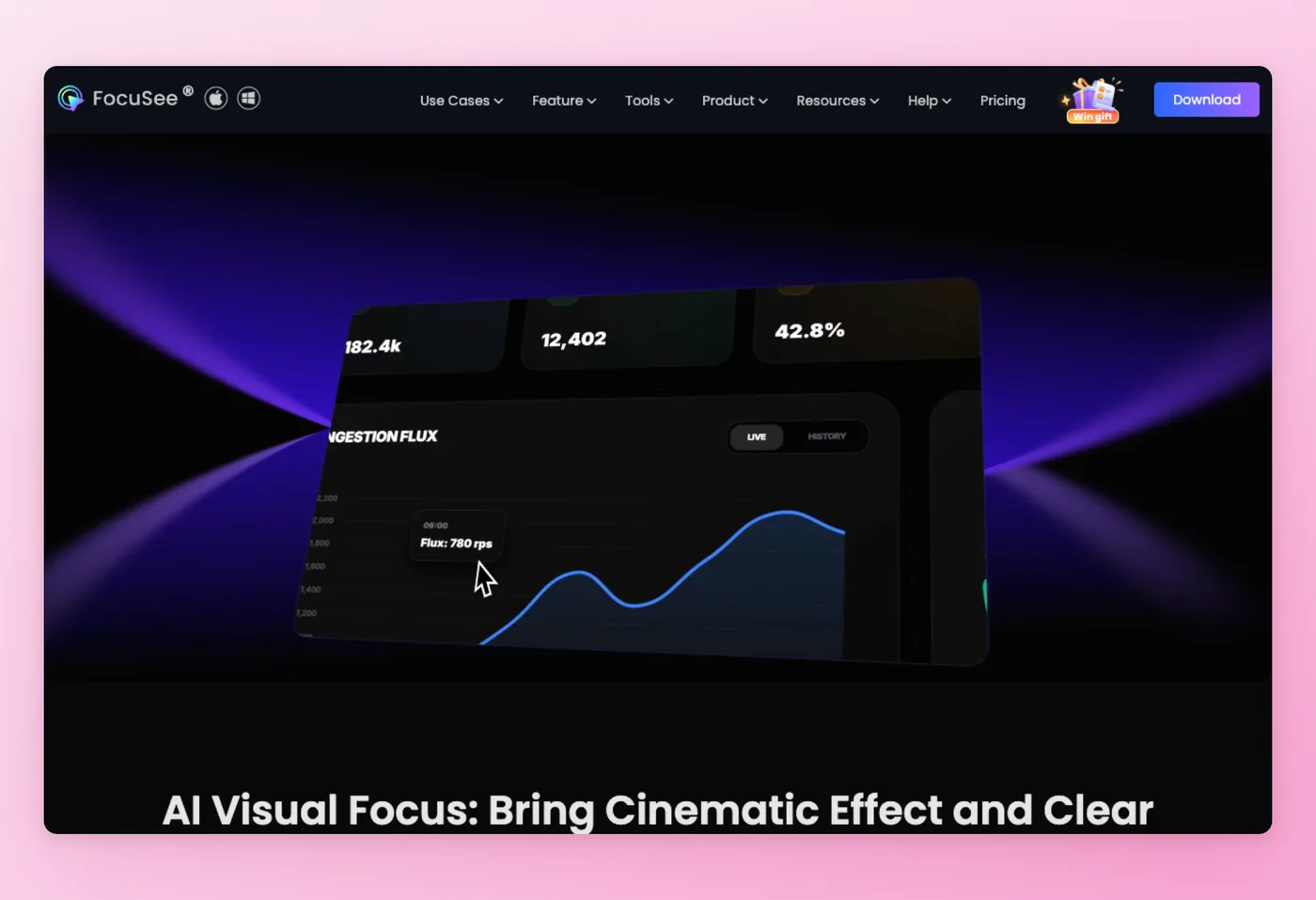
FocuSee: Closest Feature Match for Windows Recording Teams
FocuSee by iMobie gives Windows and macOS users zoom triggered by mouse clicks, cursor tracking, and cinematic output quality. Recording teams on Windows who need that level of polish without manually setting keyframes get the most direct replacement for Screen Studio available today.
Key Features
- Auto Pan & Zoom: Click-triggered zoom with 3D cursor motion and click animations; the closest cross-platform equivalent to Screen Studio's signature effect
- AI subtitles: FocuSee transcribes audio to subtitles in 50+ languages (claimed 98% accuracy) and runs a noise-reduction pass on the recording
- AI Smart Cut: Removes filler words and silence automatically; Screen Studio has no equivalent
- One-time license option: Advanced Lifetime plan at $199.99 covers up to 5 computers with lifetime access to version 2.x
- Windows + Mac: Both platforms fully supported; Screen Studio is macOS only
Strengths
- 4.6/5 on Product Hunt (38 reviews, 350 upvotes); self-reported 4.8/5 based on 3,200+ customer reviews
- Standard annual plan at $4.17/mo ($49.99/yr) is less than half Screen Studio's annual rate
- AI subtitles in 50+ languages included; Screen Studio's transcript is English-first
Limitations
- Product Hunt reviewers most often cite export failures and occasional crashes
- The lifetime license carries version and credit caps: AI credits expire after 1 year even on the lifetime plan, and the license covers version 2.x only; major version upgrades cost extra
- Users report no undo functionality
Pricing
- Free trial: Yes; explore standard features and export 1 video in up to 4K
- Standard: $49.99/year ($4.17/mo) or $19.99/month
- Advanced: $79.99/year ($6.67/mo): up to 3 computers, 3,600 AI credits/year
- Lifetime: $199.99 one-time: up to 5 computers, version 2.x, 1,000 AI credits (valid 1 year)
4.6/5 on Product Hunt (38 reviews)
Works Best For
Windows product teams and marketers recording software walkthroughs who want the recorder to zoom in on each click automatically, with no manual keyframe editing, and creators who prefer a one-time payment over an ongoing subscription.
FocuSee Compared
Of all the tools reviewed here, FocuSee comes closest to Screen Studio's feature set and also runs natively on Windows. Both record the screen, zoom in when you click, and produce cinematic output without manual timeline editing. FocuSee layers on subtitle generation and audio cleanup that Screen Studio lacks. Product Hunt reviewers flag reliability issues with FocuSee, and the lifetime license is version-locked: buyers pay again for version 3.x. Mac creators satisfied with Screen Studio's output quality have no feature reason to switch.
Prices verified June 2026.
Cap gives you more editorial control and a free tier with no subscription required.
Cap: Best Free and Open-Source Alternative
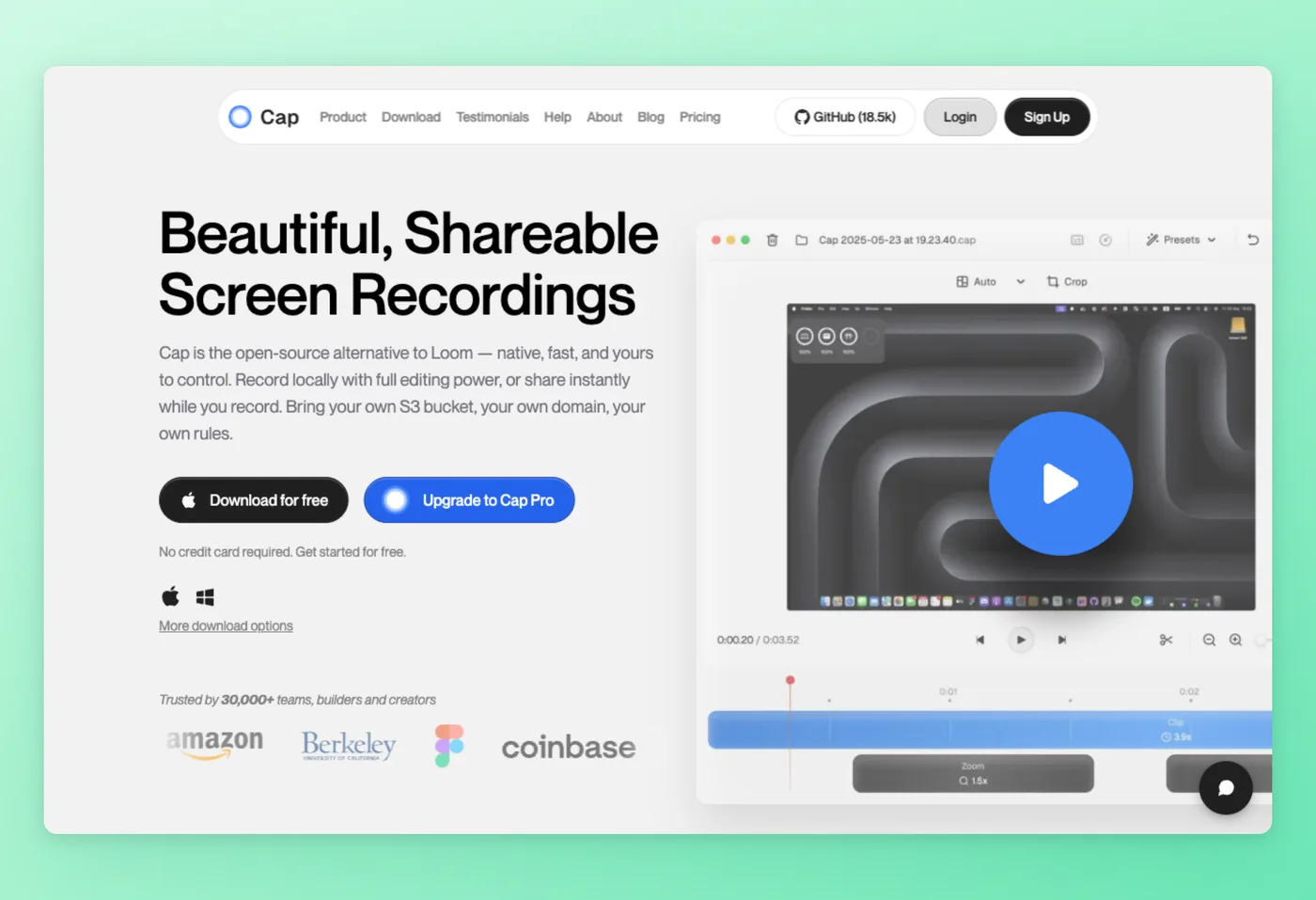
Cap gives creators on Mac and Windows a recorder that zooms in when you click and tracks cursor motion, while keeping full content ownership in their hands. Cap publishes its source code under MIT license and charges nothing for the base app; 19,300+ GitHub stars make it the top no-cost option for cross-platform teams unwilling to tie themselves to a subscription.
Key Features
- Cross-platform recording: Desktop apps for Mac and Windows, both supporting 4K at 60fps, with zero watermarks on any plan
- Studio Mode editor: A frame-level timeline editor with speed adjustments, custom backgrounds, and cursor animations; available even on the free tier
- Privacy controls: Local recording mode stores nothing on external servers; connect external storage and any S3-compatible bucket or Google Drive works as a drop-in replacement for Cap's servers
- Cap AI (Pro): AI-generated titles, chapter markers, and summary text, plus transcription, on the $8.16/mo annual plan
- Loom importer: Built-in tool to migrate your existing Loom library to Cap
Strengths
- Free tier with no subscription and no commercial-rights paywall on basic use
- Run Cap on your own server for teams that need full data ownership
- One-time Desktop License ($58) is cheaper than Screen Studio's annual plan over two years
Limitations
- Free tier cuts recordings at 5 minutes; most product walkthroughs exceed this
- AI features (transcription, summaries, chapters) require Pro plan at $8.16/mo annual
- Cap requires more editor time to reach the same polish level Screen Studio applies during recording
Pricing
- Free tier: Yes; clips cap at 5 minutes and export at the free plan quality level, local sharing only, personal use
- Desktop License: $58 one-time or $29/year; no clip-length limit on local recordings, commercial rights included, single device
- Cap Pro: From $8.16/month billed annually; no storage cap, Cap AI features, team workspaces, and custom domain included
19,300+ GitHub stars
Ideal For
Developers, privacy-sensitive teams, and anyone on Windows who wants a capable screen recorder without ongoing subscription costs or reliance on third-party cloud servers.
Cap vs. Screen Studio
Cap removes two of Screen Studio's biggest constraints: the Mac requirement and the subscription paywall. The trade-off is manual effort. Screen Studio applies zoom and cursor polish automatically during the recording pass; Cap hands you a capable editor and expects you to build that polish yourself. Reaching comparable output quality on Cap takes more editing time. Windows creators who want cinematic zoom with less manual work should also weigh FocuSee (reviewed above).
Prices verified June 2026.
Tella adds viewer analytics that Cap lacks, useful for tracking who watched your recording.
Tella: Best All-in-One Alternative (Mac, Windows & Browser)
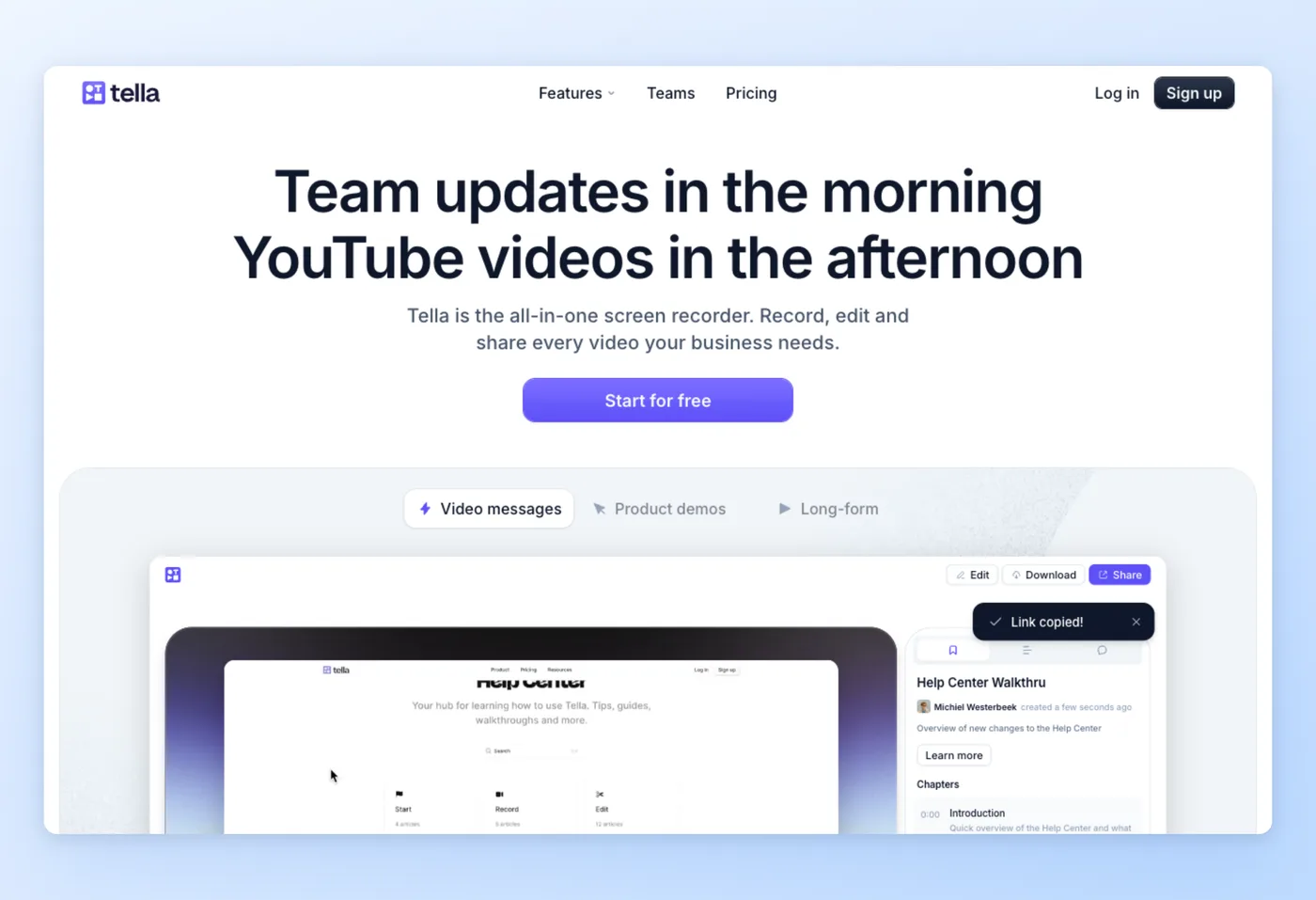
Tella targets founders and small teams who want cinematic software demos and quick team update recordings without a separate editing step. It covers macOS, Windows, the browser, and Chrome extension, and adds viewer analytics that no other tool in this list provides.
Key Features
- Cross-platform: Native macOS and Windows apps, plus Tella runs in the browser and installs as a Chrome extension, so you can record from any device
- Dynamic layouts: The recorder zooms in each time you click, runs an AI audio enhancement pass, strips filler words, and switches between camera and screen layouts, handling most editing without manual intervention
- Viewer analytics: Viewer analytics show watch time, drop-off points, and CTA click rates; that data makes Tella well-suited for sales videos and customer onboarding
- Transcript editing: Editing the transcript cuts hours from long-form video production; delete a line and Tella removes the matching footage, with multi-clip sessions up to 6 hours supported
- Integrations: Slack, Notion, Linear, Zapier, Google Drive
Strengths
- The analytics layer makes it the top choice for async sales and customer success work
- Rated 4.8/5 on Product Hunt (34 reviews), with reviewers praising ease of use and output quality
- Regular updates including social safe zones for Instagram, TikTok, and YouTube Shorts in May 2026
Limitations
- Multiple G2 and Capterra reviews report the app records the wrong screen on first launch; restarting before the first recording fixes this
- Per-user pricing ($13/mo Pro) grows fast for teams of five or more
- Tella does not publish free tier limits on the pricing page, making it hard to test without commitment
Pricing
- Free tier: Yes; limits not publicly detailed. Pro includes "unlimited videos" and a 6-hour max per clip
- Pro: From $6.50/month (50% off annual) or $13/month
- Premium: From ~$9.50/month (annual) or $19/month, adding a custom domain, removing Tella branding, and enabling 60 FPS
4.8/5 on Product Hunt (34 reviews)
Works Best For
Founders and customer success managers who record, edit, and share async videos in a single tool and need viewer-level data showing watch time and CTA clicks.
Tella vs. Screen Studio
Output quality is comparable between the two tools. Tella adds viewer analytics that Screen Studio has never offered: you can confirm whether a stakeholder watched your demo and at what point they stopped. Screen Studio charges a flat per-seat rate; Tella scales by headcount. Solo Mac creators pay less with Screen Studio. Teams that share recording workflows and need watch data get more value per seat from Tella.
Prices verified June 2026.
Loom focuses on async team communication rather than cinematic demos.
Loom: Video Messaging for Distributed Teams
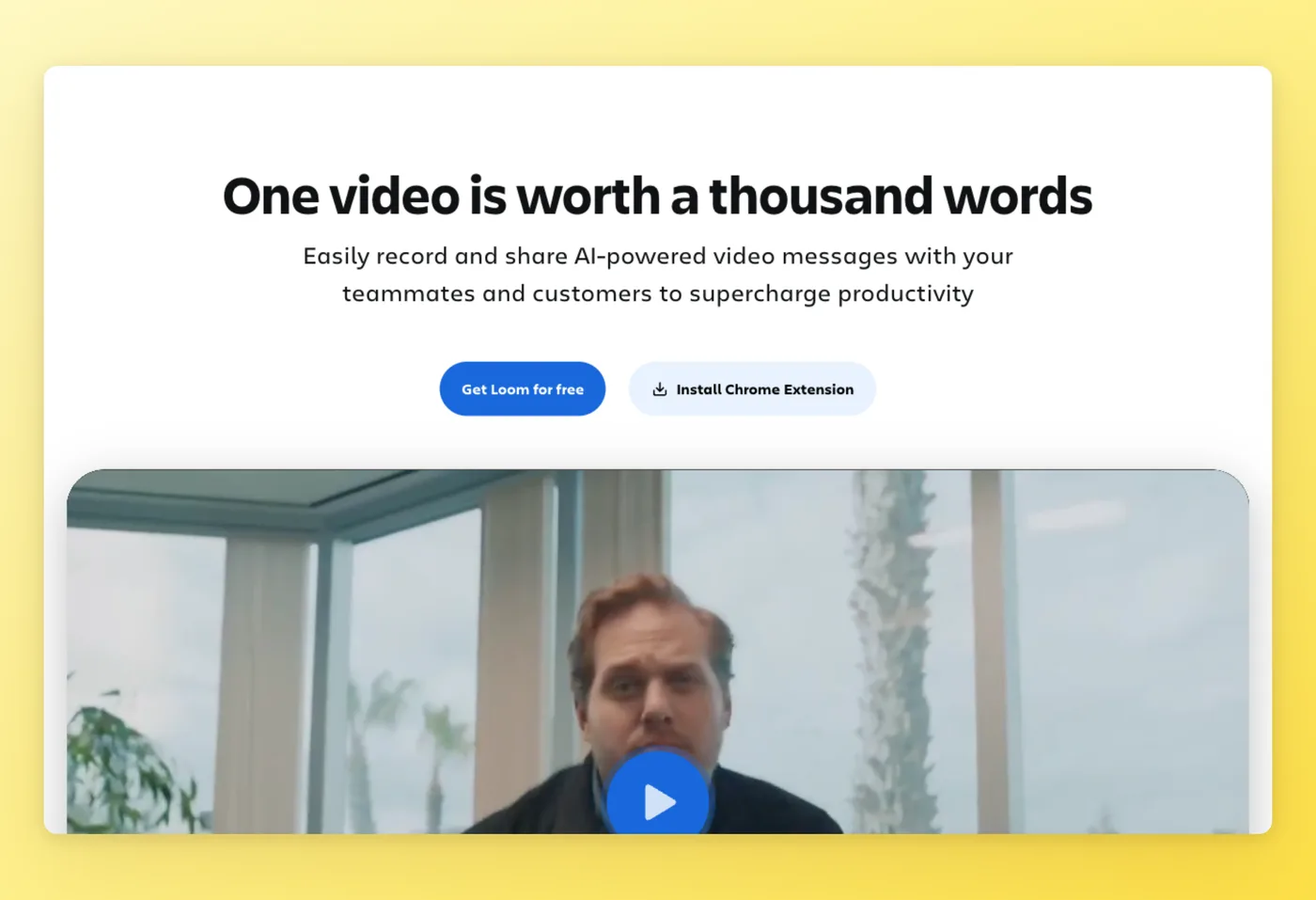
Loom is the async video platform built around one pattern: record a screen-plus-camera message, share a link, and the recipient watches on their own schedule. Atlassian acquired Loom in 2023; since then, AI features have expanded and pricing has risen sharply.
Key Features
- Async communication workflow: Record and share instantly via link; viewers comment with timestamps, react with emoji, and respond in video
- AI features: AI-generated titles, chapter markers, and summary text, plus filler word removal; the Business + AI plan ($24/user/mo) unlocks all of these
- Cross-platform: Mac, Windows, web app, and Chrome extension
- Team workspaces: Shared libraries, permissions, and up to 50 members on the free plan
- Meeting recordings: Unlimited meeting recordings on all plans including free
Strengths
- Rated 4.8/5 on Product Hunt (159 reviews); G2 long-term average of 4.7/5 from loyal daily users
- The async communication workflow is faster than meetings for most feedback and update use cases
- Atlassian integration gives enterprise teams a path from Loom to Confluence/Jira documentation
Limitations
- Trustpilot score has dropped to 1.4/5 since the Atlassian acquisition; billing and account management complaints dominate recent reviews
- Free tier hard-caps at 25 videos with a 5-minute recording limit; teams hit this ceiling within days
- Editing is limited to trim and stitch; no text-based editing or auto-zoom
Pricing
- Starter (Free): $0: 25 videos max; clips cap at 5 minutes and export at 720p on the free plan, up to 50 team members
- Business: $18/user/month: unlimited videos and length, 4K, trim & stitch, no branding
- Business + AI: $24/user/month: everything in Business plus AI Workflows with auto-generated titles, chapter markers, and summary text
4.8/5 on Product Hunt (159 reviews) · G2: 4.7/5 (long-term average)
Ideal For
Distributed teams that route async updates and feedback through Atlassian tools like Confluence and Jira.
Loom vs. Screen Studio
Loom's strength is the async message loop: record an update, share a link, and let teammates comment with timestamps. Screen Studio's strength is the cinematic demo reel built for external audiences. A team sending internal stakeholder updates through Screen Studio can migrate that workflow to Loom's free tier (25 videos, 5-minute limit) at no cost. Teams that need cinematic product demos for external audiences alongside quick async updates for internal stakeholders typically run both tools side by side.
Prices verified June 2026.
Descript approaches video editing through a text document: edit the transcript and the video follows.
Descript: Best for Long-Form Production Editing
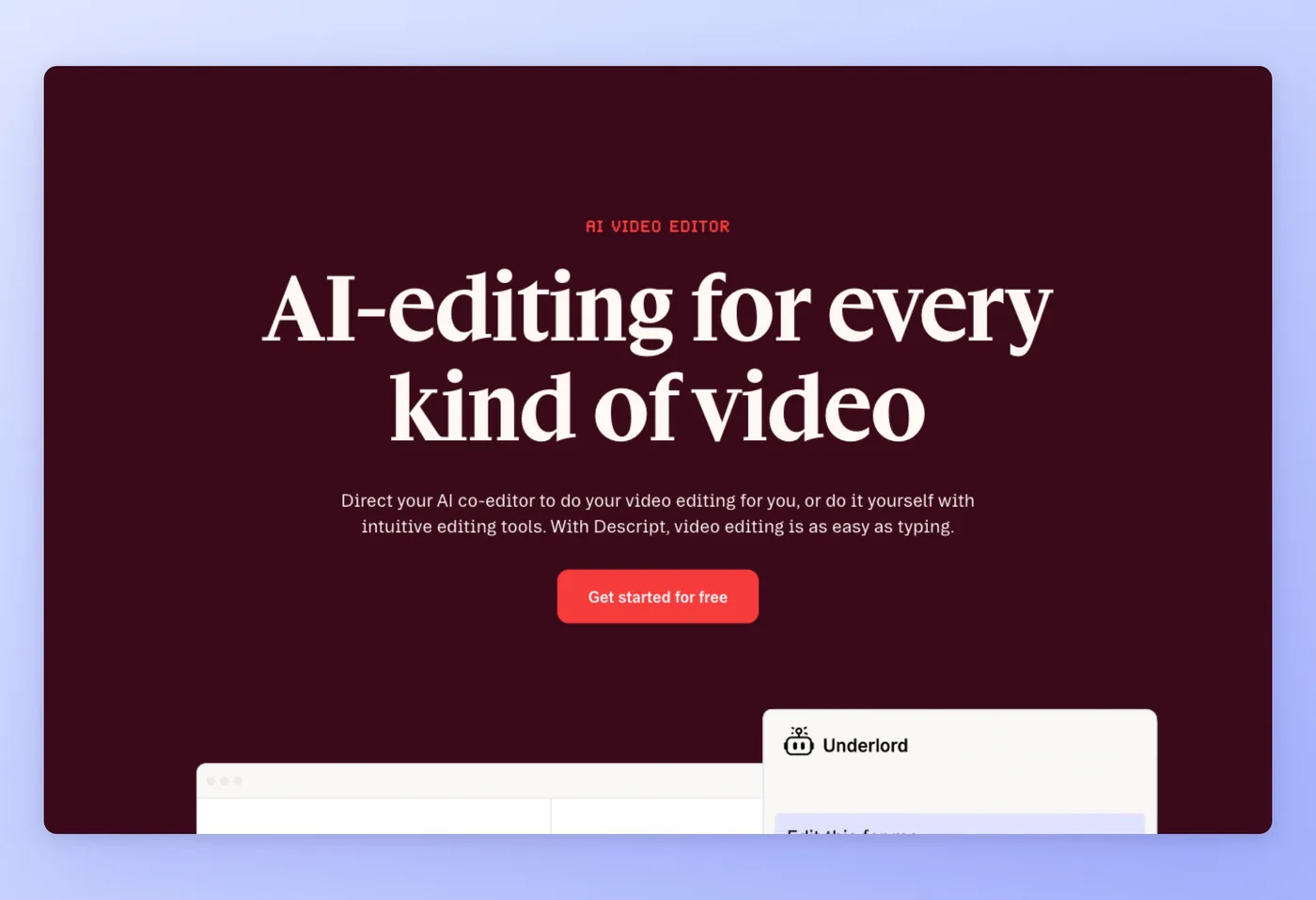
Delete a line from the transcript and Descript removes the matching video clip automatically. That document-style editing model makes it a full production suite for podcasters, content creators, and teams handling multi-hour video projects.
Key Features
- Transcript-driven editing: Cut footage by deleting transcript text; audio follows automatically, making the editing experience closer to a word processor than a timeline editor
- AI co-editor (Underlord): Issue direct instructions to your AI co-editor to apply edits, fix pacing, or generate clips
- Studio Sound: AI noise reduction that makes mid-range microphones sound professional
- Screen recording + Rooms: Built-in screen recorder and remote multi-person recording sessions
- Deep integrations: Import from Zoom and Ecamm; export to Adobe Premiere, Final Cut Pro, DaVinci Resolve, YouTube, and 15+ publishing platforms
Strengths
- 4.6/5 on G2 from 865+ verified reviews, the highest-rated tool in this list by review count and score
- Editing the transcript cuts hours from long-form content production once you learn the workflow
- ElevenLabs Scribe v2 transcription (May 2026 update) is among the most accurate available
Limitations
- The September 2025 pricing overhaul moved previously-unlimited features into metered AI credits; one user's bill jumped from $30 to $195/month after a busy production month
- G2 reviewers cite performance issues and crashes on longer projects as a recurring complaint
- Multiple G2 reviewers report slow customer support response times
Pricing
- Free: $0: 60 minutes/month transcription, 100 AI credits (one-time), 720p export, 5GB storage
- Hobbyist: $16/month (annual): 10 hours/month, 400 AI credits/month, 1080p, 100GB storage
- Creator: $24/month (annual): 30 hours/month, 800 AI credits, 4K, 1TB storage, scales to 3 people
- Business: $50/month (annual): 40 hours/month, 1,500 AI credits, translation in 30+ languages
4.6/5 on G2 (865+ reviews) · 4.4/5 on Product Hunt (41 reviews)
Ideal For
Podcast producers, YouTube creators, and content teams with weekly publishing schedules who need to edit, clean, and publish long-form video to large audiences.
Descript vs. Screen Studio
Screen Studio handles a 3-minute demo in under 10 minutes: record, auto-polish, done. Descript handles a 45-minute podcast or tutorial series: record, edit, clean, and distribute. Teams that need both use a quick recorder for demos and Descript for produced content. The September 2025 pricing changes hit heavy users hardest; locking in an annual plan before a busy production period avoids unexpected credit overages.
Prices verified June 2026.
Hinto AI serves a separate purpose: it turns recordings into text documentation rather than polished video.
Hinto AI: Best for Turning Recordings into Documentation
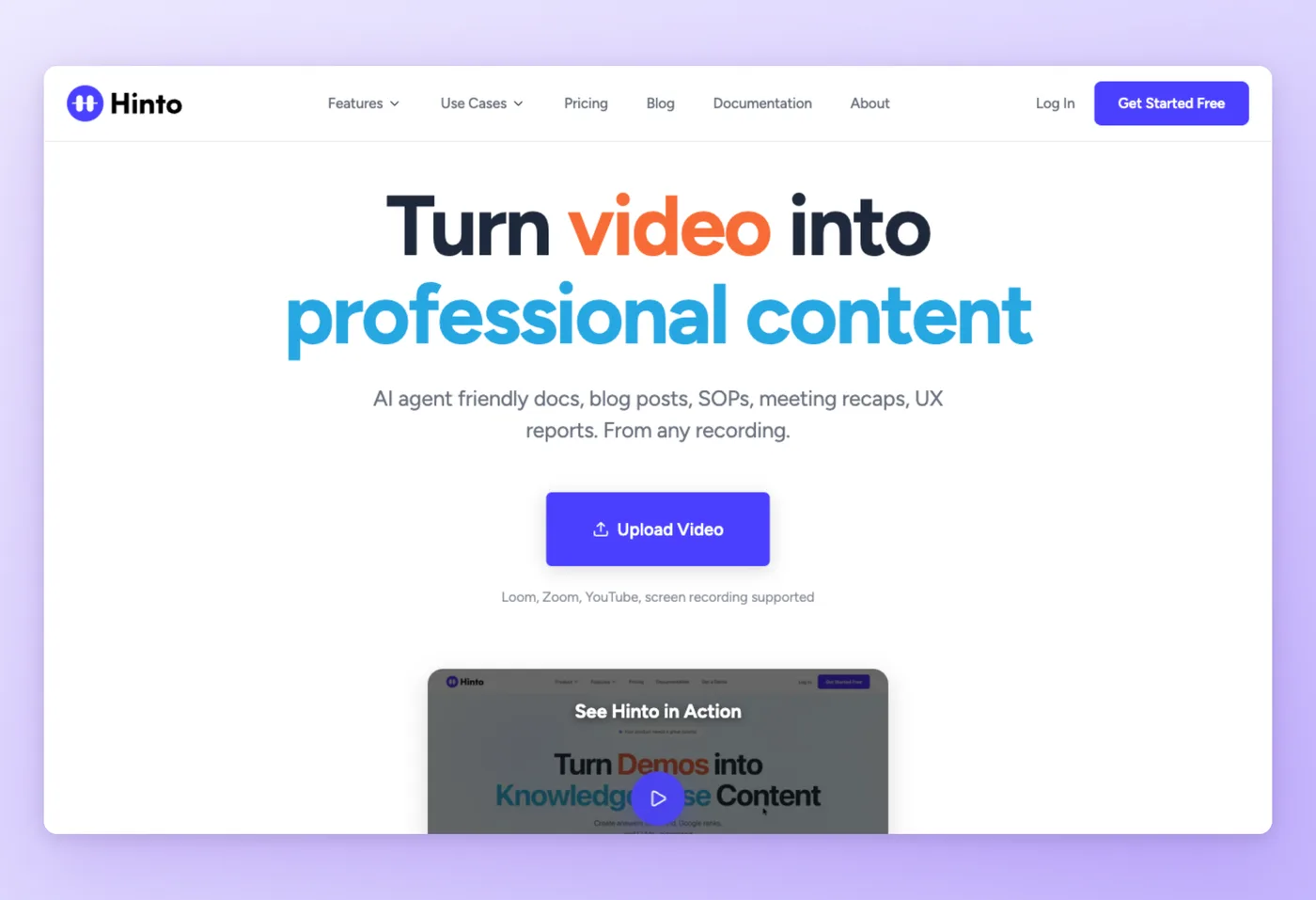
Hinto AI takes the video output from Screen Studio and converts it into a searchable, structured text document. Teams that record walkthroughs and then manually write up the steps can automate that second step with Hinto AI.
Key Features
- Any video as input: Upload your existing Screen Studio exports, Loom recordings, Zoom calls, YouTube videos, or any MP4/MOV file without re-recording
- Knowledge base generation: Hinto AI converts a single long video into a full table of contents with multiple organized articles, complete with screenshots extracted from the video frames
- Specialized documentation templates: Help Centers, Internal SOPs, "What's New" release notes, User Research Analysis, Sprint Demo Recaps; each template structures the output for its specific reader
- AI-Ready Context: Hinto AI automatically generates llms.txt and llms-full.txt files so your documentation is usable by ChatGPT, Claude, and AI agents like Intercom Fin
- Multi-language output: Record once in English and generate documentation in 50+ languages (All-Inclusive plan)
Strengths
- Accepts recordings you already have without changing your recording workflow
- Produces structured text documentation (searchable, indexable, and AI-readable) instead of video
- Free tier gives 20 generations to test the output quality before committing
Limitations
- Generation quota system means costs are predictable but not unlimited; heavy users hit limits
- No annual pricing discount; all plans are month-to-month
- Free tier is lifetime-capped at 20 total generations, not 20 per month
Pricing
- Free: $0: 20 total generations, 1 project, 20-minute video upload limit
- Small Team: $15/month: 30 generations/month, 1 project, 30-minute video limit, custom domain
- Growth: $99/month: 80 generations/month, 3 projects, 120-minute video limit, API access
- All-Inclusive: $499/month: 600 generations/month, 750-minute video limit, multi-language generation
Ideal For
Customer success managers, operations leads, and technical writers who communicate through video and want those recordings turned into searchable documentation.
How it compares to Screen Studio
Screen Studio creates the polished video; Hinto AI converts that video into structured documentation. Teams that record product walkthroughs in Screen Studio and then manually write up help center articles can automate that second step with Hinto AI. Existing Zoom calls, Loom videos, and YouTube links upload directly.
Already Have Screen Studio Recordings?
Hinto AI accepts your existing .mp4 exports. Upload a Screen Studio walkthrough and get a complete help article, SOP, or release note. Batch-upload a series of tutorials and get an entire knowledge base from recordings you already made.
AI-Ready Documentation Output
Screen Studio recordings are video files; AI assistants and search engines skip them. Hinto AI converts those videos into structured text with automatic llms.txt generation, so your documentation works as context for ChatGPT, Claude, and AI support bots like Intercom Fin. Hinto AI is the sole tool in this comparison to generate llms.txt automatically.
Prices verified June 2026.
Turn your screen recordings into structured documentation (SOPs, help articles, and knowledge bases), starting free.
Get started freeHinto AI vs Screen Studio: Where Each Wins
| Category | Screen Studio wins when... | Hinto AI wins when... |
|---|---|---|
| Output type | You need a polished .mp4 or GIF video file to share externally | You need a structured, searchable text guide, SOP, or help article |
| Platform | You are on macOS Ventura 13.1+ and want native performance | You need any OS: Mac, Windows, or Linux (Hinto AI is web-based) |
| Input method | You are recording a new screen session right now | You already have a recording (Loom, Zoom, YouTube, local .mp4 upload) |
| AI use | Auto-zoom polish and cursor animations applied during recording | Documentation generation, knowledge base, and llms.txt from any video source |
| Team use | Solo creator with no team features needed | Teams sharing knowledge bases; AI agents reading llms.txt via Intercom Fin or Claude |
| Integrations | No integrations; standalone local tool | Intercom, Notion, Confluence, GitHub, GitLab, Framer CMS via API |
Screen Studio creates the video. Hinto AI converts that video into documentation. The two tools solve adjacent problems, and many teams use both.
Screen Studio: Questions From Community Discussions
Reddit's r/macapps, Hacker News, and product review threads surface these questions most often.
| Concern | Significance | Best direction |
|---|---|---|
| "Screen Studio is Mac-only - what do Windows users do?" | The most common reason users search for alternatives; HN thread #34045110 drew 462 points and dozens of "why no Windows?" comments | Cap (free, cross-platform) or FocuSee ($49.99/yr); both apply click-triggered zoom natively on Windows and macOS |
| "Loom pricing jumped after Atlassian acquired it" | Trustpilot score dropped from ~4 to 1.4/5 post-acquisition; billing changes affect teams on legacy plans | Cap or Tella for async video; Hinto AI for teams focused on documentation rather than video sharing |
| "Descript changed its pricing in September 2025 and now my bill is unpredictable" | Previously-unlimited features moved into metered AI credit pools; one user cited a $30 to $195/month jump after a heavy production month | Lock in an annual Descript plan before the next pricing change; or switch to CapCut for short-form, Descript for text-editing only |
| "I don't want my recordings stored on someone else's server" | A top HN comment on the Screen Studio alternatives thread chose a local-recording tool to avoid cloud dependency: "I prefer to do the recording locally and send the file myself" | Cap's local mode keeps everything on-device; Cap Pro lets you connect external storage: any S3-compatible bucket or Google Drive works as a replacement for Cap's servers |
| "FocuSee lifetime license sounds too good - what's the catch?" | The $199.99 "lifetime" price covers version 2.x only; AI credits expire each year even on the lifetime plan; additional credits must be purchased separately | Read the license terms before purchasing; budget for credit refills or upgrade costs when FocuSee releases a major version update |
Cap supports a local recording mode that keeps footage on-device, a self-hosted server option, and external bucket or Google Drive storage as replacements for Cap's own servers, making it the one tool in this list that runs with no external cloud dependency.
Picking a Screen Studio Replacement: Three Questions to Answer First
Operating system comes first, output goal second, budget model third. Those three answers determine the shortlist. If you need a Screen Studio alternative for Mac, FocuSee, Cap, and Tella are the closest matches; for teams looking for a Screen Studio alternative for Windows, Cap and FocuSee are the strongest options. The best alternatives to Screen Studio depend on whether you need polished video, async sharing, or documentation.
Decision Framework
- Recording on Windows: Cap or FocuSee. Both run natively on Windows and apply click-triggered zoom automatically. Cap's free tier has a 5-minute clip limit; FocuSee's Standard plan is $49.99/year with a $199.99 lifetime option.
- Auto-zoom on Mac or Windows: FocuSee. It comes closest to Screen Studio's click-triggered zoom and cursor motion, and layers on subtitle generation and audio noise reduction.
- Async communication and team collaboration: Loom. Its 25-video free tier covers internal sharing; the Business + AI plan at $24/user/mo adds AI summaries, chapter markers, and Atlassian workflow integration.
- Long-form content like podcasts or tutorials: Descript. Transcript-driven editing and 30+ publishing integrations give it the broadest post-production feature set of any tool covered here. The free tier provides 60 transcription minutes per month.
- Open-source with full data ownership: Cap. Fully open source, self-hostable, and the Desktop License is a $58 one-time payment.
- Recordings destined for documentation, SOPs, or help center articles: Hinto AI. It accepts existing .mp4 files and outputs structured text without requiring a new recording session.
Download the migration checklist (PDF): a step-by-step plan for switching away from Screen Studio.
Hinto AI converts existing recordings into structured documentation without a separate recording workflow.
Frequently Asked Questions
Does Screen Studio run on Windows?
Screen Studio requires macOS Ventura 13.1 or later and has never released a Windows build. Two tools bring click-triggered zoom to Windows: Cap, which is free and publishes its source code under MIT license, and FocuSee at $49.99/year.
Which Screen Studio alternative costs nothing?
Cap offers unlimited, watermark-free local recordings on its free tier. Clips cut off at 5 minutes on the free tier. For commercial rights, the one-time Desktop License costs $58. FocuSee offers a limited free trial covering one video export.
On Windows and need zoom effects like Screen Studio: which tool fits?
Cap (MIT-licensed, free base tier, runs on Mac and Windows) and FocuSee ($49.99/year) are the two strongest Windows options. Cap gives more editorial control through its Studio Mode timeline; FocuSee delivers more automatic polish: the recorder zooms in on each click without any post-production configuration.
Screen Studio on Mac: which alternative matches its quality?
Mac users who want comparable zoom and cursor animations without the subscription can use FocuSee, which has the closest feature parity at $4.17/month annually, or Cap's Studio Mode. Tella also runs natively on Mac and matches output quality while adding viewer analytics. Teams that need existing Mac recordings converted into documentation can upload any MP4 or MOV export to Hinto AI and generate structured docs from existing footage.
Does an open-source Screen Studio alternative exist?
Yes. Cap publishes its full source code under MIT license and has earned 19,300+ GitHub stars. You can run Cap on your own server and point storage at any S3-compatible bucket or Google Drive, keeping all data fully self-hosted.
Is "screenstudio" or "screen.studio" the same product as Screen Studio?
Yes. Screen Studio is sold at screen.studio (the official domain) and is sometimes written as "screenstudio" in search queries. They refer to the same macOS screen recording app by Adam Pietrasiak.
Which tool fits teams that need shared workspaces?
Screen Studio targets solo creators and lacks shared workspaces, viewer permissions, and collaborative libraries. Loom covers async communication with Atlassian integration and AI summaries. Tella suits smaller teams that want viewer-level watch analytics. Descript serves content teams publishing long-form video. Hinto AI fits teams whose primary goal is searchable documentation rather than video distribution.
Can Hinto AI work with existing Screen Studio recordings?
Yes. Hinto AI accepts local MP4 uploads, which is the export format Screen Studio produces. Upload your existing Screen Studio exports and Hinto AI extracts screenshots, identifies action steps, and generates structured documentation from the video.
What is the cheapest Screen Studio alternative?
FocuSee Standard at $4.17/month (billed as $49.99/year) is the least expensive paid option with comparable auto-zoom features. Cap's Desktop License at $58 one-time undercuts FocuSee's annual plan after roughly 14 months. Cap's free tier is available indefinitely for personal, non-commercial use.
Final Verdict
Mac creators who prioritize visual polish in demos have relied on Screen Studio for its automatic zoom and cursor effects. Its constraints are well-known: macOS required, subscription-only, no team features. All three push creators toward other tools.
Two tools bring click-triggered zoom to Windows and macOS: Cap and FocuSee. Cap publishes its source code under MIT license and charges nothing for the base app; FocuSee delivers tighter feature parity at $4.17/mo annual. Loom handles async stakeholder updates and Tella adds viewer analytics. Descript's 4.6/5 G2 rating from 865+ reviews reflects its depth as a production tool.
Hinto AI is the only tool here that converts screen recordings into structured SOPs, help center articles, or AI-readable documentation. Upload existing recordings and get structured documentation. The free tier includes 20 generations.

Founder of Hinto - passionate about making knowledge accessible and helping teams create better documentation.
Ready to Build a Better
Knowledge Base, Faster?
Get Started Free & Create Your First Article in Minutes