User Documentation Examples: 5 Filled-In Documents to Copy
These user documentation examples are five complete, filled-in documents you can copy, written for anyone who ships help content for a product. They double as end-user documentation examples and software documentation examples, each in its own format, from an onboarding quick start to a developer's API page.
Jump straight to the examples.
Examples of documentation: the user documentation samples below run from a Taskline onboarding guide and a CRM import how-to to a thermostat troubleshooting FAQ, an expense-app mobile tutorial and a payments API reference.
What a good one looks like: a single task, its reader and requirements stated first, and an outcome the reader can check.
When you need one: when the same question keeps reaching support, or new users stall during setup.
Strong vs weak: strong user guide examples show success and carry a date, while weak ones stop at the last step.
What Makes a Good User Documentation Example
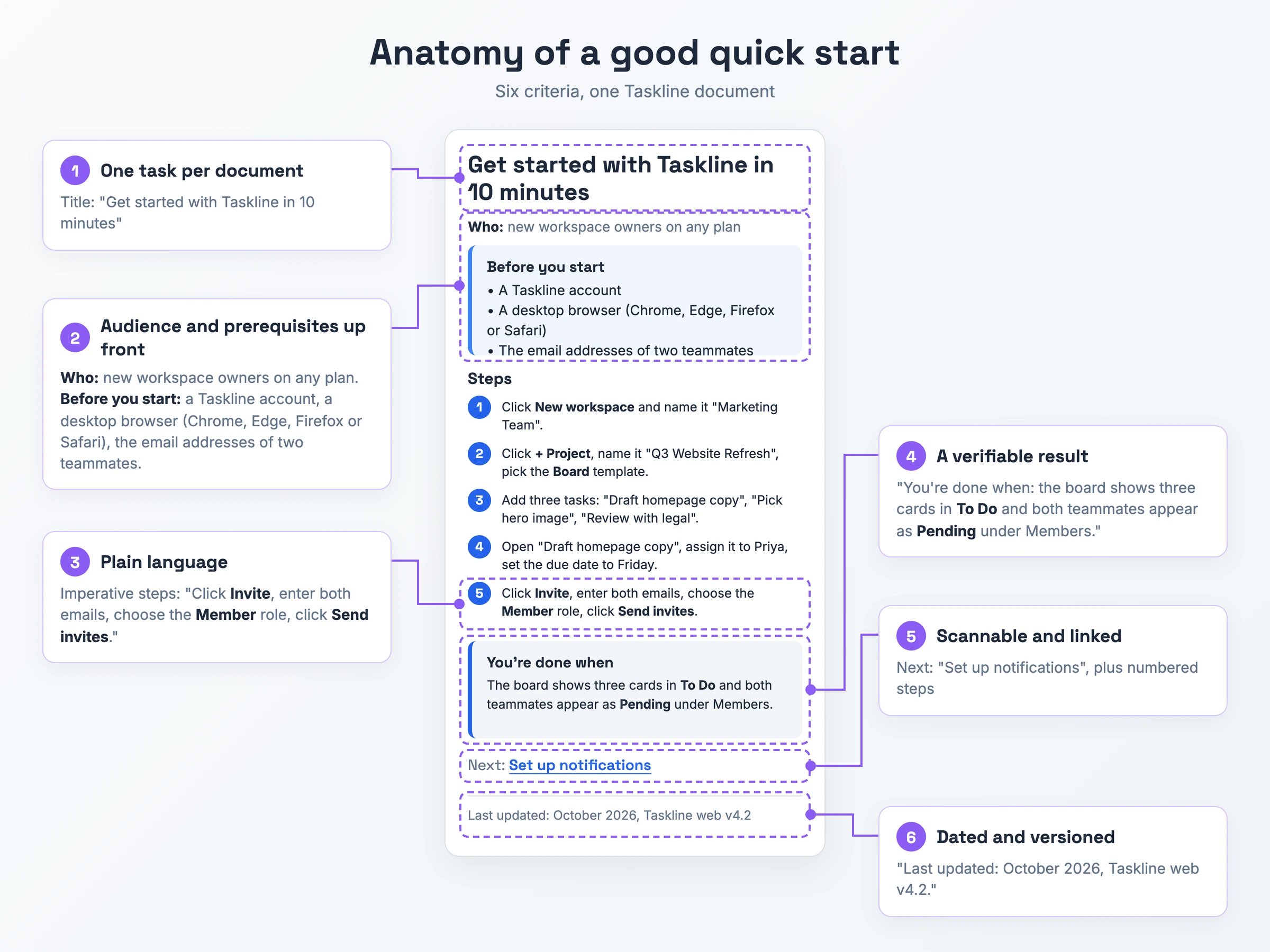
- One task per document. The title names a single outcome, such as "Import contacts from a CSV file", and each step serves it. Without it, the reader hunts through a feature tour for their task.
- Audience and prerequisites up front. A short block before step 1 states who can do this (plan, role) and what they need (account, file format, app version, permissions). Skip it and the reader hits a permission error halfway through.
- Numbered steps that match the UI, with a visual per step. One action per step, the on-screen label copied exactly in bold, and a screenshot next to it. None of the five specimens below carries a screenshot per step, so copy them for the text half of this criterion only.
- Plain language. Write short, imperative sentences ("Tap Submit") and define each term once. A non-technical reader stalls on passive constructions and unexplained acronyms.
- A verifiable result. The document describes the screen that confirms success and points to the next task. Leave it out and the steps simply end, with no sign the task worked.
- Scannable and linked. Descriptive headings, short sections, tables for compared values, and links to the prerequisite and next task. One block of text leaves the reader no route onward.
- Dated and versioned. A last-updated date plus the product version or platform the steps apply to. With no date, the reader cannot tell whether the screenshots still match.
The annotated quick start below marks the six criteria it meets, every one except a visual beside each step.
5 User Documentation Examples Worth Copying
Each of these best user documentation examples describes an invented product (every name is fictional) and runs from title to footer: who it serves, what to have ready, the steps, how to confirm success, and when it was last updated.
Example 1: Project Management App Quick Start
On day one in Taskline, a project tool, a new workspace owner on any plan sets up a board and invites two teammates.
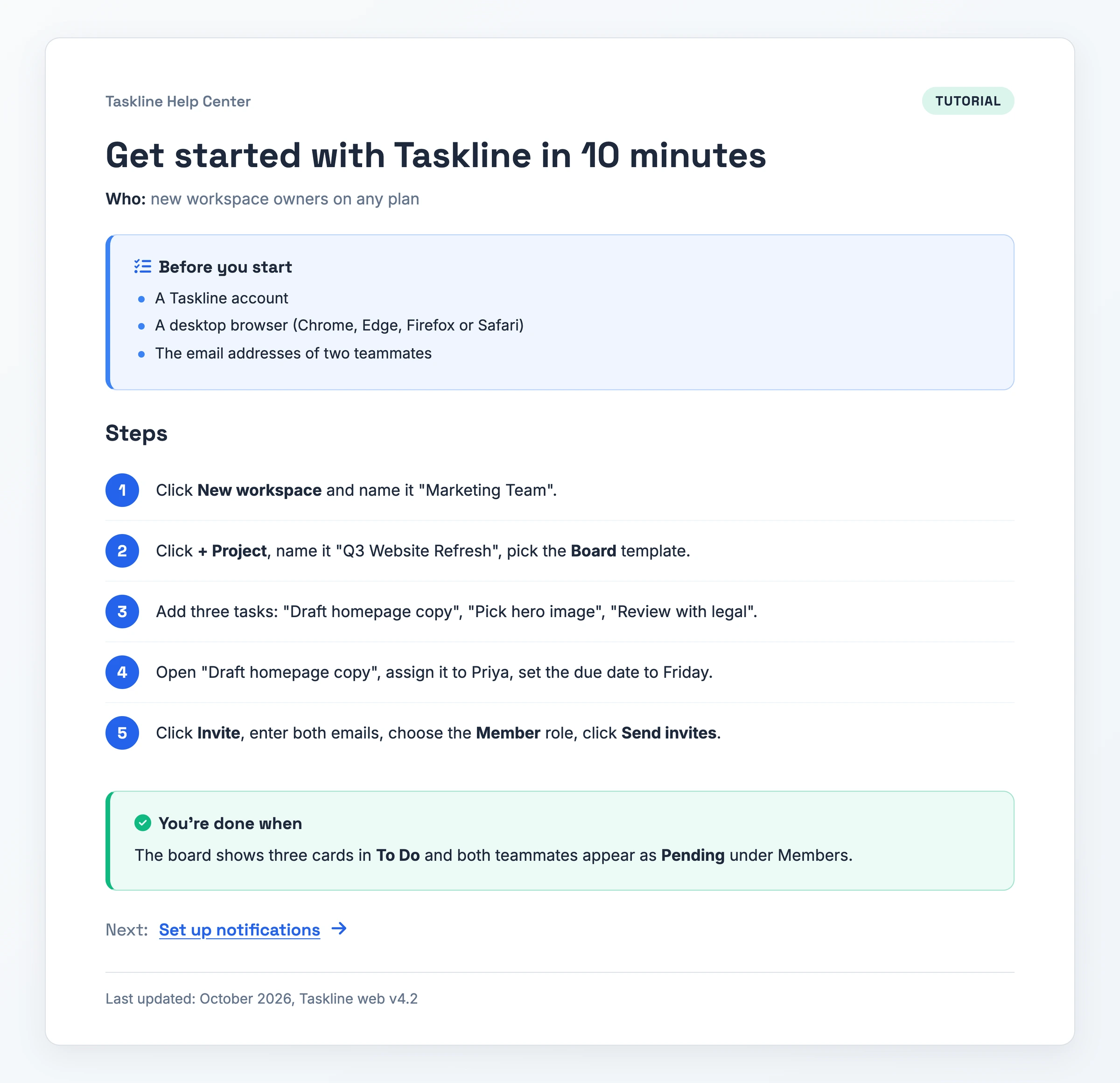
What makes it work: the title commits to a single result within 10 minutes, and the "Before you start" list names the account, the four supported browsers and the two teammate emails before step 1. The "You're done when" check (three cards in To Do, both teammates Pending under Members) confirms the result and points on to "Set up notifications".
Watch out for: the steps carry bold UI labels but no screenshot beside each one. Add your own captures before you publish.
Download PDF - Get started with Taskline in 10 minutes
Example 2: CRM Contact Import How-To
A how-to for a sales operations admin moving contacts out of a spreadsheet into Clientbase CRM, open to Admins and Managers on the Pro plan or higher.
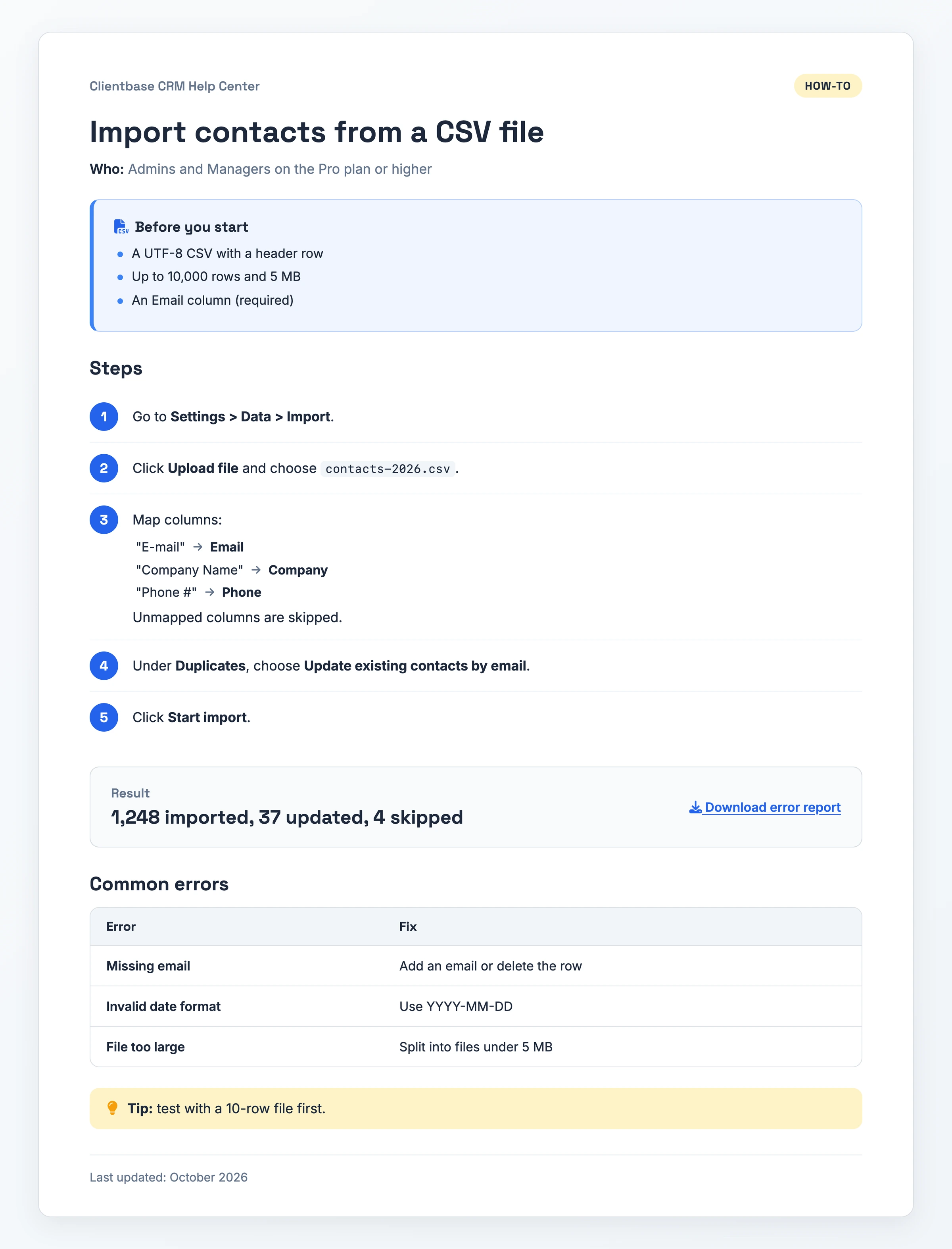
What makes it work: the prerequisites spell out the file limits (UTF-8, a header row, up to 10,000 rows and 5 MB, a required Email column) before the reader uploads anything. The result quotes the exact summary, "1,248 imported, 37 updated, 4 skipped", and a common errors table pairs each error with its fix.
Watch out for: "Last updated: October 2026" names no product version. A reader on an older release is left guessing whether the steps match.
Download PDF - Import contacts from a CSV file
Example 3: Smart Thermostat Troubleshooting FAQ
A troubleshooting reference for a homeowner whose Hearthly T3 thermostat (model T3-200, firmware 2.8 or later) misbehaves, to use before calling support.
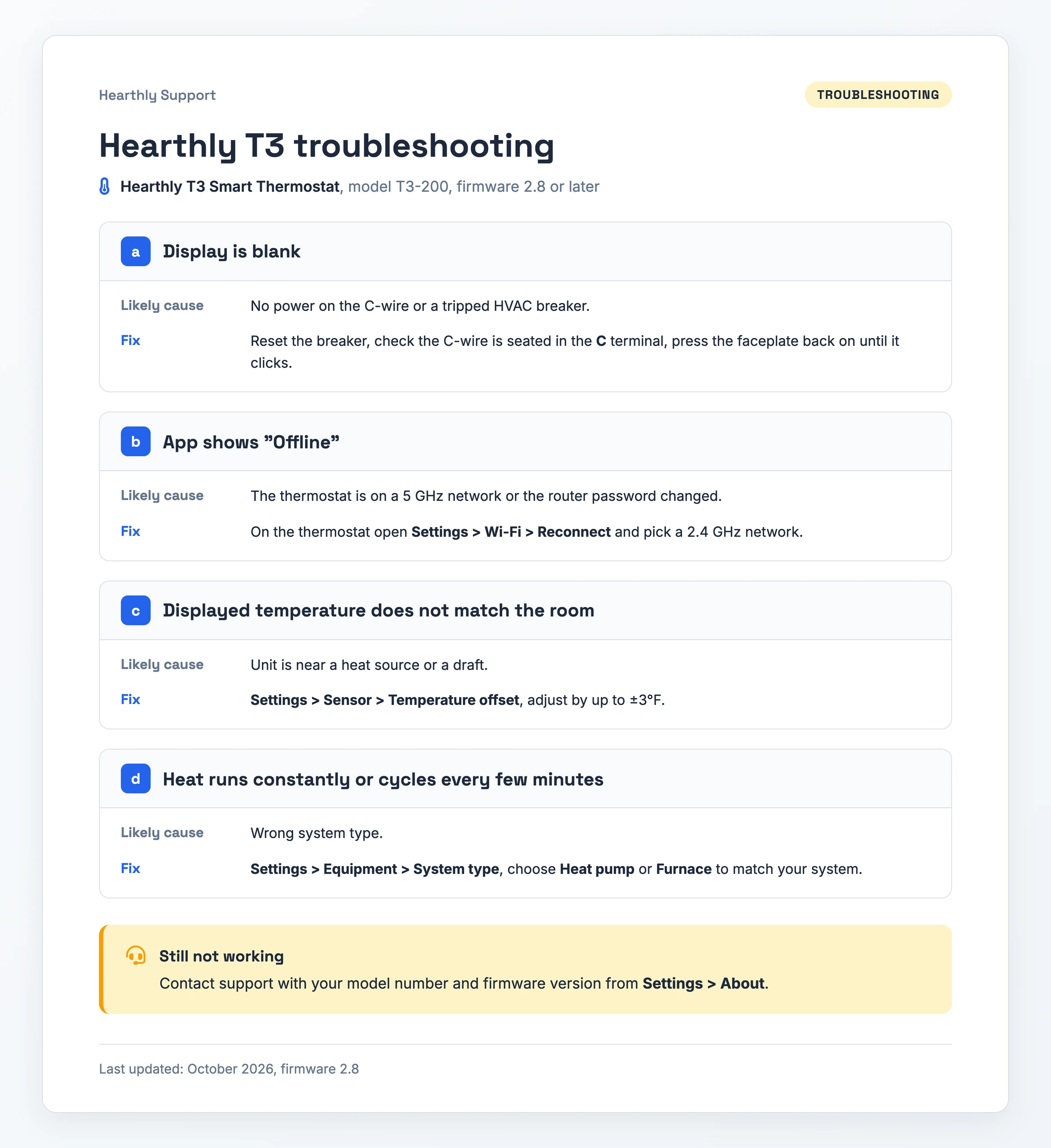
What makes it work: all four entries follow the same Symptom, Likely cause, Fix order, and each fix gives an exact menu path such as Settings > Wi-Fi > Reconnect. The closing note asks for the model number and firmware version from Settings > About before the reader contacts support.
Watch out for: the entries skip a verification step. Without one, the reader cannot confirm a fix worked before moving on.
Download PDF - Hearthly T3 troubleshooting
Example 4: Expense App Mobile Tutorial
A mobile tutorial for a field employee submitting a receipt from a phone in Ledgerly v6.1, on iOS 17+ and Android 12+.
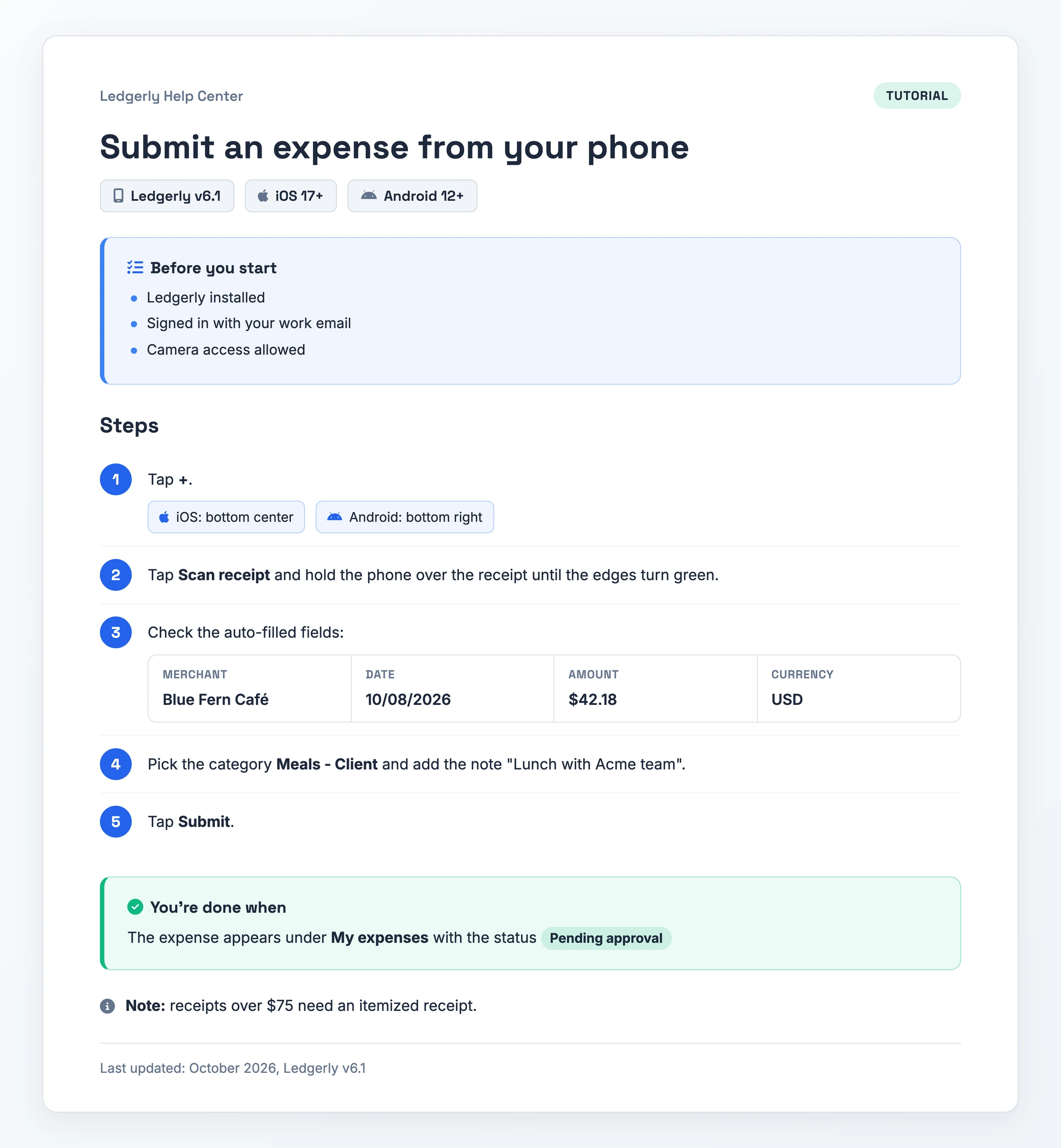
What makes it work: step 3 lists what the scan should capture (Blue Fern Café, 10/08/2026, $42.18, USD), giving the reader something concrete to compare, and the done check names the exact status, Pending approval. A note flags the itemized-receipt rule for receipts over $75.
Watch out for: the iOS and Android difference sits inline in step 1 only, and that pattern stops scaling once your platforms diverge across several steps.
Download PDF - Submit an expense from your phone
Example 5: Payments API Reference
A reference page for a developer adding refunds to a checkout with the Paystream API, version 2026-09-01.
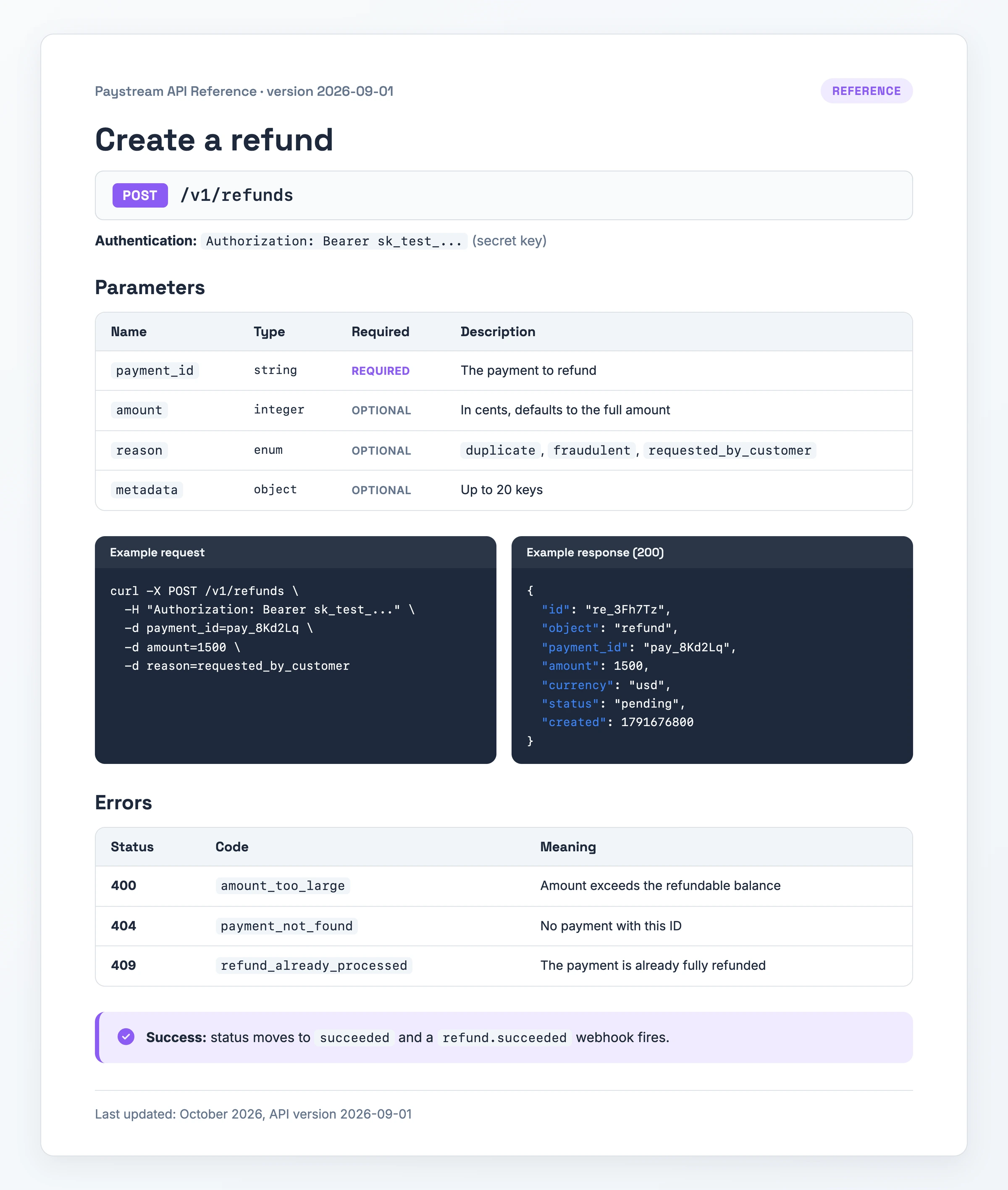
What makes it work: the parameters table lists a type and a required flag for every field, and the amount row says an omitted value refunds the full amount. Request and 200 response reuse pay_8Kd2Lq and 1500, letting a developer trace one call end to end, and each error code sits beside its meaning.
Watch out for: the example response shows "status": "pending". A 200 here is not the end state, because the refund only succeeds once status moves to succeeded and the refund.succeeded webhook fires.
Download PDF - Create a refund
How to Adapt a User Documentation Example
- Pick the specimen that matches your document type. Onboarding maps to the quick start, a one-off admin job to the how-to, support issues to the FAQ, phone workflows to the mobile tutorial and developer docs to the API reference.
- Swap the product and the audience. Put your product's name where the fictional one sits, and rewrite the Who line with the plan or role allowed to run the task.
- Rewrite the prerequisites. List the account, file format, app version and permissions your reader needs before step 1.
- Replace each step with your real UI labels. Give each step a single action and bold the label exactly as your interface shows it.
- Add a screenshot beside each step. Capture your own product, since the specimens carry none.
- Rewrite the success check. Describe the screen that proves it worked, then link the follow-on task.
- Add the date and version. End with the date you last checked it and the version or platform it covers.
- Publish the first version. Ship it, then watch which pages reduce incoming tickets.
- Revise from feedback. Let reader searches, new ticket topics and "Was this helpful?" votes decide your next edit.
When You Need User Documentation
A quick start earns its place once new sign-ups get stuck before anything works. That is where Technical Writer HQ usually starts user documentation, alongside a troubleshooting guide, and Example 1 finishes on a board the reader can see.
When the same tickets keep coming back, write how-to and troubleshooting pages. Examples 2 and 3 each settle one such question on a page the customer finishes without help.
Developers integrating with your API need reference docs that spell out each parameter and error. Example 5 follows that pattern for a single endpoint.
Common User Documentation Mistakes
- Leaving content and screenshots stale. Technical Writer HQ warns that "When screenshots are stale, they create distrust", and Docsio adds that "Outdated docs lose credibility fast." Readers stop trusting the whole help center.
- Hiding answers behind weak search and buried menus. Whatfix flags docs "hidden in hard-to-navigate menus", and Technical Writer HQ notes that "When the search is weak, the docs feel weak." If the page cannot be found, the reader opens a ticket.
- Writing in jargon. Whatfix's example: write "screen", not "visual interface". Technical Writer HQ advises defining terms and expanding acronyms once. Undefined terms stop a non-technical reader mid-task.
- Turning a quick start into a manual. "The biggest mistake I see is turning a quick start into a full manual," writes Technical Writer HQ, and Docsio warns that 3,000-word guides go unfinished. The new user gives up before reaching a first result.
- Letting tone and structure drift between authors. Scribe describes one author writing "you" and another "they", which makes each page read differently. To prevent it, Technical Writer HQ recommends enforcing templates and a style guide.
Skip the Blank Page: Record It Instead
The specimens above all lack a screenshot per step, and adding them by hand means capturing every screen yourself.
With Hinto AI, you show the task on video instead of writing it. Click record in the Hinto web app or its Chrome Extension, walk through the task once, and Hinto builds the documentation from that recording, pulling out screenshots, GIFs and structured steps. It detects the button clicks and screen changes in the video and uses them to pick the screenshots and write the steps. A recording you already have works too: a Loom, a Zoom call from six months ago, a YouTube video, or an MP4, MOV or WebM file from your computer.
Blur anything sensitive in a screenshot, or crop, frame and focus it, with the in-app image editor. The finished docs can go live on your own custom domain, SSL included.
User Documentation FAQ
What is user documentation?
User documentation is the help content a company writes for the people who use its product, as opposed to internal docs written for its own staff. It ranges from quick starts and fix-it FAQs to installation guides, admin guides, release notes and API references written for developers outside the company.
Can you give me some examples of documentation?
Release notes or a changelog, an installation or admin guide, an API reference, a mobile walkthrough, a troubleshooting FAQ, a single-task how-to and a getting-started guide are seven common ones. Five of these appear filled in above, from the Taskline quick start to the Paystream refund endpoint, and each has a PDF you can download.
What are the four types of documentation?
The usual answer comes from the Diátaxis framework. It sorts documentation by what the reader needs: learning (tutorials), getting a task done (how-to guides), looking something up (reference) and understanding (explanation). By that split, Examples 1 and 4 here are tutorials, Examples 2 and 3 are how-to guides and Example 5 is reference. The gallery has no explanation piece.
What are the 5 W's of documentation?
They are who, what, when, where and why, used as a checklist when writing a document. The specimens answer them in fixed places: the Who line gives the reader, the title gives the task, the Last updated line gives the date, and a menu path such as Settings > Data > Import gives the location. Why the document exists is the task named in its title.
Related Examples
User Manual Examples, Knowledge Base Examples, Process Documentation Examples