
Workflow Documentation Template: Map Every Handoff, Approval and System
This workflow documentation template is for work that passes between roles: it records the trigger, each step's owner and system, each handoff, the approval order and turnaround times. You can copy the full template inline or download the blank template and a filled-in example as a PDF, with no signup.
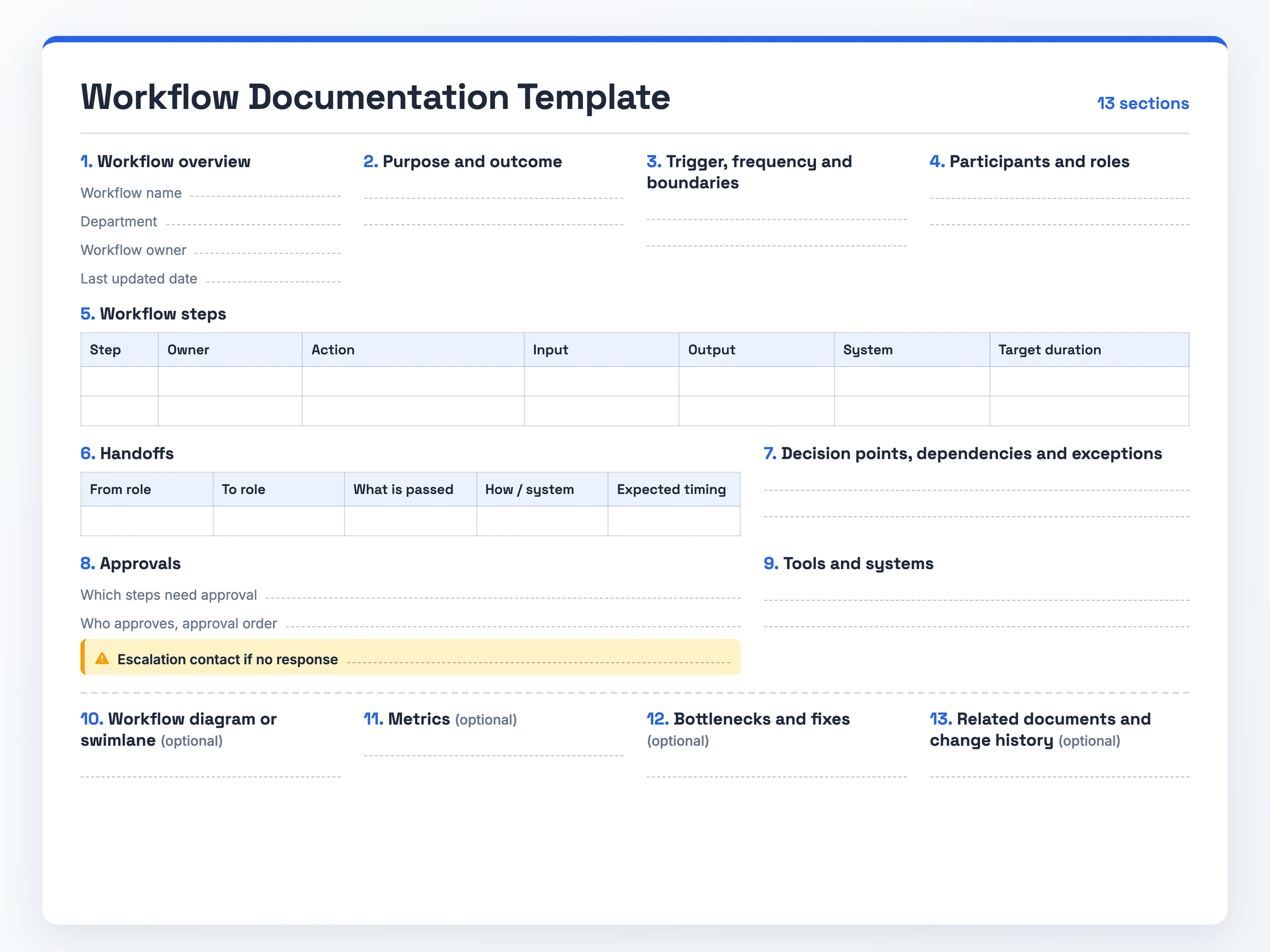
What it is: a workflow documentation template documents work that moves between roles and has fields for each handoff, approval and system.
When to use it: cross-functional work that teams hand to each other, and onboarding new hires onto it.
What it must contain: an owner per step, each decision and exception path, and what each handoff passes, how and when.
How to keep it current: review on a schedule, log changes.
The Workflow Documentation Template (Copy-Paste Ready)
WORKFLOW DOCUMENTATION TEMPLATE

1. Workflow overview
Workflow name: [Name]
Department: [Department]
Workflow owner: [Name, role]
Last updated: [Date]

2. Purpose and outcome
Why this workflow exists: [Purpose]
A completed run produces: [Outcome]

3. Trigger, frequency and boundaries
Trigger: [Event that starts the workflow]
Frequency: [How often it runs]
Starts at: [First step]
Ends at: [Last step]

4. Participants and roles (each role is a swimlane)
[Role or team]: [Responsible for]
[Role or team]: [Responsible for]

5. Workflow steps
| Step | Owner | Action | Input | Output | System | Target duration |
| 1    |       |        |       |        |        |                 |
| 2    |       |        |       |        |        |                 |

6. Handoffs
| From role | To role | What is passed | How / system | Expected timing |
|           |         |                |              |                 |

7. Decision points, dependencies and exceptions
Decision: [Question] -> If yes: [Next step] / If no: [Next step]
Depends on: [Upstream work or input]
Exception: [What goes wrong] -> Handling: [Response, owner]

8. Approvals
| Step | Approver | Order | Approval SLA | Escalation contact if no response |
|      |          |       |              |                                   |

9. Tools and systems
Software: [Apps]
Documents: [Forms, files]
Access needed: [Permissions]

10. Workflow diagram or swimlane (optional)
[Link to or paste the lane view]

11. Metrics (optional)
Cycle time: [Target]
Error rate: [Target]
Completion: [Target]

12. Bottlenecks and fixes (optional)
Bottleneck: [Slow point] -> Fix: [Resolution]

13. Related documents and change history (optional)
Related SOPs: [Links]
| Version | Date | What changed |
|         |      |              |
What Goes Into a Workflow Documentation Template
The 13 sections fall into four stages: define, run, control, improve.
- Workflow overview: Name, department, owner and last updated date, such as "Vendor invoice approval · Finance · Owner: AP manager".
- Purpose and outcome: Why the workflow exists and what a completed run produces, such as an approved invoice queued for payment.
- Trigger, frequency and boundaries: The event that starts the work, how often it runs, and its first and last step.
- Participants and roles: Each role or team that touches the work and its responsibility. These names become your swimlane labels.
- Workflow steps: Numbered rows with owner, action, input, output, system and target duration. The target duration column shows where time goes.
- Handoffs: One row per role change: who passes the work, who receives it, what moves, through which system, and when it should arrive.
- Decision points, dependencies and exceptions: Each branch and where it leads, plus the handling for cases off the normal path.
- Approvals: The steps that need sign-off, the approver order, a turnaround target, and an escalation contact for an approver who goes quiet.
- Tools and systems: The software, forms and access each role needs.
- Workflow diagram or swimlane: An optional lane view, one lane per role, that shows each handoff.
The last three are optional too. Metrics track cycle time, error rate and completion. Bottlenecks and fixes pair each slow point with its fix. Related documents and change history link step-level SOPs and log each version.
How to Use the Workflow Documentation Template
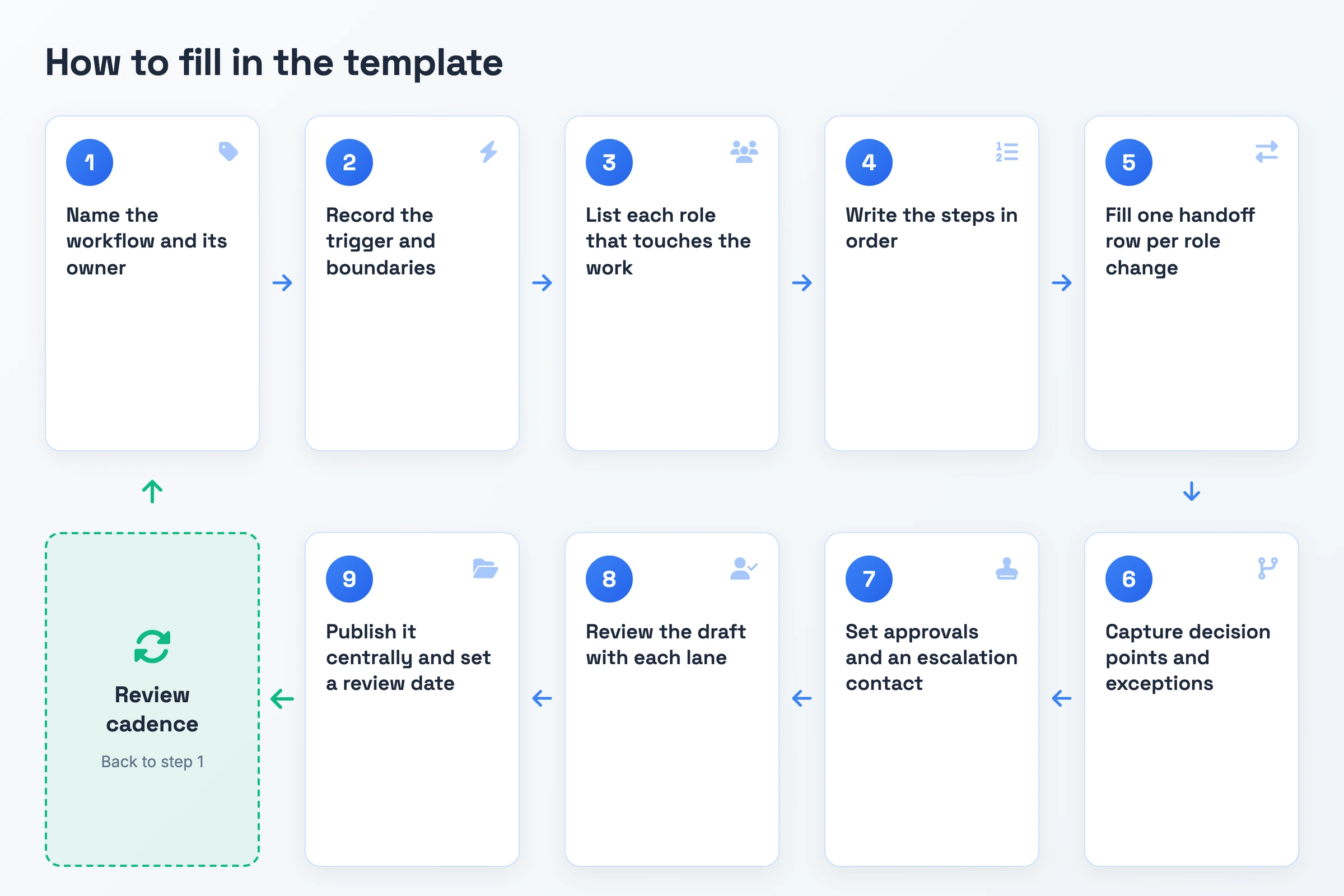
- Name the workflow and its owner. Fill in the workflow name, department, owner and purpose. A reader then knows whose work this is and what a finished run produces.
- Record the trigger and boundaries. Note the event that starts the workflow, how often it runs, and its first and last step.
- List each role that touches the work. Give each role or team one line of responsibility. These names become your swimlanes.
- Write the steps in order. Give each step an owner, an action, its input and output, the system it happens in, and a target duration.
- Fill one handoff row per role change. Each time work moves to a new role, record what is passed, how it travels, and when the next role should have it.
- Capture decision points and exceptions. Add each branch, where each outcome leads, and how the team handles cases that break the normal path.
- Set approvals and an escalation contact. List the approvers in order with a turnaround target, and name the person to contact when an approver does not respond.
- Review the draft with each lane. Walk the document with someone who runs each role, and correct the steps that differ from how the work happens.
- Publish it centrally and set a review date. Store it where each role can find it, set the next review date, and log each revision in the change history.
Workflow Documentation Template: A Filled-In Example
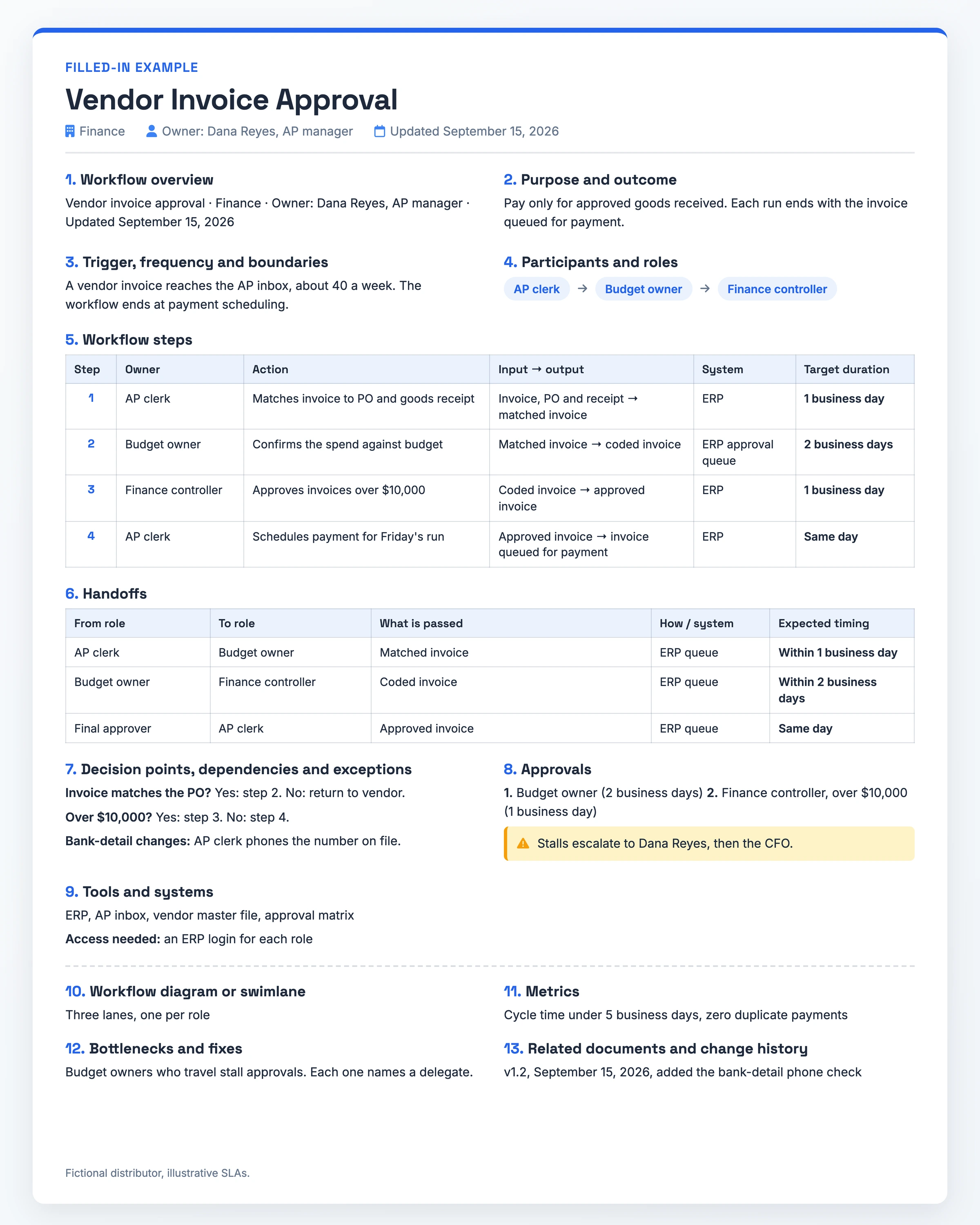
Fictional distributor, illustrative SLAs.
- Workflow overview: Vendor invoice approval · Finance · Owner: Dana Reyes, AP manager · Updated September 15, 2026
- Purpose and outcome: Pay only for approved goods received. Each run ends with the invoice queued for payment.
- Trigger, frequency and boundaries: A vendor invoice reaches the AP inbox, about 40 a week. The workflow ends at payment scheduling.
- Participants and roles: AP clerk, budget owner, finance controller
Workflow steps (input → output · system · target duration)
- Step 1: AP clerk matches invoice to PO and goods receipt. Invoice, PO and receipt → matched invoice · ERP · 1 business day
- Step 2: Budget owner confirms the spend against budget. Matched invoice → coded invoice · ERP approval queue · 2 business days
- Step 3: Finance controller approves invoices over $10,000. Coded invoice → approved invoice · ERP · 1 business day
- Step 4: AP clerk schedules payment for Friday's run. Approved invoice → invoice queued for payment · ERP · same day
Handoffs
- AP clerk to budget owner: matched invoice, ERP queue, within 1 business day
- Budget owner to finance controller: coded invoice, ERP queue, within 2 business days
- Final approver to AP clerk: approved invoice, ERP queue, same day
Sections 7 to 13
- Decision points and exceptions: Invoice matches the PO? Yes: step 2. No: return to vendor. Over $10,000? Yes: step 3. No: step 4. Bank-detail changes: AP clerk phones the number on file.
- Approvals: Budget owner, then finance controller (over $10,000). Stalls escalate to Dana Reyes, then the CFO.
- Tools and systems: ERP, AP inbox, vendor master file, approval matrix. Access needed: an ERP login for each role.
- Workflow diagram: Three lanes, one per role
- Metrics: Cycle time under 5 business days, zero duplicate payments
- Bottleneck and fix: Budget owners who travel stall approvals. Each one names a delegate.
- Change history: v1.2, September 15, 2026, added the bank-detail phone check
Workflow Documentation Template Variants
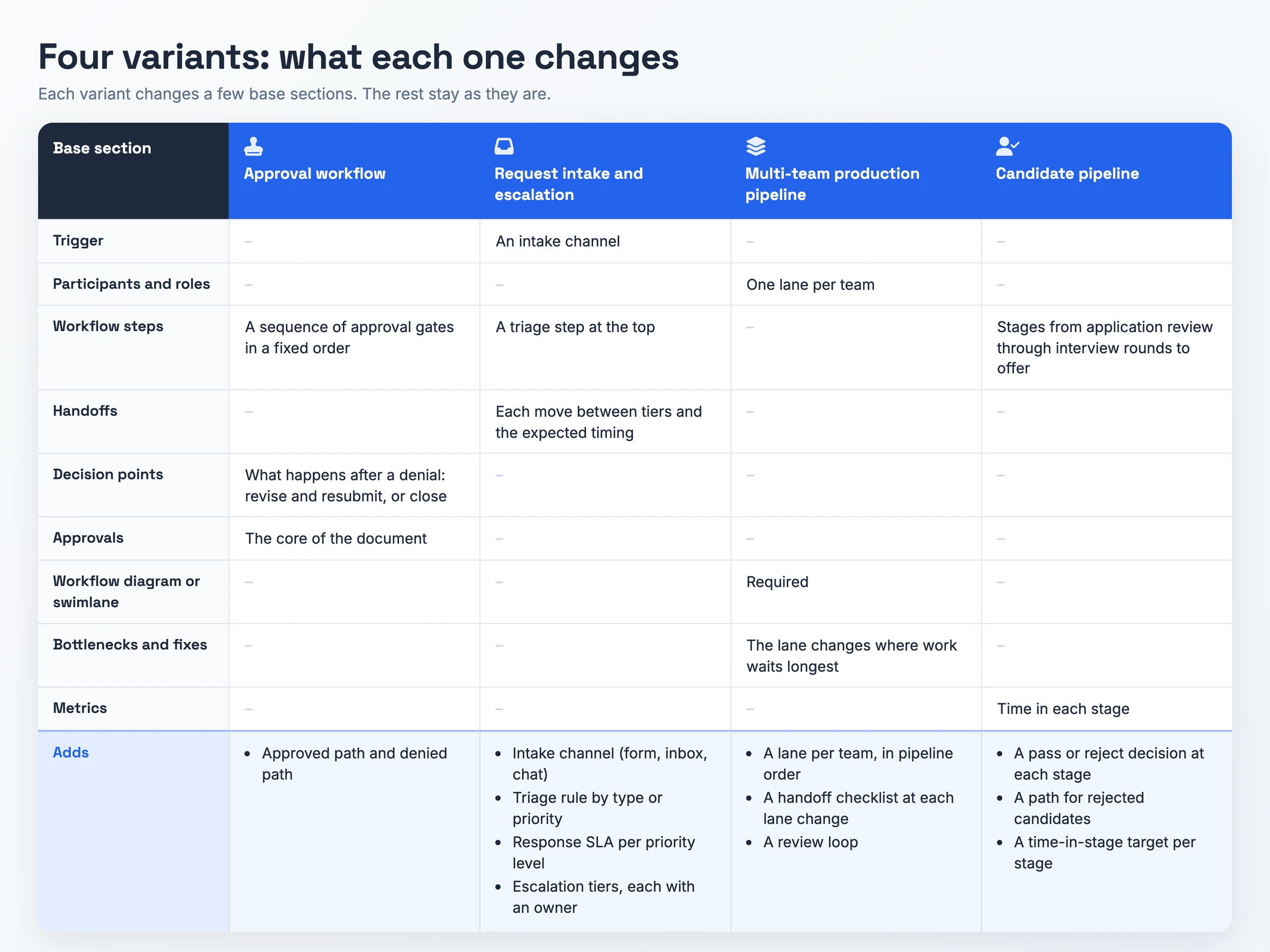
The base template covers most work that crosses roles. These four variants match common workflow patterns, and each one changes a few sections while the rest stay as they are.
Approval Workflow Template
Use this variant when the work exists to get a decision: a content sign-off, a budget request, a project go-ahead or an invoice. The Workflow steps section turns into a sequence of approval gates in a fixed order, and Approvals becomes the core of the document. The base Approvals table already holds the approver, order, SLA and escalation contact for each gate. Add one field per gate:
- Approved path and denied path
The Decision points section records what happens after a denial: revise and resubmit, or close the request.
Request Intake and Escalation Workflow Template
This variant fits support tickets, IT requests and customer complaints, where work arrives from outside and needs routing. Trigger becomes an intake channel, and a triage step sits at the top of Workflow steps. Add:
- Intake channel (form, inbox, chat)
- Triage rule that routes by type or priority
- Response SLA per priority level
- Escalation tiers, with the role that owns each tier
Handoffs now record each move between tiers and the expected timing for the receiving tier to pick the work up.
Multi-Team Production Pipeline Template
Use this variant for content, video or product launch work that passes through several teams before release. Participants and roles lists one lane per team, and Workflow diagram or swimlane becomes required. Add:
- A lane per team, in pipeline order
- A handoff checklist at each lane change: files, specs and sign-offs that move with the work
- A review loop that names who can send work back a lane, and why
Bottlenecks and fixes tracks the lane changes where work waits longest.
Candidate Pipeline Workflow Template
Recruiting and applicant screening run on this variant. Workflow steps becomes a list of stages, from application review through interview rounds to offer. Add:
- A pass or reject decision at each stage
- A separate path for rejected candidates, including a thank-you letter
- A time-in-stage target per stage
Metrics measures time in each stage, so a slow interview round shows up before candidates drop out.
When to Use a Workflow Documentation Template
Reach for this template once work passes between several teams or roles. A product launch, a customer escalation or a procurement request each moves through hands that do not share a desk, and delays sit in the gaps. A handoff table names what moves, how and by when, so each gap has an owner.
Use it for approval chains too. Content, budget, project and invoice approvals all depend on the order of approvers and on someone chasing a stalled sign-off, and a blank document rarely records either.
The template also pays off when you train new hires on a workflow they will join halfway through. With the lanes before and after theirs in view, they can see where their work comes from and where it goes. Work that one person runs from start to finish fits a single-owner SOP or process document better.
Skip the Blank Document: Record It Instead
Typing out each step by hand is slow work. You can record the work once instead and start from a draft.
Hinto AI turns screen recordings and video walkthroughs into structured documentation and SOPs. Record in the Hinto web app or the Chrome extension, or upload a video you already have: a Loom, a Zoom training session, a YouTube walkthrough, or a local MP4, MOV or WebM file. Hinto detects the clicks and screen changes in the video and drafts written steps with screenshots.
Record one run per role, and each lane starts as drafted steps. You then fill in the handoff, SLA and approval fields yourself and check the drafted steps against them. Hinto can host the finished documentation on a public URL with a custom domain.
Workflow Documentation Template FAQ
What is the difference between workflow documentation and process documentation?
Workflow documentation follows work that moves between several roles: its trigger, handoffs, approval gates, swimlanes, turnaround times and systems. Process documentation fits a procedure that one owner runs end to end.
How do you document handoffs between teams?
Each role change gets its own row: the role passing the work, the role receiving it, what is passed, how it is passed, and the expected timing. Unclear handoffs cause delays between teams. Name the system and the deadline in each row.
Should a workflow document include exceptions and decision points?
Yes. Map each branch, what each outcome leads to, and how the team handles exceptions. A document that shows only the happy path breaks the first time an invoice fails to match or an approver says no.
Do you need a swimlane diagram in workflow documentation?
Treat it as optional, though it earns its place once three or more roles share the work. Use your participant roles as lane names and draw the same steps inside them. The lanes make each handoff visible, which is where delays between teams show up.
How often should you update workflow documentation?
Review it on a set schedule, at least once a year, and after any change to a role, system or approval rule. Logging each update in the change history with a version, a date and what changed keeps people off old steps.

Product leader focused on building consumer products with empathy. Former Head of Product at Chime and Craft, specializing in AI-assisted workflows and platform innovation.
Ready to Build a Better
Knowledge Base, Faster?
Get Started Free & Create Your First Article in Minutes