
7 Best Camtasia Alternatives 2026 (Free & Paid)
Polished tutorial or course video: Camtasia or ScreenFlow on Mac (full timeline editing)
Quick async team share: Loom (free tier) or OBS Studio (free, more setup)
Written guide or SOP, not a video: Hinto AI (records or imports, outputs the documentation)
Before you compare any of these camtasia alternatives, settle one thing first: what are you actually trying to ship? Camtasia software is a full timeline editor built for produced tutorial and course video, and it charges for that: roughly $200 a year for the watermark-free Essentials tier, with no free desktop version. If your deliverable is a written how-to or an SOP, that editing suite is heavy for the job.
This guide compares six software like camtasia options against it: Loom, OBS Studio, Filmora, ScreenFlow, Snagit, and Hinto AI. Whether you need a no-cost pick, a Mac-native one, or something tuned for e-learning, the right match is below, with pricing laid out plainly. The camtasia competitors here cover video editing, quick sharing, and one angle the others miss: turning a recording into documentation. If you have looked for a camtasia alternative or other alternatives to camtasia and stalled on price, start with the deliverable.
Which Camtasia Alternative Is Right for You?
Answer the questions below to find your match. Download as PDF to keep it handy.
Camtasia Alternatives at a Glance
Use the table below for a quick side-by-side look, then read the detailed reviews. Only three of these tools ship a genuine free tier (Loom, OBS, and Hinto AI); everything else gates you behind a watermarked trial. So if free alternatives to camtasia are your filter, start with that trio. If you want a camtasia alternative for windows or a camtasia alternative for mac, the Platform column tells you fast. These tools like camtasia cover three jobs: edited video, quick sharing, and written documentation.
| Tool | Platform | Free Tier | Starting Price (model) | Output Type | Best For |
|---|---|---|---|---|---|
| Camtasia | Windows, Mac | No (watermarked trial) | ~$44/yr Starter (subscription) | Edited video | Polished tutorials and training videos |
| Hinto AI | Web | Yes | $15/mo (subscription) | Written documentation | Turning recordings into SOPs, guides, and articles |
| Loom | Web, Desktop, Mobile | Yes (25 videos, 5 min) | $18/user/mo (subscription) | Quick share video | Async video messages and walkthroughs |
| OBS Studio | Windows, Mac, Linux | Yes (fully free) | $0 (open source) | Raw recording / streaming | Free, granular capture and live streaming |
| Filmora | Windows, Mac, iOS, Android | No (watermarked trial) | $19.99/mo or $89.99 one-time | Edited video | Creative editing for social and YouTube |
| ScreenFlow | Mac only | No (watermarked trial) | $199 (one-time) | Edited video | Mac users wanting a perpetual license |
| Snagit | Windows, Mac | No (free trial) | ~$40/yr (subscription) | Screenshots / short clips | Screen capture and quick markup |
Prices as of June 2026. Check each tool's pricing page for current rates.
Choose the Right Tool in 30 Seconds
| Need | Best Pick | Why |
|---|---|---|
| Which replacement costs nothing? | OBS Studio | Open source at $0, with no watermark or recording cap, provided you don't mind configuring it yourself. |
| Top option for Mac users? | ScreenFlow | Mac-native $199 one-time license with deep multitrack editing; records iPhone and iPad screens. |
| Best for online courses and e-learning? | Camtasia (or ScreenFlow on Mac) | Built for course production with callouts, captions, and zoom. |
| Best for a quick team screen share? | Loom | Free tier, instant shareable link, viewer comments and analytics. |
| Need the written guide, not a video? | Hinto AI | Turns a recording into a step-by-step doc with screenshots; $15/mo with a free tier. |
When Camtasia Is the Wrong Tool for the Job
Camtasia is a full timeline editor, and it earns its keep when you are producing an edited video. It gets heavy fast when the deliverable is anything else. In these cases, teams reach for free camtasia alternatives or a different camtasia video editor:
- You only need a quick async share: Loom and OBS handle a fast screen recording for free, without opening a timeline.
- You need written documentation or an SOP, not a video: Camtasia outputs video files; a step-by-step guide with screenshots is a different deliverable, which is where Hinto AI fits.
- You are on Linux: Camtasia has no Linux build, a long-standing request (one Hacker News user: "I'd pay almost anything... for Camtasia on Linux").
- You want a free option: There is no genuine free desktop tier; watermark-free starts at Essentials, around $200 a year.
Community threads echo this: the interface "feels crowded with too many options for simple videos," and performance "lags on larger and longer projects." Cost, in the $180 to $300 range, is the dominant reason users start shopping. The reviews further down match each of these pains to a specific tool.
Skip the timeline if you need the written guide
Record or import a walkthrough and Hinto AI turns it into a step-by-step doc with screenshots, no editing pass required.
How We Evaluated These Camtasia Alternatives
Screen tools split by what they produce and who runs them, so the criteria below weight output and platform over feature checklists.
We evaluated tools on:
- Output type: edited video, quick async share, or written documentation.
- Platform: Windows, Mac, Linux, or browser support.
- Pricing model and starting price: one-time versus subscription, plus honest free-tier limits.
- Editing depth versus ease of use: how much polish you get against how steep the learning curve is.
- Best-for role: the team or use case each tool actually serves.
Figures come from official pricing pages. We drew sentiment from G2, Capterra, and Product Hunt ratings alongside Reddit threads (r/elearning, r/macapps, r/technicalwriting) and Hacker News discussions.
Camtasia Alternatives: Full Reviews
Each review covers strengths, pricing, and ideal user.
Not sure which fits your team? Download the role matrix (PDF). best tool by team role.
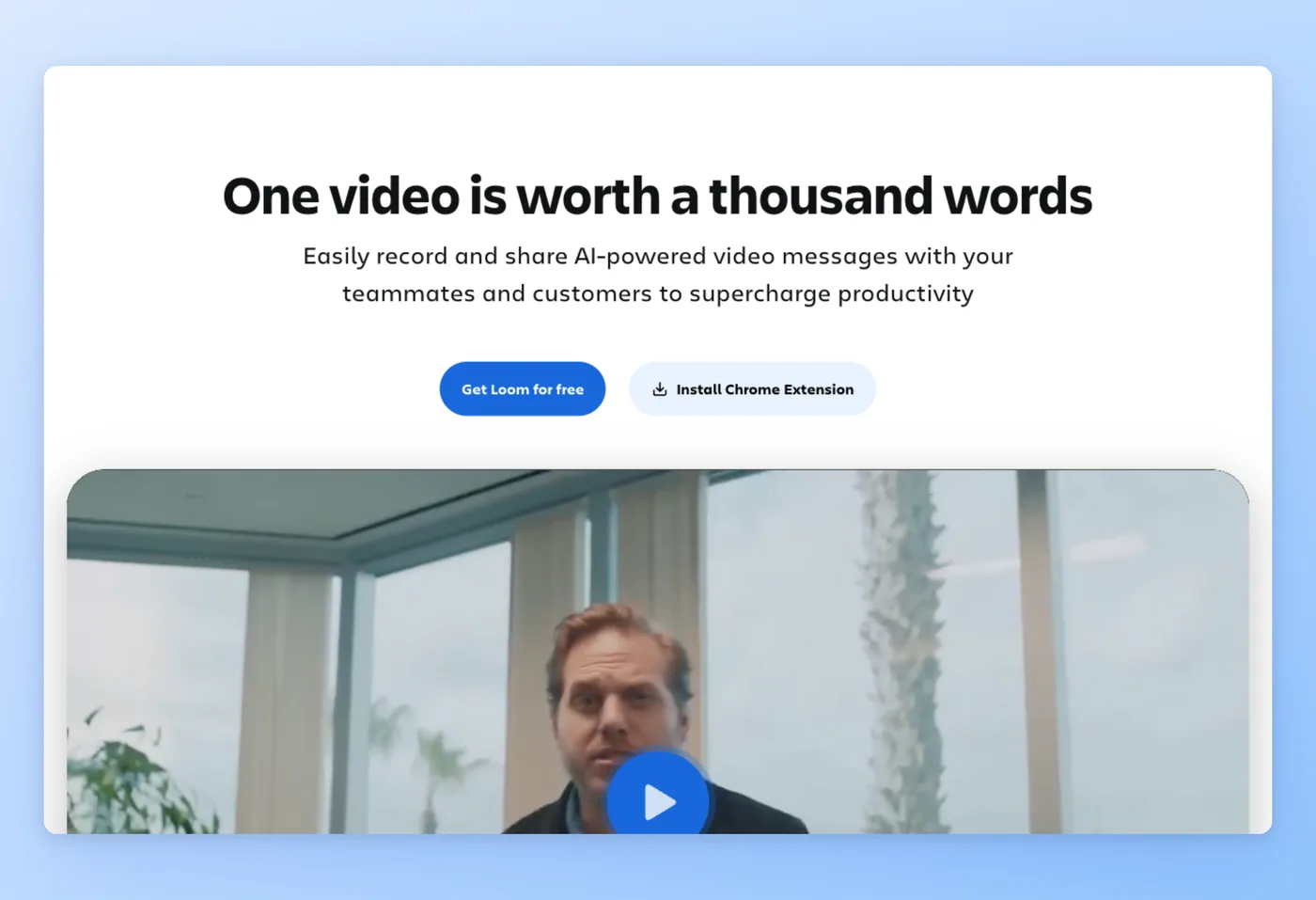
Loom: record once, hand off a link in seconds
Loom records your screen and sends a shareable link in one motion, which is why distributed teams rely on it for async walkthroughs. Now owned by Atlassian, it bills itself as "the easiest screen recorder you'll ever use."
Key Features
- Record and share in one step: capture, then drop a link straight into Slack, email, or a ticket.
- Built-in collaboration: viewers leave threaded comments for async feedback.
- Viewer analytics: see who watched and get view notifications.
- AI actions: turn recordings into Jira or Linear tickets, docs, and summaries in 50+ languages.
Strengths
- Polished, low-friction record-and-share flow that non-technical teammates pick up instantly.
- Comments and view tracking turn it into an async collaboration tool, beyond a plain recorder.
Limitations
- Cloud-storage dependency is overhead if you only want a recorder: "I churned with Loom too because I don't need the storage part."
- Editing is light only, with no timeline or multitrack.
Pricing
- Free tier: Yes, 25 videos, 5-minute cap, 720p, watermark, up to 50 members.
- Paid plans: Business $18/user/mo; Business + AI $24/user/mo, per seat.
Rated 4.7/5 on G2 (2,268 reviews) · 4.8/5 on Product Hunt (159 reviews)
"Loom replaced about half my meetings. Instead of booking 30 minutes to walk someone through a bug or a design change, I hit record, click through it, and paste the link. They watch on 1.5x when it suits them, drop a comment on the exact frame, and we're done." Product Hunt
Works Best For
Distributed teams sending quick async walkthroughs who want instant links and viewer comments.
How it compares to Camtasia
In a camtasia vs loom matchup, Loom is the cloud, per-seat tool for quick messages and light trims, while Camtasia is the desktop suite for polished timeline production. Loom vs camtasia comes down to speed and sharing against produced-video quality: Loom wins when you need to send a walkthrough in two minutes, Camtasia wins when the recording needs callouts, captions, and editing. Pick Loom if async sharing matters more than polish.
Prices verified June 2026.
Next up is the free, open-source option many teams test first.
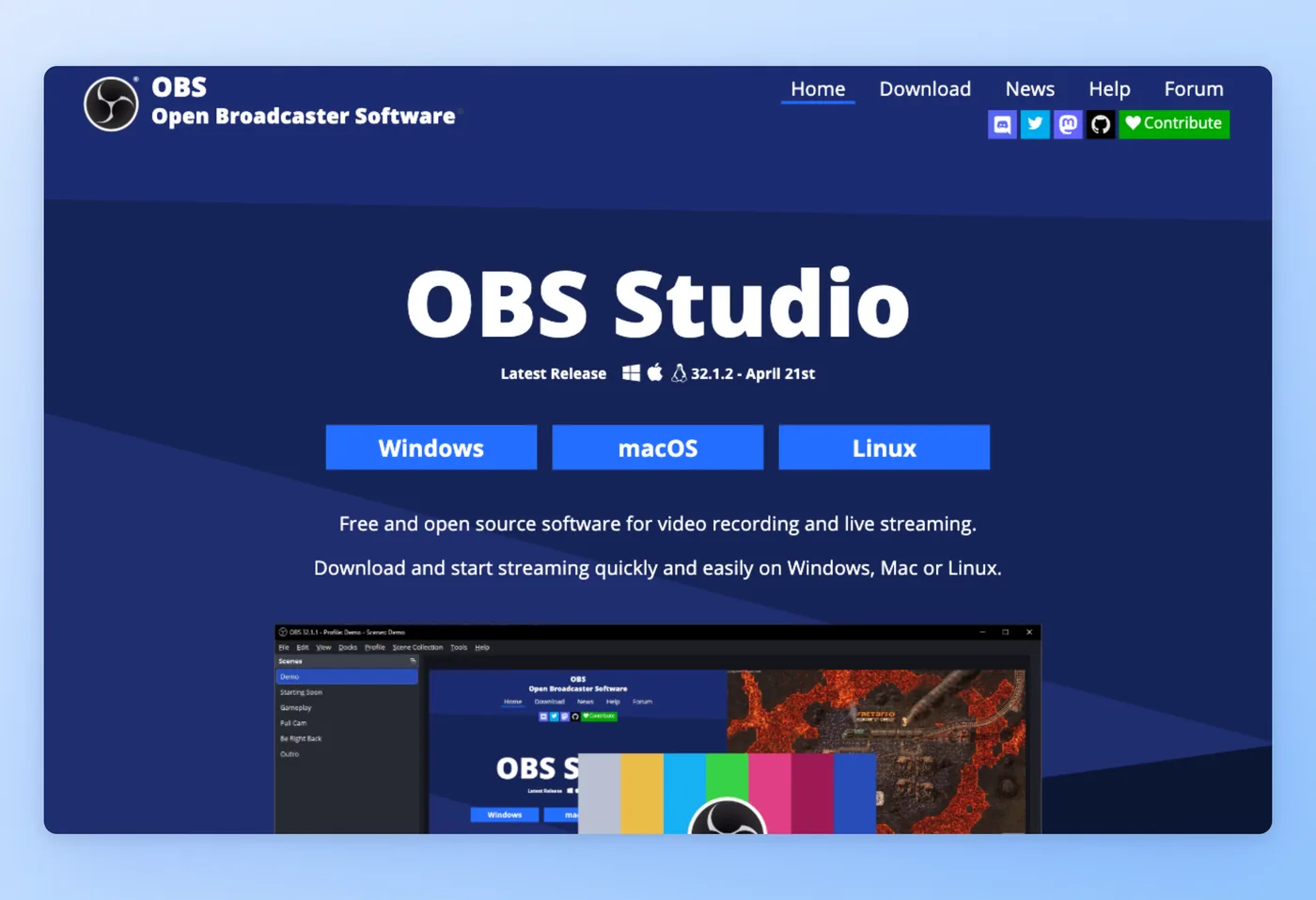
OBS Studio: the free, open-source workhorse
OBS Studio handles real-time recording and live streaming without charging a cent, branding your exports, or cutting you off at a time cap. Streamers made it the de facto standard, and budget creators reach for it when they plan to edit elsewhere.
Key Features
- Fully free recording and streaming: runs on Windows, Mac, and Linux.
- Scene and audio control: deep control over sources, mixing, and layouts.
- Plugin ecosystem: extend capture, filters, and output through community plugins.
- No limits: record as long as you want at the quality your hardware allows.
Strengths
- Costs nothing and never stamps a watermark or stops the clock, which settles the free-tool question on its own.
- A lean core paired with its reputation as the streaming default; plenty of users rate it as good as free capture software gets.
"I use OBS for screen capture (check it out, way better than Camtasia, IMO. Especially if you are doing 4k video), and then edit in Camtasia." r/CamtasiaStudio, reddit.com
Limitations
- The learning curve is steep, and you set up the encoder and scenes manually before you record cleanly.
- High CPU and encoding load can cause stutter: users want "an OBS Studio alternative that doesn't melt my CPU," and crash reports appear ("OBS Studio did not properly shut down").
Pricing
- Free tier: Yes. The full app is open source at $0, exports carry no watermark, and recordings run as long as you like.
- Paid plans: None. The software is $0.
Rated 4.6/5 on G2 (134 reviews) · 4.7/5 on Capterra (1,074 reviews)
Works Best For
Streamers and budget-minded creators who want full capture control and will do post-production in a separate editor.
How it compares to Camtasia
The camtasia vs obs decision is free-and-raw versus paid-and-complete. OBS records anything with deep control but ships no editor, no auto captions, no zoom, and no cloud sharing, so post-production lives in another app. Obs vs camtasia for a beginner usually favors Camtasia, since OBS asks you to configure encoders and scenes first. Choose OBS when free and powerful beats easy and all-in-one.
Prices verified June 2026.
For affordable creative editing with a perpetual-license angle, Filmora is next.
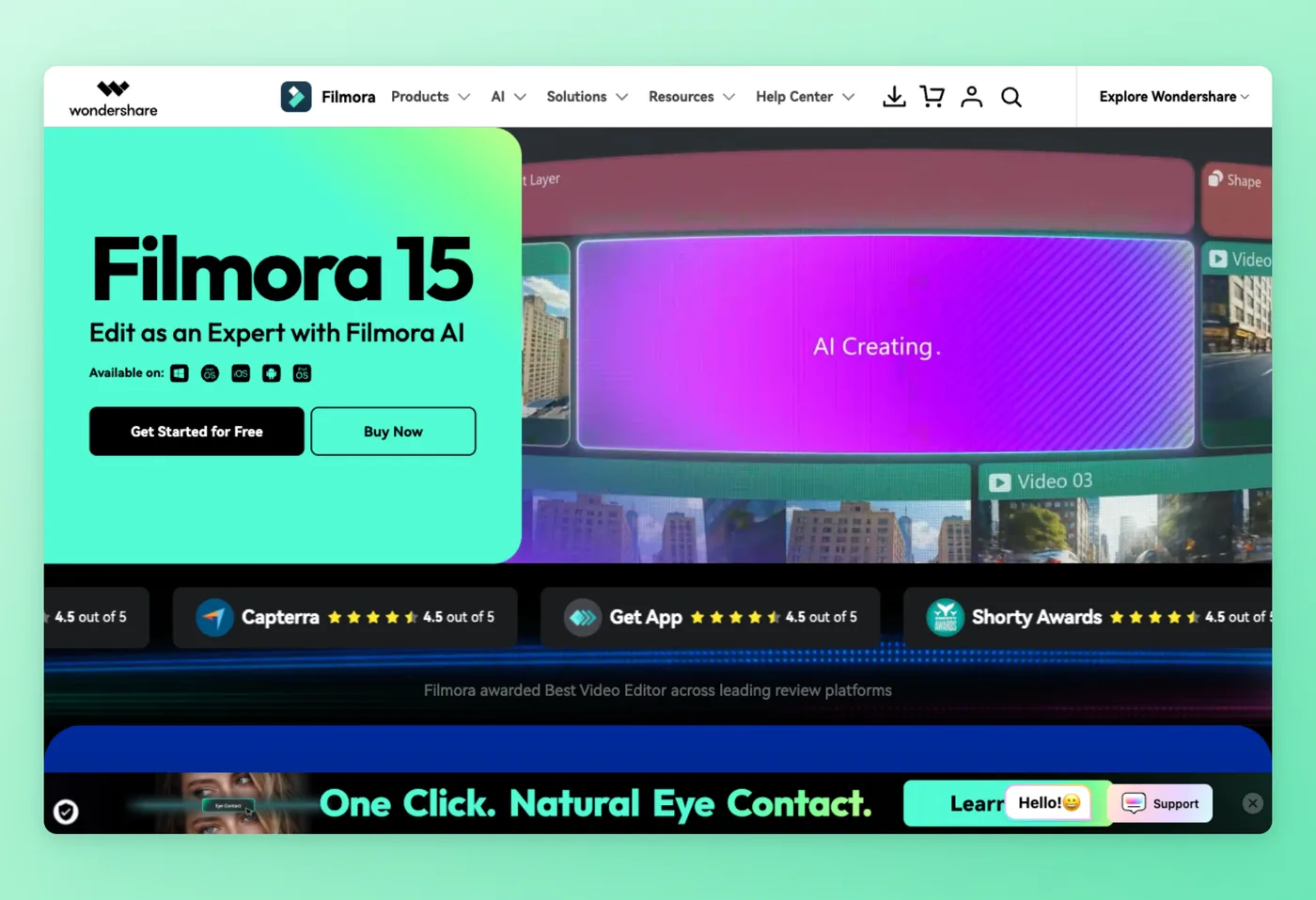
Filmora: affordable AI-assisted creative editing
Filmora targets YouTubers, social creators, and educators who want a fast, approachable video editor with heavy AI assistance. It runs on Windows, Mac, iOS, and Android, though it is a general creative editor rather than a dedicated tutorial tool.
Key Features
- Approachable workflow: non-technical creators get to a finished edit quickly.
- AI editing tools: voice enhancer, auto enhance, and compression that punch above the price.
- Huge asset library: 2.9M Filmstock assets for effects, music, and stock.
- Flexible licensing: subscription or a one-time perpetual option.
Strengths
- Fast, friendly editing for creators who do not want a steep curve.
- Strong AI-assisted features and a broad effects library for the money.
Limitations
- Wondershare stopped honoring "Lifetime" licenses and forced a subscription, a real trust grievance, and issued a DMCA takedown against a sponsored YouTuber who criticized the change (Hacker News: "How to completely destroy your reputation as a company 101").
- Interface gets crowded for simple edits and lags on heavy projects.
Pricing
- Free tier: No, a watermarked trial only.
- Paid plans: $19.99/mo, $61.99/yr, or $89.99 one-time perpetual; Windows and Mac licenses sold separately; AI features use credits.
Rated 4.5/5 on G2 (~600 reviews) · 4.5/5 on Capterra (730 reviews) · 4.4/5 on Product Hunt (454 reviews)
"Thus, I have to choose between paying for the new version, exporting with a watermark, or starting the project all over again. I fell for this once, forgot about it, then fell for it again today." Capterra
Works Best For
YouTubers and social creators who want affordable, AI-assisted editing across desktop and mobile.
How it compares to Camtasia
In a camtasia vs filmora comparison, Filmora is cheaper, offers a real perpetual option, and packs heavier generative AI. Filmora vs camtasia falls apart for training teams, though: Filmora is a creative and social editor with no SCORM, quizzes, or e-learning authoring that Camtasia ships. Weigh the documented license and DMCA episode if a perpetual purchase is the reason you are looking. Pick Filmora for social video, keep Camtasia for course production.
Prices verified June 2026.
If you are on Mac, ScreenFlow is the native pick worth a close look.
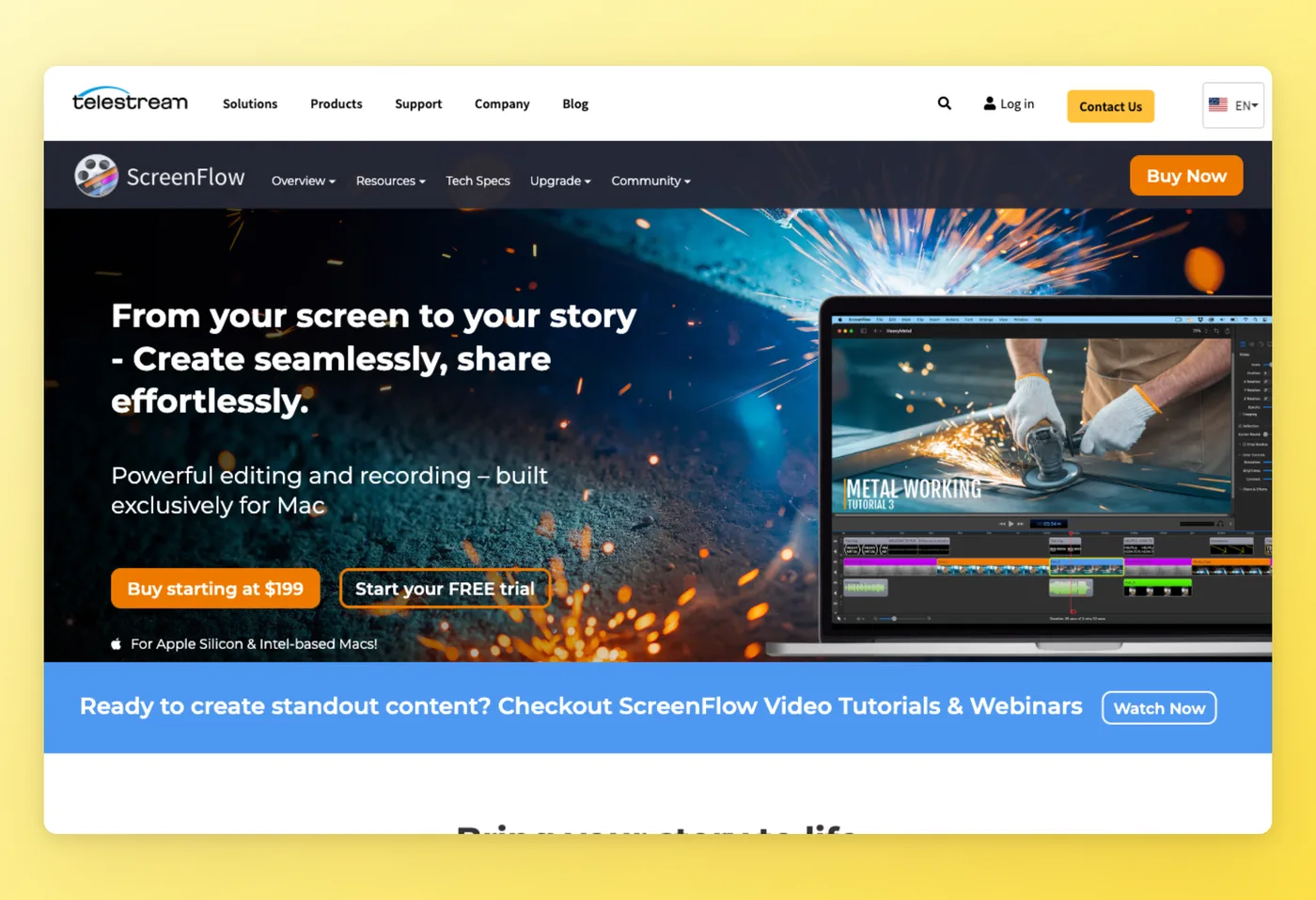
ScreenFlow: Mac-native pro recording and editing
ScreenFlow pairs professional screen capture with a real timeline editor, all on Mac, built by Telestream for tutorials, demos, and courses. Mac creators reach for it as the native answer to Camtasia.
Key Features
- Pro-grade capture: 4K and 5K recording, including iPhone and iPad screens.
- Real timeline editor: multitrack editing, animations, and keyframes.
- Apple Silicon optimization: stable and fast on M-series Macs.
- Bridges the gap: capable enough for full edits, light enough to learn quickly.
Strengths
- Editing depth that rivals Camtasia without a steep curve.
- Smooth and optimized on Apple Silicon: "switched to ScreenFlow after purchasing an M1 Mac Mini."
Limitations
- Paid major-version upgrades feel like bait-and-switch: reviewers say vendors "trick you into buying it" then charge "a fortune for updates."
- No auto cursor-follow or auto-zoom, a dated UI (per a Dec 2025 G2 review), and Mac-only, which rules it out for cross-platform teams.
Pricing
- Free tier: No, a watermarked trial only.
- Paid plans: $199 one-time; Super Pak $275, Super Pak+ $325; add-ons Stock Media $99/yr and Premium Support $59/yr.
Rated 4.8/5 on Capterra (24 reviews)
"Screenflow in my opinion is the best software to produce video courses for those who use macOS. The simplicity with which you can add special effects, callouts, sounds is disarming. Adding your own voice track is super easy." Capterra
Works Best For
Mac creators and course builders who want pro editing at a one-time price.
How it compares to Camtasia
The camtasia vs screenflow tradeoff is platform and pricing model. ScreenFlow matches Camtasia on editing depth at a lower one-time entry of $199, but it is Mac-only and nudges you toward recurring add-ons. Screenflow vs camtasia tips to Camtasia the moment your team mixes Windows and Mac. Pick ScreenFlow on an all-Mac team that prefers a one-time license.
Prices verified June 2026.
For lightweight capture and markup from Camtasia's own maker, Snagit is next.
Snagit: fast capture and markup from Camtasia's maker
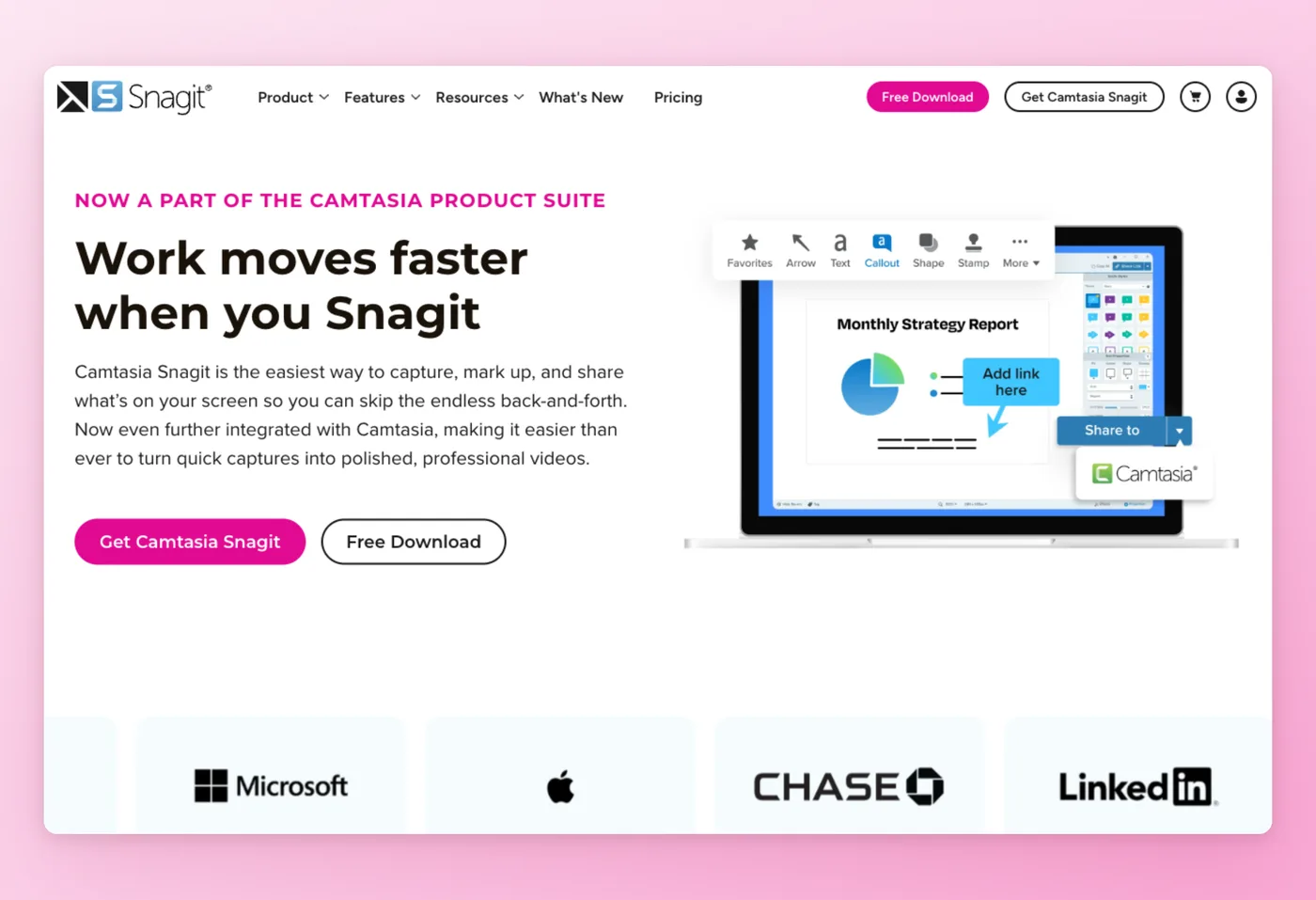
Snagit captures screenshots, GIFs, and short clips, then annotates them for quick sharing. TechSmith makes it, the same vendor behind Camtasia, and pitches it as "the easiest way to capture, mark up, and share."
Key Features
- Capture-to-share workflow: grab, mark up, and send in seconds.
- Markup beyond the basics: callouts, blur, scrolling capture, and GIF export.
- AI Step Capture: auto-builds step-by-step guides from a capture sequence.
- Camtasia handoff: clean export into Camtasia when a capture needs full editing.
Strengths
- Fast, intuitive capture and annotation that support and docs teams adopt quickly.
- Step Capture inches toward documentation, useful for teams writing how-tos.
Limitations
- Subscription pricing feels high for a focused capture tool, with occasional performance lag.
- macOS UI feels "anti-Mac" and pushes some users to CleanShot X or Shottr, and one org phased it out over a security-vetting concern (TechSmith's CEO publicly disputed any open vulnerabilities).
Pricing
- Free tier: No, trial only.
- Paid plans: ~$40/yr per seat, annual subscription (moved off perpetual licensing).
Rated 4.7/5 on G2 (5,873 reviews) · 4.7/5 on Capterra (500 reviews) · 4.5/5 on Product Hunt (6 reviews)
"What I like best about Snagit is how quickly I can capture, edit, and share visual information without breaking my workflow. I use it daily in my consulting work for screenshots, annotated images, documentation, training materials, client communication, and quick screen recordings." G2
Works Best For
Support and training teams that need quick capture, markup, and GIFs at a low price.
How it compares to Camtasia
Snagit is the same-vendor lightweight front end: capture and markup at a fraction of Camtasia's price, where Camtasia is the full editor it hands off to. The tradeoff is cheap, fast capture, GIFs, and step guides against no real video editing. Step Capture is the interesting near-documentation feature, building step lists automatically, though it stops short of a full doc engine. Pick Snagit for quick visual capture, not for producing or editing video.
Prices verified June 2026.
The last pick changes the deliverable entirely, from video to documentation.
Hinto AI: the video-to-documentation engine
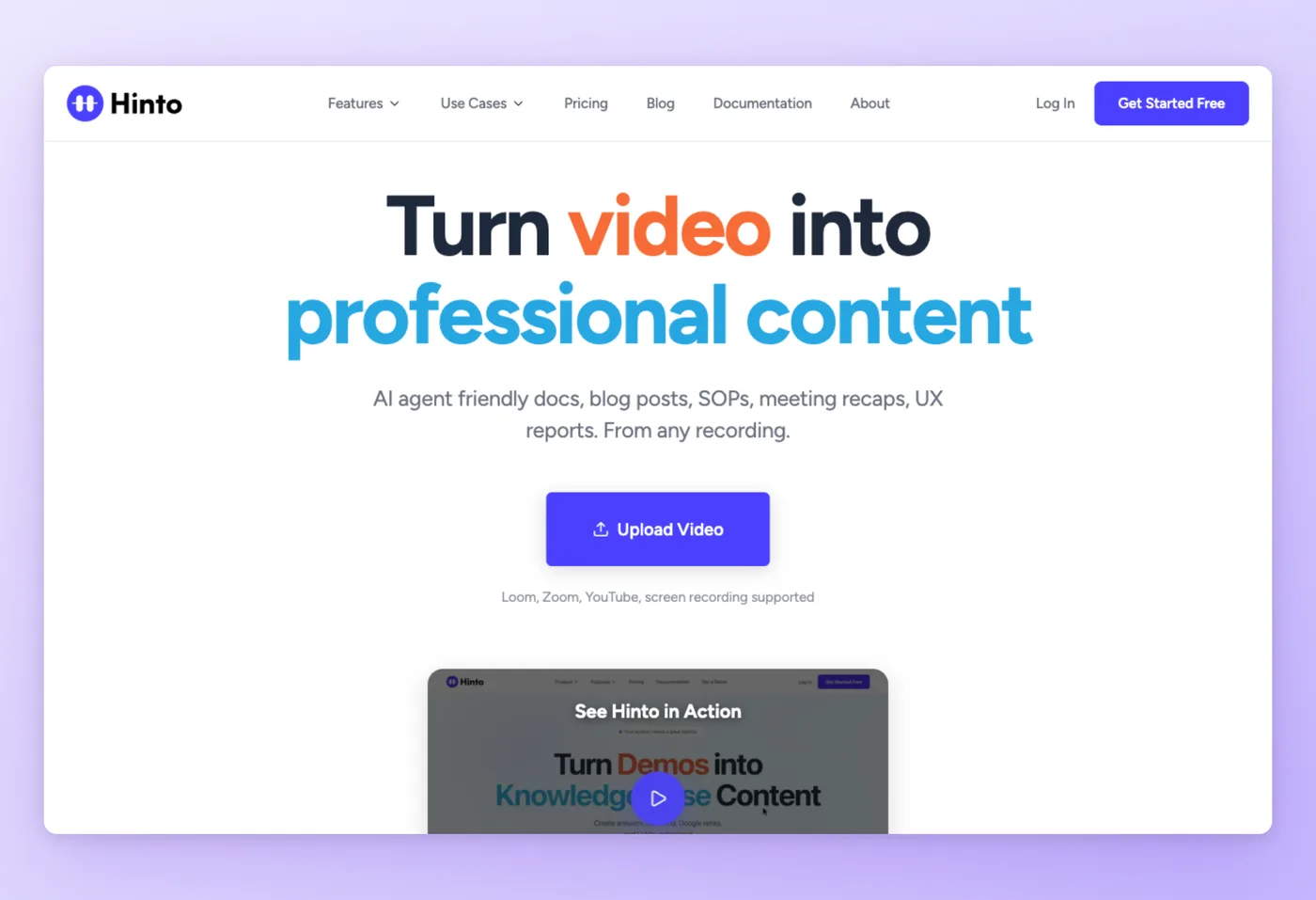
Hinto AI turns a screen recording into a written step-by-step guide with screenshots, the deliverable Camtasia is not built to produce. Record in the web app or Chrome extension, or import an existing Loom, Zoom, YouTube, or MP4/MOV/WebM file, and it writes the documentation for you.
Key Features
- AI action detection: auto-extracts screenshots and written steps from the video.
- Knowledge-base generation: one long video becomes a full table of contents of articles.
- Templates: Help Centers, What's New release notes, SOPs, user research, and sprint recaps.
- Image editor and GIF engine: crop, frame, focus, or blur sensitive info, and turn clips into GIFs.
- AI-ready output: auto llms.txt and llms-full.txt for ChatGPT or Claude, plus 50+ languages, custom-domain hosting, and Markdown/HTML export.
Strengths
- Produces the written deliverable Camtasia cannot: a step-by-step guide with screenshots.
- Accepts existing video, so there is no re-recording, and the output is AI-ready.
Limitations
- It documents recordings rather than editing video, so reach for something else when you want a polished edited video.
- Uses a monthly generation credit system, with no annual billing. You can still download the raw video.
Pricing
- Free tier: Yes, 20 total generations, 1 project, 20-minute video limit.
- Paid plans: Small Team $15/mo, Growth $99/mo, All-Inclusive $499/mo.
Works Best For
Support, operations, and product teams that need written help articles or SOPs from a recording, not a video.
How it compares to Camtasia
Output type separates the two tools. Camtasia produces an edited video; Hinto AI produces the written how-to or SOP. They serve different jobs: pick Camtasia when the deliverable is a video, and pick Hinto AI when the deliverable is the documentation. You can still download the raw recording from Hinto if you also want the video file, so choosing it keeps the footage available.
Prices verified June 2026.
Turn one recording into a full help center with screenshots, in any of 50+ languages.
Get started freeHinto AI vs Camtasia: Where Each Wins
Camtasia is good at edited video, with zoom, callouts, captions, and transitions. The split with Hinto AI comes down to what you ship.
| Category | Camtasia wins when... | Hinto AI wins when... |
|---|---|---|
| Output | you need an edited, polished video with zoom, callouts, captions, and transitions | you need a written step-by-step guide or SOP with screenshots |
| Workflow | you want to record and edit in one timeline app | you want to record (or import existing video) and auto-generate docs |
| Input | you record fresh inside Camtasia | you have an old Loom, Zoom, or YouTube recording to turn into docs |
| Distribution | you export and host the video file yourself | you want hosted docs on a custom domain plus Markdown and HTML export |
| AI readiness | output is video, not a goal here | you need llms.txt so ChatGPT or Claude can read your docs |
| Price entry | you will pay ~$200/yr for the editing suite | you want $15/mo or a free tier for documentation |
Use Camtasia when the deliverable is an edited video, and use Hinto AI when the deliverable is the documentation. They solve different stages of the same workflow.
Where Camtasia Is Still the Best Choice
Some teams should stay put. When the deliverable is a produced video, Camtasia is hard to beat.
Camtasia remains the best option when:
- You build e-learning courses that need SCORM packaging and built-in quizzing.
- You produce polished multi-segment tutorials with callouts, cursor effects, zoom and pan, and dimming or blur.
- You need automatic captions and translation across seven languages inside one app.
- You want AI voice, avatar, and script tools without stitching together separate products.
- You run a cross-platform team on Windows and Mac and want a single editing app for both.
One creator with 400+ tutorials called it "one of the best all-in-1 screencast recording and editing tools." For instructors, L&D teams, and course creators who need polished, watermark-free training video and will pay the annual subscription, Camtasia is still the right buy.
What Camtasia Users Actually Ask
These questions come up repeatedly in community discussions, on Reddit, Hacker News, and product review threads.
| Concern | Why it matters | Best direction |
|---|---|---|
| "Is it worth the cost?" Camtasia runs ~$180 to $300. | Price is the #1 reason users switch, cited across Reddit and Hacker News. | OBS (free) or Filmora ($89.99 one-time) for editing; Loom free tier for shares. |
| "Tricked into paid upgrades." | ScreenFlow reviewers say vendors "trick you into buying it" then charge "a fortune for updates"; Filmora invalidated "Lifetime" licenses. | Read the upgrade policy before buying perpetual; subscriptions avoid surprise upgrade fees. |
| "Too heavy for simple recording." | Camtasia feels "crowded with too many options for simple videos"; OBS users want one "that doesn't melt my CPU." | Loom or Snagit for quick capture; Hinto AI if the real goal is a written guide. |
| No Linux support. | A long-standing gap, per Hacker News: "I'd pay almost anything... for Camtasia on Linux." | OBS Studio, which runs on Windows, Mac, and Linux. |
| "I don't need cloud storage." | Loom users churn over forced hosting: "I don't need the storage part." | OBS for local files, or Hinto AI when the output should be hosted docs, not stored video. |
"I just can't take the constant crashing, the inability to edit down to less than 30fps. Plus..... that crash last night that actually corrupted the file. I'm done..." r/VideoEditing, reddit.com
A common thread on r/elearning and Hacker News ties most of these back to one mismatch: paying for a video suite when the actual goal is a quick share or a written guide. That last concern is where Hinto AI fits, turning the recording into hosted documentation instead of another stored video file.
The Real Cost of Camtasia Alternatives
List price is not total cost. The headline Camtasia cost is only the starting point, and over three years for a 10-person team, the gaps get wide.
| Tool | Annual (10 users) | 3-year cost | Hidden cost | What you get |
|---|---|---|---|---|
| Camtasia Essentials | ~$2,000/yr | ~$6,000 | Starter tier still watermarks exports | Watermark-free editing suite |
| Loom Business | $2,160/yr | ~$6,480 | Per-seat scaling; cloud lock-in | Async video + hosting |
| Loom Business + AI | $2,880/yr | ~$8,640 | Per-seat scaling | Async video + AI actions |
| ScreenFlow | $1,990 once | ~$1,990 + add-ons | Paid major upgrades; Mac-only; Stock Media $99/yr, Support $59/yr | One-time pro editor |
| Filmora (perpetual) | ~$900 once | ~$900 | Win/Mac licenses separate; no future major versions | One-time creative editor |
| OBS Studio | $0 | $0 | Time: steep setup, manual encoder config, separate editor | Free capture and streaming |
| Snagit | ~$400/yr | ~$1,200 | Capture only, not editing | Capture, markup, GIFs |
| Hinto AI Small Team | $180/yr | $540 | Monthly generation credits | Written docs, flat per-account pricing |
OBS at $0 catches most people off guard. The software is free, but setup complexity is the recurring community complaint, and post-production happens in a separate editor, so you pay in time rather than invoices. Per-seat tools like Loom climb steadily as the team grows, while perpetual licenses (ScreenFlow, Filmora) carry paid major-version upgrades down the line.
"Free version is more than capable and Studio version is one-time purchase so you actually own it. I am doing all my new projects in Resolve now for a couple of months and not looking back. Camtasia is good, but subscription model ruined it." r/CamtasiaStudio, reddit.com
Hinto AI runs flat per account rather than per seat, which keeps the documentation step cheap as the team grows. It also folds recording, screenshot extraction, and hosting into one tool, so a single subscription replaces a recorder plus a doc editor plus a hosting setup.
Document the whole team for one flat price
No per-seat math. Record once, generate the docs, and host them on your own domain.
Best Camtasia Alternative by Team
| Team | What they need | Best alternative |
|---|---|---|
| Instructors / L&D | polished course videos, SCORM, captions | Camtasia (cross-platform) or ScreenFlow (Mac) |
| Distributed / remote teams | fast async walkthroughs, shareable links | Loom (free tier) |
| Customer success / support | help centers, quick capture + markup, AI-ready docs | Snagit for capture, Hinto AI for docs (exports to Intercom Fin) |
| Product marketing | "What's New" and release notes from demos | Hinto AI (What's New template) |
| Operations / HR | SOPs and onboarding wikis from Zoom or Loom recordings | Hinto AI (SOP template) |
| Engineering / QA | sprint demo recaps, bug-fix docs | Hinto AI (sprint and bug templates) plus OBS for raw capture |
| Streamers / gamers / budget creators | free, powerful capture and streaming | OBS Studio |
| YouTubers / social creators | affordable AI creative editing | Filmora |
Video-production roles stay pointed at Camtasia, ScreenFlow, and Filmora, where editing depth matters. The documentation-heavy roles, support, operations and HR, product marketing, and engineering, land on Hinto AI as first choice, since their deliverable is a written guide or SOP rather than a finished video.
Local, Cloud, or Documentation-First?
Where your recordings live matters for privacy-sensitive teams, and it shapes which tool fits.
| Workflow | Best tools | Best for | Risk |
|---|---|---|---|
| Local files, you host | OBS Studio, Camtasia, ScreenFlow, Filmora | privacy-conscious users, no cloud dependency | you handle hosting and distribution yourself |
| Cloud video hosting + links | Loom | fast async sharing with viewer analytics | recordings live on the vendor cloud ("I don't need the storage part") |
| Hosted documentation, not video | Hinto AI | public help centers, custom domain, AI-ready docs | output is written docs, not an editable video (you can still download the raw video) |
The Loom cloud-dependency complaint is real for teams that only want a recorder, since the footage and the link live on Loom's servers. Local-file editors keep everything on your machine but leave hosting to you. Teams who want a published help center rather than a stored clip get a documentation-first option in Hinto AI: it hosts written docs on a custom domain and keeps the raw recording downloadable. When you weigh one Camtasia replacement against another, where the final output lives counts for just as much as the editing toolset.
How to Switch from Camtasia
Switching is straightforward once you decide whether your real deliverable is a video or a document. These steps work for both paths.
- Inventory your existing Camtasia projects and exports: .mp4 video exports, .trec or .camrec source recordings, and caption .srt files.
- Decide the real deliverable. For an edited video, move to another editor (ScreenFlow or Filmora). For a written guide, move to Hinto AI.
- Export finished videos as MP4 so they stay tool-agnostic. Camtasia exports to MP4 and straight to YouTube.
- To repurpose into documentation, upload an existing Camtasia MP4 into Hinto AI. It accepts MP4, MOV, and WebM and auto-extracts steps and screenshots, with no re-recording.
- Recreate captions. Camtasia exports closed captions and subtitles, and Hinto regenerates structured text plus docs in 50+ languages from the same video.
- Set up hosting. Camtasia leaves you to host the file yourself; Hinto publishes to a custom domain with SSL included.
Most people skip the reuse step: you can turn an old Camtasia MP4 into a published how-to in Hinto without re-recording a thing.
Picking a Camtasia Replacement: 3 Questions to Answer First
Start with the output you need: an edited video, a quick share, or a written document. Platform and budget settle the rest. The lists below sort the common apps like camtasia and programs like camtasia by exactly that logic.
Decision Framework
- E-learning and course builders: Camtasia for SCORM and quizzing, or ScreenFlow on Mac. Both are purpose-built for producing training video, which sets them apart from the rest of this list.
- Quick screen recording and async share: Loom (free, polished) or OBS (free, more technical setup).
- Pro creative and social video: Filmora, the most affordable AI-assisted editor among video editing software like camtasia.
- Quick capture, screenshots, GIFs, and step guides: Snagit, the lightweight companion from Camtasia's own maker.
- Free requirement: OBS Studio for a full free tool, Loom for a limited free tier, Hinto AI for a free documentation tier.
- Platform: on Windows, your shortlist is Camtasia, Filmora, OBS, Snagit, and Loom. Mac users get all of those plus ScreenFlow. Linux narrows things down to OBS alone.
"Camtasia should be strictly used in situations where screen recording is the primary purpose of the video. Unless you're doing a lot of other things with it - no reason to leave Camtasia. But if you ARE doing anything beyond basic edits (and I do mean basic), using Premiere will be a lot less headaches." r/CamtasiaStudio, reddit.com
Download the migration checklist (PDF). step-by-step plan for switching away from Camtasia.
Teams converting recordings into structured documentation can use Hinto AI for that step, since none of the other programs like camtasia output a written guide.
Frequently Asked Questions
Is Camtasia free to use?
No, there is no genuine free desktop tier. Wondering is camtasia free usually ends at the Starter plan, the cheapest paid tier, which still watermarks your exports. Watermark-free output needs Essentials at roughly $200 a year. A separate "Camtasia Online" free recorder exists, but the desktop editor is paid only, so there is no full free version of camtasia.
Which Camtasia alternative costs nothing?
OBS Studio leads here: it is open source, charges nothing, leaves no watermark, and runs without a recording cap, as long as you handle the setup yourself. Loom is a partial free alternative to camtasia with a limited free tier (25 videos, 5-minute cap). For documentation, Hinto AI offers a camtasia free alternative tier with 20 generations.
Running on a Mac and need a Camtasia alternative?
ScreenFlow is the Mac-native pick, with deep timeline editing for a $199 one-time license. Loom also runs on Mac for quick async shares. Camtasia itself runs on Mac too, so staying put is an option if you want its e-learning tooling.
Best Camtasia alternative for online courses and e-learning?
Camtasia is hard to beat for courses thanks to SCORM packaging and quizzing, with ScreenFlow as the Mac equivalent for editing depth. To ship written course documentation instead of a video, Hinto AI generates structured help articles from a recording.
Can I turn a Camtasia recording into a written guide?
Yes. Export the finished video as MP4 and upload it to Hinto AI. It accepts MP4, MOV, and WebM, then extracts the steps and screenshots automatically and writes a structured guide, with no re-recording required.
Final Verdict
Camtasia is good at produced video, with the timeline editing, captions, and SCORM tooling that instructors and L&D teams need. The real question is whether a video is what you have to ship, because that suite costs about $200 a year and gets heavy for simpler jobs.
Match the alternative to Camtasia to your output. For an edited tutorial or course, choose Camtasia, ScreenFlow on Mac, or Filmora for cheaper creative work. For a quick async share, Loom or OBS does it free. For the written documentation case, no video editor fits.
That documentation gap is where Hinto AI stands alone: record or import a walkthrough and it produces the step-by-step guide with screenshots, hosted and AI-ready. If the deliverable is the guide, not the footage, try Hinto AI free.

Founder of Hinto - passionate about making knowledge accessible and helping teams create better documentation.
Ready to Build a Better
Knowledge Base, Faster?
Get Started Free & Create Your First Article in Minutes