
Loom vs. Camtasia: 2026 Comparison for Teams
Loom and Camtasia solve different problems. Loom is the fastest path from idea to shared link, suited for distributed teams replacing synchronous meetings with recorded walkthroughs. Camtasia is a full desktop video editor, built for trainers and instructional designers who need multitrack timelines, captions, and AI narration.
"Out of Bandicam / Camtasia / Loom I'd go with Loom, just because it's the simplest and fastest to use. Bandicam feels more old-school 'game recorder,' Camtasia is heavier with editing stuff baked in, and Loom is just hit-record-and-go." r/screenrecorders, reddit.com
Neither tool converts a recording into searchable written documentation. Hinto AI fills that gap: it turns any recording (including a Loom link or Zoom session) into a structured help article, SOP, or onboarding guide, and the video stays downloadable.
This loom vs camtasia comparison covers recording, editing, pricing, AI features, and real user feedback, with a clear winner named for each use case. Readers researching camtasia vs loom will find the decision framework below straightforward. It also covers loom cost versus camtasia cost, and addresses how Snagit compares to Loom for teams weighing annotation tools alongside async video.
Turn your recordings into searchable documentation in minutes. Free to start, no credit card required.
Try Hinto AI freeWhat is Loom?
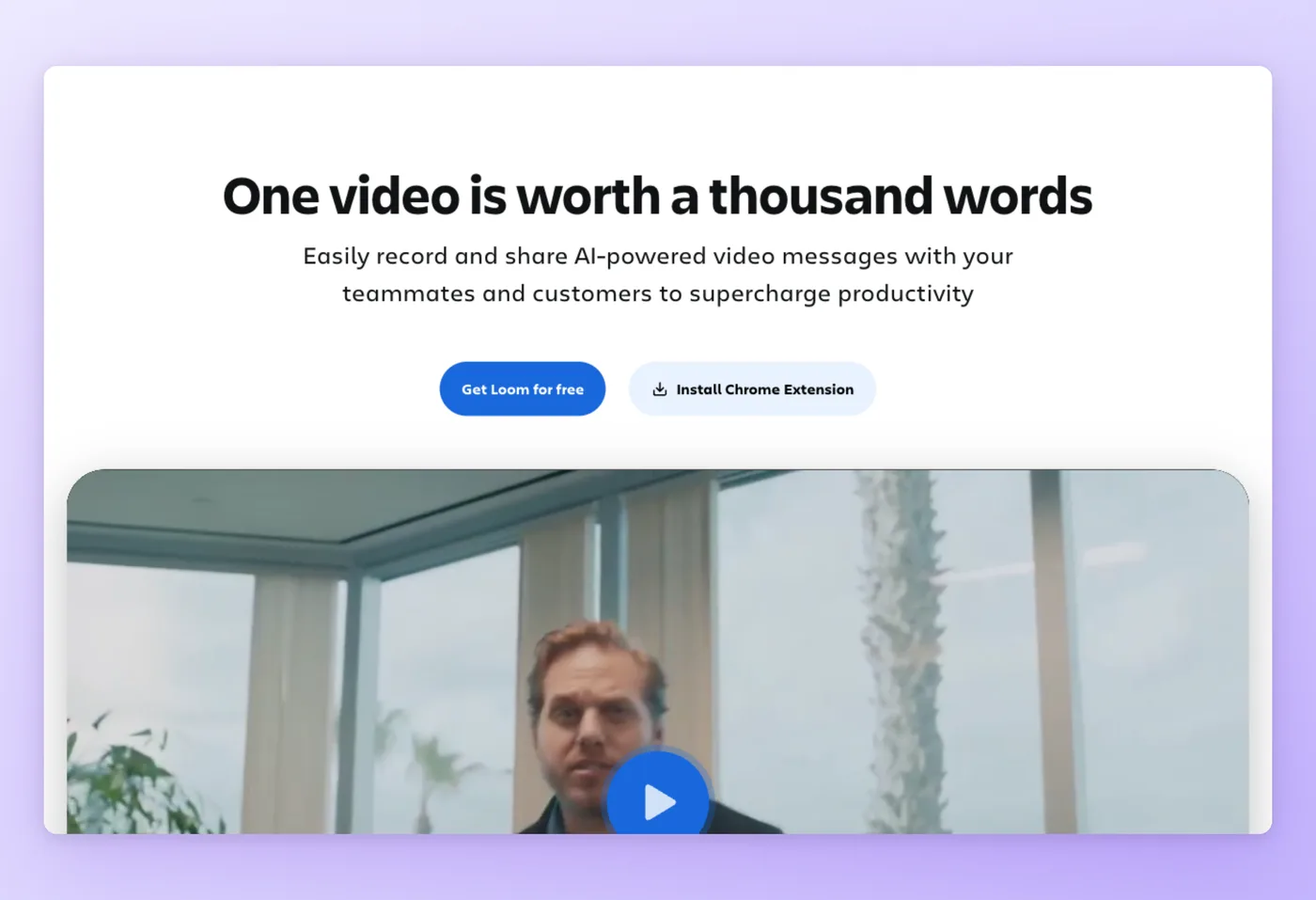
Loom turns any screen session into a viewer link within moments of stopping the recording, so teammates can catch up on their own schedule. Built as an AI-powered async video platform, Loom serves distributed and remote teams who want to replace unnecessary meetings with short, context-rich video messages.
Rated 4.7/5 on G2 (2,409 reviews) · 4.8/5 on Product Hunt (159 reviews) · 4.6/5 on GetApp (522 reviews)
Key Strengths
- One-click record-to-link workflow: Recording begins from a single keyboard shortcut or toolbar button in the Chrome extension, desktop app, or mobile app, and a viewer link is ready the moment you stop.
- AI-powered automation: The AI strips filler words and dead air, generates titles and chapter markers, turns meetings into searchable transcripts, and auto-populates Jira tickets, all reducing manual follow-up after every recording.
- Deep integrations: Plugs into the tools engineering and support teams already use, Atlassian products (Jira, Confluence), code platforms (GitHub), and customer-facing channels (Zendesk, Intercom, Notion, Slack).
Limitations
- The Starter (free) tier caps each recording at 5 minutes, holds no more than 25 videos per account, and tops out at 720p.
- AI capabilities are gated behind the $24/user/month tier; free and Business plans cannot access summaries, meeting recaps, or transcript search.
- There is no timeline-based video editor; editing is limited to trim, stitch, and overlay tools.
Loom's strengths make it the right tool for fast async communication, but teams that need post-production editing or structured documentation will hit its limits.
"The app still crashes, Loom AI is buggy and lags often, and the moment our UI changes we have to re-record everything from scratch. We're looking for an alternative that has reasonable pricing, stable recording, and ideally a way to update content without redoing the entire video." r/Entrepreneur, reddit.com
What is Camtasia?
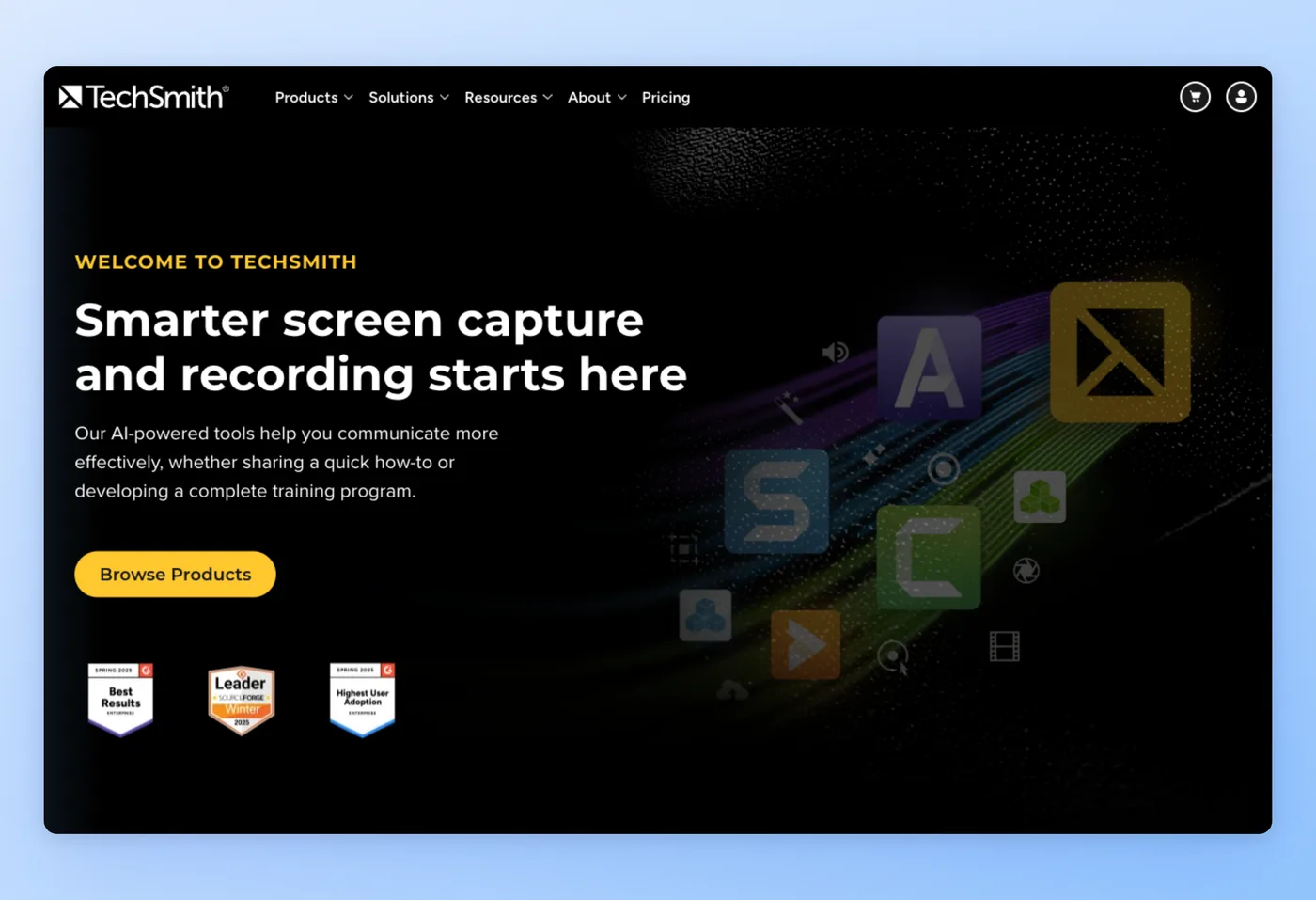
Where Loom prioritizes speed and sharing, Camtasia prioritizes production quality and editing depth. Built by TechSmith, Camtasia is a full-featured desktop editor that handles recording, editing, and export in a single app, designed for L&D teams and corporate trainers who output course-ready video content without needing a full production team.
Rated 4.6/5 on G2 (1,715 reviews) · 4.5/5 on GetApp (452 reviews) · 4.7/5 on SourceForge (40 reviews)
"Camtasia is a full video editor in addition to screen recording, it's not a good comparison to those two for that reason." r/screenrecorders, reddit.com
Key Strengths
- Full multitrack timeline editor: Captures desktop audio and mic input as independent audio channels alongside screen and camera, then lets you edit with drag-and-drop precision, cursor highlighting, annotation overlays, and background replacement.
- AI content generation: AI avatar, script, and voice generation let teams produce synthetic narrated training content without filming anyone.
- E-learning workflow support: Zoom and Microsoft Teams recording import, PowerPoint slide integration, LMS export, and Smart Player with chapter support make Camtasia a natural fit for L&D teams.
Limitations
- No free tier. Camtasia requires a paid annual subscription to use without watermarks. A limited trial exists, and TechSmith offers a separate free browser-based recorder (Camtasia Online) with basic capture features only.
- Pricing is listed in GBP on the website; USD equivalents are estimates.
- Subscription is non-transferable and annual-only, with no monthly billing option.
Camtasia's editing depth makes it the right tool for polished tutorial production, but teams that need quick async sharing or searchable documentation will find it over-engineered for that work.
TechSmith users weighing screenshot-heavy documentation workflows often compare Snagit alongside Loom in this decision. Snagit is a focused image and short-video capture tool, purpose-built for annotated screenshots and quick clips rather than full video editing or async sharing.
Loom vs. Camtasia vs. Hinto AI: At a Glance
The table below maps each tool across nine dimensions, pricing, recording, editing, sharing, AI, platform, and more. Detailed breakdowns follow for camtasia vs loom and loom vs camtasia searches alike.
| Loom | Camtasia | Hinto AI | |
|---|---|---|---|
| Free Tier | Yes (25 videos max, 5-min cap, 720p) | 30-day free trial | Yes (20 generations) |
| Starting Price | ~$12.50/mo (Starter) | ~$179.88/yr (Creator) | $15/mo (Small Team) |
| Best For | Async video messaging | Polished tutorial production | Video-to-documentation |
| Recording | Browser-based, screen + cam | Desktop app, screen + cam + system audio | Built-in screen recorder + accepts any video |
| Editing | Basic trim and emoji reactions | Full timeline editor with effects, annotations, captions | AI-generated screenshots and step extraction; image editor |
| Sharing | Link sharing, team workspace, comments | Export to MP4/GIF, no built-in share feed | Public URL with custom domain, Notion/Confluence/Intercom sync |
| AI Features | Auto-captions, transcript search | None (or limited) | Core feature: video-to-written-guide, 50+ language generation |
| Platform | Browser (Chrome extension) | Windows and macOS desktop app | Web app (browser) |
| Data Portability | Videos tied to Loom account; export available | Files stored locally | Exportable docs; video downloadable |
Prices as of June 2026. Check each tool's pricing page for current rates.
Your recordings already contain the knowledge your team needs. Get structured docs from them automatically, free tier included.
Get started freeFeature Comparison: Loom vs. Camtasia vs. Hinto AI
For async video tools, the dimensions that matter most are how easily you can record, how much you can edit, how well you can share and collaborate, and what the AI does for you.
Recording
Loom: Record from a browser via the Chrome extension, from the desktop app on Mac or Windows, or from the mobile app. Captures screen, camera bubble, and system audio, with background replacement, mic noise filtering, in-app speaker prompts, drawing tools, and mouse spotlight. On the free Starter plan, recordings top out at 5 minutes and 720p. Upgrading to Business removes both limits and adds 4K output.
Camtasia: Desktop application for Windows and macOS. Captures desktop audio and mic input as independent audio channels alongside screen and camera footage, with no recording-length limits. Requires a paid license to avoid watermarks. Supports Zoom cloud recording import and iOS screen recording.
Hinto AI: Built-in web-based screen recorder via the Hinto web app or Chrome Extension. Also accepts any existing video as input: Loom links, Zoom recordings, YouTube URLs, or local MP4, MOV, and WebM uploads. This means you can document a process from a recording made months ago without re-recording anything.
Editing
Loom: Trim, stitch, transcript-based editing, text and arrow overlays, stylized captions, and GIF thumbnails. No multitrack timeline editor. Editing is designed for quick cleanup, not post-production.
Camtasia: Full multitrack timeline editor with drag-and-drop precision. Text-based video editing, AI voice and avatar generation, filler-word removal, background replacement (chroma key), cursor highlighting, annotation overlays, stock assets via Shutterstock, video compression, and PowerPoint import. For editing depth, Camtasia offers more capability than either Loom or Hinto AI.
Hinto AI: No timeline video editor. Instead, AI action detection automatically extracts screenshots at key moments. The in-app image editor supports crop, frame, focus, and blur. A GIF engine converts video segments to animated clips. The regeneration tool lets you highlight any section and ask the AI to rewrite or re-extract images for that block only, which addresses the re-recording problem that Loom users commonly report.
Sharing and Collaboration
Loom: Instant shareable link after every recording. Team workspaces, folders, and viewer engagement tools (reactions, thread comments, watch data) are built in. Identity management (SSO, SCIM provisioning) requires the Enterprise tier. Viewer engagement insights and exportable analytics are available on Business and above.
Camtasia: Export to MP4 or GIF; cloud sharing via TechSmith Screencast. There is no async commenting feed, audience engagement data, or shared link workspace for team review.
Hinto AI: One-click public URL with custom domain and SSL. Syncs documentation directly to Notion, Confluence, GitHub, GitLab, and Intercom. API and webhooks for programmatic publishing. No async video comment thread.
AI Features
Loom: Generates titles, meeting recaps, chapter markers, and transcripts; strips filler words and dead air automatically; populates Jira work items via AI bug report mode; and supports AI variables for personalized messaging. AI capabilities are gated behind the $24/user/month tier.
Camtasia: AI avatar generation, AI script generation, AI voice generation, background noise removal, transcription, and text-based video editing. The AI is oriented toward producing synthetic training content, not workflow automation.
Hinto AI: AI is the core product. Converts video into structured multi-article documentation, SOPs, help centers, release notes, and blog posts. Supports 50+ language generation from a single recording. Also generates llms.txt and llms-full.txt files for AI agent consumption.
Integrations
Loom: Dev and project tools, Jira, Confluence, GitHub, GitLab, Atlassian Rovo; communication, Slack, Gmail, Intercom, Zendesk; productivity, Notion, Dropbox; and enterprise-tier connectors, Salesforce and Zoom import.
Camtasia: Zoom, Microsoft Teams, PowerPoint, LMS platforms (specific platforms not named on the website), Shutterstock, TechSmith Screencast, TechSmith Audiate, TechSmith Snagit.
Hinto AI: Intercom (Fin AI Agent), Notion, Confluence, GitHub, GitLab, Framer CMS (via API), API and webhooks.
Pricing: Loom vs. Camtasia
Loom uses a per-seat subscription with a free tier. Camtasia uses an annual subscription with no free tier, and both tools charge separately for AI features.
Loom Pricing
- Free plan: Yes. Capped at a 25-video library, 5-minute maximum per recording, and 720p resolution.
- Paid plans:
- Billing model: Per seat, monthly or annual (annual saves up to 17%).
- Annual cost estimate: One Business seat runs approximately $216/year. One Business + AI seat runs approximately $288/year.
Camtasia Pricing
- Free plan: No. A limited trial is available, plus a separate free browser-based recorder called Camtasia Online. The full desktop application requires a paid annual subscription.
- Paid plans (prices listed in GBP on the website; USD figures are estimates):
- Billing model: Annual subscription, per seat, non-transferable. No monthly billing option.
USD prices for Camtasia are estimates based on GBP conversion. Verify current USD pricing at techsmith.com/camtasia-pricing.html before purchasing. The subscription price increased approximately 31% in 2024 to 2025, and long-time users who held perpetual licenses criticized the increase publicly.
"I got an email with no real information how much it will increase for my SnagIt & Camtasia Subscription. You can see the new price after login. And surprise surprise it will increase about ~31% !!!! No wonder they are scared to mention it in the email." r/CamtasiaStudio, reddit.com
Hinto AI Pricing
- Free plan: Yes. 20 lifetime total generations, 1 project, 20-minute video upload limit, up to 2 members, 50 articles hosted.
- Small Team: $15/month; 30 generations/month, 1 project, 30-minute video limit, custom domain.
- Growth: $99/month; 80 generations/month, 3 projects, 120-minute video limit, team collaboration.
- All-Inclusive: $499/month; 600 generations/month, 10 projects, multi-language generation.
- Billing model: Month-to-month. No annual billing discount.
For individuals, Camtasia Essentials at roughly $200/year flat is a better value than Loom Business at $216/year per seat if editing depth is the priority. For small teams needing documentation, Hinto Small Team at $15/month flat does not scale with headcount, which makes it notably cheaper than per-seat tools at any team size above one person.
All prices verified as of June 2026. Check each tool's pricing page for current rates.
Who Should Use Each Tool?
Tool selection comes down to output format and intended audience. Pick based on what you are producing, not on feature count.
Choose Loom if:
- You need fast, frictionless async video communication for a distributed or remote team, and the goal is replacing a meeting or email with a short shareable clip.
- Your team already uses Atlassian tools (Jira, Confluence) and wants AI-powered meeting recaps and bug-reporting workflows built directly into the recording process.
- You are a sales rep, customer success team, or cross-timezone team sending context-rich video messages without scheduling a call.
"Camtasia online supports recording in small manageable chunks and you can collaborate with others (for free). Camtasia online lets you redesign/layout the video after each recording. Camtasia is optionally integrated with an advanced video editor. Loom does excel in having very 'fast' sharing to the cloud." r/selfhosted, reddit.com
Choose Camtasia if:
- You are an instructional designer or corporate trainer whose team outputs course-ready video content with multitrack editing, captions, and AI-generated voiceovers.
- You need green screen effects, cursor callouts, stock media, and a full timeline editor to match brand standards for course or onboarding content.
- You are a software marketer or educator creating tutorial videos that require a professional desktop editing environment and LMS export.
Choose Hinto AI if:
- The recording needs to become searchable, skimmable written documentation. Hinto is the right Loom alternative when the goal of recording is to produce a guide.
- You want to convert an existing Loom walkthrough, Zoom session, or local upload into a structured help article, SOP, or onboarding guide without re-recording anything.
- You need documentation in 50+ languages generated from a single recording, or you want to publish directly to Notion, Confluence, or Intercom from the same workflow.
Teams evaluating a Camtasia alternative for the documentation side of training content should consider Hinto alongside or after Camtasia's video output stage.
Why Hinto AI Stands Apart
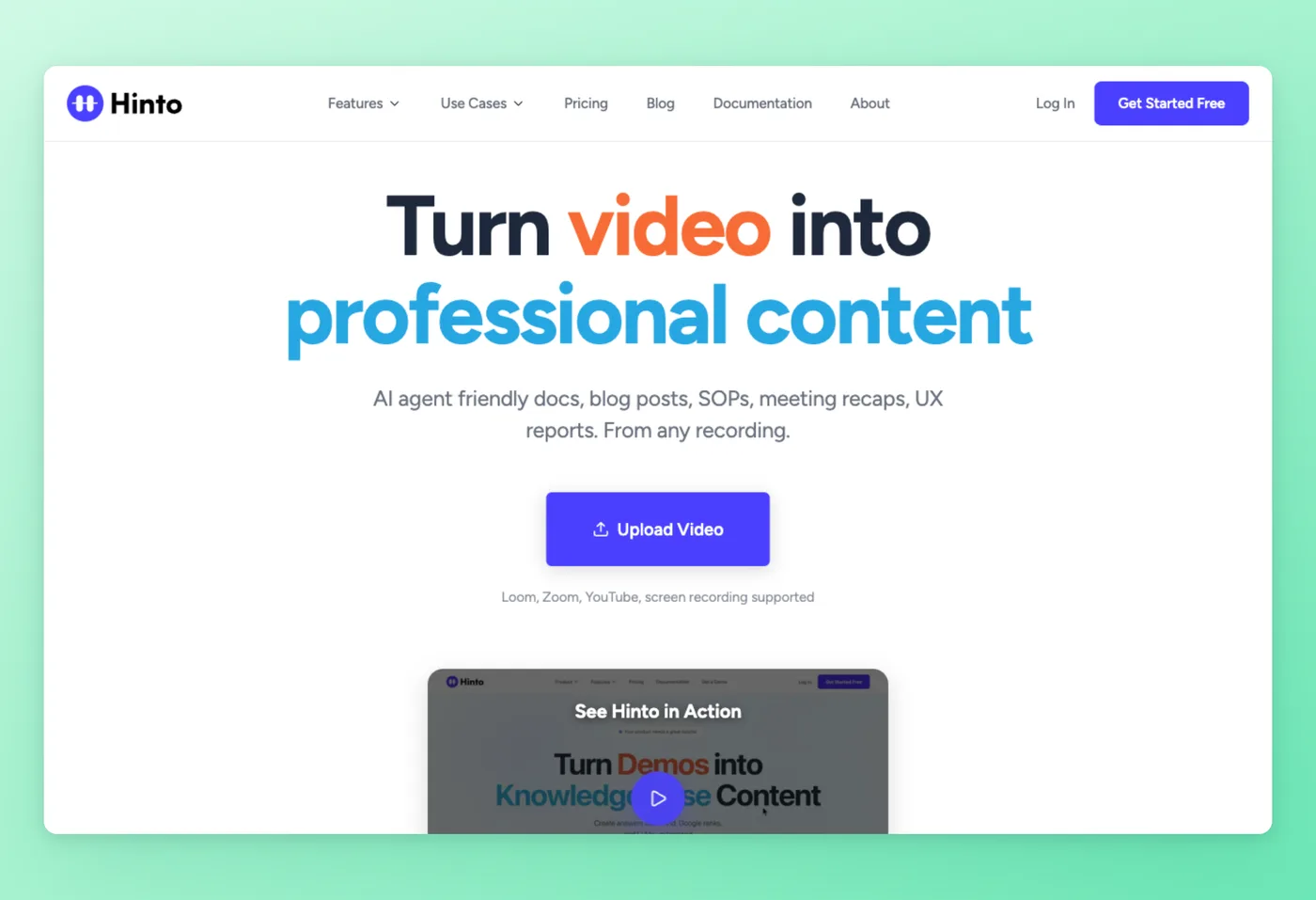
Record a process, and Hinto AI converts it into a structured, multi-article knowledge base with auto-extracted screenshots, written steps, and a downloadable video. It is built for teams that already communicate by recording and want the documentation to write itself.
Why Teams Choose Hinto AI Over Loom and Camtasia
- Documentation output alongside a shareable video: Loom and Camtasia produce a video file or a shareable link. Hinto produces a searchable, skimmable written guide alongside a downloadable video, from the same recording session.
- Any video as input: Hinto accepts a Loom recording, a Zoom call, a YouTube link, or a local MP4/MOV/WebM upload. You do not need to re-record to get documentation from content that already exists.
- Selective regeneration: If the UI changes, you can highlight any section and ask the AI to rewrite or re-extract images for that block only, without redoing the entire recording. This addresses a pain point Loom users cite repeatedly: having to re-record everything when the product UI updates.
- Multilingual and integration-ready output: Generated guides support 50+ languages from a single recording. Published articles include an auto-generated llms.txt file for AI discoverability, and sync directly to Intercom Fin AI Agent so documentation stays current in your support tool without manual republishing.
Pricing
- Free tier: $0; 20 lifetime total generations, 1 project, 20-minute video upload limit, up to 2 members, 50 articles hosted.
- Paid plans: From $15/month (Small Team).
Best For
Teams that want to turn recorded walkthroughs, Loom links, or Zoom sessions into structured help centers, SOPs, or onboarding guides, without manual writing or a separate documentation tool.
Convert your next Loom or Zoom recording into a help article automatically. 20 free generations, no credit card needed.
Start for freeWhat Users Say: Loom vs. Camtasia Reviews
G2 ratings and Reddit community threads across r/CamtasiaStudio, r/instructionaldesign, r/Entrepreneur, r/screenrecorders, and r/assholedesign surface a consistent picture of what both tools do well and where they frustrate users.
Loom: Common Concerns
- Pricing gap after Atlassian acquisition: The jump from the free Starter plan to Business is steep. Solo founders and small teams feel it most acutely (G2 reviews; r/Entrepreneur). One user noted: "Loom's free version only allows a 5-minute recording, which is so insufficient, especially when working in a remote team environment. It only allows for 25 videos."
- Recording bugs and Chrome extension instability: Screen freezes at the start of recording, confusion about which screen is being captured, and occasional lost recordings are recurring complaints across G2 reviews and Reddit threads (r/Entrepreneur).
- AI features locked behind a higher tier: Users who expect AI on the Business plan find that the full feature set requires stepping up to the $24/user/month tier, compounding the cost frustration.
Overall, Loom earns a 4.7-star rating on G2 across 2,409 reviews and 4.8 stars on Product Hunt. Praise centers on the one-click workflow and async communication speed. Complaints concentrate on pricing and free-plan limits.
Camtasia: Common Concerns
- Subscription pricing shift: The move from perpetual licenses to annual subscriptions drew widespread criticism, including a thread in r/assholedesign with 80 or more comments. One user in r/CamtasiaStudio wrote: "...it will increase about 31%. No wonder they are scared to mention it in the email."
- Vendor lock-in concern: Another r/CamtasiaStudio user noted: "TechSmith could at any time change the terms of their subscription. If at one point they want to mimic the likes of Adobe..." Users worry about depending on annual subscription pricing from a single vendor.
- Animation and export limitations: Animation and motion path tools are considered basic compared to professional video editors. Export speeds are reported as slow for high-resolution recordings, with performance issues noted after the subscription model change.
Overall, Camtasia holds a 4.6-star rating on G2 across 1,715 reviews and 4.4 stars on Product Hunt. Praise focuses on editing depth and e-learning workflow support. Complaints concentrate on pricing transparency and subscription model changes.
Verdict: Loom vs. Camtasia (and Camtasia vs. Loom)
Your use case determines which tool belongs in your stack. Loom fits distributed and remote teams replacing synchronous meetings with recorded walkthroughs, AI-powered recaps, and Jira workflow integration. Loom is a screen recorder built for sharing, with no multitrack editing or post-production tools. Camtasia fits instructional designers and corporate trainers whose teams output course-ready video with multitrack editing, AI narration, and LMS export. Camtasia's subscription shift has already driven some long-time users toward alternatives, so weigh the ongoing cost before committing. In camtasia vs loom terms: Camtasia wins on editing depth; Loom wins on async sharing speed.
Hinto AI is the right choice for teams whose recordings need to become lasting documentation, a searchable help article, SOP, or onboarding guide rather than a video link. It accepts a Loom recording, a Zoom session, or a local upload as input, produces structured written docs alongside a downloadable video, and starts free. Teams that also evaluated Snagit against Loom will find that those comparisons answer a different question, annotation versus async sharing, whereas Hinto answers the documentation question neither video tool addresses. For teams already using Loom as an alternative to meetings, Hinto extends that workflow from async video to searchable knowledge bases without replacing either tool.
When comparing loom cost to camtasia cost, note that Loom scales per seat while Camtasia charges a flat annual fee per user, making the right choice budget-dependent on team size.
Try Hinto AI free at hintoai.com. Twenty generations, no credit card required.
Frequently Asked Questions
Which is better for daily team use: Loom or Camtasia?
It depends on the task. When the priority is sending a narrated screen clip to a remote colleague within seconds, Loom is the faster, simpler path. When the goal is a professionally edited training video with multitrack audio, captions, and effects, Camtasia delivers the production depth Loom simply does not offer.
Does Camtasia outperform Loom for video production?
For post-production editing, absolutely. Camtasia gives L&D teams a full timeline with drag-and-drop effects, AI-generated voiceovers, green screen support, and LMS export, capabilities outside Loom's scope entirely. Flip the question to async team workflows and the answer reverses: Loom's instant share link, workspace commenting, and Jira integration make it the faster choice for day-to-day collaboration.
Does Camtasia have a free plan?
No. Camtasia offers a limited-feature trial and a separate free browser-based recorder called Camtasia Online, but the full desktop application requires a paid annual subscription. There is no ongoing free tier.
What happens to my Loom videos if I cancel?
Videos are tied to your Loom account. Downloading videos requires the Business plan or higher. Free-tier recordings carry Loom's storage and retention policies. Verify current terms at loom.com before canceling.
Can Loom or Camtasia turn a recording into written documentation?
Neither tool converts a recording into a searchable written guide. Hinto AI does: it accepts a Loom link, Zoom recording, or local video upload and generates structured articles, SOPs, or help center content. The recorded video is also downloadable.
How do Loom and Camtasia compare for team use?
The core distinction is workflow purpose. Loom centers on real-time team feedback loops: shared libraries, threaded comments, emoji reactions, and viewer analytics ship as core product features. Camtasia centers on individual production: a desktop editor you use alone, then distribute via export or TechSmith Screencast, with no native team feedback layer built in.
What is a good alternative to both Loom and Camtasia?
For documentation-focused teams, Hinto AI converts any recording into structured written guides, SOPs, or help centers, and also produces a downloadable video. For lightweight async video without Loom's per-seat pricing, tools like Tella or ScreenPal are options teams commonly recommend. Evaluate based on whether your output is a video, a link, or a document.
What are Loom's pricing tiers?
Loom's pricing scales with usage and AI needs. A free Starter account covers basic recording within a 5-minute cap. Moving to Business unlocks unlimited recording length and HD export, while the top paid tier adds the full AI feature suite. Teams choosing annual billing receive a discount compared to month-to-month rates.
How much does Camtasia cost?
Camtasia cost is structured as a flat annual fee with no month-to-month option. Entry-level access starts under $50/year, while the highest tier exceeds $500/year. TechSmith publishes pricing in GBP; any USD figures you see are converted estimates. The only no-cost path is a time-limited trial or the stripped-down browser recorder called Camtasia Online.
How does Snagit compare to Loom for teams?
Teams weighing Snagit against Loom are typically choosing between annotated screenshot capture and async video messaging. Snagit is built for static image annotation and short video clips; Loom is the stronger choice when the goal is sharing a narrated screen recording with teammates. Snagit fits better for annotated image exports in technical documentation workflows.
Which Tool Is Right for You? (Flowchart)
The chart below walks through the main decision points for choosing between Loom, Camtasia, and Hinto AI. It covers use case, editing needs, documentation requirements, and budget. Note that Loom and Hinto AI work well together: Hinto accepts a Loom recording as input, so using both in the same workflow is a valid and common path.

Product updates, feature announcements, and best practices from the Hinto product team.
Ready to Build a Better
Knowledge Base, Faster?
Get Started Free & Create Your First Article in Minutes